


![How to Delete Google Search History? [Complete Guide]](https://lightningxvpn.com/blog/wp-content/uploads/2024/05/1280_720-1-min-1.png)
Your Google search history may reveal more information than you realize, especially if you share your device with others.
This guide will teach you how to delete your Google search history on Android, iPhone, iPad, and Windows for safer browsing.
How to Delete Google Search History in Your Google Account?
Deleting your Google search history doesn’t erase all the data Google has collected about you, but it does help protect your privacy.
Here’s how to delete your Google search history from your Google account:
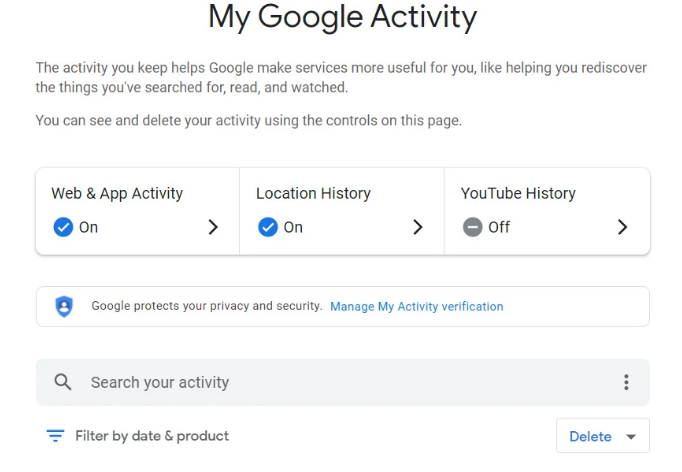
- Open a private browser and go to myaccount.google.com.
- Select the Data & personalization category on the left sidebar. Scroll down until you see “History settings”, then select “My Activity”.
- On the My Activity page, click the three-dot menu and choose “Delete activity by”.
- In the pop-up window, select All time if you want to remove your entire Google search history.
- You can choose to delete activity from specific Google services, or simply select “All products” to clear everything at once. Click “Next” to continue.
- Review the confirmation message, then click “Delete” to permanently remove your search history.
By following these steps, you can efficiently delete your Google search history and maintain your privacy.
Clearing your Google search history is helpful, but it doesn’t fully protect your online activity. For greater privacy protection, you can use LightningX VPN.
It encrypts your internet connection and hides your real IP address, making your browsing more private and anonymous. It also offers fast and stable servers, ensuring a smoother online experience.
Download now and enjoy free nodes and a 30-day money-back guarantee.
Related: How to Clear Cache and Cookies on Chrome
How to Delete Google Search History on Android?
If you use Google Chrome on your Android device, you can easily clear search history directly from the browser.
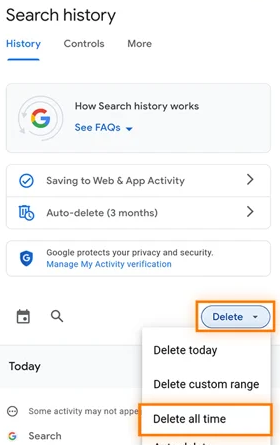
- Open Chrome on your Android device.
- Tap the three-dot menu in the top-right corner of the screen, then select “History”.
- To remove everything at once, tap “Clear browsing data”. If you only want to delete certain searches, scroll through the list or tap the search icon to find specific items. Tap the “X” next to any entry to delete it individually.
- When clearing all history, tap the Time range dropdown and select “All time”.
- Review the data types you’re about to remove. You can uncheck anything you want to keep, then tap “Clear data” to finish.
How to Delete Google Search History on iPhone and iPad?
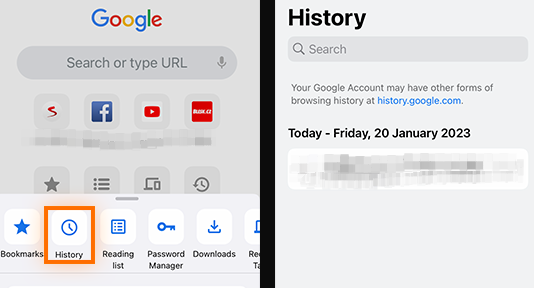
If you use an iPhone or iPad, you can clear your search history directly from the browser. Follow these steps:
- Launch the Chrome web browser app on your iPhone or iPad.
- Tap the 3 dots in the bottom menu.
- Select History from the submenu.
- Tap Clear Browsing Data at the bottom.
- Ensure the Browsing History is checked. Optionally, check or uncheck any other items you want to clear.
- Tap Clear Browsing Data, then tap it again to confirm.
How to Clear Google Search History on a Computer?
You can easily clear search history if Google Chrome is your main web browser.
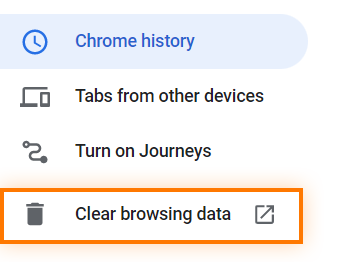
- Launch the Chrome web browser on your desktop or laptop computer.
- Click the three vertical dots in the browser’s upper-right corner.
- Select History from the drop-down menu.
- On the left side of the screen, click Clear browsing data.
- Ensure Browsing history is checked and Click Clear data.
- Return to the History tab. Scroll through your search items or use the Search history field to find specific items.
- Click the three vertical dots next to an item and select Remove from History.
By following these steps, you can efficiently clear your Google search history from Chrome on your computer.
How to Delete All Your Google Activity?
Now that you’ve learned how to delete search history, you can also delete all your Google activity.
Follow these steps to delete all your Google activity, including searches, video searches, and ads clicked across all your devices:
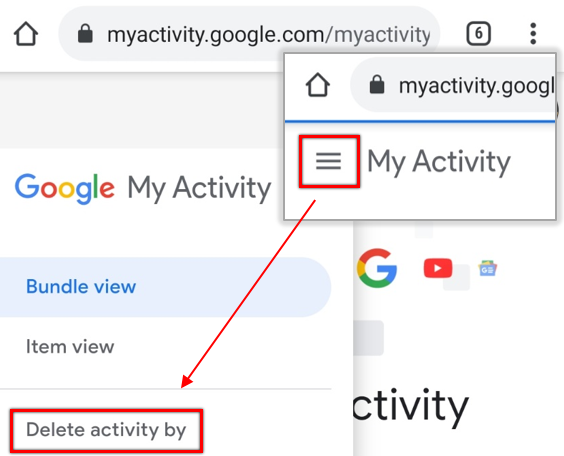
- Open a web browser and go to the My Activity page.
- Choose All Time from the range of options to delete everything.
- Select which Google services to delete your activity from. You can click Select All or specify individual services.
- Google will ask for confirmation. Click Delete.
- Your screen will say, “Deletion complete.” Click OK.
- On the left-hand menu, select Delete activity and Click Next.
How to Stop Google from Saving Your Search History?
While Google doesn’t allow you to permanently disable activity tracking, you can pause Google from saving search history.
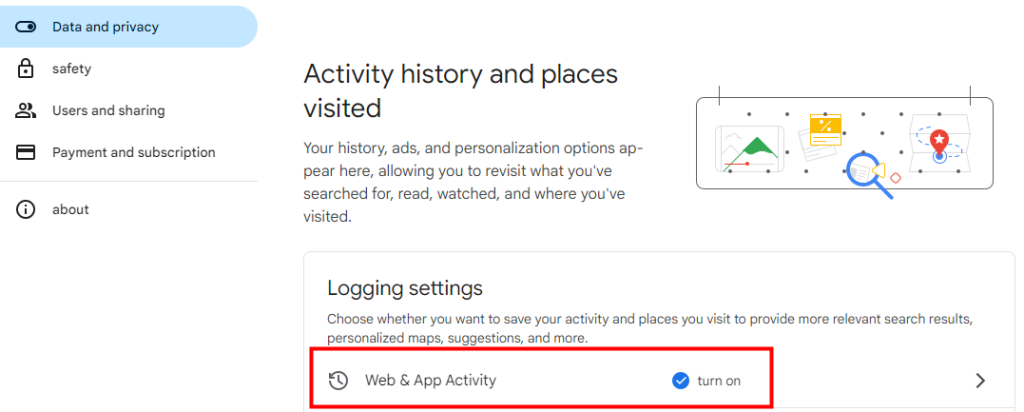
- Open a web browser and go to the My Google Activity page.
- Choose Web & App Activity. If this section is marked as “Off,” your activity is already not being saved, and no further action is needed.
- In the drop-down menu, select Turn Off. If you haven’t deleted your past activity, you may also choose Turn off and delete activity.
- A screen will inform you that the new activity won’t be saved to your account, though Google may still use other methods to personalize your experience. Click Got it.
Why Can’t I Delete My Search History?
If you can’t delete search history, it’s possible that you only deleted it from your browser, not from your Google Account. Here’s how to make sure it’s completely deleted:
What is the difference between browser history and Google Account history?
- Browser history: Deleting history from your browser will only delete it from your local device.
- Google Account history: Your search history is stored in your Google Account.
FAQ about Delete Google Search History
1. Who can see my Google search history?
- You can view your search history.
- Google uses your search history to personalize your experience.
- If others can access it, they can see your search history unless you use private browsing modes.
2. How to Protect Google Search History?
You can protect your Google Search history by:
- Incognito mode: Prevent searches from being saved to your device.
- VPN: Hide the domains you visit from your ISP.
- Delete history: Clear your browser history regularly and adjust the Web and App Activity settings to delete it automatically after a short period.
3. How to Permanently Close Your Google Account?
- Open a web browser and go to myaccount.google.com.
- In the left-hand menu, click on Data & Privacy.
- Scroll down to the Your Data & Privacy Options section.
- Click on More options.
- Select Delete your Google Account.






