


Seeing the “DNS Isn’t Resolving Xbox Server Names” error can be frustrating, especially when it is in your gaming session. When your console cannot translate web addresses, you lose access to online multiplayer features and party chats.
Fortunately, this common network glitch can be solved quickly with effective solutions in this guide. Read on to explore exactly how to restore your connection and get you back in the game!
Why Does the “DNS Isn’t Resolving Xbox Server Names” Error Happen
The Domain Name System (DNS) functions as the phonebook of the Internet. When you attempt to launch a game like Call of Duty or open the Microsoft Store, your console sends a request to a DNS server.
It asks to translate a text-based domain name (like “xboxlive.com”) into a numeric IP address that computers use to communicate. When you encounter the message that says “DNS isn’t resolving Xbox server names,” it means this “lookup” process has failed.
Your Xbox is shouting into the void, and no server is responding with the correct address. This can be caused by several reasons:
- ISP Outages: Your Internet Service Provider’s default DNS servers are down or experiencing high latency.
- Router Cache Corruption: Your home router is holding onto old, incorrect data.
- Startup Glitches: The Xbox’s “Instant-On” feature sometimes prevents the network card from refreshing its IP configuration.
- Signal Interference: Weak Wi-Fi signals are causing packet loss during the DNS query.
What to Do Before You Fix the Error?
Do not start changing advanced settings until you have verified the basics. Often, the issue is not on your end.
- Check Xbox Server Status: Visit the official Xbox Status page on your phone or computer. If “Account & profile” or “Store & subscriptions” is marked with a red exclamation point, then the problem is on Microsoft’s end. All you have to do is wait.
- Inspect Your Physical Layer: If you use a wired connection, unplug the Ethernet cable and inspect the plastic clip. A loose cable can cause intermittent data drops that look like DNS errors. If you are on Wi-Fi, ensure your console isn’t buried inside a metal entertainment center, which blocks signals.
- Perform a Cold Boot: Don’t just put the Xbox to sleep. Hold the power button on the front of the console for 10 seconds until it powers down completely. Unplug the power cord for 30 seconds, then restart. This clears the temporary cache in the console’s memory.
Solution 1: Manually Change Your DNS Settings When DNS Isn’t Resolving Xbox Server Names
This is the most successful fix for most users. By default, your Xbox uses the DNS servers provided by your ISP. These are often slow, unreliable, or heavily censored. Switching to a public, high-speed tier-1 DNS provider can bypass the error instantly.
Here is how to fix the error by swapping servers:
- Press the Xbox button on your controller to open the guide.
- Navigate to Profile & system > Settings.
- Under the General tab, select Network settings.
- Choose Advanced settings.
- Select DNS settings.
- Choose Manual.
You will be prompted to enter a Primary and Secondary IPv4 address. Use one of these trusted providers:
- Google Public DNS (Standard reliability):
- Primary: 8.8.8.8
- Secondary: 8.8.4.4
- Cloudflare DNS (Focus on speed and privacy):
- Primary: 1.1.1.1
- Secondary: 1.0.0.1
- OpenDNS (Great for stability):
- Primary: 208.67.222.222
- Secondary: 208.67.220.220
Once entered, restart your console. This change forces the Xbox to use a new route to find game servers, typically resolving the lookup failure immediately.
Related post: How to Fix DNS Error (Quickly and Easily)
Solution 2: Power Cycle Your Entire Home Network
If changing the DNS on the console didn’t work, the problem might come from your router. Routers have their own internal memory maps. If your router has “cached” a bad route to the Xbox Live servers, no setting changes on the console will fix it. What you need to do is power cycle your router.
How to do this (simply pressing the off button is not enough):
- Shut down your Xbox completely.
- Unplug your modem from the wall outlet.
- Unplug your router (if it is a separate device).
- Wait at least 5 minutes. This step is critical. Capacitors in the modem require time to discharge completely to reset the session with your ISP.
- Plug the modem in first and wait for the “Online/Internet” light to stabilize.
- Plug the router in next and wait for the Wi-Fi lights.
- Finally, turn on your Xbox.
Solution 3: Clearing the Alternate MAC Address
Clearing the Alternate MAC address is also an effective fix for the ‘DNS isn’t resolving Xbox server names’ error. Network conflicts often arise when the router gets confused by the device’s hardware ID (MAC address). If your Xbox is trying to use a specific MAC address that conflicts with another device or a previous configuration on the router, the DNS request will time out.
- Go to Settings > General > Network settings.
- Select Advanced settings.
- Select the alternate MAC address.
- Click Clear.
- Select Restart.
Your console will reboot. Upon restarting, it will negotiate a fresh connection with your router, effectively wiping the slate clean regarding hardware identification.
Solution 4: Addressing ISP Throttling and Routing Issues
Sometimes, the call is coming from inside the house – or specifically, from your Internet Service Provider (ISP). ISPs frequently route traffic through cheaper, congested nodes during peak hours.
Furthermore, some ISPs actively throttle high-bandwidth activities like gaming or downloading large updates. If your ISP’s routing path to the Xbox servers is broken, your local DNS requests will fail regardless of your settings.
In that case, you need to change how your traffic transfers through the internet. This is where encrypting your connection becomes essential.
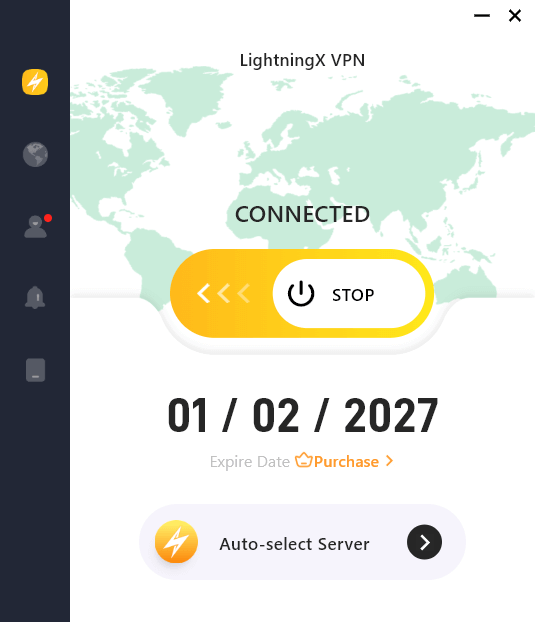
Tip: If you constantly face network inconsistencies or your ISP provides poor routing to gaming servers, a specialized VPN is often the best remedy. Download LightningX VPN to help you.
By installing it on your router or using it via a PC hotspot, you create a direct, encrypted tunnel that bypasses your ISP’s congested DNS nodes. This clears up the resolution error and helps lower ping and prevent packet loss during your gameplay. It also builds a private highway for your gaming data.
Solution 5: Changing the Startup Power Mode
For older Xbox One systems and even Series X/S machines, this is a lesser-known but very helpful workaround. The “Instant-On” (or “Sleep”) mode keeps the console in a low-power state so it boots up fast.
However, because the network driver never really shuts down, it may become buggy after weeks of use. Putting the console in “Energy Saver” mode makes it load new drivers each time you turn it on.
- Go to Settings > General > Power options.
- Select Shutdown (energy saving).
- Perform a full restart of the console.
If the error disappears after a cold boot, then the DNS isn’t resolving Xbox Server Names error occurs just because you need to do a fresh start on your network driver.
Solution 6: Advanced Router Configuration (Port Forwarding)
If you strictly see the error while your other devices (phones, laptops) work fine, your router might be blocking the specific ports Xbox Live uses to communicate. This is often related to strict NAT (Network Address Translation) types.
You may need to log into your router’s admin page (usually 192.168.0.1 or 192.168.1.1 in a web browser) and manually open the following ports. This process is called Port Forwarding:
- Port 88 (UDP)
- Port 3074 (UDP and TCP)
- Port 53 (UDP and TCP) – This is the specific port for DNS traffic.
- Port 80 (TCP)
- Port 500 (UDP)
- Port 3544 (UDP)
- Port 4500 (UDP)
By explicitly opening Port 53, it ensures that DNS queries from your Xbox are never blocked by the router’s firewall.
Read more: How to Change Nat Type on Xbox: A Step-by-Step Tutorial
Solution 7: The “Nuclear” Option (Factory Reset)
If you have tried changing DNS numbers, power cycling, clearing the MAC address, and port forwarding, and the error still exists, the operating system files on your Xbox may be corrupt.
You can perform a reset without deleting your large game files. This only refreshes the OS network stack while keeping your data safe.
- Open Settings > System.
- Select Console info.
- Choose Reset console.
- Crucial Step: Select Reset and keep my games & apps.
Note: Do not select “Reset and remove everything” unless you want to re-download all your games. After the reset, you will need to log back into your Microsoft account, but your network configuration will be factory fresh.
FAQs – DNS Isn’t Resolving Xbox Server Names
Q: Can a wired connection fix DNS errors?
Yes, without a doubt. Microwaves, baby monitors, and neighboring networks can all interfere with Wi-Fi. These factors are eliminated, and DNS searches are far more reliable with a hardwired Ethernet connection.
Q: Does IPv6 fix DNS issues?
It can. Most modern ISPs support IPv6 (Internet Protocol version 6), which is more efficient than the older IPv4. In your router settings, ensure the IPv6 setting is enabled. The Xbox prefers IPv6, and using it can bypass legacy IPv4 address conflicts.
Q: Why does this error happen only on my Xbox and not my PC?
PCs have more robust error-correction in their network drivers. Game consoles are optimized for speed and specific security protocols. If a specific port or security handshake fails on the Xbox, it simply drops the connection, while a PC might try a backup method automatically.
Final Word
“DNS isn’t resolving Xbox Server names” error is rarely a sign of broken hardware. By systematically moving from simple fixes like restarting and checking cables to more advanced solutions like manual DNS entry and port forwarding, you can bypass the block. Take it one step at a time, verify your settings, and you will regain access to your online gaming library in no time!






