



Connecting with others is the core of any great online experience. If you are wondering how to add friends on Discord, the process is easy and quick. Whether you want to chat privately or start a group call, building your contact list is the first step. By following a few simple methods, you can easily grow your circle and stay connected.
What You Should Know Before Adding Friends on Discord
Following Discord‘s clarification of its identity and authenticity policy, users have noticed some changes in their display names. Previously, everyone had a username followed by a four-digit discriminator (e.g., User#1234).
Now, most accounts utilize a unique, alphanumeric username (e.g., @User) combined with a separate Display Name. This change will have a significant impact on users adding friends on Discord, particularly for those who are not yet aware of it.
When you try to locate a specific profile, ensure you have the correct unique username. If you enter the display name instead, the system may not be able to find the correct person. Accuracy is key here. Here’s how to add friends on Discord with different devices.
How to Add Friends on Discord via Desktop
If you use the PC or Mac application, or even the web browser version, the interface is clear and easy to navigate. This is the most common way that users manage their friend list.
First, open the application. Look at the top-left corner of your screen. You will see the distinct logo. Click on it to ensure you are in the “Home” section. This area displays your direct messages and your current friends list.
Step 2: Locate the Green Button
At the top of the “Home” screen, you will see a navigation bar labeled “Friends.” Next to the tabs for “Online” and “All,” there is a prominent green button labeled Add Friend. Click it.
Step 3: Enter the Username
A text box will appear. Here, you must type the specific username of the person you wish to add as a friend. Remember to use the exact spelling and capitalization. If they are still using the old system, include the hash (#) and the four digits. If they are on the new system, simply type their unique username.
Step 4: Send the Friend Request
Once you type the name, the “Send Friend Request” button will light up. Click it. If successful, a green success message will appear. If it fails, check the spelling of the username again.
Read more: How to Make a Discord Server: Step-by-Step Guide for Beginners
How to Add Friends on Discord on Mobile
The mobile interface (iOS and Android) differs slightly from the desktop version but is equally straightforward and easy.
Open the app on your phone. Look at the bottom navigation bar. You will see a dedicated tab icon that looks like a person waving. Tap on this icon to open your Friends tab.
2. Tap the “Add Friend” Icon
In the top-right corner of the screen, you will see an icon resembling a person with a plus (+) sign. Tap this icon. This opens the Add via Username menu.
3. Input the Details
Type the username into the field. Just like on the desktop, notice the accuracy of the name you are searching for. Once you enter the name, tap Send Request. The recipient will receive a notification instantly on their device.
How to Add Friends on Discord via the “Right-Click” Method in Servers
Sometimes, you meet interesting people inside a public server or a voice channel. At this time, if you want to add them as your friends, you do not need to ask for their username or memorize it to connect with them. Here’s a faster shortcut.
1. Locate the User in the List
On the right-hand side of the server interface, look at the member list. Alternatively, if the person is chatting in a text channel, find their avatar next to a message.
2. View Their Profile
- On a desktop, right-click their avatar. A context menu will appear. Select “Add Friend” from the list.
- On mobile, simply tap their profile picture. A mini-profile will pop up. Locate the button to send a request and tap it.
This method is highly efficient because you are clicking directly on the profile that exists on the server, ensuring you are sending the invite to the right person without checking if you type their username accurately.
Troubleshooting: When You Can’t Add a Friend on Discord
You might encounter a situation where you have followed these steps perfectly, but the request still fails. This is a common frustration. Usually, this happens due to privacy settings rather than a technical glitch. Pay attention to these:
Check Privacy & Safety Settings
Users have the option to control who can send them requests. They can restrict invites to “Friends of Friends” or “Server Members.” If the person has strictly locked down their account, you can’t add them unless you share a mutual server. Or you may need to message them and ask them to add you instead.
Network and Connection Issues
Sometimes, the application might fail to send data due to network lag or ISP restrictions. If you are traveling or using a restricted network, certain features might be blocked.
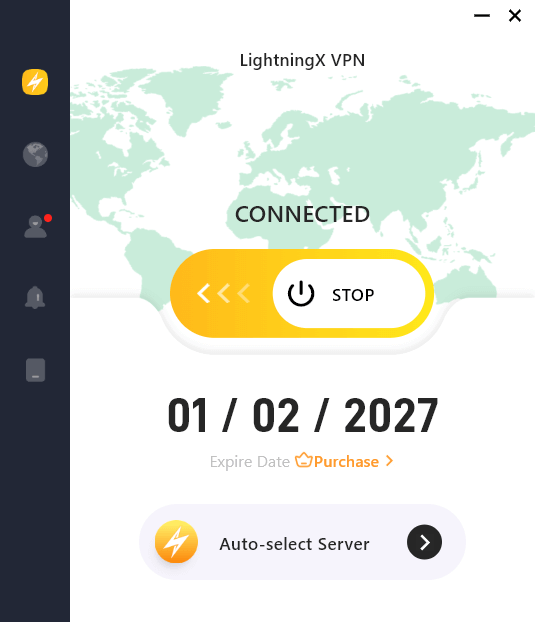
Tip: If you frequently experience connection timeouts, high latency, or an inability to load user profiles due to network restrictions, your IP address or ISP might be the bottleneck.
To bypass these regional restrictions and stabilize your connection for seamless chatting and gaming, you should try using LightningX VPN. It optimizes your route to the server, reduces packet loss, and ensures your friend requests and messages are delivered instantly without privacy concerns.
How to Add Friends on Discord Using “Nearby Scan”
This feature is excellent for in-person events, conventions, or LAN parties. It allows you to quickly add multiple people without typing out complex usernames.
- Enable Bluetooth and Location: Both you and the person you want to add must open the mobile app. Go to the “Add Friend” section mentioned earlier.
- Select “Nearby Scan”: Tap on the “Nearby Scan” option. Your phone will use Bluetooth and Wi-Fi to detect other users in the immediate vicinity who also have this page open.
- Send the Request: Once their avatar appears on your screen, tap “Send.” This is the fastest way to exchange contact information when you are face-to-face.
Also Read: Discord Keeps Crashing? Try the 10 Best Fixes
Safety Tips When Adding New Friends on Discord
While adding friends and expanding your network is great, safety should always remain a priority. Never accept requests from suspicious accounts. Some bots often send random friend requests to spread spam or phishing links. How to stay safe:
- Verify the Identity: If you receive a random request, check if you share a mutual server.
- Ignore “Free Nitro” Scams: Legitimate contacts or real users will rarely message you immediately promising gifts.
- Use the “Block” Feature: If someone harasses you after you add them, right-click their name and select “Block.” This prevents them from messaging you again or sending future requests.
Wrap up
Whether you are using a desktop or a mobile device, the process of adding new friends on Discord is designed to be quick and easy. By learning the different methods and knowing how to troubleshoot potential issues, you can build a thriving community and stay in touch with friends effortlessly.






