


The Fortnite Crew subscription is a monthly exclusive Outfit Bundle that features benefits and items like Battle Pass and 1,000 bonus V-bucks. It’s worth having for many Fortnite players. However, due to certain reasons, you might no longer want this priority. In that case, you can cancel it to stop further charging.
You’re in the right place. In this guide, we’ll teach you step-by-step on how to cancel Fortnite Crew on different platforms, along with fixes for the “can’t cancel the Crew subscription” issue.
How to Cancel Fortnite Crew (Via the Website & In-Game)
If you purchased the Fortnite Crew subscription from the official website or in-game, you’ll need to cancel it from the same platform.
Cancel Fortnite Crew Via the Website
You can cancel the Fortnite Crew membership via the web browser. Here’s how.
1. Go to the Epic Games login page and sign in to your account.
2. Click on your profile picture at the top right and choose Settings. You’ll be directly navigated to the Account Settings.
3. Under Payment and rewards, select Transactions. The “Transactions” tab contains all types of transactions on Epic Games.
4. Select Subscriptions.
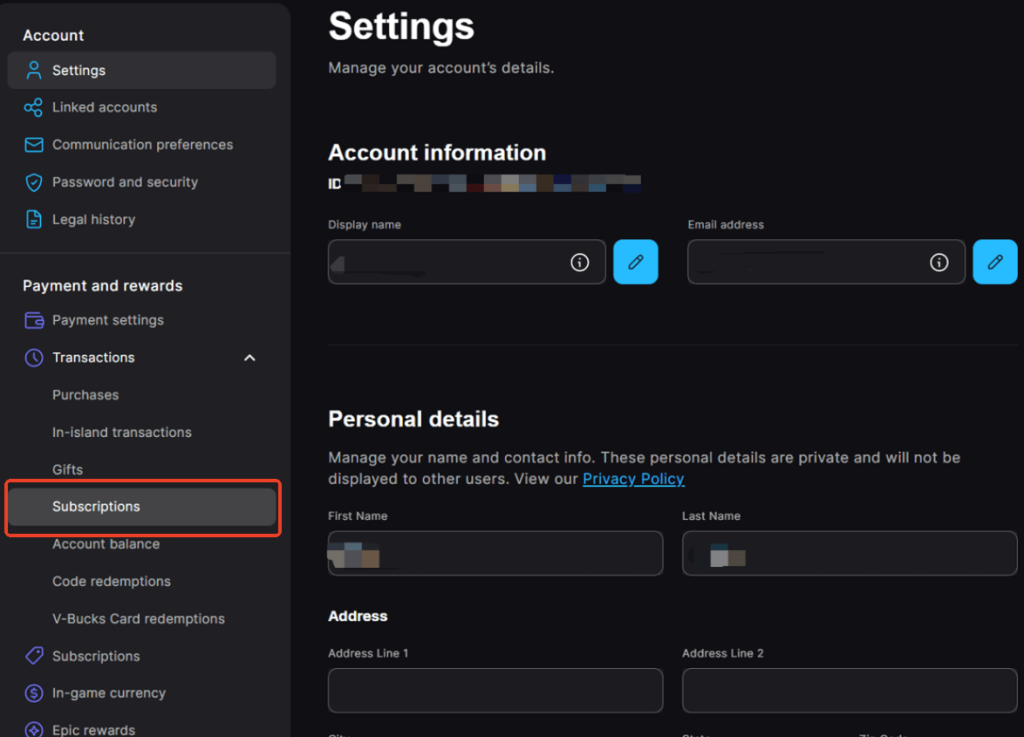
5. Locate your Crew subscription and click the cog wheel icon next to it.
6. Select the cancel option. The Crew subscription should now be canceled immediately, and you should no longer be charged.
Cancel Fortnite Crew In-Game
You can also cancel your Crew membership via the Fortnite desktop or app.
1. Launch Fortnite.
2. In the lobby, select PASSES from the top menu.
3. Click Manage Subscription under Fortnite Crew: Subscribed.
4. Make sure you’re in the Crew subscription management page, and choose the Cancellation Info button.
5. Choose Cancel Subscription in the prompt window of cancellation confirmation.
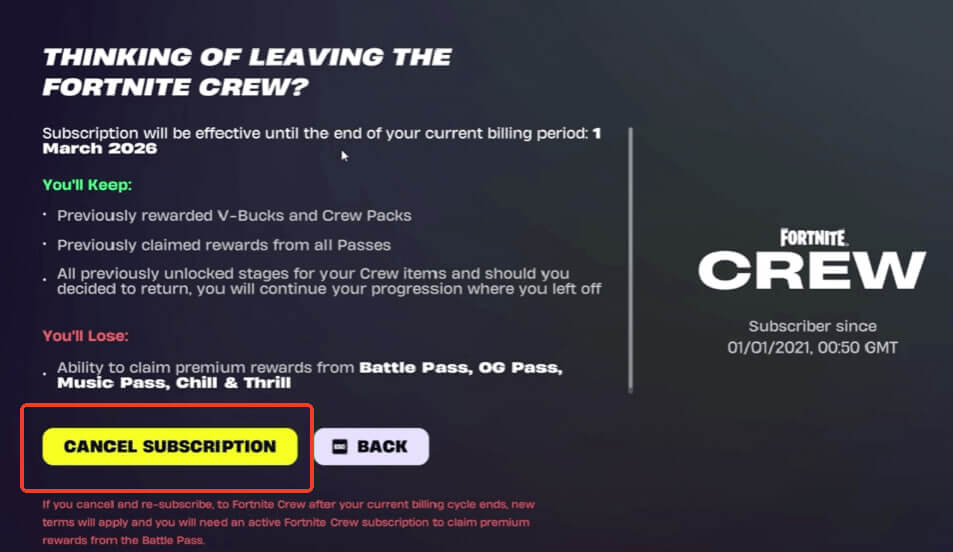
By following the steps above, your Crew subscription should be cancelled immediately.
Tip: If you’re unable to cancel your Fortnite Crew subscription due to regional restrictions, you can use a VPN to access Fortnite from your location.
LightningX VPN is a reliable and secure VPN optimized for gaming. It has no data limits, helps reduce lag while gaming, and keeps your online data safe whether you’re at home or on a public network. It supports all major platforms and offers a free trial for new users.
How to Cancel Fortnite Crew on Game Consoles
If you purchased Fortnite Crew on a console, it’s best to cancel it through the same platform.
Cancel Fortnite Crew on PS5/4
On PS5:
- Go to Settings from your PS5 home screen.
- Go to Users and accounts > Accounts.
- Select Payment and Subscriptions > Game and App Services.
- Choose Fortnite from the game list.
- Find Fortnite Crew and choose Turn Off Auto-Renew. The Fortnite Crew subscription should be canceled now.
On PS4:
- Go to Settings from your PS4 home screen.
- Head to Account Management > Account Information.
- Select Services List.
- Choose Fortnite from the list.
- Locate Fortnite Crew and choose Turn Off Auto-Renew to cancel it.
Cancel Fortnite Crew on Nintendo Switch
Method 1: Cancel via Web Browser
- Go to https://ec.nintendo.com/my/rights
- Sign in to your Nintendo Account.
- Find Fortnite Crew in your subscription list.
- Select Turn Off Automatic Renewal.
- Follow the prompts to complete the cancellation.
Method 2: Cancel on Nintendo Switch Console
- Press the Home button on your Nintendo Switch.
- Open Nintendo eShop.
- Select your account icon in the top-right corner.
- Choose Your Subscriptions.
- Locate Fortnite Crew in the list.
- Select Turn Off Automatic Renewal.
- Follow the on-screen prompts to confirm cancellation.
Cancel Fortnite Crew on Xbox
- Go to the Microsoft Services & Subscriptions page and sign in to your Microsoft account.
- Locate your Fortnite Crew subscription in the list.
- Select Manage next to it.
- Choose Turn off recurring billing.
- Follow the on-screen instructions to confirm.
How to Cancel Fortnite Crew on Mobile (from App Store & Google Play)
If you purchased the Fortnite Crew subscription through the App Store or Google Play Store, you’ll need to cancel it through the same platform.
Cancel Fortnite Crew from App Store
- Open the Settings app on your iPhone or iPad.
- Tap your Apple ID name at the top of the screen.
- Select Subscriptions.
- Locate Fortnite Crew in your active subscriptions.
- Tap Cancel Subscription.
- Follow the on-screen instructions to confirm.
Cancel Fortnite Crew from Google Play
- Open the Google Play Store app.
- Tap your profile icon in the top-right corner.
- Select Payments & subscriptions.
- Tap Subscriptions.
- Find Fortnite Crew in the list.
- Tap Cancel subscription.
- Follow the prompts to confirm.
Related: How to Apply for a Fortnite Refund?
What Happens After I Cancel My Fortnite Crew?
If you cancel your Fortnite Crew subscription, don’t worry, you won’t lose everything instantly. Your subscription stays active until the end of the billing period.
All the rewards you claimed won’t be lost, including Crew Pack cosmetics (skins, back bling, pickaxes), V-Bucks, and Battle Pass rewards.
However, after the billing period ends, you stop receiving monthly Crew Packs and the 1,000 V-Bucks bonus and cannot unlock new premium Battle Pass rewards.
Why Can’t I Cancel Fortnite Crew?
If you don’t see the cancel option, or the button is greyed out, you’re not alone. In most cases, it’s not a bug. The issue is usually caused by purchasing the subscription on a different platform or because auto-renewal has already been turned off.
First, confirm where and how you purchased your Crew subscription. For example, if you subscribed through a PS5 or PS4, you won’t be able to cancel it via the App Store or Google Play Store. Subscriptions must be managed on the same platform where they were originally purchased.
Next, check whether the subscription is still active. Sometimes you may forget when you signed up. If the subscription has already expired, it won’t appear in your active subscriptions list.
However, if the issue does not stem from the above circumstances, you may contact Epic Games for further assistance.
Can I Get a Refund After Cancelling Fortnite Crew?
According to Epic Games Store’s Refund Policy, Fortnite Crew subscriptions are non-refundable. Cancelling your subscription only prevents the next billing cycle. It does not refund the current month’s charge.
You can cancel future payments by following the official cancellation steps, but refunds are not available for an active or already billed Fortnite Crew subscription.
Conclusion
Canceling Fortnite Crew stops auto-renewal and prevents future charges. To cancel successfully, you must do so through the same platform where you purchased the subscription. Also, keep in mind that Fortnite Crew payments are non-refundable, so you cannot get a refund for any charges already paid.






