


Have you ever encountered lag, voice chat issues, or matchmaking problems when playing games on Xbox? This may be due to incorrect NAT type settings on your Xbox. NAT types like Moderate and Strict can limit your Xbox connectivity and prevent it from communicating with others.
Don’t worry. Next, we’ll teach you step-by-step on how to change NAT type on Xbox, to help you gain a smooth online gaming experience.
Understanding the Three Types of NAT
NAT (Network Address Translation) is a process performed by your router that translates IP addresses between public and private networks. It allows multiple devices on a local network to share a single public IP address and also helps improve network security by hiding internal IP addresses from the internet.
Xbox and other gaming consoles classify NAT into three types, which reflect your console’s online connectivity and its ability to communicate with other players.
- Open NAT: This NAT type provides the best connectivity for online gaming. Your console can connect to other players’ games and host multiplayer sessions without restrictions. This typically occurs when required ports are properly open on the router or managed automatically through UPnP (Universal Plug and Play).
- Moderate NAT: This NAT type allows your gaming console to communicate with other players, but some features may be limited due to partial port restrictions.
- Strict NAT: This is the most restrictive NAT type and results in limited connectivity. In many cases, players with Moderate or Strict NAT may have difficulty joining games you host, especially when no ports are open on the router.
How to Check NAT Type on Xbox
Before attempting to change your NAT type, check your current NAT type on your Xbox. Here’s how:
- Press the Xbox button on your controller to open the guide.
- Navigate to Profile & system > Settings > General > Network settings.
- Your current NAT type will be displayed under Current Network Status > NAT Type.
If your NAT type is not Open (e.g., Moderate or Strict), you may experience limited connectivity with other players. Follow the methods below to improve it to Open for the best online experience.
How to Change NAT Type on Xbox (5 Step-by-Step Methods)
Here are several methods for changing the NAT type on your Xbox One, Series S, or Series X.
Method 1: Enable UPnP on Your Router
Enabling UPnP on your router is the easiest way to change your Xbox NAT type to open and get the best connectivity for online gaming. This method ensures smooth multiplayer connections and allows you to host games without restrictions.
If your router supports UPnP, follow the steps below to enable it:
1. Open a web browser and enter your router’s IP address (usually 192.168.1.1 or 192.168.0.1).
2. Sign in with your admin username and password.
3. Go to Advanced > Port forwarding.
4. Find UPnP and enable it.
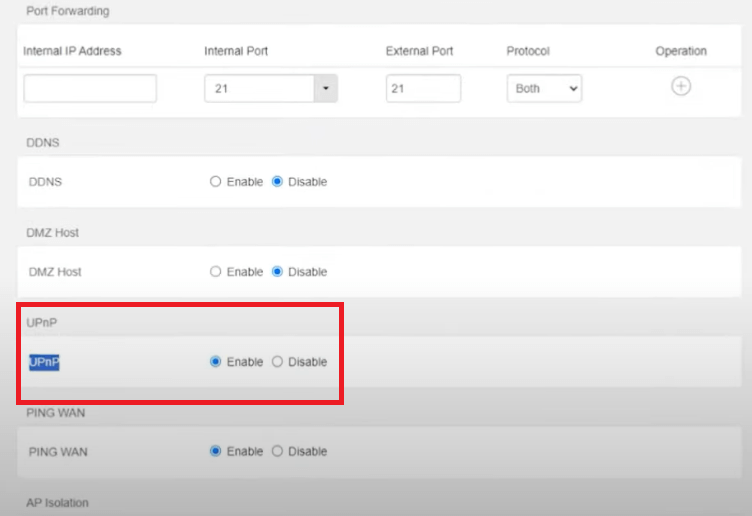
5. Save the changes.
Restart your router and Xbox to let the changes take effect.
Note that if multiple devices request ports at the same time, it may cause temporary connectivity conflicts on your Xbox.
Tip: UPnP may introduce potential security risks by automatically opening ports. While a VPN won’t fix UPnP vulnerabilities, it can encrypt your traffic and protect your privacy while gaming online.
LightningX VPN is one of the best VPNs for Xbox for its top-grade security and fast speed.
- It employs military-grade algorithms like AES-256-GCM and ChaCha20-Poly1305, building a highly secure encryption tunnel for routing your traffic.
- It offers 2,000+ servers in 70+ countries, ensuring a stable and fast connection.
- LightningX VPN doesn’t limit your bandwidth.
Method 2: Manually Forward Xbox Live Ports
Manually forwarding your router ports is an effective way to change your Xbox NAT type to Open, especially if UPnP isn’t working or your router doesn’t support it. This allows your Xbox to communicate freely with Xbox Live servers and other players.
Here’s how to change NAT type on Xbox from Strict or Moderate to Open by forwarding Xbox Live ports:
Step 1: Assign a Static IP on Your Xbox
- Go to Settings > Network > Advanced Settings on your Xbox.
- Note your current IP address, Subnet Mask, and Gateway.
- Choose Manual under IP settings and enter the same IP address you noted.
- Enter the same Subnet Mask and Gateway as before.
- Save your settings and restart your Xbox.
Step 2: Forward Xbox Live Ports on Your Router
- Open a web browser and enter your router’s IP address (usually 192.168.1.1 or 192.168.0.1).
- Sign in with your admin credentials.
- Navigate to Advanced, Port Forwarding, or NAT settings.
- Add the required Xbox Live ports (TCP: 53, 80, 3074; UDP: 53, 88, 500, 3074, 3544, 4500) and assign them to your Xbox’s static IP.
- Save the changes and restart your router and Xbox.
Method 3: Use DMZ for Xbox (Advanced)
Placing your Xbox in a DMZ (Demilitarized Zone) on your router is an advanced method that can help achieve an Open NAT. The DMZ essentially exposes your Xbox directly to the internet, bypassing most firewall restrictions. Here’s how to change NAT type on Xbox by using DMZ:
Note: Do not enable UPnP or manual port forwarding when using DMZ. Make sure these features are disabled to avoid port conflicts.
- Make sure your Xbox is using a static IP address, as DMZ requires a fixed local IP to work properly. (see Method 2).
- Open a web browser and log in to your router’s admin panel.
- Navigate to the DMZ settings (sometimes under Advanced or Security settings).
- Enter your Xbox’s static IP address into the DMZ field.
- Enable the DMZ and save your settings.
- Restart your router and Xbox for the changes to take effect.
DMZ should be used only for gaming consoles and as a last resort when other methods fail, as it exposes the device directly to the internet.
Method 4: Fix Double NAT Issues
Double NAT occurs when two devices on your network both perform NAT, which can block incoming connections required by Xbox Live. Fixing Double NAT removes the extra layer of network translation, allowing UPnP, port forwarding, or DMZ to work properly and helping your Xbox achieve an Open NAT.
You can follow Xbox’s official guide on changing or removing the “Double NAT detected” status.
Method 5: Use a VPN
In restricted networks such as dormitories, hotels, and ISP-controlled connections, using a VPN may help bypass NAT restrictions and improve Xbox connectivity. These networks often block certain ports or implement NAT that prevents Xbox port forwarding, producing the same connectivity issues as Carrier-Grade NAT (CGNAT).
If your ISP uses CGNAT, it prevents Xbox port forwarding entirely. A VPN reroutes your Xbox traffic through a different network path, bypassing ISP-level NAT limitations and port restrictions. Some VPNs assign a different external IP address or use NAT-friendly tunneling, allowing your Xbox to establish more stable connections.
However, note that Xbox consoles do not natively support VPN apps. To use a VPN on Xbox, it must be configured on a router, PC (via connection sharing), or mobile hotspot. LightningX VPN is a good option thanks to its excellent performance.
For detailed steps, you can follow our guide on setting up a VPN on your router.
How to Fix Your Xbox NAT Type When It Won’t Change
Sometimes, your Xbox may display errors like “NAT Type: Unavailable”, or your NAT type keeps reverting to Moderate or Strict. Here are the common causes and fixes:
- Router settings conflicts: Your router may not be properly saving settings, or there could be conflicts between UPnP, port forwarding, or DMZ configurations.
- Static IP mismatch: Ensure your Xbox is using a static IP and that your router settings match the assigned IP.
- Restart devices: Reboot both your router and Xbox after making changes to confirm the settings take effect.
- ISP restrictions: If your NAT type still cannot be changed after trying all standard methods, contact your ISP to check if CGNAT or other network restrictions are in place. Ask whether they can assign a public IP or allow port forwarding for your connection.
Frequently Asked Questions (FAQ)
Q: Why is my Xbox NAT type so strict?
It is usually caused by your router’s firewall, disabled UPnP settings, a Double NAT network setup, or an ISP-controlled network. Dormitories and hotel networks can also produce similar restrictions.
Q: Is it safe to change the NAT type?
Changing your NAT type to Open may slightly reduce network security due to open ports. You can use a VPN to protect your online traffic and privacy while gaming.
Conclusion
Changing the NAT type on Xbox is straightforward. Common methods include enabling UPnP on your router, forwarding ports, placing your Xbox in DMZ, resolving Double NAT issues, or using a VPN.
If your NAT type still cannot be changed, the troubleshooting steps listed above may help resolve the problem.






