


Protecting your online identity is crucial today. If you suspect unauthorized access or simply want a security refresh, updating your login credentials is the best first step.
Read on to discover the exact methods on how to change your YouTube password to secure your account across all your favorite devices in just a few simple clicks.
What to Know Before You Change Your YouTube Password?
Your YouTube profile connects directly to your entire Google ecosystem. Hence, you cannot change the password for just one specific service. When you update your login details here, you automatically update your access across multiple platforms. This includes:
- Gmail: Your primary email inbox and communication hub.
- Google Drive: Your cloud storage for important documents and files.
- Google Photos: Your personal gallery of backed-up pictures.
- Google Maps: Your saved locations, routes, and travel histories.
This unified system makes managing your digital information easier. You only need to remember one set of login details. However, it also means you must choose a secure, unique one.
Avoid using easily guessable information like birthdays or pet names. Instead, create a strong combination of uppercase letters, lowercase letters, numbers, and special characters.
How to Change Your YouTube Password on Desktop
Changing your YouTube password on a desktop or laptop computer can be easy. You can use any modern secure browser like Google Chrome, Apple Safari, or Microsoft Edge.
Follow these steps carefully to secure your YouTube profile:
- Open one web browser and navigate directly to the YouTube homepage.
- Click your profile picture in the top-right corner.
- From the dropdown menu, select Manage your Google Account.
- A new tab will open, then click Security.
- Scroll down to the section titled How you sign in to Google.
- Click on Password.
- Enter your current password to verify your identity, then click Next.
- Type your new password in the first field.
- Re-enter the new password in the second field to confirm.
- Click the blue Change Password button to save your changes.
Once completed, Google will automatically sign you out of most connected devices. This is a security measure designed to protect your account from unauthorized access.
Also Read: How to Change Gmail Password on Your Desktop or Mobile
How to Change Your YouTube Password on the Mobile App
If you prefer using your smartphone or tablet, you can also update your password directly through the YouTube mobile app. The steps are similar for both Android and iOS devices.
Follow these instructions:
- Open the YouTube app on your mobile device.
- Tap your profile picture (usually located in the top-right corner).
- Select Manage your Google Account.
- Swipe through the top menu and tap Security.
- Scroll down to How you sign in to Google.
- Tap on Password.
- Verify your identity by entering your current password or using biometric authentication (such as fingerprint or Face ID).
- Enter your new password in the provided field.
- Confirm the new password by typing it again.
- Tap Change Password to complete the process.
After updating your password, make sure to update your saved credentials in your device’s password manager. This helps prevent login errors the next time you sign in.
How to Reset Your YouTube Password If You Forgot It
Sometimes, you may completely forget your login details. However, the account recovery process is simple, fast, and highly user-friendly. The platform offers several easy ways to regain your access.
- Email Verification: Go to the login page, enter your email address, and click “Forgot password?”. The system will send a secure verification code directly to your designated recovery email address.
- SMS Text Message: Alternatively, the platform can send a short code via text message to your linked mobile phone number.
- Device Prompt: If you are already signed in on another device, like a tablet, Google can send a prompt to that screen asking you to confirm it is actually you trying to sign in.
- Authenticator App: If you previously set up an authenticator app, you can generate a one-time code there to verify your identity.
Choose the recovery method that is most convenient for you right now. Enter the exact code into the on-screen prompt. Once verified, the platform will allow you to create a brand-new security key immediately.
Read more: How to Recover Deleted Emails from Gmail and Outlook
Advanced Security Tips After Changing Your Password
Updating your password is just one layer. Try these tips to add an extra layer of protection to your account.
Enable Two-Step Verification (Highly Recommended)
Go to:
Google Account > Security > 2-Step Verification > Turn On
This requires a code in addition to your password. Even if someone steals your password, they cannot log in without the second factor.
Secure Your Connection When Updating Passwords
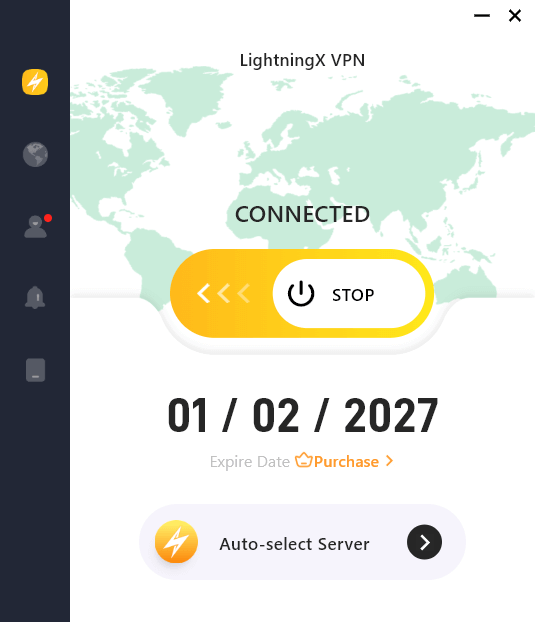
Changing passwords on public networks increases risk. When adjusting sensitive settings, especially on shared or hotel Wi-Fi, use encrypted protection. LightningX VPN secures your connection with advanced encryption protocols and IP masking technology.
This prevents data interception, protects login credentials, and reduces exposure to cyber threats. It’s particularly helpful for remote workers, travelers, and users accessing accounts from public networks. Secure browsing reduces real-world account takeover risks.
FAQ – How to Change YouTube Password Safely
Q1: Does changing this setting delete my uploaded videos?
No, it only affects your login credentials. Your content, comments, and carefully curated playlists remain safe and untouched.
Q2: Will I lose my premium subscription status?
No, your billing details and subscription statuses stay completely intact. You will not experience any interruption in your premium viewing services.
Q3: How often should I update my security phrase?
Cybersecurity experts generally recommend updating your credentials every three to six months. However, you must do it immediately if you ever suspect a data breach.
Q4: Can I complete the update without a linked phone number?
Yes, you certainly can. If you know your current login details, you do not need a phone number. However, having a linked phone number makes the recovery process much faster if you ever forget your details.
Final Words
Now you fully understand how to change your YouTube password on desktop and mobile, including recovery and advanced protection steps. Follow these detailed instructions carefully, create a strong password, enable two-step verification, and maintain secure habits to keep your account protected long term.






