


Once immersed in Epic Games, you have many gaming partners, but now, due to a lack of contact, you want to return to real life. Or perhaps, you want to start fresh and create a perfect gaming account from scratch. All these require deleting your Epic Games account first.
However, the account deletion will cause data, like your in-game purchases, to be lost. Keep reading the post, you’ll learn how to delete your Epic Games account and the consequences.
Consequences of Deleting Your Epic Games Account
Before diving into the deletion process, it’s crucial to learn about the consequences.
Deleting an Epic Games account has a cool-down period. According to the Epic Games official, within 14 days after the account deletion, you can reactivate the account, including the in-game process, items, purchases, and other data on your account. However, if 14 days have passed, they will be permanently deleted.
However, even though it is said that your data will be stored during the cool-down period, some accidents might happen. We highly recommend that you back up all game data. You can go to the Epic Games launcher or website to back it up.
How to Delete Epic Games Account: Step-by-Step Guide
Deleting an Epic Games account can be done through the browser, desktop launcher, and mobile app. All methods require email authentication.
Delete Your Epic Games Account on a PC
To delete an Epic Games account on a PC, you can go to the official website or the desktop app. The steps are the same.
Step 1. Go to the Epic Games website or launcher and log in to your account. You’ll need to use the linked email or phone number to verify the login.
Step 2. On the upper right of the store, click your profile and select Account. You’ll be navigated to the Account settings.
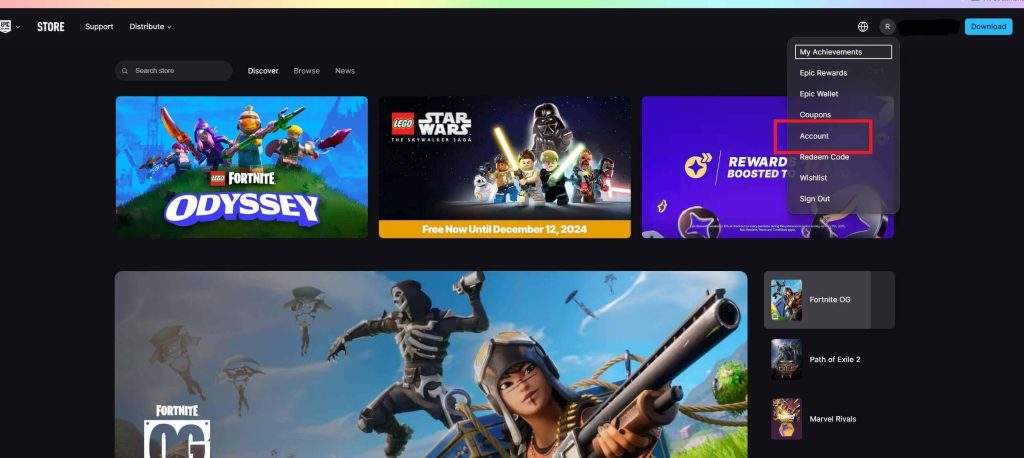
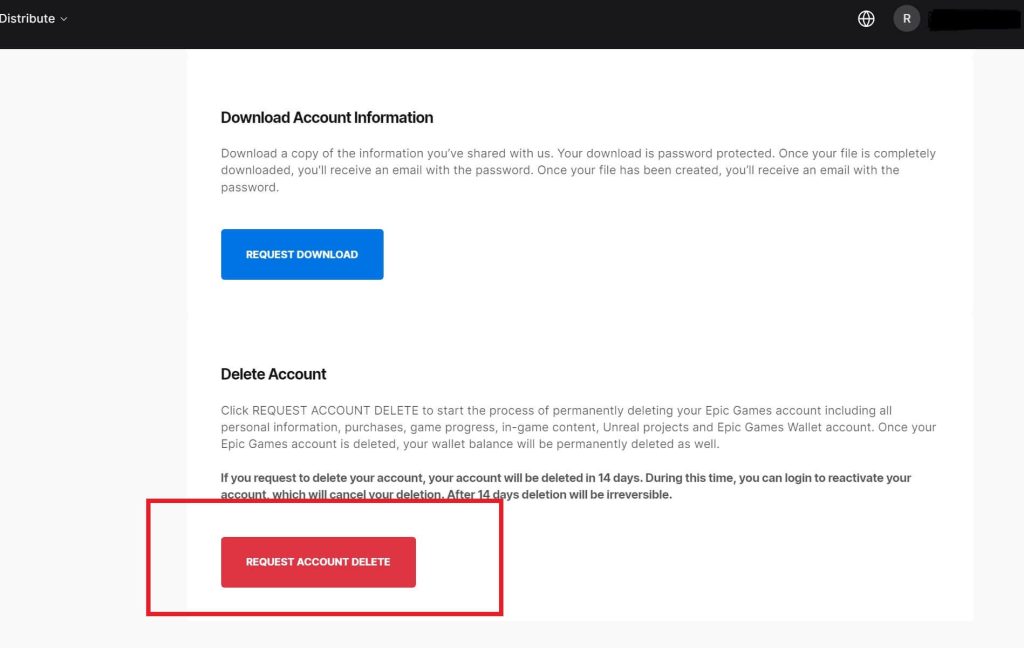
Step 3. Scroll down to the Delete Account section, find the REQUEST ACCOUNT DELETE button, and click on it.
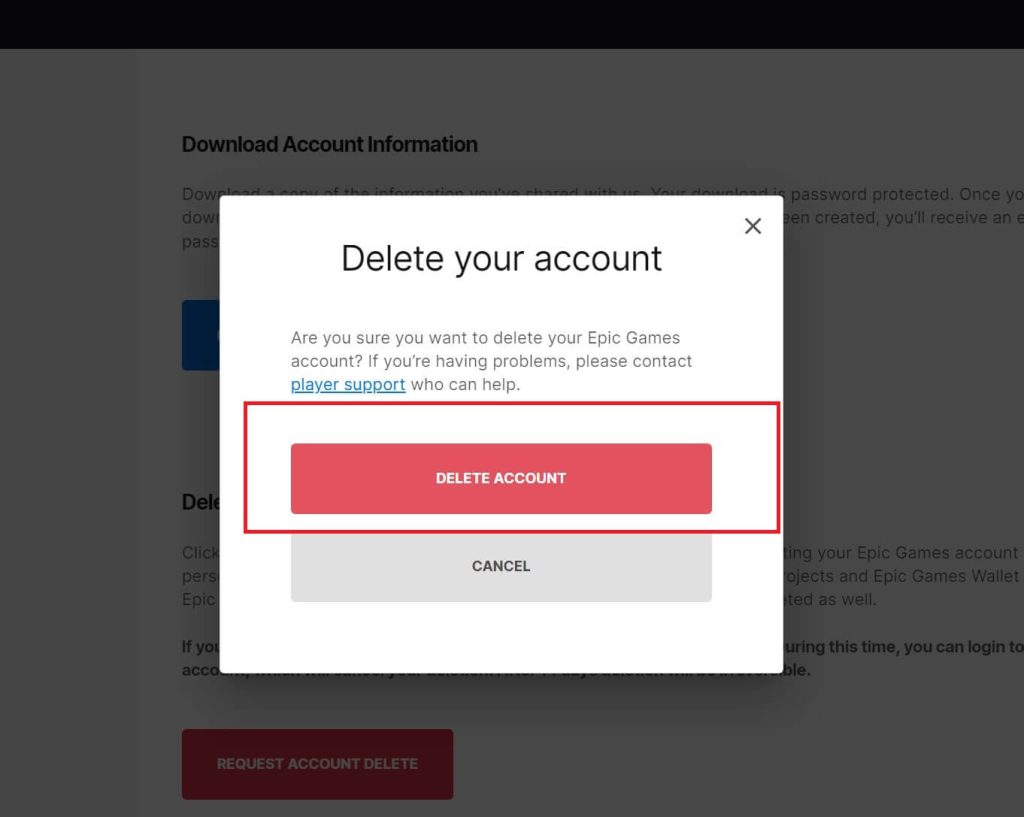
Step 4. Click Delete Account. Epic Games will send a verification code to your associated email or phone number.
Step 5. Enter the verification code and confirm the account deletion. Then, Epic Games will ask why you want to delete the account. Select a reason and click CONTINUE. Your Epic Games account will be permanently deleted after 14 days.

Delete Your Epic Games Account on Mobile (Android and iOS)
If you have downloaded Fortnite on your mobile device, you can directly delete your Epic Games account through it. Here are the steps.
- Open the Fortnite app and log in to your account.
- Go to Settings > Account and Privacy.
- Under Account, tap Open Website next to Delete Account.
- Scroll down to the Delete Account section of “Account Settings”, find Request Account Delete, and click on it.
- Choose Delete Account in the pop-up window.
- Enter the 6-digit security code sent to your linked email.
- Tap Confirm Account Deletion.
- Select the reason for deleting your Epic Games account and tap Continue. Now your Epic Games account should be deleted. You can recover it within 14 days.
How to Delete Your Epic Games Account Without Verification
To delete the Epic Games account without verification, you can appeal to Epic Games support. However, it may take some time. Check the steps below.
- Go to the Epic Games store and log in to your account.
- Click “Support” at the top of the game store.
- Scroll down to the “Accounts” section and click “Accounts”.
- Scroll down and click “Contact Us”. You’ll be navigated to the Support request page.
- Select the reason under “Account” and describe your problem in the box. Then, choose “Submit an Email Request” or “Start a Live Chat”.
How to Reactivate an Epic Games Account
To reactivate your Epic Games account, all you need to do is log in to Epic Games with the same account. For example, if the deleted Epic Games account is associated with a Google account, use this Google account to log into your Epic Games, which will send a verification code to your Gmail. Then, enter the code and continue.
Please note that once the 14-day cooling-off period after deleting your Epic Games account has passed, you will not be able to recover the account.

Related: How to Recover Your Epic Games Account Fast (Updated Guide)
Can’t Delete Your Epic Games Account?
Deleting your Epic Games account requires resolving all payment issues and any unresolved subscriptions. Additionally, if Epic Games detects any unusual activity on your account, it may prevent the deletion. You can contact Epic Games customer support directly to resolve the issue.
Other situations where you can’t delete the Epic Games account may be caused by a poor network or an incorrect server node. If you are in a region where Epic Games is blocked, you can’t log in and delete the account. In this case, you can use a great VPN like LightningX VPN. It is the best VPN for Fortnite. Here’s why.
- It has 2,000+ servers in 70+ countries, all for Fortnite and Epic Games.
- It has the best VPN protocol, WireGuard, to give you high security and super-fast speed.
- LightningX VPN’s subscription prices are below the market. Its monthly subscription costs no more than a coffee.
- It is compatible with Windows, iOS, Android, Apple TV, Android TV, and Linux devices.
How to Delete Epic Games Account – FAQs
Q: Does Deleting Your Epic Account Delete Your Fortnite Account?
Yes. Deleting your Epic Games account will delete your Fortnite account. Your in-game progress, skins, V-Bucks, and other purchases will disappear.
Q: How Do I Delete a Linked Account on Epic Games?
To delete a linked account on Epic Games, go to Account > Apps and Accounts. Then, scroll down and find the platform you want to unlink, then click “Remove”.
Q: How to Delete Your Epic Games Account on PS5/Switch/Xbox?
To delete your Epic Games account on PS5/Switch/Xbox, simply open the Epic Games launcher and follow the steps we mentioned below.
If you just want to unlink the account from your console, follow the steps below.
- In Epic Games, click your profile and select “Account”.
- Select “Apps and Accounts” in the “Account settings”.
- Choose “ACCOUNTS” under “Apps and Accounts”. You will see all the accounts linked with Epic Games.
- Click “Remove” under the platform you want to unlink.
- Tick the boxes that alert you about the consequences after the unlink. Then, click “Remove Account”. Now the Epic Games account is successfully unlinked from the consoles.






