



Sometimes, you might have uploaded a video on YouTube, but find it has some flaws. So, you decide to delete it. Well, you’ve come to the right place. This post mainly introduces a step-by-step guide on how to delete a YouTube video on iOS, Android, and desktop, and provides fixes for the video won’t delete.
Things to Know Before Deleting a YouTube Video
Here are the things you should know before removing an uploaded video from your YouTube channel.
- Deleting a YouTube video is permanent and cannot be undone. So, if the video is important, make sure you’ve stored it before removing it.
- The video’s views, comments, likes, and watch time will be deleted as well. You can take a screenshot of the data before deleting the video.
- Once a YouTube video is deleted, it can no longer be monetized in any way.
- The thumbnail and links of the deleted video might seem to exist, but when users try to access the video, they can’t see anything.
- Deleting a YouTube video linked in an SEO blog may negatively affect the blog’s SEO, including lower CTR and possible ranking loss.
Tip: To protect your YouTube account from being hacked, try using a VPN to hide your online data. LightningX VPN is one of the best VPNs for YouTube. It highly encrypts your traffic based on top-tier encryption algorithms and protocols. With its 2,000+ servers in 70+ countries, you can use it to unblock YouTube HD videos smoothly. LightningX VPN provides free servers with no bandwidth limitation on Android and iOS. Try it for free!
How to Delete a YouTube Video on Desktop
You can delete a YouTube video on a desktop using any web browser. The process is straightforward. Follow the steps below.
Step 1: Open the YouTube website, click the Sign In button in the top-right corner, and log in to your account.
Step 2: Click your profile picture in the top-right corner and select YouTube Studio from the drop-down menu.
Step 3: In YouTube Studio, select Content from the left-hand sidebar to view all videos uploaded to your channel.
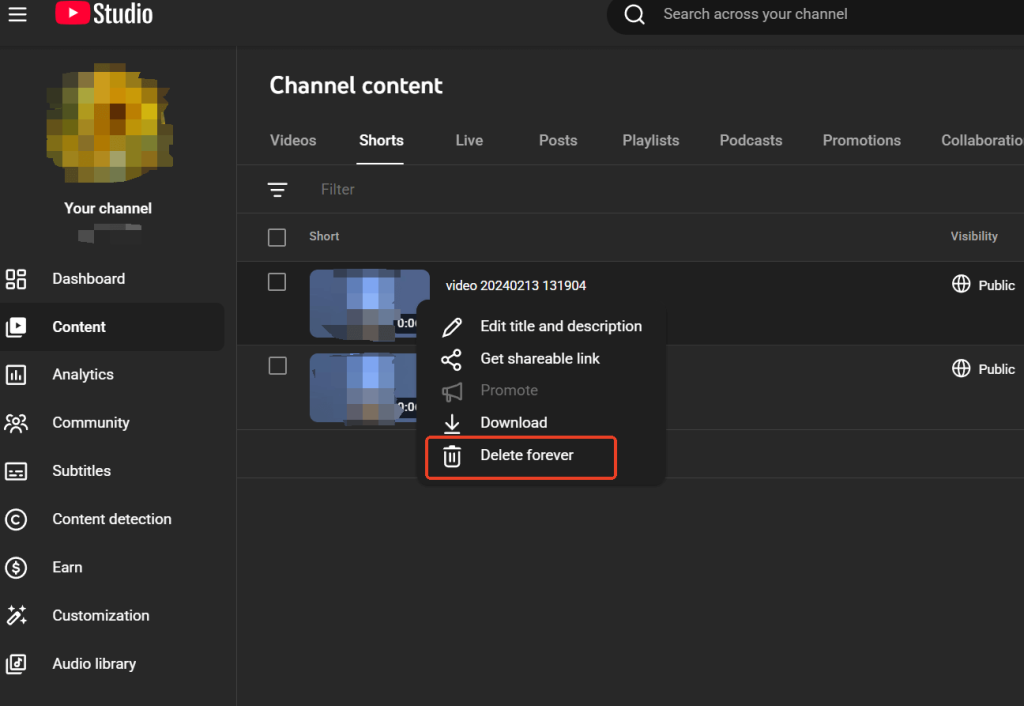
Step 4: In the Videos tab, find the video you want to delete, then click the More options (three dots) icon next to it.
Step 5: Select Delete forever from the drop-down menu.
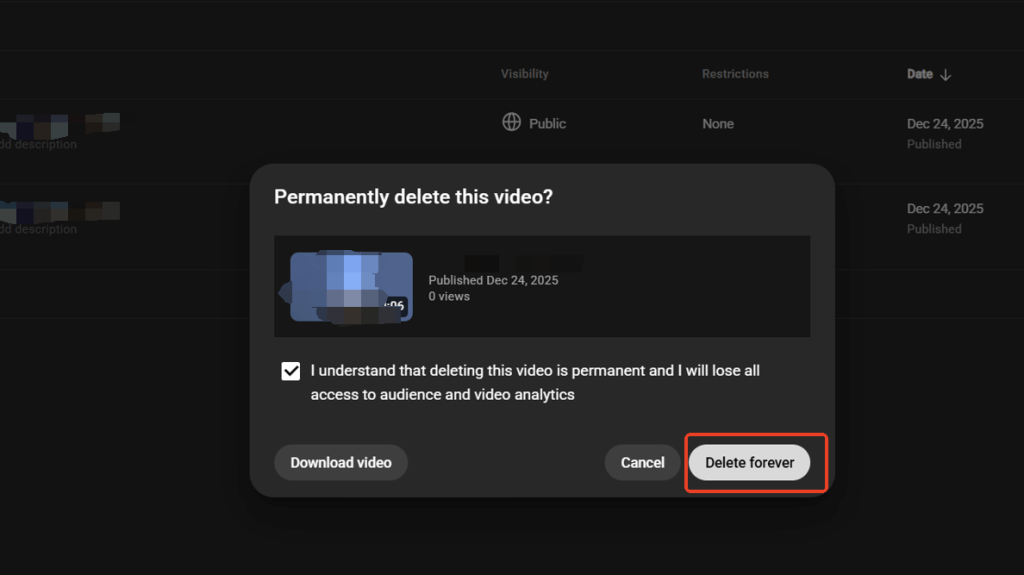
Step 6: Click Delete forever again to confirm the action. Wait for YouTube to remove the video from your channel.
To delete multiple YouTube videos via the web browser at once:
- Follow the steps above to go to Content > Videos.
- Tick the boxes next to the videos you want to delete.
- Hit the More actions button above your videos.
- Choose Delete forever and confirm the action. Then, wait for the system to remove the selected videos. The deletion may be slow if you select many videos at once.
How to Delete a YouTube Video on Mobile
Delete a YouTube Video on Mobile Via the YouTube App
Removing a YouTube video on an Android and iOS device can be done via the YouTube app. Here are the steps.
- Open the YouTube app on your Android or iOS device.
- Sign in to your account.
- Tap on your profile picture on the top right of the screen.
- Choose Your Channel > Manage Videos.
- Select the video you want to delete, tap More (three dots) next to it, and choose Delete. You can also choose multiple YouTube videos at once by ticking the boxes next to them.
- Confirm the deletion. Wait for the uploaded video to be completely deleted.
Delete a YouTube Video Via the YouTube Studio App
You can also use the YouTube Studio app to remove the video from your mobile device. Here’s how.
- Open the YouTube Studio app on your mobile device and sign in.
- Choose the Content tab from the bottom of the screen.
- In the Videos section, tap on View all to see all your uploaded videos.
- Find the video you want to delete and tap the three dots to the right of it.
- Tap on Delete and confirm the action. Wait for the video to be deleted from your YouTube account.
Related: 15 Best Free YouTube Video Downloaders (PC and Mac)
Cases Where You Don’t Need to Delete a YouTube Video
Since deleting a YouTube video is permanent and cannot be undone, it’s important to think twice before taking action. In many cases, there are alternative solutions that allow you to keep the video while minimizing potential issues. Below are some situations where deleting a video may not be necessary, along with recommended alternatives.
- Your video contains incorrect or inappropriate information: Instead of deleting the entire video, you can edit or remove specific segments using YouTube Editor. You can also add clarification through info cards, pinned comments, or updated descriptions to correct the information.
- You don’t want the video to be publicly accessible: You can change the video’s visibility settings to limit who can view it. Setting the video to Private or Unlisted allows you to restrict access without deleting the content.
How to Troubleshoot “Can’t Delete a YouTube Video”
If you can’t remove a video from your YouTube channel, it may be caused by several common issues. Check the causes and fixes below.
- The video is still cached in your browser: Clear your browser cache or refresh the page using Ctrl + F5 (Windows) or Command + Shift + R (Mac). You can also try opening YouTube Studio in an incognito window or a different browser.
- You’re not logged into the correct account: If you manage multiple channels or Brand Accounts, switch to the correct channel in YouTube Studio before trying to delete the video.
- The video is owned by another channel or Brand Account: If the video belongs to a different channel or Brand Account, you won’t see the delete option. You can switch to the correct account.
- The content is restricted or copyright-claimed: Videos with copyright claims, content restrictions, or ongoing reviews may temporarily block deletion. Wait for the review to complete, resolve the copyright issue, or remove the claim before trying again.
Can I Recover Deleted YouTube Videos?
Unfortunately, it is hard to recover a deleted YouTube video since there’s no restore option. However, you can try to give YouTube support the deleted video’s link to see if it can be restored.
Also note that some websites that say they can recover your YouTube videos might be scams. Don’t give your YouTube account information or click the suspicious link.
Conclusion
Deleting a YouTube video is simple, but it’s a permanent action. Before removing any content, review your options carefully and decide whether deleting, unlisting, or setting a video to private is the best choice. Taking a moment to evaluate your videos can help you avoid unnecessary data, traffic, and monetization loss.






