


Are you experiencing sudden frame rate drops or unexpected overlays while gaming? These background features can consume valuable system resources and interrupt your gameplay. We will show you exactly how to disable Xbox Game Bar with our quick guide, improving your system’s performance and stability without requiring complex technical skills.
Method 1: How to Disable Xbox Game Bar via Settings (The Standard Approach)
The safest and most straightforward way to turn off the gaming overlay is through the Windows Settings menu. This method does not require coding knowledge and is easy to reverse if you change your mind.
Here is the step-by-step guide:
- Open the Start Menu: Click the Windows icon in the bottom-left corner of your screen.
- Access Settings: Click on the “Gear” icon to open the Settings menu. Additionally, you can access it by pressing the Windows Key + I on your keyboard.
- Navigate to Gaming: Look for the “Gaming” category in the main menu and click it.
- Locate the Toggle: The first tab usually opens the Game Bar settings. You will see a switch labeled “Enable Xbox Game Bar for things like recording game clips, chatting with friends, and receiving game invites.”
- Switch it Off: Click the toggle so it turns from “On” to “Off.”
After you finish these steps, the overlay will no longer appear when you press Win + G, and the controller button shortcuts will stop launching the application.
Note: Even after toggling this off, check the “Captures” tab in the same menu. Ensure that “Record in the background while I’m playing a game” is also unchecked to fully free up your system resources.
Read more: How to Cancel Xbox Game Pass: Step-by-Step Guide
Method 2: How to Disable Xbox Game Bar on PC Using the Registry Editor
Sometimes, the standard settings may just act temperamental. Once you update your Windows, there’s a possibility that it can occasionally reset your preferences, or the overlay might still appear due to corrupted configuration files. If you want a more permanent solution, you can modify the Windows Registry. This method ensures that the feature stays off.
Warning: The Registry Editor is a powerful tool. Follow these instructions to avoid system errors.
- Press Windows Key + R to open the Run Dialog.
- Type regedit into the box and hit Enter. Click Yes if prompted by User Account Control.
- Use the sidebar to go to the following location: HKEY_CURRENT_USER\SOFTWARE\Microsoft\Windows\CurrentVersion\GameDVR
- Look for a key named App Capture Enabled on the right side. Double-click it.
- Set the “Value data” to 0 (Zero) and click OK.
- Next, navigate to: HKEY_CURRENT_USER\System\GameConfigStore.
- Find the entry GameDVR_Enabled. Double-click it and set the value to 0.
By manually adjusting these registry keys, you are forcing the operating system to ignore the gaming overlay commands. This is a highly effective method for users to turn off the Xbox Game Bar on PC permanently. Always remember to restart your computer after making these changes to ensure they take effect.
Method 3: How to Disable Xbox Game Bar Completely Using PowerShell
For system administrators or users who want to remove the Xbox Game Bar entirely, PowerShell offers the strongest solution. Unlike the previous methods, which simply turn the Game Bar off, this method uninstalls the package from your user account and prevents it from ever running in the background.
Here’s how:
- Right-click the Start button and select “Windows PowerShell (Admin)” or “Terminal (Admin)” to open PowerShell as Admin.
- Type the following command to see if the package is installed: Get-AppxPackage Microsoft.XboxGamingOverlay
- To remove it, type or copy-paste this command and press Enter: Get-AppxPackage Microsoft.XboxGamingOverlay | Remove-AppxPackage
Once the command executes (it usually takes a few seconds), the gaming overlay is uninstalled. You will no longer find it in your Settings menu. If you ever decide you need it back, you will have to visit the website(https://xbox-game-bar.en.softonic.com/) to download and reinstall it.
Also Read: Fix Xbox Cloud Gaming Not Working: Connection, Lag Errors
Additional Performance Tips for Gamers
Disabling the Xbox Game Bar and gaming overlay is just the first step in optimizing your PC. If you are doing this to fix lag, high ping, or stuttering, you should look at other network and software bottlenecks.
Tip:
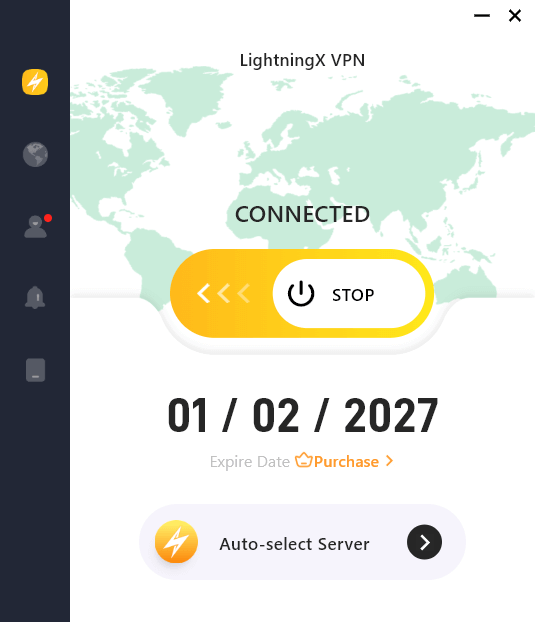
While removing Game Bar helps your FPS, network stability is also crucial for online gaming. High ping and packet loss can ruin a match even on a high-end PC. LightningX VPN is an excellent tool specifically optimized to reduce latency and bypass geo-restrictions.
By routing your connection through high-speed, dedicated servers, LightningX VPN stabilizes your jitter and secures your data without the speed throttles common in generic VPNs. As the best VPN for Xbox, it’s a smart addition to your setup after disabling system overlays.
Troubleshooting: What to Do If Xbox Game Bar Re-enables Itself
Windows updates frequently return settings to their default configuration, which is a typical source of annoyance for users. After updating your Windows, you may discover that the gaming bar is appearing again.
If you notice your FPS dropping again, revisit the Settings menu first. If the toggle is “On,” simply switch it back off. However, if you used the Registry method, check if the keys have reverted to 1.
Another reason could be a connected controller. Sometimes, pressing the “Home” button on a gamepad triggers the overlay service to wake up, even if it was disabled in settings.
How to fix:
- Go to Settings > Gaming.
- Uncheck “Open Game Bar using this button on a controller.”
By covering all these bases, you ensure that you get your Xbox Game Bar disabled regardless of what Windows updates reset your settings.
Conclusion
Whether you choose the built-in Settings option, a more permanent Registry tweak, or a complete removal via PowerShell, each method offers a reliable way to regain control of your system performance. By following this guide on how to disable Xbox Game Bar, you can enjoy smoother gameplay, improved stability, and a more optimized PC setup for gaming.






