


Did you recently purchase a video game by mistake? Perhaps the game is full of bugs and unplayable. Do not worry. Microsoft has a system for this exact situation. You can get your money back if you act quickly. In this article, we will explain exactly how to refund a game on Xbox. We will also walk you through the rules and some tips.
Understanding the Xbox Refund Policy
Before attempting to return a game, it is essential to understand the policy. Microsoft is generally fair. However, they have specific criteria. You cannot simply refund a game because you finished it.
Here are the main requirements for a refund eligibility:
- Time Limit: You must request the refund within 14 days of purchase.
- Play Time: You must have played the game for less than 2 hours across all accounts.
- Release Status: The game must be released. Pre-orders have slightly different rules.
If you meet these three points, your chances are high. Microsoft processes these requests automatically in many cases. However, keep in mind that “consumable” items are different. Things like virtual currency or battle passes usually cannot be refunded.
How to Refund a Game on Xbox
You cannot usually do this directly through the console store interface. You need a web browser. You can use a computer, a phone, or the Edge browser on your Xbox.
Follow these simple steps to learn how to refund successfully:
1. Visit the Xbox Support Page: Open your web browser. Go to the official Xbox Support website.
2. Sign In: Log in to the Microsoft account associated with your purchase of the game. This is crucial.
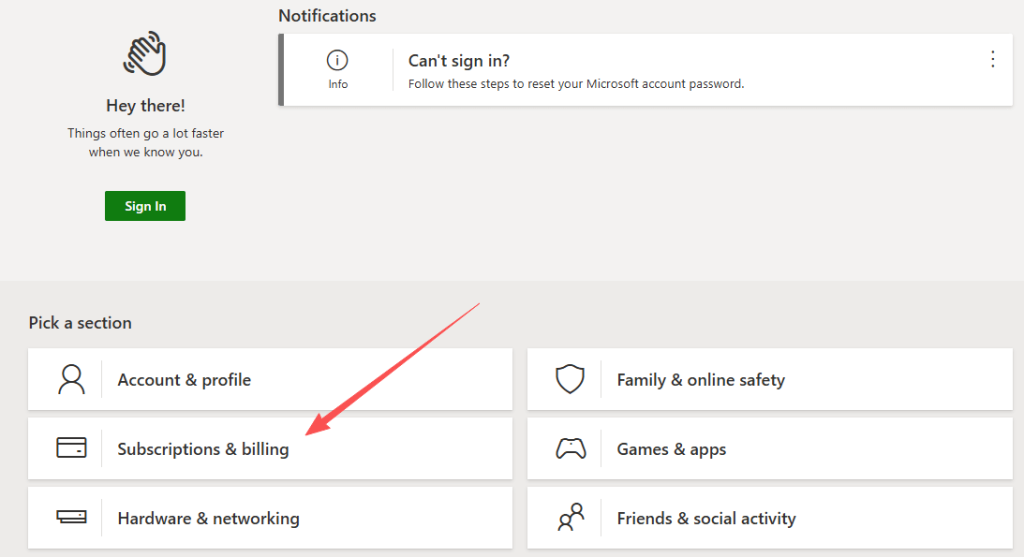
3. Navigate to Request a Refund: Look for the “Subscriptions & billing” tab. Select “Request a refund.”
4. Find Your Order: You will see a list of your recent purchases.
5. Select the Game: Check the box next to the item you want to refund.
6. Choose a Reason: Select the reason for your return. Options include “Accidental purchase” or “Billing error.”
7. Submit the Request: Click the submit button. Then, you will receive a confirmation email shortly. This email proves they received your ticket.
8. Checking the Status of Your Request: After you submit the form, you must wait. The process is not instant. Usually, the support team reviews requests within 72 hours. You can check the status on the same support page. Look for the “Refund status” tab.
- Approved: The money will return to your payment method. This may take a few business days.
- Denied: They will explain why. Usually, it is due to high play time.
How to Refund a Game on Xbox Consumables
Consumables are items like skin packs, loot boxes, or VC (virtual currency). These are very hard to refund. Once you have used the item in the game, it is gone. Microsoft rarely allows refunds for these. The only exception is if you never received the item.
If you bought coins but they never appeared, do not use the refund form immediately. Contact the game developer first. If they cannot help, then contact Xbox Support directly. State clearly that the item was never delivered to your account.
Read more: Can You Play Steam on Xbox? Everything You Want to Know
How to Refund Pre-Orders on Xbox
Pre-orders work differently from released games. You have more freedom here. You can cancel a pre-order at any time before the game launches.
If the game has already launched, the standard rules apply. You still have the 14-day window. You must still have less than 2 hours of play time. The steps of refunding a released game apply to pre-orders, too, but the timing is more flexible.
To cancel a pre-order:
- Go to your Order History.
- Find the pre-ordered game.
- Select the Cancel item.
If you do not see “Cancel,” you must use the refund request form mentioned earlier.
Note: Many users confuse game refunds with subscription cancellations. If you want to cancel Xbox Game Pass, the rules will be different.
Why Was My Refund Denied?
Sometimes, Microsoft rejects requests. This can be frustrating. Here are common reasons for a denial:
- Too Much Play Time: You played for 3 hours or more. The system sees this as “consuming” the product.
- Too Late: You bought the game 15 days ago. The window closes strictly at 14 days.
- Frequent Refunds: You request refunds too often. Microsoft may view this as system abuse.
- Gifted Games: If you redeemed a code from a retailer, Microsoft cannot refund it. You must go to the retailer.
If you believe the denial was an error, you can reply to the email. Explain your situation clearly.
Enhancing Your Gaming Experience and Security
Many players seek refunds simply because network issues cause bad lag, making games unplayable. Others buy the wrong regional version by mistake. The right tool can prevent both problems.
We recommend LightningX VPN for a smoother experience. It features over 2000 high-speed servers in 70+ countries. This strong network speeds up your connection and eliminates lag.
It also lets you easily change your virtual location. This way, you can browse any country’s Xbox Store safely and always buy the correct game version.
As one of the best VPN for Xbox, LightningX VPN keeps your connection secure, too. Use this VPN, and you ensure your game runs perfectly, saving you the hassle of seeking a refund.

Tips to Prevent Accidental Purchases
Refunds take time and effort. It is better to prevent accidents before they happen. This is vital if you share your console with children. Setting up a Passkey is a good way to prevent this. Here’s how:
- Press the Xbox button on your controller.
- Go to Profile & System.
- Select Settings.
- Choose Account.
- Select Change my sign-in & security preferences.
- Choose Ask for my passkey for purchases.
This simple step saves you from the game-refunding procedures in the future. It stops kids from buying games without permission.
Troubleshooting: The “Request Refund” Option is Missing
Sometimes, you go to the order history, and the option is gone. This is confusing.
This usually happens for two reasons:
- The Purchase is Too Old: It has been months since you bought it. The system removes the button automatically.
- Payment is Pending: The bank has not cleared the charge yet. You must wait for the charge to post.
If the charge is “Pending,” wait 24 hours. Check the list again. If the button is still missing, you must contact a human agent. Use the Contact Us button on the support page.
Dealing with Technical Issues
Often, players decide to refund games because they crash. Before you initiate a refund, try these fixes.
- Power Cycle: Hold the power button for 10 seconds. Restart the console.
- Reinstall: Delete the game and download it again.
- Check Updates: Ensure your console OS is up to date.
If the game is truly broken, mention this in your refund request.
FAQs – How to Refund a Game on Xbox
Q1: Can I refund an Xbox game after 14 days?
Generally, no. Microsoft’s policy strictly requires refund requests to be made within 14 days of the purchase date. Exceptions are very rare and usually require contacting customer support directly to prove significant technical faults.
Q2: Can I refund a game if I played it for 2 hours?
It is unlikely. To be eligible for a refund, you typically must have less than 2 hours of accumulated playtime across all accounts. If you exceed this limit, the automated system will almost always deny the request.






