


Are you looking for a guide on how to share a VPN connection via hotspot? Well, you’ve come to the right place. Next, we’ll introduce you to the detailed guide for sharing a VPN connection from your Windows PC or Mac to other devices for overall privacy protection.
Here are three methods to help you share a VPN connection via a hotspot from a Windows 11/10 PC, depending on different scenarios.
The best way to share a VPN connection via a hotspot on a Windows 11/10 PC is to use an Ethernet connection, as it provides the most stable and compatible setup for Mobile Hotspot.
Here’s how to share the VPN connection via a hotspot on Windows 10/11 using an Ethernet cable.
- Press Win + R, search for Control Panel, and press Enter.
- In the Control Panel page, select Network and Internet > View network status and tasks.
- Choose Change adapter options from the left-hand side. Here, you’ll see all the network adapters installed on your PC.
- Find the adapter of the VPN you’re using (e.g., LightningX VPN’s adapter is named LightningX).
- Right-click on the VPN adapter and choose Properties.
- In the Properties page, choose the Sharing tab.
- Check the box next to Allow other network users to connect through this computer’s internet connection and choose Ethernet from the drop-down menu.
- Click OK to apply the change.
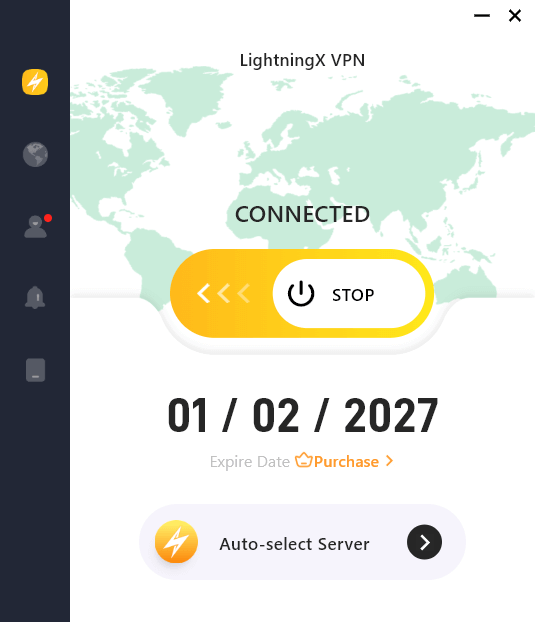
- Change your VPN’s protocol to OpenVPN UDP or OpenVPN TCP.
- Choose a desired server location to connect.
- Use an Ethernet cable to connect your Windows PC to the device you want to share a VPN connection with (e.g., your PS5/4, Xbox, Switch, and smart TV.). The VPN connection should now be shared with your device via the Windows Mobile hotspot.
Tip: LightningX VPN is a secure and fast VPN for your Windows PC and Mac. It uses 256-bit encryption to protect your online data. With 2,000+ servers in 70+ countries, the VPN ensures global access. LightningX VPN now offers free servers on Android and iOS.
If your Windows 11/10 PC has a built-in Wi-Fi adapter that supports network sharing, you can use it to share the VPN connection directly.
Here’s how to set up a VPN hotspot on Windows using your PC’s Wi-Fi adapter.
1. Press Win + I on your Windows PC to enter Settings.
2. Select Network & Internet > Mobile hotspot.
3. Next to Share over, select Wi-Fi, and then toggle on Mobile hotspot. Take a note of the Network properties, including Name and Password, which will be used later.
4. Press Win + R, type ncpa.cpl, and press Enter. This opens the Network Connections window, where you can see all installed network adapters on your PC.
5. Identify your mobile hotspot adapter by turning the Wi-Fi hotspot off and on. The adapter may be named something like Local Area Connection, labeled Microsoft Wi-Fi Direct Virtual Adapter.
6. Right-click on your VPN adapter and choose Properties.
7. Enter the Sharing tab.
- Check the box next to Enable other network users to connect through the computer’s internet connection.
- In the drop-down menu, select the mobile hotspot adapter you identified in step 5.
- Click OK to apply the changes.
8. Switch your VPN’s protocol to OpenVPN UDP or OpenVPN TCP. Then, select a desired server location to connect.
9. You can now connect other devices like a PS5/4 or Xbox to your Windows mobile hotspot to share your PC’s VPN connection. You can also switch the VPN server on your PC to change the IP address for the hotspot-connected devices. Note that switching servers may temporarily interrupt the shared connection.
Related: How to Use a VPN on PS5 for Gaming: Easy Setup and Benefits
Some older Windows 10 PCs may not support enabling the mobile hotspot. In such cases, you can try creating a wireless hosted network, although this will only work on adapters that support it. Many modern Intel adapters, however, no longer support hosted networks by design.
To check if your Windows 10 supports a hosted network.
1. Click the Start button, enter cmd, and right-click on the Command Prompt option. Then choose Run as administrator.
2. In Command Prompt, type netsh wlan show drivers and press Enter. The Command Prompt might show the following messages:
- Hosted network supported: Yes – Your PC supports a wireless hosted network. If you see this message, you can move on to step 3.
- Hosted network supported: No – Your PC’s wireless adapter does not support the hosted network feature.
- No wireless interface found – Your PC does not have a built-in Wi-Fi card or a compatible wireless adapter.
Once you confirm that your PC supports a hosted network, follow the steps below to create one. Note: Running a false command might cause your data to be lost.
3. In Command Prompt, enter this command:
netsh wlan set hostednetwork mode=allow ssid=NetworkName key=NetworkPassword
Add your network name and password, and press Enter.
4. Enter this command to activate the newly created virtual network:
netsh wlan start hostednetwork
The hosted network should now be successfully created. Follow the steps below to use it for VPN connection sharing.
5. Go to Control Panel > Network and Internet > Network and Sharing Center. You can directly search for Control Panel.
6. Click Change Adapter Settings.
7. Right-click on the VPN adapter and select Properties.
8. Go to the Sharing tab.
9. Tick the box to “Allow other network users to connect through this computer’s internet connection”.
10. In the drop-down menu, select the newly created hosted network. Then click OK to save the changes.
11. Launch the VPN on your PC, select the protocol to OpenVPN UDP or OpenVPN TCP, and select a desired server to connect.
12. You can now connect other devices to the Windows 10 hotspot to share its VPN connection.
Sharing a VPN connection via hotspot from your Mac is simple. Follow the guide below.
Step 1. Create an L2TP VPN Connection on Your Mac
1. Click the Apple menu > System Settings (or System Preferences on older macOS versions). Then, go to Network.
2. Add a new VPN connection.
Click the + button.
Select:
- Interface: VPN
- VPN Type: L2TP over IPSec
- Service Name: (any name you like)
Click Create.
3. Enter the following details.
- Server Address: VPN server address
- Account Name: Your VPN username
4. Click Authentication Settings and enter:
- Password: Your VPN password
- Shared Secret: Provided by your VPN service
Click OK.
5. (Optional) Click Advanced and enable Send all traffic over VPN connection. Then, click Apply > Connect.
Your L2TP/IPsec VPN connection is now ready and can be used for Internet Sharing.
Step 2. Create a Hotspot on Your Mac
1. Click the Apple icon, select System Preferences, and choose Sharing.
2. In the Sharing page, choose the Internet Sharing option from the left panel and set the following settings:
Next to “Share your connection from”, select the newly created VPN connection.
Next to “To computers using”, tick the box for Wi-Fi.
Click Wi-Fi Options…, and enter these details:
- A name for the sharing network
- Channel: leave as default
- Security: WPA2 Personal
- A password for the hotspot
Click OK to save the change.
3. In the Sharing page, tick the box next to Internet Sharing, and click Start to confirm the action.
4. You can now connect other devices to the hotspot from your Mac to share the VPN connection.
To share a VPN connection via a router, you’ll need to enter the management panel of the router to configure the connection.
For detailed information, you can follow our guide: How to Setup VPN on Router? Easy Guide!
FAQs about Sharing a VPN Connection via Hotspot
Q1: Why Doesn’t a VPN Work Over a Hotspot?
In most cases, the VPN is only protecting the device that’s connected to it—not the hotspot itself. Many systems (especially phones) don’t route hotspot traffic through the VPN by default, so connected devices bypass the VPN unless special sharing settings are used.
Q2: Does an iPhone Hotspot Block VPN?
No. An iPhone hotspot doesn’t block VPNs, but it also doesn’t share the VPN connection. If your iPhone is connected to a VPN, devices using its hotspot will still use your normal internet connection unless the VPN app explicitly supports hotspot sharing.
Q3: Does Using a VPN Affect the Hotspot?
Yes, slightly. A VPN can reduce hotspot speed and increase battery usage because all traffic is encrypted and routed through a VPN server. However, hotspot functionality itself remains stable if the VPN connection is strong.






