


Many users are seeking methods to host a virtual movie party on Discord. To share the entertainment, a straightforward setup is essential. This guide explains how to stream HBO Max on Discord smoothly, ensuring high-quality watching without the frustration of black screens, audio glitches, or unexpected interruptions.
Step-by-Step: How to Stream HBO Max on Discord
Sharing content through a web browser on a PC or Mac is the most effective way. The desktop application provides necessary controls to manage audio and video streams effectively. Here’s exactly how:
1. Prepare the Streaming Source
Before opening Discord, you need to prepare your streaming source.
- Open a safe browser (Google Chrome, Mozilla Firefox, or Microsoft Edge).
- Navigate to the HBO Max website and log in to your account.
- Select the movie or TV show you are going to watch, but keep it paused for now.
2. Configure Discord Game Activity
Discord creates a better streaming experience if it recognizes the browser as a “game.” Quick steps:
- Open Discord and click on the User Settings gear icon (bottom left).
- Scroll down the left menu to Activity Settings and select Registered Games.
- Click “Add it!” and select your browser (e.g., Google Chrome) from the dropdown list.
- Click Add Game. This forces Discord to treat your browser window as a broadcast source.
3. Start the Stream
Now that Discord has recognized your browser:
- Go to the voice channel where you want to host the party, or you can also create a new one.
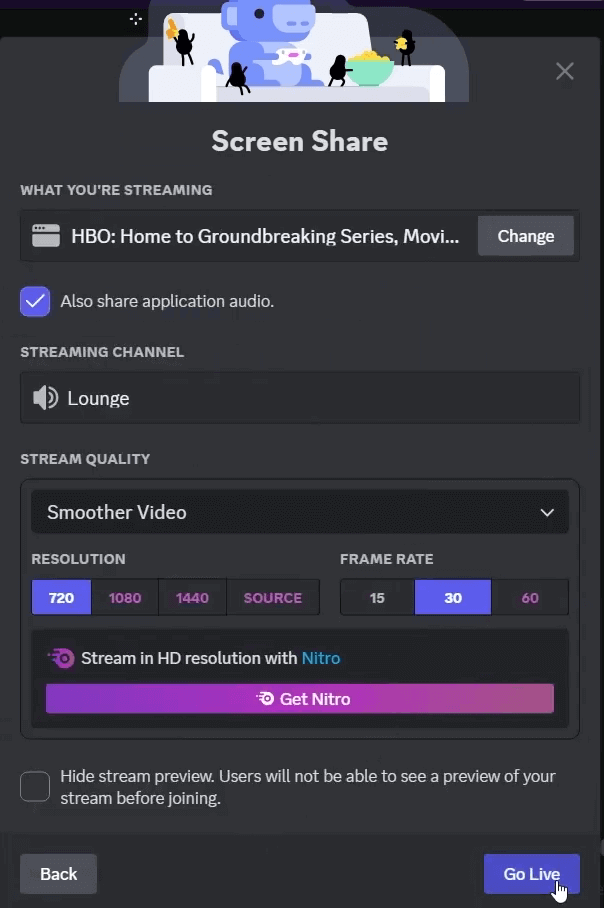
- Click the Stream button (it looks like a monitor with an arrow) above your user profile or next to the browser name in the bottom left.
- Crucial Step: Select the specific browser window, not the “Screen” tab. Sharing the whole screen often lacks audio.
- Adjust your stream quality (720p/30fps is standard; 1080p/60fps often requires Discord Nitro).
- Click Go Live. Now you should be able to stream HBO Max on Discord.
Troubleshooting Common Issues When You Stream HBO Max on Discord
While sharing HBO Max movies on Discord, you may encounter technical issues from time to time. Whether it is a blank screen or an audio error, these interruptions can ruin your movie night. Keep reading to check the following guide for a smoother, better streaming experience.
Disable Hardware Acceleration to Fix Black Screen
The most common problem is the “black screen.” You can see the video, but your friends only see black. This happens because Hardware Acceleration conflicts with DRM protection. To stream HBO Max on Discord, you need to turn it off.
Google Chrome
- Click the three dots > Settings.
- Go to System.
- Turn off “Use graphics acceleration when available.”
- Relaunch Chrome.
Firefox
- Click the menu > Settings.
- Go to General > Performance.
- Uncheck “Use recommended performance settings.”
- Uncheck “Use hardware acceleration when available.”
- Restart Firefox.
After disabling Hardware Acceleration, DRM will no longer block screen capture, and your friends will be able to see the video normally.
Tip: If your streaming process is buffering or you are trying to host a watch party with friends abroad who cannot access specific regional content, your connection might be restricted.
To ensure a lag-free experience and bypass global geo-blocks, we recommend using LightningX VPN. It optimizes your network for streaming with just one click, allowing you to access varied libraries and share high-quality video securely without ISP throttling.
If your friends can’t hear the audio, it’s likely an audio glitch. To ensure sound works when streaming HBO Max on Discord:
- Share the application, not the screen: Select the specific app window (such as Chrome or Firefox). Discord doesn’t capture audio when sharing the entire screen.
- Check Discord voice settings: Go to User Settings > Voice & Video and confirm the correct output device is selected. Resetting it to the default may help.
- Update audio drivers: If the problem persists, update your system’s audio drivers through the device manager.
Related: Discord Mic Not Working: Common Causes & Solutions
Can You Stream HBO Max through the Discord Mobile App?
Many users ask if they can host a watch party directly from their iPhone or Android device.
Technically, you can use the “Screen Share” feature on the Discord mobile app while the HBO Max app is open.
However, mobile operating systems have very strict DRM enforcement. Unlike a PC browser, where you can toggle off hardware acceleration to bypass this, you cannot disable these protections on a mobile app.
Hence, trying to stream from a phone usually results in a permanent black screen for your viewers. For the best results when watching HBO Max together, always use a desktop or laptop computer to host the stream, even if you prefer to join the voice chat from your phone.
FAQs on How to Stream HBO Max on Discord
Q1: Is it illegal to stream movies on Discord?
Streaming copyrighted content to a public server often violates platform Terms of Service and copyright laws. Even private streaming to friends may still violate platform rules, depending on the service and content license.
While small, private watch parties usually carry lower enforcement risk, they are not automatically legal. Always review the platform’s Terms of Service and copyright restrictions before sharing or streaming content.
Q2: Why is my stream pixelated?
This is usually due to a poor internet connection or server overload. Try changing the Discord server region in the channel settings or lowering the stream resolution to stabilize the bitrate.
Q3: Does the method of disabling hardware acceleration work for other streaming services?
Yes. It works for almost all major streaming platforms, including Netflix, Disney+, and Amazon Prime Video.
Final Word
Now you learned how to stream HBO Max on Discord. By following the mentioned settings and troubleshooting tips, you can enjoy seamless entertainment with your group. Gather your friends, pick a movie, and start your wonderful streaming journey tonight!






