


Discord’s high-quality screen sharing, voice channels, and low-latency streaming make it a great platform for group movie viewing. In this post, you can learn how to stream movies on Discord step by step, how to fix common streaming issues, and how to optimize your settings for the best viewing experience.
How to Stream Movies on Discord without Black Screen: Step-by-Step Guide
Step 1. Add Your Browser or Movie App as a Game in Discord
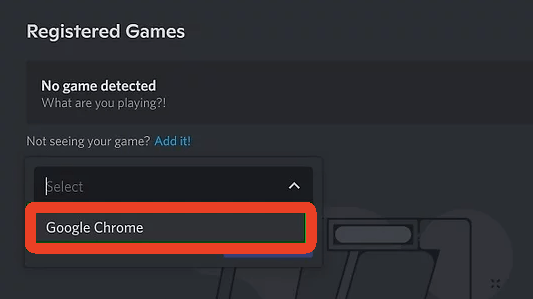
First, you can add your browser or movie app as a game in Discord. This lets Discord detect the browser/app and helps you watch movies with friends on Discord without a black screen.
- Launch the Discord app on your computer or mobile.
- Click the Settings icon in the bottom left corner of Discord to open User Settings.
- Click “Registered Games” or “Activity Status” under “Activity Settings”.
- Click “Add It” and select the web browser or movie app that you want to stream movies on Discord. You should launch the browser or app first. If you don’t see it, relaunch it.
- Click “Add Game”.
Step 2. Disable Hardware Acceleration in Your Browser
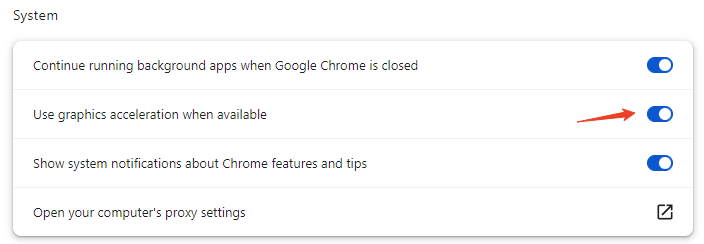
In order to stream movies without a black screen on Discord, it’s also advised that you disable hardware acceleration in your browser first.
- Google Chrome: Click the three-dot icon > Settings > System > Toggle off “Use graphics acceleration when available”.
- Firefox: Click the three-line icon > Settings > General > Performance > Uncheck both boxes.
- Microsoft Edge: Click the three-dot icon > Settings > System > Turn off hardware acceleration.
Step 3. Choose a Discord Server and Enter a Voice Channel
Open your Discord app and select the server where you plan to stream movies. Creating a new private Discord server is recommended if you want full control over who joins.
Discord only allows streaming inside voice channels (not text channels). Click any Voice Channel > Join Voice. Then you can see a “Voice Connected” notification.
Also read: Best Discord Servers for Gaming, Tech, Entertainment, Fun, Art
Step 4. Open the Movie That You Want to Stream
Then you can open the movie that you want to stream on Discord in your browser. You can stream movies from:
- A browser (Netflix, Disney+, Amazon Prime, Hulu, YouTube, etc.)
- A video player (VLC, MPV, Windows Media Player)
- Local files stored on your PC
Step 5. Start Streaming Movies on Discord
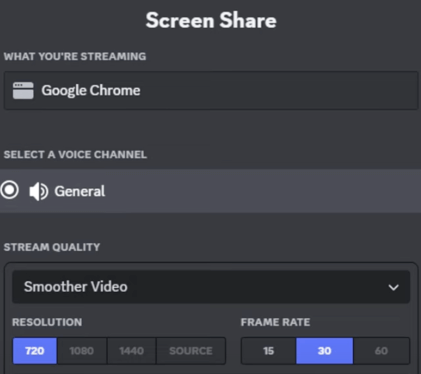
- Click the “Screen Share” icon to open the Discord Screen Share window.
- Under “What you’re streaming”, select the active screen that you want to stream on Discord (like the Google Chrome movie window).
- Adjust streaming quality, resolution (720p 30 fps by default), frame rate, etc.
- At last, click the “Go Live” button. Your movie will now be playing for everyone in the Discord voice channel.
Common Problems When Streaming Movies on Discord (and Fixes)
Even if you understand how to stream movies on Discord, issues may occur. Here’s how to fix the most common ones.
1. Discord Black Screen While Streaming Movies
Fixes:
- Add the browser/app as a game in Discord first
- Disable hardware acceleration in your browser
- Update your GPU drivers
- Run Discord as Administrator
- Close background streaming apps
2. No Sound in the Movie Stream
To fix audio issues:
- Enable Sound when choosing the window
- Ensure your system audio is not muted
- On Mac, grant Discord Screen Recording + Microphone permissions
- Use the Application Window option instead of Entire Screen
Also read: Best Free Voice Changer for Discord: 5 Tools You Can Try
3. Lag, Buffering, or Low FPS in Movie Streaming
Try these:
- Use wired Ethernet instead of Wi-Fi
- Close unnecessary tabs
- Switch to 720p 30fps
- Lower your video player resolution
- Enable Discord’s Quality of Service High Packet Priority
- Try to use a VPN to avoid ISP throttling and get a fast and stable network connection
LightningX VPN is a popular VPN for Windows, Mac, Android, iOS, Linux, TV, Chrome, Firefox, and Edge. It encrypts all your internet traffic and helps you create a private network connection on your computer or mobile. It also helps you unblock global free movie sites or any other content. Offer 2000+ servers in 70+ countries, with several free servers.
How to Stream Movies on Discord: FAQs
1. Why is my Discord movie stream showing a black screen?
This usually happens due to hardware acceleration. Disable hardware acceleration in your browser, then restart the app.
2. Can I stream Netflix or Disney+ on Discord?
Yes, but you must disable hardware acceleration to avoid black screens. Only stream to people who already have access to the platform.
3. Why is there no sound when I stream movies on Discord?
Make sure you select the application window with sound enabled. Check system volume, Discord audio settings, and Mac permissions.
4. Do I need Discord Nitro to stream in HD?
You can stream at 720p for free. For 1080p or 60fps high-quality streaming, Discord Nitro is required.
5. Is it legal to stream movies on Discord?
Private viewing with friends is usually fine, but public streaming of copyrighted content may violate copyright rules. Keep your stream private.
Generally, you can stream: Personal videos, public domain movies, or movies you have legal rights to share with your group.






