


If you’ve grown tired of unfair practices in Valorant or find the game uninteresting, you might consider uninstalling it. However, during the uninstallation process, you may encounter error messages stating that the operation cannot be completed, which can be extremely frustrating.
This issue likely occurs because Riot Vanguard (the anti-cheat system protecting Valorant) hasn’t been disabled and removed. You must first uninstall this software to completely remove Valorant.
You’ve come to the right place! This article provides detailed steps on how to completely uninstall Valorant and the Riot client from your PC, PS5, and Xbox, along with important considerations.
How to Uninstall Valorant on Windows 11/10 PC
Here are the steps to uninstall Valorant from your Windows 10/11 PC and resolve issues preventing Valorant from uninstalling.
Detailed Steps to Uninstall Valorant on PC
Before uninstalling Valorant, you must first disable and remove Riot Vanguard. Proceed with Valorant uninstallation afterward. Here are the specific steps:
First, Uninstall Riot Vanguard
- Press Win + I simultaneously to open Settings.
- Navigate to the “Apps” section. You’ll see a list of installed apps.
- Locate “Riot Vanguard” and click on it.
- Click “Uninstall” to remove it from your PC.
Note: After uninstalling Riot Vanguard, you may be unable to play other Riot games like League of Legends.
Then, Uninstall Valorant
Step 1. Return to the app list and locate Valorant.
Step 2. Click the “Uninstall” button under Valorant.
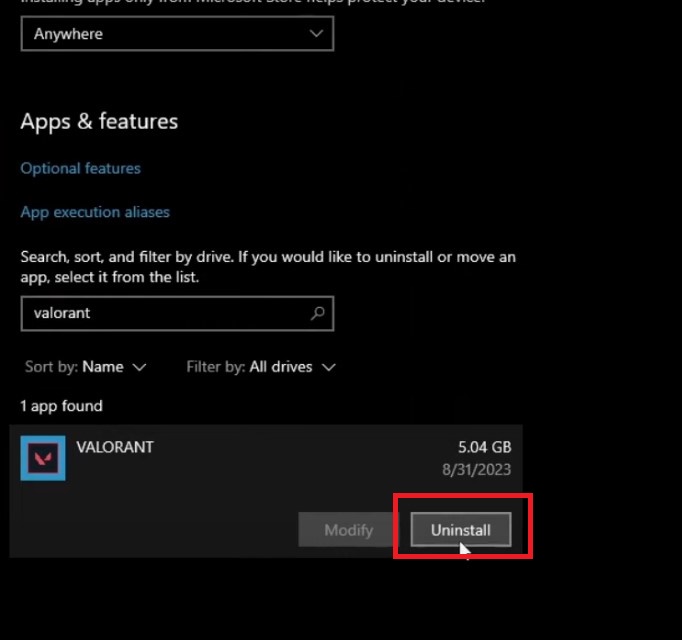
Step 3. After the uninstallation completes, restart your PC.
Step 4. Remove residual game files.
- Press the Windows and R keys to open the Run command window.
- Copy and paste the path: C:\Riot Games, then press Enter.
- Locate any remaining Valorant files and delete them.
Valorant should now be completely uninstalled from your computer.
How to Fix Valorant Not Uninstalling from Your Computer?
If you encounter prompts like “Windows cannot find the file” or “Unable to uninstall Valorant” during removal, it’s typically due to a corrupted Riot Vanguard uninstall path or missing files. Follow these steps to force-delete Vanguard and successfully remove Valorant.
Step 1: Close Riot and Valorant. Check the system tray (bottom right corner). If you see the Riot or Vanguard icon, right-click and exit. Alternatively, press Ctrl + Shift + Esc to open Task Manager and end all Riot/Valorant-related processes.
Step 2: Open Command Prompt as Administrator.
- Press the Windows key and type cmd.
- From the search results, select “Run as administrator”.
Step 3: Remove Vanguard services. In the opened Command Prompt window, enter each command below one by one and press Enter:
- sc stop vgc
- sc stop vgk
- sc delete vgc
- sc delete vgk
If certain commands prompt “Service not found,” don’t worry—it means the service itself no longer exists.
Step 4: Restart your computer. Restarting ensures Vanguard’s system services and drivers are fully removed.
Step 5: Delete residual Vanguard folders.
- Press Win + R, type C:\Program Files, and press Enter.
- Locate and delete the Riot Vanguard folder.
- You may also check and delete any residual files found in the following paths: C:\Riot Games\VALORANT and C:\Riot Games\Riot Client
Note: Carefully verify the accuracy of all commands and file paths you enter to prevent accidental deletion of important files.
How to Uninstall Valorant from PS5 and Xbox
Riot Games states that the console version of Valorant is not a simple port of the PC version, and the PS5 and Xbox versions do not include the Riot Vanguard anti-cheat driver. Therefore, when uninstalling Valorant on consoles, you do not need to handle any Vanguard-related steps—simply delete the game itself.
Uninstalling Valorant on PS5
Here are the steps to uninstall Valorant from PS5:
- Press the PS button on your PS5 controller to return to the home screen.
- Highlight the gear icon (Settings) in the top-right corner and press the X button to enter.
- In Settings, select Storage.
- Choose System Storage.
- Select Games & Apps.
- Locate Valorant in the game list.
- Check Valorant and choose Delete.
- Press X again to confirm deletion.
Uninstalling Valorant on Xbox
Here are the steps to uninstall Valorant from Xbox:
- Go to the Xbox home screen.
- Press the Xbox button on your controller to access the My Games & Apps menu.
- Select View All.
- Locate Valorant and press the Menu button (three horizontal lines) on your controller.
- Choose Uninstall to remove Valorant.
How to Uninstall the Riot Games Client
If you decide to completely uninstall Riot Games from your computer but encounter difficulties during the process, refer to the following methods to complete the uninstallation:
- Ensure Riot Games and related programs are not running in the background: Open Task Manager, check all background tasks, and ensure no Riot Games-related processes are active.
- Uninstall all Riot Games: Uninstall all games under the Riot umbrella, then check if the Riot Games client can be uninstalled.
- Use a Dedicated Tool: Consider using a tool like Revo Uninstaller to force-remove Riot Games.
Why Can’t Valorant Be Uninstalled?
If you can’t uninstall Valorant, it may be due to the following reasons:
- Riot Vanguard Not Disabled: Due to Riot Vanguard’s program settings, you cannot uninstall Valorant while it is running. Ensure Riot Vanguard is completely closed.
- Valorant and Riot Client Running in the Background: Close Valorant and the Riot client before attempting uninstallation.
- Lack of Administrator Permissions: If uninstallation fails, ensure Riot Games, Valorant, and Riot Vanguard are run as administrator.
- Firewall or antivirus software blocking Riot Vanguard: If your firewall or antivirus software is blocking or attacking Riot Vanguard, you may be unable to uninstall Valorant and related programs.
- Missing or corrupted Valorant or Riot client installation files: If installation files are incomplete, you may be unable to uninstall Valorant. In this case, visit the Riot Games official website to redownload the relevant files.
How to Play Valorant Safely
Valorant is a highly competitive game, making the protection of your gaming data crucial. In this scenario, we recommend using a VPN to shield your IP address and prevent others from tracking your device or data.
We strongly recommend using LightningX VPN. It is one of the best VPNs for Valorant, offering reliable security and ultra-fast connection speeds.
First, LightningX VPN leverages top-tier protocols like WireGuard and Vless to deliver smooth network speeds and robust security for your Valorant matches.
Second, with over 2,000 server nodes across more than 70 countries, LightningX VPN ensures seamless gameplay on any platform, wherever you are. Free nodes are also available on its Android and iOS apps.
Finally, LightningX VPN offers extremely affordable subscription plans backed by a 30-day money-back guarantee.

How to Uninstall Valorant – Frequently Asked Questions
Q: Why can’t I uninstall Riot Vanguard?
Riot Vanguard often cannot be uninstalled because it functions as a system-level anti-cheat driver that remains active in the background or requires administrator privileges to execute. You must first close the Riot Client, stop the Vanguard service (vgc), and ensure your antivirus software isn’t blocking the uninstaller.
Q: How do I force-uninstall the game?
You can use third-party tools like Revo Uninstaller to force-uninstall the game, which removes leftover files and registry entries. If standard methods fail, delete the game folder in Safe Mode and clean residual data.






