


Seeing “HTTP Error 500” or “Internal Server Error” usually means something went wrong on the server, but the exact cause isn’t shown.
This error can be triggered by corrupted files, plugin conflicts, PHP issues, or server misconfiguration. The good news is that most 500 errors can be fixed with the right troubleshooting steps.
In this guide, you’ll learn what causes HTTP Error 500 and how to fix it quickly, whether you’re a visitor or a website owner.
What Is HTTP Error 500?
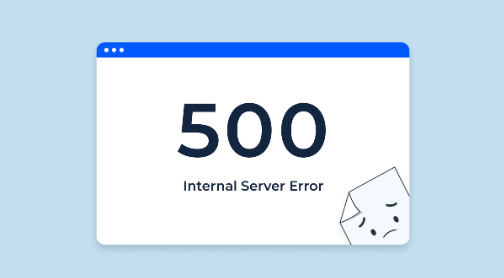
HTTP Error 500, also known as “500 Internal Server Error,” is a server-side error that occurs when a website fails to complete a request due to an unexpected condition.
Unlike 404 errors, a 500 error means the problem is happening on the website’s server, not in your browser.
This error falls under the 5xx status code family, which indicates server-related issues. However, what makes HTTP 500 unique is that it’s a generic catch-all error. The server knows something went wrong, but it cannot identify the exact cause, so it returns a general “500 Internal Server Error” message instead of a specific explanation.
Because it’s a generic error, websites may display different variations of the message, such as:
- 500 Internal Server Error
- HTTP Error 500
- Error 500: Internal Server Error
- HTTP Status 500
- 500. That’s an error
What Causes HTTP Error 500?
In most cases, HTTP Error 500 is triggered by one of the following issues:
- Server configuration problems: Misconfigured server settings can block requests.
- Script errors (PHP or backend code): Faulty server-side code can break page execution.
- Incorrect file or folder permissions: The server may not have access to the required files.
- PHP memory limit exhaustion: The website exceeds its allocated memory resources.
- Corrupted configuration files: For example, a damaged .htaccess file in WordPress.
- Database connection failures: The server cannot communicate with MySQL.
How to Fix HTTP Error 500?
Because HTTP Error 500 can be triggered by different causes, the fix depends on whether you are a visitor or a website owner. Follow the steps below based on your situation.
Fix HTTP Error 500 as a Visitor
Way 1: Refresh the page
Sometimes a 500 error is caused by a brief server overload or timeout.
- Click the refresh button
- Press F5 (Windows) or Command + R (Mac)
If the page loads normally afterward, the issue was likely temporary.
Way 2: Clear Your Browser Cache and Cookies
When a 500 error occurs, it may be because the browser is loading old, corrupted data. Clearing your cache and cookies can help you remove outdated files.
- Chrome: Settings → Privacy and Security → Clear browsing data
- Edge: Settings → Privacy → Choose what to clear
- Firefox: Settings → Privacy & Security → Clear Data
After clearing the cache, reload the page and check if the HTTP 500 error is resolved.
Way 3: Try Another Network or Device
In rare cases, network-level connectivity issues may interfere with server communication. Switch to mobile data or try another browser to rule out local problems.
If the error persists across devices and networks, the problem is almost certainly on the server side.
When solving error 500, it is also very important to protect the browser’s security. With 2000+ nodes and advanced encryption protocols, LightningX VPN can ensure the security of your online activities and a fast and stable network connection.
It supports Android, iOS, macOS, Windows, tvOS, Linux, and Android TV. Download it for some free nodes and a 30-day money-back.
Fix HTTP Error 500 as a Website Owner
If you manage the website, you’ll need to investigate server-side causes. Below are the most common fixes for HTTP Error 500.
Way 1: Check Your Server Error Logs
This should always be your first step. Server logs can reveal:
- PHP fatal errors
- Memory limit exhaustion
- Database connection failures
- File permission issues
Most hosting control panels provide access to error logs under “Logs” or “Statistics.”
Way 2: Inspect or Regenerate the .htaccess File
A corrupted .htaccess file is one of the most common causes of HTTP 500 errors.
- Access your root directory via File Manager or FTP
- Rename .htaccess to .htaccess-old
- Refresh your website
If the site works after renaming the file, generate a new default .htaccess file.
Way 3. Check File and Folder Permissions
Incorrect permissions can block the server from accessing required files. Standard settings:
- Files: 644
- Folders: 755
Adjust permissions through your hosting panel or FTP client if necessary.
Way 4. Increase PHP Memory Limit
If your website exceeds its allocated memory, it may trigger a 500 error. You can increase the PHP memory limit by:
- Editing wp-config.php (WordPress)
- Adjusting PHP settings in your hosting control panel
Memory exhaustion is a frequent cause of fix http error 500 WordPress searches.
Way 5. Verify Database Connection
Database issues can also trigger HTTP 500 errors. Check:
- Database credentials
- MySQL server status
- Corrupted tables
If needed, restore a recent backup.
Fix HTTP Error 500 in WordPress
Since WordPress powers a large portion of websites, you might be wondering how to fix a WordPress HTTP 500 error.
Here are the troubleshooting steps for WordPress:
Fix 1: Disable All Plugins
A faulty plugin can easily break your site.
- Access your dashboard and deactivate all plugins
- If locked out, rename the /wp-content/plugins/ folder via FTP
If the site works after disabling plugins, reactivate them one by one to find the culprit.
Fix 2: Switch to a Default Theme
Themes with broken code can also trigger server errors. Temporarily switch to a default theme like Twenty Twenty-Four to test.
Fix 3: Enable WordPress Debug Mode
Add the following to wp-config.php to reveal PHP errors:
- define(‘WP_DEBUG’, true);
- define(‘WP_DEBUG_LOG’, true);
This helps identify the exact cause of the WordPress 500 error.
How to Avoid HTTP 500 Errors?
Fixing HTTP 500 internal server errors is important, but prevention is always better than a cure. Here are the best ways to prevent recurring 500 errors:
1. Monitor Your Server Regularly
Proactive monitoring is the most effective way to prevent 5xx errors. Use server monitoring tools to track:
- CPU and memory usage
- PHP execution time
- Database performance
- Server response time
Enable error logging so you can detect backend issues before they escalate into visible HTTP 500 errors.
2. Keep PHP and Server Software Updated
Outdated PHP versions and server software can cause compatibility issues and unexpected failures. Be sure to:
- Upgrade to a stable and supported PHP version
- Keep Apache/Nginx updated
- Update your database engine (MySQL or MariaDB)
3. Limit and Review Plugins
Too many plugins, or poorly written third-party plugins, are a major cause of WordPress HTTP 500 errors. To mitigate risks:
- Install plugins only from reputable sources.
- Remove unused plugins.
- Regularly test plugin compatibility after updates.
Fewer plugins mean fewer conflicts and a lower chance of server overload.
4. Maintain Proper File and Folder Permissions
Incorrect file permissions can prevent the server from accessing critical resources. Recommended permissions:
- Files: 644
- Folders: 755
5. Use Staging Environments Before Major Changes
Many 500 errors appear immediately after an update. Test changes in a test environment first. This prevents your production website from crashing and protects your SEO rankings.
- Update CMS
- Install new plugins
- Change themes
- Modify server configurations
6. Optimize Server Performance
If your website has high traffic, resource limitations can trigger 500 errors. To improve stability:
- Enable caching
- Use a Content Delivery Network (CDN)
- Upgrade hosting resources if necessary
- Implement load balancing for high-traffic websites
FAQ about HTTP Error 500
1. Is 500 Errors a permanent issue?
A 500 Internal Server Error is not a permanent problem. It is a temporary problem that indicates a problem on the server side.
This error can occur for a variety of reasons, including a server misconfiguration, a programming error, insufficient server resources, or a temporary network problem.
2. What is the difference between 400 and 500 errors?
The difference between HTTP 400 and 500 errors lies primarily in the error they represent.
A 400 error indicates that the request sent by the client was malformed or invalid. This could be due to incorrect syntax, invalid request message framing, or other user errors.
In contrast, a 500 error indicates that the server encountered an unexpected condition that prevented it from fulfilling a valid request, which had nothing to do with the client.






