


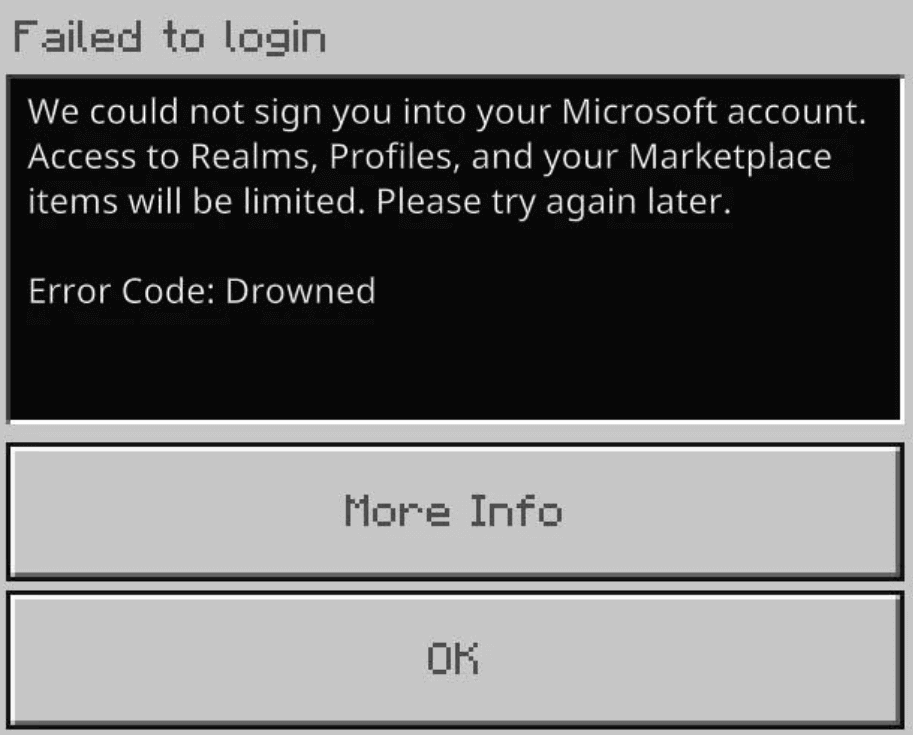
Minecraft error Code: Drowned is a frustrating issue; it typically happens when you’re trying to log in. Actually, this error is commonly linked to Microsoft account authentication failures. In this guide, we’ll walk you through the causes and show you how to fix it quickly.
What Does Error Code: Drowned Mean in Minecraft?
Error code Drowned in Minecraft indicates a failure in Microsoft account authentication. This error most frequently appears in Minecraft Bedrock Edition when the game cannot successfully verify your login session with Microsoft or Xbox Live services.
It is usually related to account authentication or connectivity problems. When this happens, the game is unable to complete the sign-in process, preventing you from accessing online features or multiplayer.
Related: Best Minecraft Seeds for Survival You Must Try
How to Fix Minecraft Error Code: Drowned
Below is a complete troubleshooting checklist you can follow.
Fix 1. Sign Out and Sign Back Into Your Microsoft Account
Refreshing the Microsoft account login is the most effective fix for the error code Drowned in Minecraft, as it clears the expired or corrupted login sessions and forces a new Xbox Live verification.
- Open Minecraft and stay on the launch screen.
- Click Profile in the bottom left corner.
- Click on the three dots under your username. A new window will pop up.
- Choose Sign out in the Account options window. Your Microsoft account should now be signed out.
- Close the game completely and restart your device.
- Launch Minecraft and sign back in.
Further reading: How to Get Minecraft for Free? 7 Legal and Safe Ways
Fix 2. Check Xbox Live Server Status
Minecraft requires authentication through Microsoft and Xbox Live services. If these servers are down, Minecraft Error Code Drowned may appear during sign-in.
There is no local fix for a server outage. You must wait until services are restored.
To check server status, visit the official Xbox status page or monitor outage reports on Downdetector. You can also review user reports on Reddit and X to confirm whether the issue is widespread.
Fix 3. Use the Offline Login Workaround
If Minecraft fails to sign in, you can try using an offline login workaround to bypass login timing issues. This method often avoids login request conflicts during startup and resets connection timing. Here are the steps.
- Disconnect your device from the internet.
- Launch Minecraft.
- Once the main menu loads, reconnect to the internet.
- Click “Sign In” and then log in to your account.
Fix 4: Use a VPN
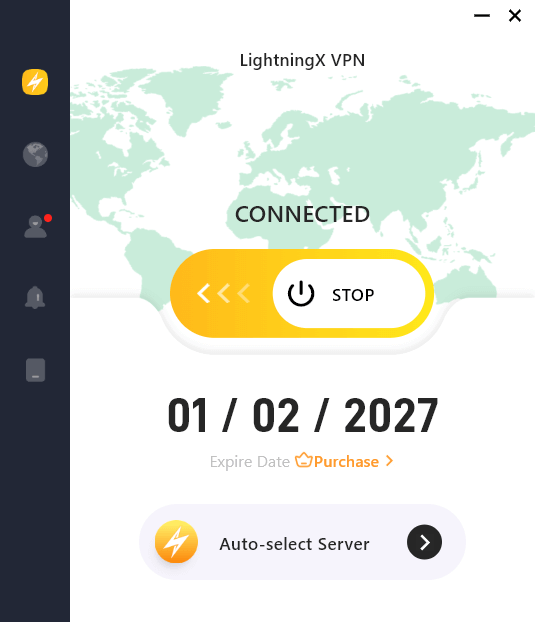
Sometimes, connection issues between your ISP and Microsoft servers can cause the error code Drowned. Using a VPN can help bypass these network issues and then resolve the Minecraft error code: Drowned.
- Close Minecraft completely.
- Connect to a nearby VPN server. Avoid switching regions multiple times during login attempts.
- Relaunch Minecraft and sign in.
To ensure success rates and security, you can use a reliable VPN. LightningX VPN is recommended because of its high security and fast speed. It uses advanced algorithms to protect your online data from being tracked or hacked. Thanks to its lightweight protocols (WireGuard) and massive server network (2,000+ servers in 70+ countries), it causes minimal latency during your gaming. It allows connecting to 3 devices simultaneously.
Fix 5. Reset Your Microsoft Account Password
If your login token is corrupted, you might see the error code Drowned in Minecraft. To resolve the issue, try resetting your Microsoft account password. Here’s how.
1. Exit Minecraft.
2. Change your Microsoft account password.
- Go to account.microsoft.com and log in to your account.
- Select Security from the left panel.
- Click Change password in the top right of the Security page.
- Enter your new password and click Save.
3. Log in to Minecraft with the new password.
Fix 6. Change Your DNS Settings
Sometimes, the Minecraft error code: Drowned may be caused by DNS issues, which can prevent proper authentication. Changing your DNS to 8.8.8.8 or 8.8.4.4 often fixes the problem. Here’s how to do it:
On Windows:
1. Press Win + R, type ncpa.cpl, and press Enter to open “Network Connections”.
2. Right-click your active network (Wi-Fi or Ethernet) and select Properties.
3. Double-click Internet Protocol Version 4 (TCP/IPv4).
4. Select Use the following DNS server addresses and enter:
- Preferred DNS server: 8.8.8.8
- Alternate DNS server: 8.8.4.4
5. Click OK to save changes. Then, restart your device.
On macOS:
1. Open System Settings and go to Network.
2. Select your active network (Wi-Fi or Ethernet) and click Details (or Advanced).
3. Go to the DNS tab, click the + button, and add:
- 8.8.8.8
- 8.8.4.4
4. Click OK, then Apply to save changes. Then, restart your device.
Fix 7. Check Date and Time Settings
Sometimes, an incorrect system date, time, or time zone can interfere with SSL authentication, which may trigger the Drowned error in Minecraft. To fix this issue, make sure your system date and time are correct.
On Windows:
- Go to Settings > Time & Language > Date & Time.
- Turn on Set time automatically.
- Turn on Set time automatically, or manually select the correct time zone.
- Click Sync now under “Additional settings”.
- Restart Minecraft and check if the error is resolved.
On macOS:
- Open System Settings > General > Date & Time.
- Enable Set time and date automatically.
- Make sure the correct time zone is selected (under Time Zone settings).
- Restart Minecraft and check if the issue is fixed.
Fix 8. Remove and Re-add Your Microsoft Account
If you encounter the Minecraft error code: Drowned, it may be caused by corrupted or outdated account credentials stored on your system. Removing and re-adding your Microsoft account can refresh the authentication data and resolve the issue.
- Go to Settings > Accounts > Other users.
- Select your Microsoft account and click Remove next to “Account data”.
Fix 9. Reinstall Minecraft
A fresh installation removes corrupted game files, cached data, or damaged authentication components that could be affecting the login process.
Before reinstalling, make sure your game progress is properly synced to your Microsoft account. After reinstalling, launch Minecraft and check if the error is resolved.
Fix 10. Contact Minecraft Support
If none of the methods can help fix the error code Drowned in Minecraft, you can contact the official support for further help.
You might need to provide them with your account information and a description of the issue.
What Causes the Drowned Error in Minecraft?
The Drowned error in Minecraft is usually related to account authentication or network connectivity problems. Below are the most common causes:
- Expired or invalid authentication tokens
- Xbox Live service outages
- DNS resolution problems
- Incorrect time and date settings
- Corrupted local account cache
Summary
In most cases, Error Code: Drowned is an authentication issue, not a game corruption problem. Start with re-signing your Microsoft account and checking the server status before trying more advanced fixes.






