



Peacock TV offers popular movies, TV shows, live sports, and exclusive NBC content, but only if you successfully log in.
In this article, you’ll learn how to log in to Peacock TV on different devices and troubleshoot common Peacock account login issues.
How to Log In or Sign in to Peacock TV on a Web?
Logging into Peacock TV through a web browser is the quickest and most convenient way to access your account. You can log in or sign in to Peacock TV using any modern web browser by following the steps below:
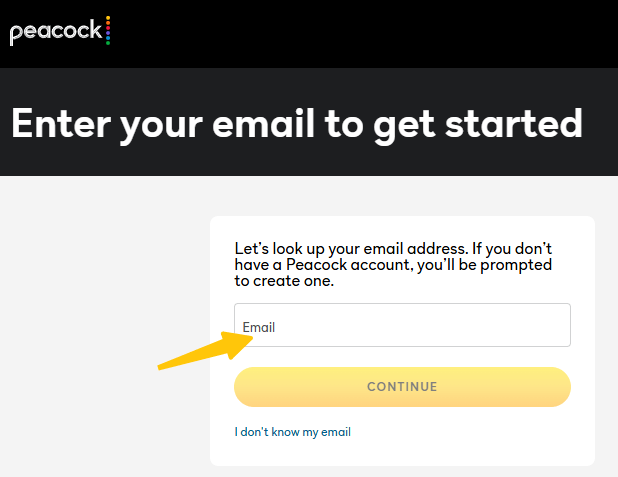
Step 1: Open your preferred web browser (Chrome, Safari, Edge, or Firefox) and visit the official Peacock TV website.
Step 2: Click the “Sign In” button in the upper-right corner of the homepage.
Step 3: Enter the email address associated with your Peacock account.
Step 4: Enter your password and then click “Log In”.
After successfully logging in, you will be taken directly to the Peacock homepage, where you can immediately start watching Peacock movies, TV shows, and live content.
Peacock TV Sign In from Phone (iOS & Android)
If you enjoy watching Peacock on your mobile device, you can log in to Peacock on your phone by following these steps:
Step 1: Download the Peacock TV app from the App Store (iPhone) or Google Play Store (Android).
Step 2: Open the app and tap “Sign In” on the welcome screen.
Step 3: Enter your Peacock account email address and password.
Step 4: Tap “Sign In” to complete the Peacock login process.
Once logged in, your account will remain logged in unless you manually log out, and you can access Peacock on your phone anytime.
Peacock Sign In and Login on Smart TVs
Peacock TV also supports a variety of smart TVs and streaming devices, including Roku, Fire TV, Apple TV, Android TV, and Samsung Smart TVs. You can log in to Peacock TV on your smart TV using the following steps:
Method 1: Log in directly to your TV
Step 1: Open the Peacock TV app on your smart TV or streaming device.
Step 2: Select “Sign In”.
Step 3: Enter your Peacock account email address and password.
Step 4: Confirm to complete your Peacock account login.
Method 2: Log in using an activation code
Step 1: Launch Peacock TV on your TV and select “Log In”.
Step 2: Select “Sign In with Activation Code”. An activation code will be displayed on the screen.
Step 3: On your phone or computer, visit the Peacock activation page and log in to your Peacock account.
Step 4: Enter the activation code displayed on your TV screen to link your device.
What to Do If Peacock TV Login Is Not Working
If you’re having trouble logging into Peacock TV, it could be due to account, app, or connection issues. Here are some solutions for Peacock login problems.
Way 1: Reset Your Peacock Password
If Peacock keeps telling you your login information is incorrect, resetting your password can often solve the problem.
How to reset your password:
- Go to the Peacock TV login page
- Click “Forgot Password”
- Enter your email address
- Click the password reset link sent to your inbox
- After resetting, try logging in again with your new password.
Way 2: Update Peacock TV
If Peacock TV isn’t working on your phone or smart TV, your app version might be outdated.
- Open the App Store or Google Play Store
- Search for Peacock TV
- If a new version is available, update the app
- Outdated apps can cause login errors, crashes, or endless loading.
- Restart the App or Device
Way 3: Close the Peacock and reopen it
- Restart your phone, smart TV, or streaming device
- Try logging in again after restarting
- This simple step can resolve many temporary Peacock login issues.
Way 4: Check Your Internet Connection
An unstable or weak internet connection can prevent Peacock from logging in properly.
- Switch between Wi-Fi and mobile data on your phone.
- Restart your router.
- Ensure your connection isn’t blocked or restricted.
Way 5: Clear Browser Cache
If Peacock TV isn’t working in your browser, clear the Peacock TV cache.
- Try logging in using an incognito/private browsing window.
- If the problem persists, try switching to a different browser.
- For mobile or TV apps, clearing app data or reinstalling the app can resolve corrupted file issues.
Way 6: Check if Peacock is Available in Your Region
Peacock TV is available in the United States. If you are outside the US, Peacock may fail during the login process.
Using a VPN can solve this problem. LightningX VPN is one of the best Peacock VPNs, helping you access Peacock TV outside the United States. It offers over 2000 servers, including the US, Japan, Singapore, and more. It provides unlimited bandwidth and is compatible with mobile phones, computers, smart TVs, and browsers.
Download it to enjoy free high-speed servers and a 30-day money-back guarantee.
If none of the above methods work, please contact Peacock support for help with your Peacock login or registration issues.
FAQ about Peacock TV Login
1. Can You Use One Peacock Account on Multiple Devices?
Yes. You can log in to Peacock TV on different devices using the same email address and password.
However, Peacock may limit the number of devices that can stream content simultaneously. If too many devices are streaming at the same time, playback on one of the devices may be paused or stopped.
2. Why Was I Logged Out of Peacock on Another Device?
Peacock may force you to log out on other devices for reasons including:
- Streaming on too many devices simultaneously.
- Your account is being logged in on a new device.
- Your password is being changed.
- The Peacock app is being updated or refreshed.
- Network or system errors are occurring.






