



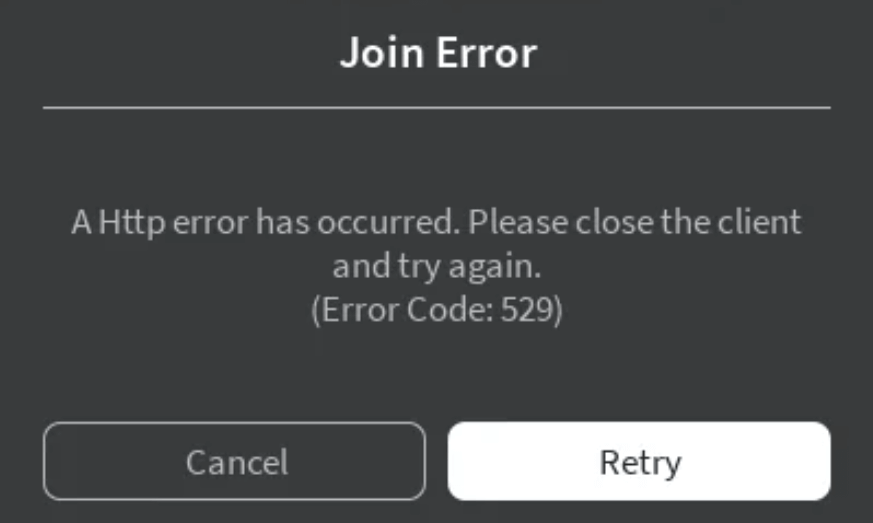
Roblox Error Code 529 indicates an issue with your Roblox client or server. Various factors, such as Roblox server outages or temporary system anomalies, typically cause this problem. If you’re experiencing this error, don’t worry, keep reading this guide to learn about 8 potential solutions.
Fix 1. Check Roblox Server Status
If you encounter error code 529 in Roblox, it is likely due to official servers being down because of high load, maintenance, outages, DDoS attacks, or cloud service interruptions. In this case, you need to wait for the servers to resume normal operation.
You can check the Roblox server status via Downdetector or confirm whether other players are experiencing the same issue.
Tip: To prevent your Roblox account from DDoS attacks, you can use a VPN. LightningX VPN is a robust tool for protecting your Roblox gaming. It employs military-grade encryption ciphers like AES-256-GCM and ChaCha20-Poly1305 to encrypt your internet traffic and keep your IP address safe from hackers. It offers over 2,000 servers in 70+ countries, allowing you to unblock Roblox from anywhere. It is easy to use and supports flexible plans.
Fix 2. Check Your Internet Connection
Sometimes, an unstable or poor network connection can cause Roblox error code 529. You can test your internet speed using tools such as speedtest.net or fast.com.
If your connection appears unstable, try restarting your router or modem to refresh the network. Turn off the device, wait a few minutes, and then turn it back on.
Fix 3. Temporarily Turn off/Disable a VPN
Sometimes, Roblox may detect VPN traffic and block the connection to its servers, which can result in error code 529.
In this case, temporarily disabling your VPN may help resolve the issue. First, turn off your VPN and check whether the error code still occurs.
If the problem persists, try completely removing the VPN configuration from your device. This can be done by uninstalling the VPN application and clearing any associated VPN profiles or cached data. Afterward, restart your device to ensure all VPN connections are fully cleared.
Fix 4. Restart Roblox
Sometimes, the Roblox client may experience temporary glitches or bugs, which can lead to error code 529. Restarting the Roblox application can help resolve this issue.
Make sure to completely close the app first, rather than leaving it running in the background.
Fix 5. Flush DNS
Sometimes, a corrupted or outdated DNS cache can cause connection issues, which may lead to Roblox error code 529. Flushing the DNS cache can help refresh network records and resolve the problem.
On Windows
1. Press Win + R, type cmd, and press Enter.
2. In the Command Prompt window, enter the following command and press Enter: ipconfig /flushdns
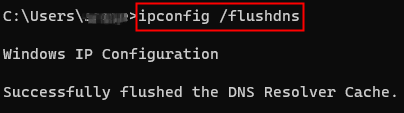
3. After the process is complete, restart your device and try launching Roblox again.
On macOS
1. Open Terminal. You can click the Launchpad icon in the Dock and then search for Terminal.
2. Enter the following command and press Enter:
- sudo dscacheutil -flushcache
- sudo killall -HUP mDNSResponder
3. Enter your password if prompted, then restart your device and relaunch Roblox.
Fix 6. Update Roblox
Sometimes, updating Roblox can resolve many client-related issues. If your Roblox app is outdated, it may fail to connect to the server and result in error code 529.
To update Roblox on PC or Mac, restart the Roblox application, and it will update automatically. Alternatively, you can uninstall Roblox and download the latest version from the official website.
To update Roblox on mobile devices (Android or iOS), open the Google Play Store or App Store, search for Roblox, and tap Update.
Related: Fix Roblox Error Code 277 on Windows/macOS/Android/iOS
Fix 7. Launch Roblox from a Different Platform
Sometimes, the Roblox error code 529 may be related to the platform you are currently using. Launching Roblox from a different platform can help determine whether the problem is device- or platform-specific.
If you are using the Roblox desktop app, try launching Roblox directly from a web browser instead. Simply visit the official Roblox website, log in to your account, and start a game from there.
If you are on a mobile device, you can try switching between platforms if possible, such as using a PC or another device, to see if the issue still occurs.
Fix 8. Contact Roblox Support
If none of the methods above resolve the issue, the problem may be related to your account. In this case, contacting Roblox Support is recommended.
You can visit the official Roblox Support page and submit a support request. Then, provide detailed information about the error code, the device and platform you are using, and the troubleshooting steps you have already tried. This can help the support team better understand and resolve the issue.
What Does Error Code 529 Mean in Roblox?
Error code 529 in Roblox usually indicates a temporary server-side issue that prevents the client from connecting successfully. This error commonly occurs when Roblox is experiencing technical difficulties, such as authentication failures, server overload, or backend service interruptions.
In most cases, error code 529 is not caused by a problem with the game itself, but rather by communication issues between the Roblox client and Roblox servers. As a result, the error may appear during login, when launching a game, or while establishing a server session.
Because this issue is often temporary, error code 529 may resolve on its own once Roblox services stabilize. However, network-related factors, such as unstable connections, VPN usage, or platform-specific issues, can increase the likelihood of encountering this error.
Conclusion
In summary, Roblox error code 529 usually indicates that the Roblox client is unable to connect to the official servers. To resolve the issue, check the Roblox server status and ensure your internet connection is stable. You can try refreshing your network connection, disabling a VPN, flushing the DNS cache, updating Roblox, restarting the game, or launching Roblox from a different platform.
If the problem persists, contact Roblox Support for further assistance.






