


Have you ever tried to open an app on your phone only to find that it’s suddenly gone?
Perhaps you accidentally deleted it, or maybe it disappeared after a system update. Either way, not being able to find the app you need can be frustrating.
In this guide, we’ll show you how to view recently deleted apps on both iPhone and Android devices, and how to recover deleted apps.
How to See Recently Deleted Apps on iPhone?
Deleting apps on an iPhone is simple, which also makes it easy to accidentally delete them.
However, Apple keeps a record of all the apps you’ve downloaded using your Apple ID. Even if an app is deleted, you can still find and reinstall it at any time.
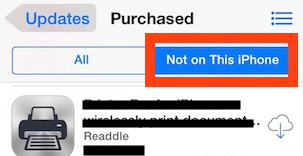
Here’s how to find recently deleted apps on iPhone:
Step 1: Launch the App Store on your iPhone.
Step 2: Tap the profile icon in the upper-right corner.
Step 3: Tap “Purchased.” You will see a list of all the apps associated with your Apple ID.
Step 4: Tap “Not on this iPhone.” This will display the apps that are no longer installed on your device.
Using this method, you can quickly see which apps have been deleted and decide whether you want to restore them.
Read more: How to See and Recover Deleted Messages on iPhone? 5 Ways!
How to Recover Deleted Apps on iPhone?
Now that you know how to view recently deleted apps on your iPhone, let’s learn how to recover deleted apps on your iPhone.
Method 1: Reinstall deleted apps from the App Store
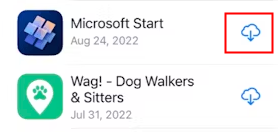
- Open the App Store.
- Tap the profile icon in the upper-right corner.
- Select “Purchased”.
- Tap “Not on this iPhone” to view deleted apps.
- Find the app you want and tap the cloud icon to reinstall it.
- You may be asked to verify your Apple ID using Face ID, Touch ID, or your password.
- Once the download is complete, an “Open” button will appear next to the app, indicating successful installation.
Method 2: Search for deleted apps in the App Store
If you remember the app’s name, this is the quickest method.
- Open the App Store.
- Tap the search icon.
- Enter the app name.
- Tap the cloud icon or the “Download” button.
The App Store will automatically recognize the app associated with your Apple ID, so you won’t need to pay again to recover the deleted app.
Method 3: Restore deleted apps using iTunes
In earlier versions of iTunes (before version 12.7), Apple provided an “Apps” tab that allowed users to manage and reinstall iPhone apps directly from their computer.
- Connect your iPhone to your computer
- Open iTunes
- Select your device
- Go to the “Apps” section
- Click “Install” next to any deleted app you want to restore
If you want to download applications more securely, LightningX VPN is a great choice.
It offers over 2000 servers and provides unlimited bandwidth. It also supports advanced protocols such as Shadowsocks, VLESS, and WireGuard, helping you protect your privacy when downloading applications or accessing restricted content.
Download it for free and enjoy free nodes and a 30-day money-back guarantee.
How To See Recently Deleted Apps On Android?
If you accidentally deleted an app from your Android device, it’s time to Android users. Google Play Store keeps a complete history of all the apps you downloaded and deleted. Check out how to find deleted apps on Android:
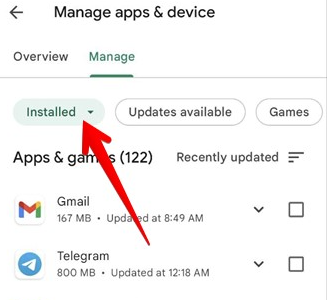
- Launch the Google Play Store app and sign in with your Google account.
- From the app’s home screen, tap the three horizontal lines on the top left to open the menu.
- Select “Manage apps & games,” go to the “All” tab
- Scroll through the list to find your deleted app.
One thing to note is that not all apps, such as some APK files, are installed from the Google Play Store. You may need to find the original APK file or use a backup solution to restore these apps.
Following the steps above, you can easily check recently deleted apps on Android.
How to Recover Deleted Apps on Android?
In most cases, you can find and reinstall deleted apps directly from the Google Play Store.
However, if the app has been removed from the store, is regionally restricted, or was installed manually as an APK file, it may no longer appear in your Play Store history.
In such cases, a third-party recovery tool can help you recover deleted apps on your Android device.
- Install and open the third-party recovery tool on your computer.
- Go to “Data Recovery” and select “Deep Recovery from Device.”
- Select “APK Files,” then click “Start.”
- Connect your Android phone to your computer and click “Start” again.
- Follow the on-screen instructions to grant root access.
- Preview the deleted APK files and select the ones you want to recover.
- Restore the apps to your device or save them to your computer.
How to Find All Apps on iPhone/iPad?
If you can’t find an app on your iPhone or iPad, whether you accidentally deleted it or misplaced it. There are several ways to help you find it:
Way 1: Home Screen finds all apps
Your iPhone has multiple “Home Screens” you can navigate by swiping across the screen. By default, newly downloaded apps are added to the next available position on the Recent Home Screen.
To disable this setting so that new apps appear on the Home Screen, go to the Settings app > Home Screen and tap “Add to Home Screen.”
Way 2: App Library and Search Bar
The App Library displays all the apps installed on your phone and categorizes them into folders.
You can access this screen by swiping left to the last page. At the top of the App Library, there is a search bar. Tapping it will display your apps in a list. You can type the app’s name or search the list to find the one you want.
Way 3: Use Siri to find all apps
Siri’s search bar can be accessed by swiping down from any screen. You can type in a query or use voice recognition by tapping the microphone icon to find deleted apps on your iPhone.
With these 3 ways, you can find any app on your iPhone, whether it is newly downloaded, hidden, or an app you thought you had deleted.
How to Turn Off “Offload Unused Apps” on iPhone?
You may find that some apps disappear from your collection even though you haven’t deleted them. Why is this?
Starting with iOS 11.0, Apple introduced a feature called “Offload Unused Apps” that removes apps you haven’t used in a while to free up space.
If you find this automatic feature you don’t like, turning it off is simple.
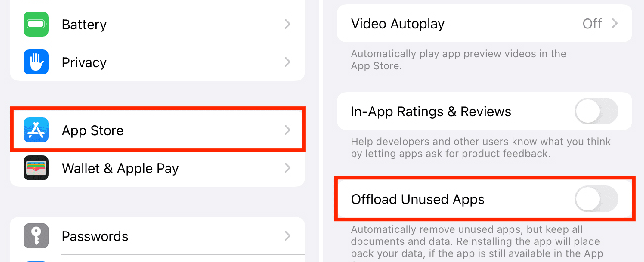
- Open “Settings” and tap “App Store.”
- Scroll down and find the “Offload Unused Apps” option.
- Turn off the “Offload Unused Apps” feature
By following these three simple steps, you can stop apps from automatically uninstalling and quickly retrieve any apps that have disappeared.
Why Do Apps Disappear?
Your iPhone or iPad apps can disappear for the following reasons:
- You accidentally deleted them.
- You rearranged your home screen.
- They were hidden by you or someone else.
- You restored your device with or without a backup.
On Android, apps can disappear due to accidental deletion, a factory reset, a virus attack, or other issues.
Conclusion
That’s it! Whether you’re trying to figure out how to view recently deleted apps on Android or you want to recover deleted apps on iPhone, this guide has you covered.
We’ve helped you with everything from finding deleted apps on this device to turning off auto-delete on iPhone. Now, you can easily recover any lost apps with the guide.






