



With billions of videos covering nearly every imaginable topic, TikTok has evolved into a powerful visual discovery engine. Whether you’re searching for quick cooking tutorials, honest tech reviews, or trending lifestyle tips, mastering TikTok search helps you tap into a vast pool of community-driven knowledge.
Why Is the TikTok Search Bar So Effective?
The strength of TikTok’s search bar lies in its sophisticated algorithm, designed to understand user intent and personalize results. While the exact system remains private, search results are heavily influenced by your activity on the platform, including:
- Interactions – Videos you’ve liked, commented on, or shared.
- Retention – Content you’ve watched for longer periods.
- Saves – Videos you’ve bookmarked to revisit later.
According to TikTok’s official guidance, these signals shape the unique results you see. Today, you can use the search feature to discover:
- Specific user accounts and individual videos
- Trending hashtags and popular songs
- Creative filters, effects, and even sponsored content
SEE: Xiaohongshu vs TikTok: Should You ‘Flee’ to REDnote?
How to Use TikTok Search (Step-by-Step Guide)
TikTok’s search bar is your main tool for discovering videos, accounts, hashtags, sounds, and creative tools. While you can perform a limited TikTok account search without logging in, signing into your account unlocks full search results, including personalized recommendations based on your activity.
Below is a complete guide on how to search on TikTok.
How to Search for TikTok Accounts
Searching for TikTok accounts is simple if you know the username or profile ID. Even if you don’t remember the exact name, you can still locate creators using related keywords, sounds, or your TikTok watch history.
On the TikTok App:
- Tap the magnifying glass (top right).
- Enter the username or profile ID into the search bar.
- Select the Users tab to filter results to accounts only.
On TikTok Web:
- Click the search bar (top left).
- Type the username or ID.
- Select the Users category from the search results.
Hashtag discovery is one of the most powerful features of TikTok search, especially for exploring trends, niches, and viral challenges.
On the TikTok App:
- Open the search tool on TikTok.
- Enter your keyword (typing “#” is optional).
- Tap the Hashtags tab to view related hashtag results.
On TikTok Web:
The desktop version does not display a dedicated hashtag tab. To search hashtags on the TikTok web:
- Enter your keyword into the search bar.
- Click any video in the results.
- Select the hashtag link in the video description to explore all related content.
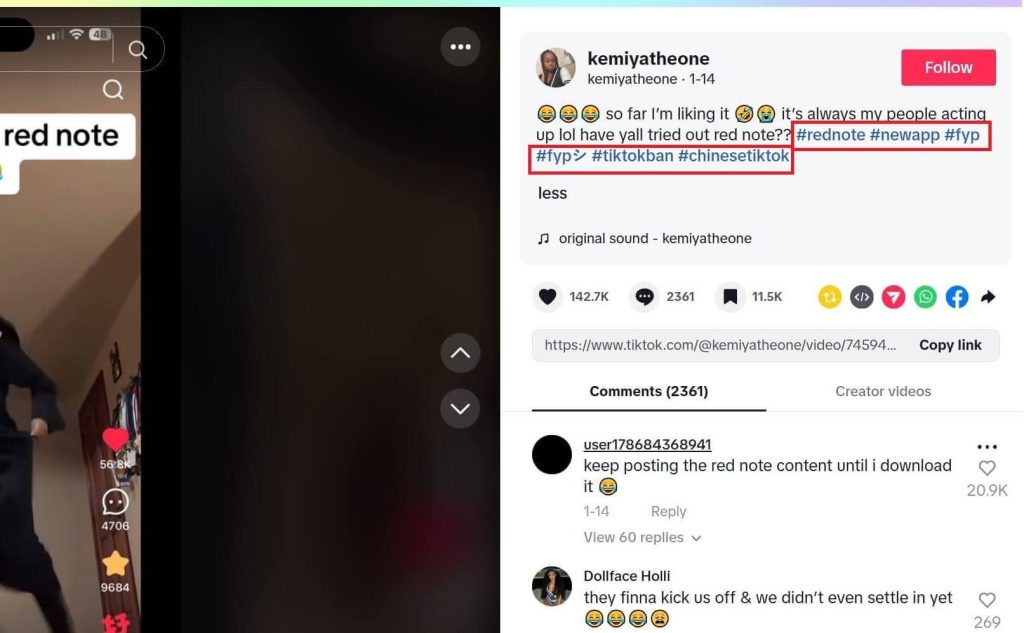
Using TikTok’s search bar for hashtags helps identify trending topics and high-volume keywords within the platform.
How to Search for TikTok Videos
If you’re looking for a specific video, TikTok search works similarly to traditional search engines.
Using the Search Bar:
- Enter relevant keywords into the search bar (top right in the app, top left on web).
- Use specific phrases for more accurate results.
- Switch between the Top, Videos, and Users tabs to refine results.
Finding Previously Watched Videos:
If you can’t locate a video through search results:
- Navigate to your TikTok watch history in your account settings.
- Scroll through previously viewed content to recover the video.
Optimizing your keywords improves the accuracy of TikTok video search results.
How to Search TikTok Filters and Stickers
Creative tools like filters and stickers are searchable within the mobile app only.
Direct Search Method:
- Enter the filter name into the search bar.
- Select the filter result from the search page.
Create Mode Method:
- Tap the (+) Create button.
- Open the filter library (bottom left).
- Browse or use the built-in search feature.
From a Video: If you see a filter you like, tap the filter name above the creator’s username to try it instantly.
How to Search TikTok Stickers
- Tap the (+) Create button.
- Capture or upload media.
- Tap the Sticker icon in the right toolbar.
- Use the search feature to find and add stickers.
Searching for filters and stickers through TikTok search helps creators quickly replicate trending visual effects.
Tip:
If you are in a region where TikTok is banned, you can use a VPN to unblock the app. LightningX VPN is the top choice. It has 2,000+ servers in 70+ countries. You can use it on Windows, macOS, Linux, iOS, Android, Apple TV, and Android TV.

If you’re on a FaceTime call and want to search for something privately, just open the TikTok app and browse normally. If you’d rather watch videos together in real time, you can enable SharePlay and share your screen with the other person.
Before getting started, make sure everything is up to date:
- iOS version: Your iPhone or iPad should be running iOS 15.1 or later.
- TikTok app: Install the latest version to ensure smooth playback and compatibility.
- Start the call: Open FaceTime, select your contact, and begin the call.
- Open call controls: Tap the screen during the call to display the control options.
- Share your screen: Tap Share Content, then choose Share My Screen.
- Open TikTok: Go back to your Home screen, launch TikTok, and find the video you’d like to watch together.
Understanding TikTok Creator Search Insights
If you’re aiming to grow your account, the Creator Search Insights tool can be extremely valuable. It provides a behind-the-scenes look at what users are actively searching for, helping you better understand current demand and trending interests on the platform.
How to Access Creator Search Insights
Accessing this feature is straightforward:
- Search for it directly: Enter “Creator Search Insights” in the app’s search bar and tap View to open the dashboard.
- Check availability: The feature is still being rolled out, so it may only be accessible in certain regions or to select accounts.
- Update your app: Make sure you’re running the latest version to ensure access to newly released creator tools.
Why Use Creator Search Insights?
- Identify trends: Discover trending topics that users are actively searching for in real time.
- Generate content ideas: Create videos that align with current audience interests and search behavior.
- Gain a competitive edge: Brands can combine these insights with tools in the TikTok Business Center to track search demand and improve product promotion strategies.
Note: If you’re unable to locate this feature, it may not yet be available in your region.
Why Isn’t TikTok Search Working? Quick Fixes to Try
If the search bar isn’t loading results or appears blank, the issue is usually caused by a temporary bug or connectivity problem. Use the troubleshooting steps below to restore normal functionality.
Check Your Internet Connection: A stable internet connection is required for the search feature to work properly. If your mobile data is slow or unstable, switch to a reliable Wi-Fi network and try again.
Update the App: Running an outdated version can lead to glitches and missing features. Visit your device’s official app store and install any available updates to resolve known issues.
Avoid Unofficial Versions: Third-party or modified versions of the app often cause crashes and broken features. Always download and use the official version to ensure everything functions correctly.
Restart or Reinstall the App:
- Quick solution: Close the app completely and reopen it. If that doesn’t help, restart your device.
- Advanced fix: Delete and reinstall the app. This clears cached data and can resolve persistent bugs while refreshing your content settings.
Contact TikTok Support: If the problem continues after trying these steps, report the issue directly through the app’s support section for further assistance.
Frequently Asked Questions About TikTok Search
Q1: Can Someone See What I Searched on TikTok?
No, your search history is private and cannot be viewed by other users. What you look up on the platform remains visible only to you. However, if you engage with content, such as liking, commenting, or sharing a video, those interactions may be visible to your followers depending on your privacy settings.
Q2: Can I Search on TikTok without an Account?
Yes, you can search on TikTok without logging in to your account through the web browser. However, you can’t follow, comment, or message like you can in the TikTok app.
Q3: Can You Search for TikTok Users by Phone Number?
Yes, you can also perform a TikTok account search using a phone number if the person is in your device contacts and has linked their account. To sync your device contacts to TikTok:
1. Open the TikTok app and tap Profile at the bottom of the screen.
2. Select the Add friends button next to Share profile.
3. Then choose one of the following options:
- If you’re syncing your contacts for the first time, tap Find beside Contacts, and follow the prompts to grant access to your device contacts.
- If your contacts have already been synced, simply tap Contacts.
4. Tap Follow next to the people you’d like to connect with.






