


Planning a surprise party and don’t want others to see your searches on a shared computer? Turning on Incognito mode is an easy way to keep your browsing private.
In this guide, you’ll learn how to turn on Incognito mode in popular browsers like Chrome, Firefox, Safari, and Edge, with simple steps for both desktop and mobile.
How to Turn on Incognito Mode in Chrome?
If your primary browser is Chrome and you want to browse the web without leaving a trace, Chrome’s incognito mode comes in handy.
Here is a simple step-by-step guide to turning on Incognito mode in Chrome on PCs and mobile devices.
On Desktop (Windows, Mac, Linux)
Way 1: Use keyboard shortcuts
- Windows, Linux, or Chrome OS: Press Ctrl + Shift + N
- macOS: Press ⌘ + Shift + N
Way 2: Use the menu
- Launch your Chrome browser.
- Click on the three vertical dots in the upper right corner.
- Select “New Incognito Window.”
At this point, the browser will open a new window, and you can start private browsing in this Incognito window.
On Mobile (Android & iPhone)
- Launch the Chrome app.
- Click on the three dots in the upper-right corner.
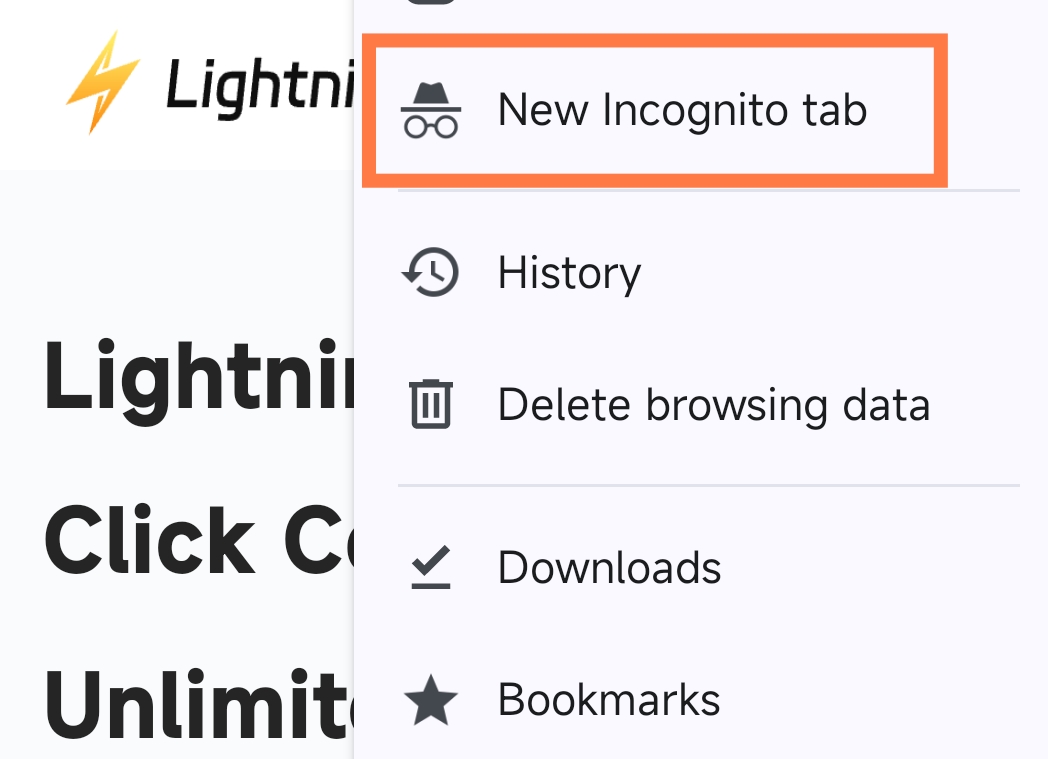
- Select “New Incognito Tab” from the menu.
Related: How to Turn Off or Disable Incognito Mode in Common Browsers?
How to Turn on Incognito Mode in Firefox?
If you’re more comfortable using Firefox, here’s a simple guide on how to open Firefox in Incognito mode.
On Desktop
Way 1: Use keyboard shortcuts in Firefox:
- Windows, Linux, or Chrome OS: Press Ctrl + Shift + P
- macOS: Press ⌘ + Shift + P
Way 2: Use the menu
- Launch the Firefox browser.
- In the upper-right corner, click the three horizontal lines.
- Select “New Private Window” from the drop-down menu.
You’ll see a purple mask icon on the newly opened web page, indicating that you’re in private browsing mode.
On Mobile (Android & iPhone)
- Launch the Firefox app on your mobile device.
- Click the Tabs button.
- Click the mask icon, then click the plus sign to open a new private tab.
Tips: While private browsing prevents Firefox from saving your browsing history, it doesn’t make you completely invisible online. Websites, your Internet Service Provider (ISP), and even your employer or school can still track your activities.
How to Go Incognito Mode in Safari?
If you’re a Safari user, turning on private browsing is quick and easy. Here’s how to do it on both desktop and mobile devices.
On Mac
- Keyboard shortcut: Shift + Command + N
- Using the menu:
- Open Safari.
- Click “File” in the top menu bar.
- Select “New Private Window”.
On iPhone or iPad
- Open the Safari app on your iOS device.
- Tap the tabs button (two overlapping squares) in the bottom-right corner.
- Tap Private in the bottom-left corner.
- Tap the + button to open a new private tab.
While InPrivate browsing prevents Safari from saving your browsing history, it doesn’t make you completely invisible online.
How to Turn on InPrivate Mode in Microsoft Edge
Microsoft Edge calls its private browsing feature InPrivate Mode. Here’s how to turn it on.
On Desktop
- Keyboard shortcut:
- Windows/Linux/Chrome OS: Ctrl + Shift + N
- Mac: ⌘ + Shift + N
- Using the menu:
- Open Edge.
- Click the three dots in the top-right corner.
- Select New InPrivate Window.
A new window will appear with a blue InPrivate label, showing that you’re now browsing privately.
On Mobile (iOS & Android)
- Open the Edge app.
- Tap the three dots (bottom-center on iOS, top-right on Android).
- Select “New InPrivate Tab”.
Tip: Enabling “Strict tracking prevention” in Edge can block additional trackers and improve online privacy, though it still doesn’t hide your IP address.
How to Turn on Incognito Mode in DuckDuckGo?
Unlike other browsers, DuckDuckGo doesn’t need an Incognito mode. That’s because privacy is built into the search engine itself:
- No search history: DuckDuckGo doesn’t save your searches.
- No tracking: Your IP address and search behavior are not tracked.
- Unbiased results: You get search results without personalized ads.
In other words, all searches on DuckDuckGo are already private, so there’s no separate Incognito or private browsing mode needed.
Read more: Is DuckDuckGo Safe? Is it Better than Google?
What is Incognito Mode?
When you browse the web, your browser normally saves the websites you visit, your search history, cookies, and form data. But sometimes, you don’t want that information recorded. That’s where Incognito mode comes in.
When you turn on Incognito mode, your browser won’t save your browsing history, cookies, or form entries, giving you a private session that disappears once you close the window.
Read more: What is Incognito Mode? Is Incognito 100% Safe?
Why You Should Turn on Incognito Mode?
You might wonder: Is it really necessary to use Incognito mode? Here are some practical reasons:
- Keep your searches private: Shopping for a surprise gift? Using Incognito mode ensures your search history doesn’t appear on your browser for others to see.
- Use multiple accounts simultaneously: Have more than one Gmail or social media account? Incognito mode lets you log into a second account without signing out of the first.
- Avoid targeted ads: Websites track your activity to show personalized ads. Incognito mode helps reduce this tracking and limits how much your searches influence ads.
- View websites as a new user: If you’re a blogger or web developer, Incognito mode lets you see your site as a first-time visitor would, without cached data or cookies affecting the experience.
- Use shared or public devices safely: On a borrowed computer, Incognito mode ensures you leave no trace of your online activity.
While Incognito mode hides your activity locally, it doesn’t hide your IP address from websites, ISPs, or network administrators. For stronger online security, a VPN is highly recommended.
LightningX VPN encrypts your data and routes it through secure servers in over 70 countries. This protects sensitive information from hackers and keeps your online activity private.
Download it to get free nodes and a 30-day money-back.
Final Thought
Whether planning a surprise party, managing multiple accounts, or just wanting to keep your browsing private, knowing how to turn on Incognito mode can protect you.






