


If you are facing the “Valorant not opening” issue or Valorant getting stuck in the Riot Client, this guide will walk you through 10 detailed and proven methods to fix the issue.
What Causes “Valorant Not Opening”?
If Valorant is not launching, it can be caused by the following:
- Riot Vanguard is not running properly
- Corrupted or missing game files
- Outdated graphics drivers
- Windows compatibility conflicts
- Antivirus/firewall blocking access
1. Restart Your Computer (Basic but Effective)
Sometimes, Valorant not opening is caused by temporary system glitches or background processes interfering with the game.
Why this works:
Restarting the computer clears RAM, stops stuck processes, and resets system services like Riot Vanguard.
Steps:
- Close all running applications.
- Click the Start Menu.
- Select Power > Restart.
- Wait until your PC fully reboots.
- Launch Valorant again from the Riot Client.
Tip: After restarting, don’t open too many apps before launching Valorant.
2. Run Valorant as Administrator
Permission-related issues are a very common reason for Valorant not opening.
Why this works:
Valorant and Riot Vanguard require system-level permissions to function properly.
Steps:
- Right-click the Valorant shortcut on your desktop.
- Select Run as administrator.
- If prompted, click Yes.
- If it works, set it permanently:
- Right-click shortcut > Properties.
- Go to the Compatibility tab.
- Check Run this program as administrator.
- Click Apply.
3. Ensure Riot Vanguard Is Running Properly
Riot Vanguard is essential. If it’s disabled or broken, you’ll encounter Valorant not launching issues.
Why this works:
Valorant cannot start without Vanguard’s anti-cheat service.
Steps:
- Press Windows + R.
- Type services.msc and press Enter.
- Scroll down to find vgc.
- Right-click it > Select Start.
- Right-click again > Properties.
- Set Startup type to Automatic.
- Click Apply > OK.
- Restart your PC.
Tip: If the service is missing, reinstall Vanguard (see Fix 9).
Also read: How to Change Region in Valorant: An Easy Tutorial
4. Update Your Graphics Drivers
Outdated GPU drivers are a major cause of Valorant not opening or crashing.
Why this works:
New drivers fix compatibility issues and improve game stability.
Steps:
- Right-click Start Menu > Open Device Manager.
- Expand Display adapters.
- Right-click your graphics card.
- Select Update driver.
- Click Search automatically for drivers.
Alternative method:
- Visit official GPU websites:
- NVIDIA
- AMD
- Intel
- Download the latest version of your graphics driver manually.
Tip: Perform a clean installation of your graphics driver if possible.
5. Temporarily Disable Antivirus or Firewall
Security software sometimes blocks the Valorant game, causing the “Valorant not opening” error.
Why this works:
Antivirus may mistakenly detect Riot Vanguard as a threat.
Steps:
- Open your antivirus program.
- Disable real-time protection temporarily.
- Open Windows Security > Firewall.
- Turn off the firewall temporarily.
- Launch Valorant again.
If it works:
- Add these to the exceptions of your antivirus or firewall:
- Valorant
- Riot Client
- Riot Vanguard
Tip: Always re-enable protection after testing.
6. Repair or Verify Game Files
Corrupted or missing game files can lead to Valorant not launching.
Why this works:
The repair tool scans and replaces broken files.
Steps:
- Open the Riot Client.
- Click on your profile icon (top right).
- Go to Settings.
- Select Valorant.
- Click Repair.
- Wait for verification to finish
Tip: This may take several minutes depending on your system.
7. Update Windows to the Latest Version
An outdated system can trigger compatibility issues, leading to Valorant not opening.
Why this works:
Windows updates include important patches for drivers and system components.
Steps:
- Press Windows + I to open Settings.
- Go to Update & Security.
- Click Windows Update.
- Select Check for updates.
- Download and install all updates
- Restart your PC
8. Reinstall Riot Vanguard (Highly Effective Fix)
If Vanguard is corrupted, Valorant may not open.
Why this works:
Reinstalling resets the anti-cheat system completely.
Steps:
- Press Windows + R, type appwiz.cpl.
- Find Riot Vanguard.
- Click Uninstall.
- Restart your computer.
- Launch Valorant.
- Vanguard will reinstall automatically.
- Restart again when prompted.
9. Reinstall Valorant Completely
If all else fails, a full reinstall is the best solution for “Valorant can’t open”.
Why this works:
It removes all corrupted files and resets configurations.
Steps:
- Press Windows + R, type control, and press Enter to open Control Panel.
- Go to Programs.
- Uninstall Valorant and Riot Client.
- Delete leftover folders:
- C:\Riot Games
- C:\Program Files\Riot Vanguard
- Restart your PC.
- Download the latest installer of Valorant from Valorant’s official website.
- Install and launch. Ensure a stable internet connection during installation.
10. Try a VPN
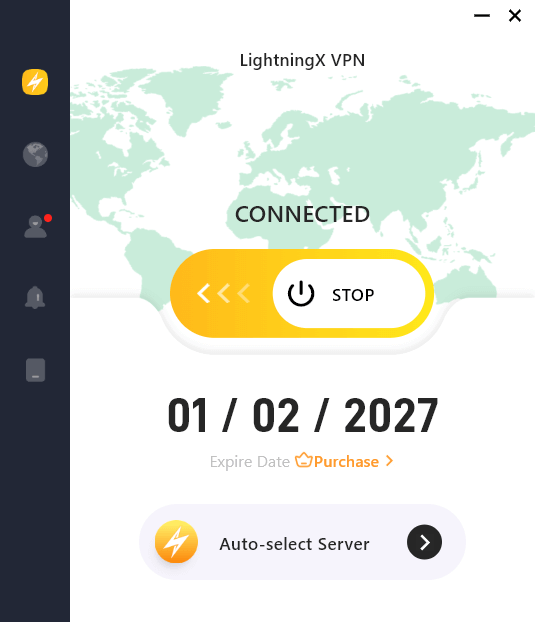
Some schools, offices, or WiFi may block gaming services. If you are unable to open Valorant, you may use a VPN to bypass these restrictions.
LightningX VPN is a fast and stable VPN for PC, Mac, Android, iOS, etc. It offers fast servers in 70+ countries and helps you easily unlock games, apps, websites, and services worldwide.
Related: VPN for Valorant: Lower latency & Change Your Location
Tip: If you still can’t open Valorant, consider reaching out to Valorant Support for further troubleshooting.






