


LightningX VPN Download Center
 30-Day Money-Back Guarantee
 Download LightningX VPN for macOS
 Support macOS 11 and later. Support all Mac models.
Best VPN for Mac offering 2000+ servers in 70+ countries.
Bypass geo-restrictions to unblock any website or platform.
No bandwidth or speed limits to ensure a fast and stable network connection.
Hide your IP address to ensure online anonymity.
Strong data encryption to protect your online privacy.
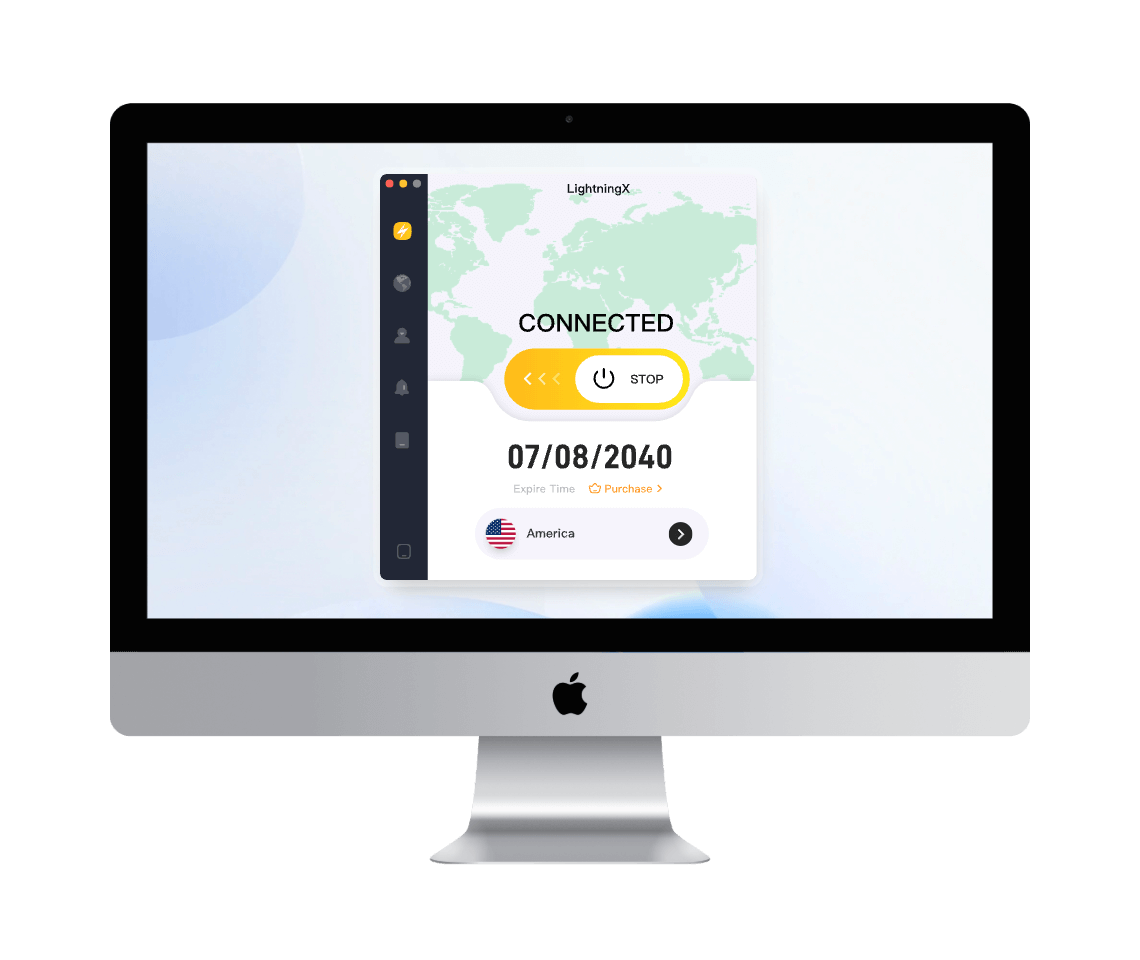






How to Set Up and Use LightningX VPN on macOS - 3 Easy Steps
Download & Install
Click the “Free Download” button to download and install LightningX VPN on your Mac computer.

Subscribe & Sign Up
Subscribe to your preferred plan of LightningX VPN. Get a random digital account and set a password for your account.
Log In & Connect
Open LightningX VPN. Log in to your LightningX VPN account. Select any server you like to connect with one click. Start browsing your favorite websites or any other content.
Frequently Asked Questions for macOS

Select a VPN client like LightningX VPN and sign up for a plan. Download and install LightningX VPN from its official website. Open the VPN installer and follow the instructions to install LightningX VPN on your Mac.

LightningX VPN encrypts 100% of your internet data by using encryption protocols like Shadowsocks, Vless, and WireGuard. It uses strong encryption algorithms like AES-256-GCM. Besides, LightningX VPN hides your real IP address to protect your privacy and lets you stay anonymous online.
If it says “unknown source” when downloading LightningX VPN, you can go to Apple > System Settings > Security and Privacy, and select “Anywhere” under “Allow applications to be downloaded from”. Then you should be able to download LightningX VPN on your Mac.
Download LightningX VPN for iOS
Support iOS 15+.
Best VPN for all iPhone and iPad models.
Offer 2000+ servers and cover 70+ countries.
Bypass regional restrictions and access global information.
Ultra-fast, stable, and secure network connection. No bandwidth limit.
Hide your IP address and encrypt your online privacy and security.
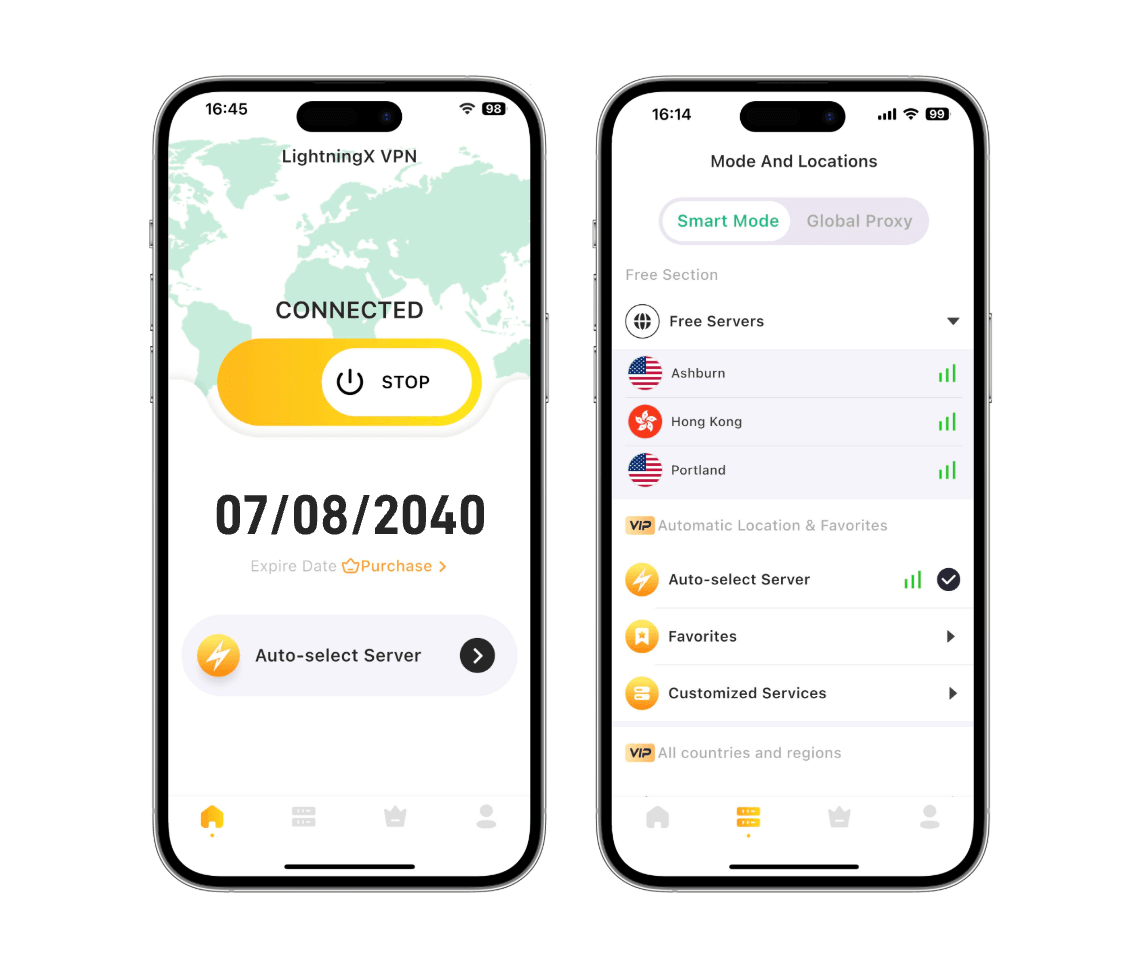


How to Download and Use LightningX VPN on iOS - 3 Steps
Download & Install
Click the “Free Download” button or find the LightningX VPN app from the App Store to download and install LightningX VPN on your iPhone or iPad.
Subscribe & Sign Up
After installing the LightningX VPN iOS app, you will get a free trial account. To unlock all features, subscribe to a plan of LightningX VPN and sign up for a digital account.
Log In & Connect
Launch LightningX VPN. Log in to your LightningX VPN account. Tap “Start” to connect to LightningX VPN or select another server you like to connect.
Frequently Asked Questions for iOS
In some regions, you may not find LightningX VPN in the App Store. It might be due to geo-restrictions. You may change your Apple account region or register another Apple ID like a US Apple ID, and then search for and download LightningX VPN in the App Store.
A VPN is a virtual private network. Using a VPN on your device will hide your IP address and encrypt your online traffic to let you browse online anonymously and securely. You can also enjoy any region-restricted content by using a VPN.
LightningX VPN offers a free trial. If you are satisfied with this VPN tool, you can choose a paid plan and get unlimited servers and bandwidth.
Download LightningX VPN for Windows
Support Windows 11/10.
Offer 2000+ servers in 70+ countries.
Bypass geo-restrictions to access worldwide content.
Fast and stable network connection with no bandwidth limits.
Unblock any website or platform incl. YouTube, TikTok, Instagram, Netflix, etc.
Hide your IP address to let you stay anonymous online.
Encrypt your online data to protect your privacy and security.
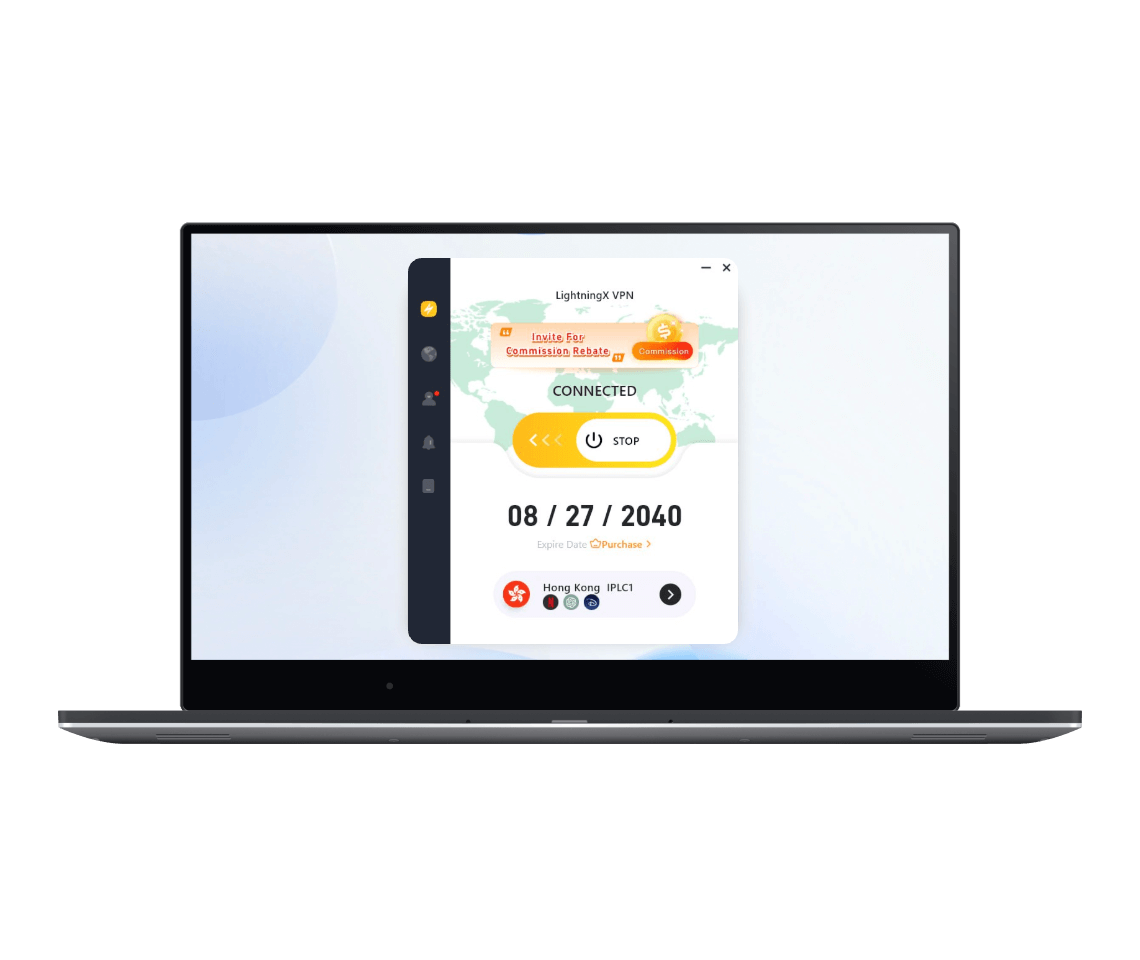

How to Set Up and Use LightningX VPN on Windows 10/11 - 3 Steps
Download & Install
Click the “Free Download” button to download and install LightningX VPN on your PC.
Subscribe & Sign Up
Subscribe to your preferred plan of LightningX VPN. Get a random digital account and set a password for your account.
Log In & Connect
Open LightningX VPN. Log in to your LightningX VPN account. Select any server you like to connect with one click. Start browsing your favorite websites or any other content.
Frequently Asked Questions for Windows
You can go to its official website in your browser and click the “Free Download” button to download and install LightningX VPN for your PC.
Check your network connection to make sure you have a fast and stable internet connection. You can also change your VPN mode to “Global Proxy” and try to download LightningX VPN again.
If you encounter errors when trying to sign in to LightningX VPN, you can double-check your digital account number and password. Make sure your subscription is not expired. Also, check your internet connection and try to log in again.
Yes, you can use LightningX VPN on up to three devices at the same time with one account.
Download LightningX VPN for Android
Support Android 5.0+.
Provide 2000+ global servers with unlimited bandwidth.
Bypass geo-restrictions and access any website or platform.
Ultra-fast, stable, and secure network connection.
Strong encryption to protect your data privacy and security.
Hide your IP address to stay anonymous online.

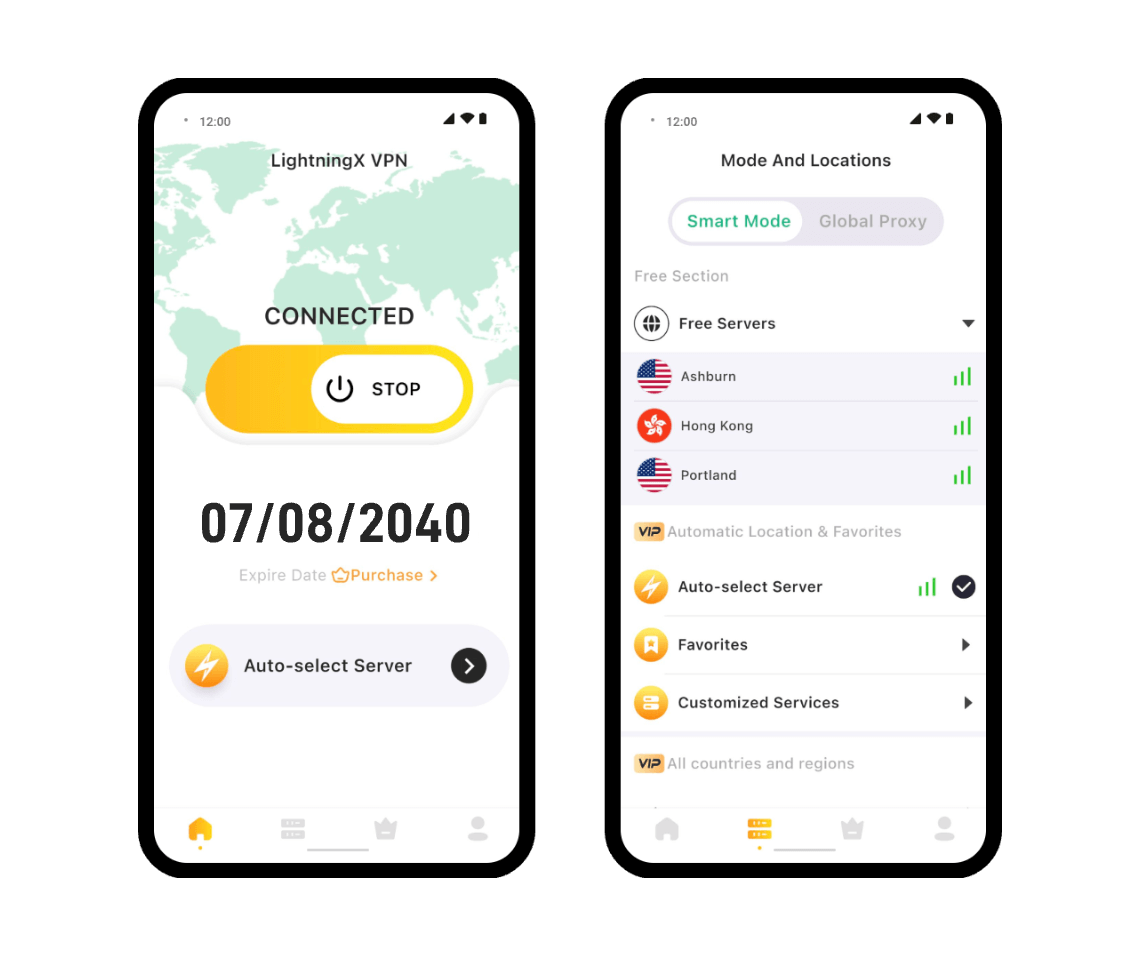

How to Install and Use LightningX VPN for Android - 3 Steps
Download & Install
Click the “Free Download” button or find the LightningX VPN app from the Google Play Store to download and install LightningX VPN on your Android device.
Subscribe & Sign Up
After installing the LightningX VPN Android app, you will get a free trial account. To unlock all features, subscribe to a plan of LightningX VPN and sign up for a digital account.
Log In & Connect
Open LightningX VPN. Log in to your LightningX VPN account. Select the target VPN server you like to connect with one click.
Frequently Asked Questions for Android
You can select a reliable VPN provider like LightningX VPN. Download the app from the Google Play Store. Open the LightningX VPN app and log in with your account. Select a server location and connect.
LightningX VPN is not a free VPN, but you can enjoy some free trials. When you first download and install LightningX VPN on your Android device, you will get a free account and enjoy a free trial. You can also bind your email to get 30 minutes of free usage time.
To turn off LightningX VPN on your Android phone or tablet, you can open the VPN app and click the “Stop” button.
If your VPN connection drops frequently, you can connect to a different server, make sure your base internet connection is stable, update your VPN to the latest version, or reach out to our support team for assistance.
Download LightningX VPN for Apple TV
Support tvOS 17 and later.
Provide 2000+ VPN servers in 70+ countries.
Freely stream movies and TV shows across various platforms incl. Netflix, Hulu, Disney+, etc.
Bypass geo-restrictions and unblock global content.
Ultra-fast, stable, unlimited bandwidth, one-click connection.
Use the highest level of EEC encryption to protect your data privacy and security.
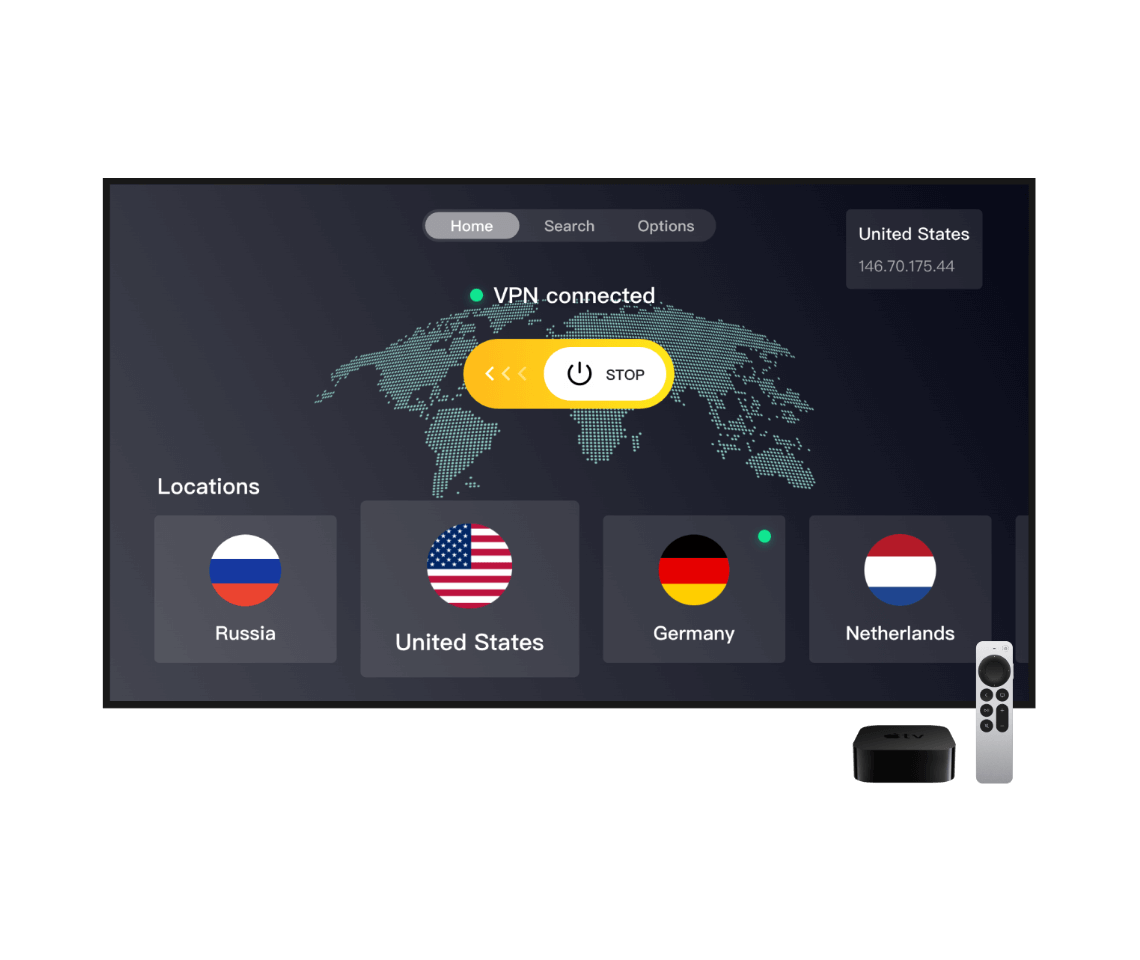

How to Install and Use LightningX VPN on Apple TV – 3 Steps
Download & Install
Open the App Store on your Apple TV, search for LightningX VPN, download and install LightningX VPN on your Apple TV.
Subscribe & Sign Up
Subscribe to your preferred plan of LightningX VPN and get a random digital account. Enter your digital account and password to sign in to LightningX VPN.
Log In & Connect
Select a country and server to connect. Start streaming your favorite movies or TV shows on your Apple TV.
Frequently Asked Questions for Apple TV
You can search for “LightningX VPN” from the App Store on your Apple TV. Directly download and install LightningX VPN on your Apple TV.
You can enter your account name and password to sign in to your LightningX VPN account on your Apple TV. Alternatively, you can use the LigthningX VPN mobile app to scan the QR code to sign in to your VPN account.
For Apple TVs running tvOS 17 and later, you can directly download and install a VPN app from the App Store. For older Apple TV versions, you can’t directly install a native VPN app.
Download LightningX VPN for Android TV
Support Android 5.0+.
Stream content from various platforms incl. Netflix, Hulu, Disney+, etc.
Freely watch movies and TV shows from more than 70+ countries.
Provide 2000+ global servers. Fast, stable, and unlimited bandwidth.
Strong encryption to protect your data privacy and security.
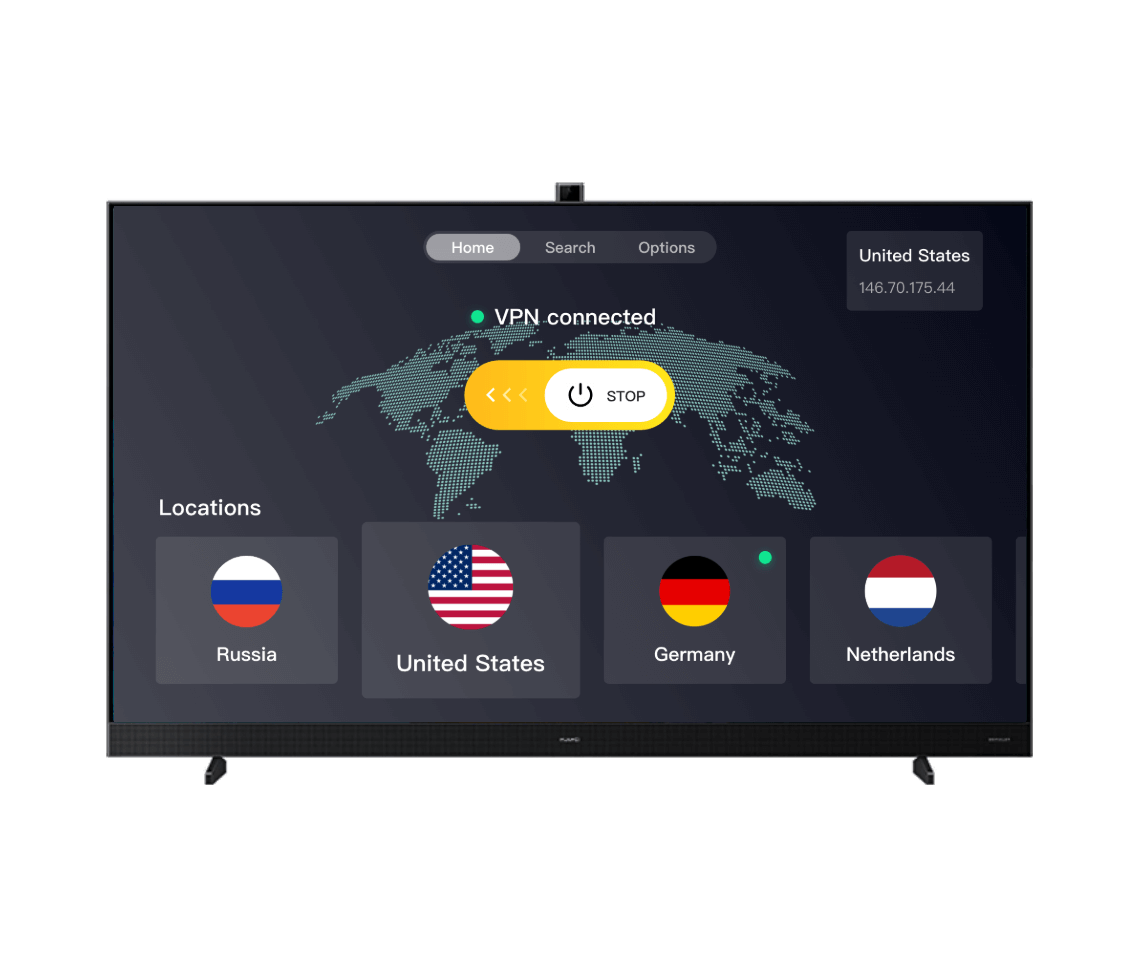

How to Install & Use LightningX VPN on Android TV – 3 Steps
Download & Install
Open the Google Play Store on your Android TV, search for LightningX VPN, download and install LightningX VPN on your Android TV.
Subscribe & Sign Up
Subscribe to your preferred plan and get a random digital account. Sign in to LightningX VPN with your VPN account and password.
Log In & Connect
Select a country and server to connect. Start streaming your favorite content on your Android TV.
Frequently Asked Questions for Android TV
You can find and download LightningX VPN from the Google Play Store. You can also download the APK file of LightningX VPN from its official website and install it on your Android TV.
LightningX VPN is a fast, secure, and stable VPN that perfectly works on Android TV. Besides, it is also available on Apple TV, Windows, macOS, Android, and iOS.
You can enter your VPN account name and password to sign in to your LightningX VPN account on your Android TV. Alternatively, you can use the LightningX VPN mobile app to scan the QR code to sign in to your VPN account on your Android TV.
Yes, many VPN providers offer apps for Android TV, and you can directly download and install the VPN from the Google Play Store.
Premium VPN providers usually offer high-speed servers optimized for streaming.
Download LightningX VPN for Linux
Support Debian Linux 11 or Ubuntu 20.04 LTS and later. Compatible with AMD64/ARM64.
Offer 2000+ servers in 70+ countries.
Bypass geo-restrictions to access worldwide content.
Fast and stable network connection with no bandwidth limits.
Unblock any website or platform incl. YouTube, TikTok, Instagram, Netflix, etc.
Hide your IP address to let you stay anonymous online.
Encrypt your online data to protect your privacy and security.


How to Download & Install LightningX VPN on Linux
Download & Install
Click the “Free Download” button to download and install LightningX VPN on your Linux device.
Subscribe & Sign Up
Subscribe to your preferred plan and sign up for a digital account of LightningX VPN.
Log In & Connect
Launch LightningX VPN and log into your VPN account. Click “Start” to connect to the VPN or click “Mode and Locations” to change to another preferred server.
Frequently Asked Questions for Linux
Unlike other Linux VPN services which may require using commands to install/login/connect, LightningX VPN offers a software interface. You can click the “Free Download” button to easily download and install this VPN application on your Linux device. Then launch the LightningX VPN app to manage your VPN connections and settings.
You may find many VPN tools for Linux, but LightningX VPN may be the best one. Unlike other VPN services using a CLI (Command-Line Interface), LightningX VPN offers a user-friendly software interface. You can easily operate the VPN without using commands. Besides, LightningX VPN is ultra-fast, stable, and secure.
Download the LightningX VPN Chrome Extension
Enjoy fast, secure, and ad-free browsing.
Simple installation and easy to use.
Use advanced encryption technology to enhance privacy protection and secure your data.
Provide 2000+ servers, allowing you to bypass geo-restrictions and unblock any website or platform.
Ensures optimal network connectivity for a seamless online experience.
Hides your IP address to protect your privacy and online security.
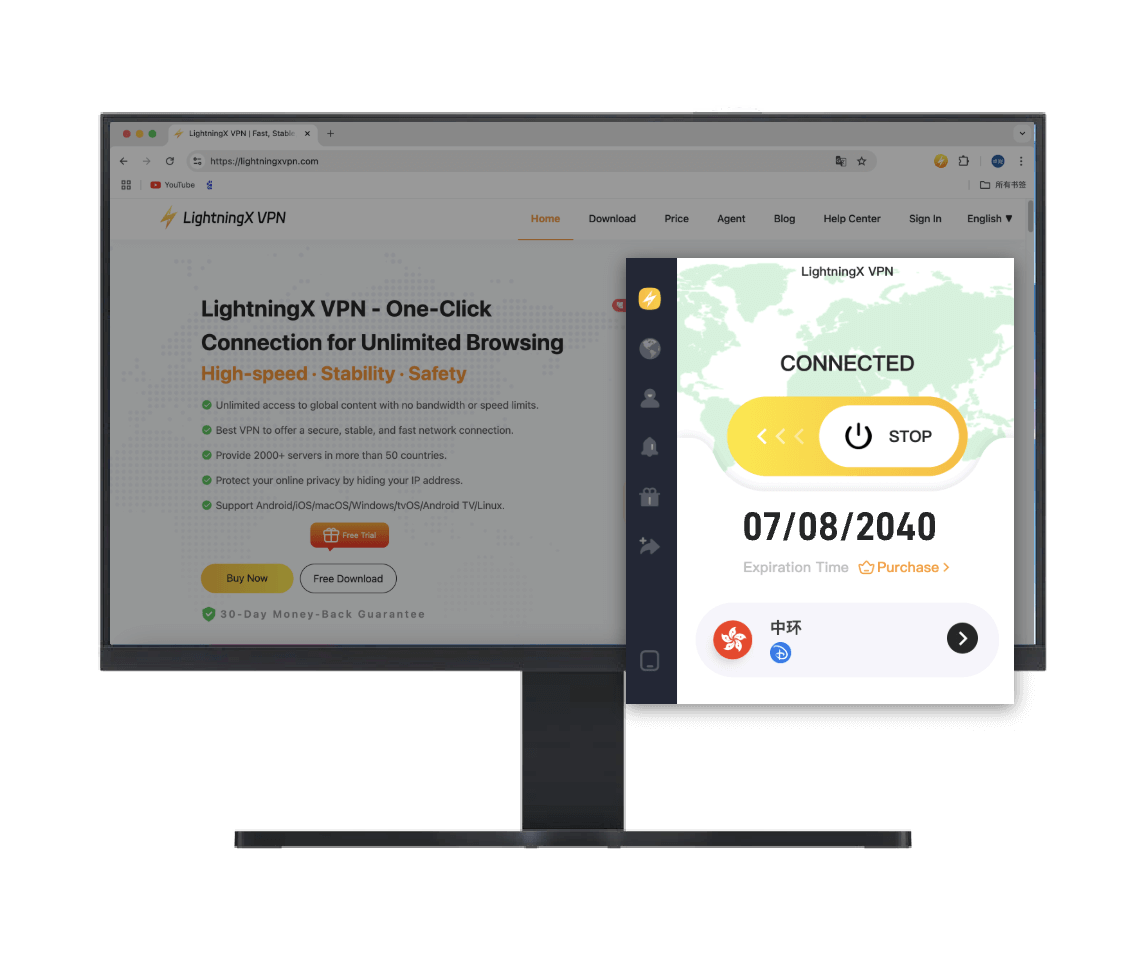

How to Set Up LightningX VPN Chrome Extension
Add the Chrome Extension
Click the 'Free Download' button or search for 'LightningX VPN' in the Chrome Web Store, then click 'Add to Chrome'.
Subscribe & Sign up
Sign up for a LightningX VPN account and select a VPN plan that suits your needs.
Log in & Connect
Open the LightningX VPN Chrome extension, log in to your account, select a country and server, and click to connect. Now, you can enjoy fast, secure, and stable browsing!
Chrome FAQs
The minimum version requirement for Google Chrome is 124.
Download LightningX VPN for Edge Extension
Enjoy a fast, secure, and ad-free browsing experience on Microsoft Edge.
Unblock any website with 2000+ servers worldwide.
Change your IP address and stay anonymous to protect your online activities.
Protect your data with advanced encryption Protocol.
Easy to install and simple to use.
Experience stable, high-speed connections for the best browsing experience.

How to Set Up LightningX VPN Edge Extension
Add the Edge Extension
Click the 'Free Download' button or search for 'LightningX VPN' in the Edge Addons Store. Then click 'Get' and confirm the installation.
Subscribe & Sign Up
Create a LightningX VPN account and choose the VPN plan that best fits your needs.
Log In & Connect
Open the LightningX VPN extension on Edge, log in to your account, select a server, and click 'Connect.' Now enjoy a fast, secure, and stable experience on Edge!
Edge FAQ
To download the LightningX VPN extension on Edge, you need at least version 124.
Download LightningX VPN for Firefox Extension
Enjoy a fast, secure, and ad-free browsing experience on Firefox.
Easy to install and simple to use.
Access any website or platform with 2000+ servers worldwide.
Hide your IP address and stay anonymous, keeping your online activity safe and private.
Protect your data with advanced encryption technology for maximum privacy.
Get the best browsing experience with stable, high-speed connections.

How to Set Up LightningX VPN Firefox Extension
Add the Firefox Extension
Click the 'Free Download' button or search for 'LightningX VPN' in the Firefox Add-ons store, then click 'Add to Firefox' and confirm the installation.
Subscribe & Sign Up
Create a LightningX VPN account and choose the VPN plan that best fits your needs.
Log in & Connect
Open the LightningX VPN extension on Firefox, log in to your account, pick a country and server, and hit connect. Now you're ready to enjoy fast, secure, and stable browsing with Firefox!
Firefox FAQ
To download the LightningX VPN extension on Firefox, you need at least version 126.