If you forgot your Disney+ account password, you can check the step-by-step guide below to easily reset the password. Some other tips to help you troubleshoot the Disney+ password reset and safety issues are also introduced. Also, learn how to change your Disney+ password in this post.
6 Steps to Reset Disney Plus Password
Step 1. Open the web browser on your computer. Visit the https://www.disneyplus.com/. Click the Log In button at the top-right corner. Alternatively, you can directly visit https://www.disneyplus.com/identity/login in your browser.
You can also launch the Disney Plus app on your mobile device to access the login page.
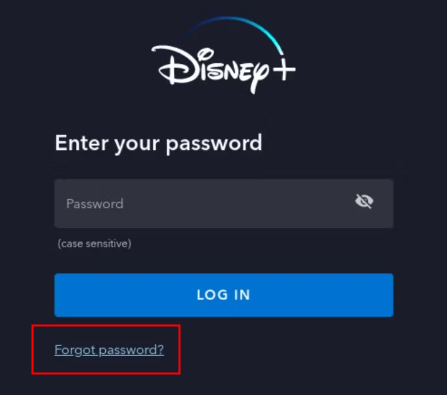
Step 2. On the login screen, click the “Forgot Password” link below the password field to open the Disney Plus password reset page.
Step 3. Enter the email address that you used to create your Disney Plus account and click “Continue”.
Step 4. Check your email inbox to check the password reset message from Disney Plus. Click the password reset link in the email to open the password reset page in your browser. If you don’t see the email in your inbox, you may check your spam or junk folders.
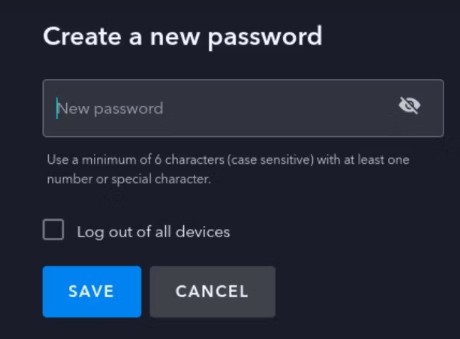
Step 5. On the password reset page, you can enter a new password in the required field. It is advised you use a strong password with a mix of uppercase letters, lowercase letters, numbers, and special characters. Enter the new password again and click “Continue” or “Save” to confirm your new password.
Step 6. Return to the Disney Plus login page again. Enter your email address and new password to log in to your Disney+ account.
Related: How to Cancel Disney Plus Subscription: Step-by-Step Guide
Troubleshoot Common Issues with Disney Plus Password Reset
If you have problems with resetting your Disney Plus password, you may try the tips below to troubleshoot the issues.
Fix 1. If you don’t receive the password reset email, you may check your spam/junk folders, make sure to enter the right email address and request a new password reset email again if necessary.
Fix 2. If the password reset link is not working, the link may be expired. You can follow the steps above to request a new link. Make sure you have a good internet connection.
Fix 3. Enter a new password that meets the requirements.
Fix 4. Contact Disney Plus Support for help if needed.
Related: Activate Disneyplus.com Begin 8-Digit Code to Watch Disney+ on TV
Additional Measures to Protect Your Disney+ Account
Tip 1. It’s advised you regularly update or change your password to enhance the security of your account. You can also try a password manager to help you manage your passwords.
Tip 2. To improve your Disney+ account security, you can also enable the two-factor authentication (2FA) of your account. This will require a second layer of verification like entering the verification code sent to your phone when you try to log into your account.
Tip 3. Always create a strong password for your account.
How to Change Disney Plus Password
If you want to change your Disney Plus account password, you can check the detailed guide below.
Via the Disney+ official website:
- Go to www.disneyplus.com in your browser.
- Click the “Log In” button at the top-right corner. Enter your email address and password to log into your Disney+ account.
- Click your profile icon at the top-right corner and select “Account”.
- Click the pencil or “Change Password” icon next to “Password”.
- Check your email for the one-time 6-digit code.
- Copy and paste the verification code on the Disney+ website and click Continue.
- Create a new password for your Disney+ account and click Save to save the password.
Via the Disney+ mobile app:
- Open the Disney+ app on your iOS or Android device.
- Tap your profile icon at the bottom-right corner.
- Tap “Account”.
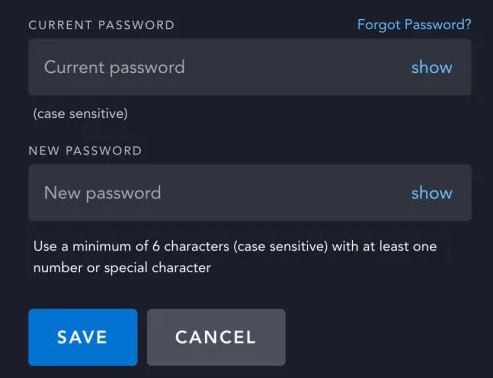
- Tap “Change” next to Password.
- Enter the 6-digit code received by email or text message. Click Continue.
- Enter a new password for your Disney+ account. Click Save to save the changes.
Via the Disney+ app on TV:
- Launch the Disney+ app on your TV.
- Press the Down button on your remote to open the left menu.
- From the menu list, select “Settings” and press “OK”.
- Select “Account” on the Settings screen.
- Select the pencil button next to Password.
- Check your email inbox for the 6-digit code.
- Return to your TV and enter the 6-digit code.
- Enter a new password and save it.
Related: How to Delete Disney Plus Account: Step-by-Step
Best VPN for Disney+ or Other Platforms
If you can’t access Disney Plus in your region, here we introduce an easy-to-use VPN – LightningX VPN – to you.
LightningX VPN is a fast, stable, and secure VPN for Windows, Mac, Android, iOS, TV, Linux, Chrome, Firefox, Edge. It offers 2000+ global servers in 70+ countries. You can use it to access global platforms like Disney+, Netflix, Hulu, HBO, YouTube, TikTok, Instagram, Twitter, Facebook, Steam, and more.
It uses top-class data encryption and security protocols like Shadowsocks, Vless, WireGuard, etc. to protect your online safety. It also hides your real IP address and provides DNS leak protection to protect your privacy.