


If you rely on ChatGPT for work, research, or content creation, experiencing the “ChatGPT error in message stream” issue can be frustrating. This issue typically appears when responses fail to load properly, messages stop mid-way, or the system seems stuck in a loop.
Whether the issue is caused by network instability, browser problems, or server interruptions, this post will help you fix the issue.
Method 1: Refresh the Page
One of the simplest ways to fix “ChatGPT error in message stream” is to refresh the page.
Steps:
- Click the refresh button on your browser.
- Alternatively, press Ctrl + R (Windows) or Cmd + R (Mac).
- Wait for the page to reload completely.
- Try sending your message again.
Why it works:
Refreshing resets the connection and clears temporary glitches.
Method 2: Check Your Internet Connection
A poor connection is a leading cause of the “ChatGPT error in message stream” issue.
Steps:
- Open another website to test your network connectivity.
- Restart your Wi-Fi router and modem.
- Switch to a more stable network (e.g., mobile hotspot).
- Use a wired connection if possible for better stability.
Also read: Why Is ChatGPT So Slow? 10 Tips to Improve ChatGPT’s Speed
Method 3: Clear Browser Cache and Cookies
Corrupted cache files may trigger “ChatGPT error in message stream”. Try clearing your browser cache and cookies to remove outdated data that may interfere with ChatGPT message streaming.
Steps (Chrome example):
- Open Chrome.
- Click the three-dot menu in the top-right corner.
- Click Delete browsing data.
- Select Cookies and other site data, cached images and files.
- Click Delete data.
Method 4: Use a Different Browser
Sometimes, the “ChatGPT error in message stream” issue is browser-specific.
Steps:
- Install another browser (e.g., Firefox, Edge).
- Open ChatGPT in a new browser.
- Log in to your ChatGPT account.
- Test if the issue persists.
Why it helps:
Different browsers handle scripts and sessions differently.
Method 5: Disable Browser Extensions
Extensions may interfere with ChatGPT and cause the “ChatGPT error in message stream” issue.
Steps:
- Go to your browser’s extensions page.
- Disable all extensions.
- Reload ChatGPT.
- Re-enable extensions one by one to find the culprit.
Common offenders:
Ad blockers, privacy tools, and script managers.
Method 6: Log Out and Log Back In
Session issues may trigger the “ChatGPT error in message stream” problem.
Steps:
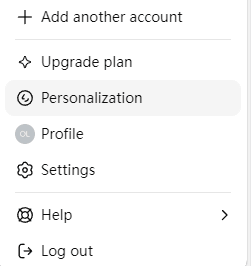
- Click your profile icon at the bottom left of your ChatGPT page.
- Select Log out to sign out of your ChatGPT account.
- Close the browser.
- Reopen ChatGPT and log back in to your account.
Benefit:
Refreshes your session and authentication in ChatGPT.
Method 7: Check ChatGPT Server Status
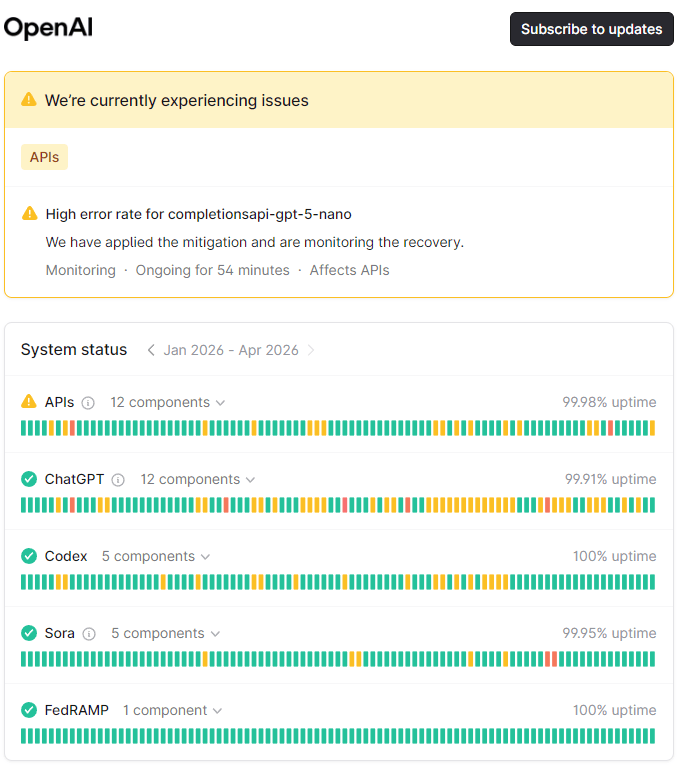
Sometimes the ChatGPT error in the message stream is not your fault. ChatGPT may be experiencing some downtime issues. Follow the steps below to check ChatGPT’s status.
Steps:
- Visit OpenAI’s status page.
- Check for outages or degraded performance.
- Wait until services are restored.
Method 8: Reduce Input Size
Large or complex prompts can trigger the ChatGPT error in the message stream.
Steps:
- Break your prompt into smaller parts.
- Send shorter messages to ChatGPT.
- Avoid overly complex formatting.
Example:
Instead of sending a 2000-word request, split it into small sections.
Also read: How to Get ChatGPT Plus for Free: 7 Possible Methods
Method 9: Change VPN Server or Restart VPN
VPNs can sometimes cause the “ChatGPT error in message stream” issue due to routing issues.
Steps:
- Disconnect your VPN and reconnect it.
- Totally close your VPN and restart it.
- Change to another VPN server.
- Refresh the ChatGPT page.
- Try sending your message in ChatGPT again.
Why it matters:
Some VPN servers may slow down API communication.
Tip:
LightningX VPN – A fast and stable VPN for PC, Mac, Android, iOS, Linux, Chrome, Firefox, Edge. This VPN offers 2000+ servers in 70+ countries. If you can’t open ChatGPT in your region, you can connect to a server where ChatGPT is fully accessible. Use LightningX VPN to easily unblock and access global apps, websites, services, etc.
Method 10: Try Again Later
If none of the above works, the issue might be temporary.
Steps:
- Close the ChatGPT tab.
- Wait 5–15 minutes.
- Reopen and try again.
Reason:
Server load spikes can temporarily disrupt message streaming.
Bonus Tips to Prevent ChatGPT Error in Message Stream
To minimize future occurrences of the error in the ChatGPT message stream, follow these best practices:
- Keep your browser updated
- Avoid excessive multitasking with many tabs
- Use stable internet connections
- Regularly clear cache
- Avoid suspicious extensions
Conclusion
“ChatGPT error in message stream” is a common but fixable issue. By following the 10 methods outlined above, you can quickly restore normal functionality and continue your workflow without interruptions. From simple fixes like refreshing the page to more advanced steps like clearing cache or switching browsers, each method targets a specific cause of the problem.






