


If you’re a parent worried about your child viewing inappropriate content online, turning off or disabling Incognito mode can help.
This guide shows you how to turn off and disable Incognito mode on different browsers and devices, making it easier to monitor browsing history and prevent private browsing on shared devices.
How to Turn Off Incognito Mode? (Chrome, Safari, Edge, & Firefox)
Below, we will show you step-by-step how to turn off incognito mode in all major browsers.
Turn Off Incognito Mode on Chrome
If you want to completely turn off Incognito mode in Chrome, follow these simple steps.
On Desktop (Windows & Mac)
- Open Google Chrome.
- Look for the Incognito window.
- Simply close the Incognito window.
- Open a new regular Chrome window to continue browsing normally.
That’s it. Once the Incognito window is closed, Incognito mode is turned off.
On Mobile (Android & iPhone)
- Open Google Chrome.
- Tap the tab switcher icon.
- Switch to the Incognito tab group.
- Tap “Close” or close all Incognito tabs.
After closing all Incognito tabs, Chrome will automatically return to normal browsing mode.
Tip: If you want to learn how to turn on Incognito mode, read: How to Turn on Incognito Mode in Different Browsers?
Turn off Incognito Mode on Safari
Safari calls Incognito mode Private Browsing, but the idea is the same.
On Mac
- Open Safari.
- Click “File” in the top menu.
- Select “New Window”.
Opening a regular window means Private Browsing is now turned off.
On iPhone / iPad
- Open Safari.
- Tap the tab overview icon (two overlapping squares).
- Tap “Private” to switch out of Private Browsing.
- Select “Tabs” and tap the “+” icon to open a normal tab.
Once you’re back in regular tabs, Incognito mode is disabled.
Turn Off Incognito Mode on Edge
On desktop:
- Open Microsoft Edge.
- Click the icon with three dots (⋯) in the upper-right corner.
- Click New Window to exit InPrivate Browsing and start a regular browsing session.
On mobile:
- Open Microsoft Edge.
- Tap the tab icon at the bottom.
- Switch from “InPrivate” to “Tabs”.
- Tap the “+” icon to open a normal tab.
You can easily turn off InPrivate Browsing in Microsoft Edge by following the steps above.
Turn Off Incognito Mode on Firefox
For desktop:
- Open Firefox.
- Close the Private Browsing window.
- Click the menu icon (☰) and select “New Window”.
For mobile:
- Open Firefox.
- Tap the tab icon.
- Switch from the Private (mask icon) tab view to regular tabs.
- Tap the “+” icon to open a standard browsing tab.
If you want stronger online privacy and security, using a VPN is a smart next step.
LightningX VPN encrypts your internet traffic and routes it through secure servers in over 70 countries. It can hide your real IP address and protect sensitive data on public Wi-Fi.
Download it to get free nodes and a 30-day money-back.
How to Disable Incognito Mode?
If you no longer wish to use incognito mode, we will guide you on how to disable it in all major browsers.
Disable Incognito Mode on Chrome
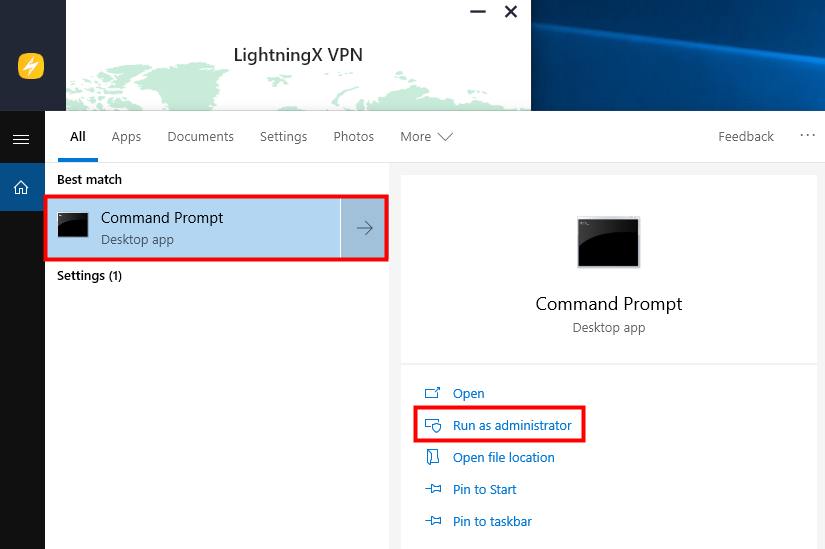
If you want to completely disable Incognito Mode in Google Chrome on PC, follow these steps for both Windows and Mac.
On Windows
- Go to your Desktop’s home page.
- Click Start or press the Windows button.
- Type “CMD”.
- Right-click the Command Prompt app and select “Run as administrator.”
- In the Command Prompt window, type the following command: REG ADD HKLM\SOFTWARE\Policies\Google\Chrome /v IncognitoModeAvailability /t REG_DWORD /d 1
- Restart Google Chrome.
On Mac
- Go to Finder > Go > Utilities, Open Terminal.
- Enter the command below and press Return: defaults write com.google.chrome IncognitoModeAvailability -integer 1
- Open the Terminal app from the Utilities folder.
Disable Incognito Mode on Safari
Safari doesn’t offer a direct “disable private browsing” switch, but you can block it using Screen Time on both iPhone and macOS.
Disable Private Browsing in Safari on iPhone
- Open “Settings”.
- Tap “Screen Time.” If it’s not enabled, tap Turn On Screen Time.
- Choose “This is My Child’s iPhone.”
- Set a Screen Time Passcode.
- Tap “Content & Privacy Restrictions” and enable it.
- Go to “Content Restrictions > Web Content.”
- Select “Limit Adult Websites.”
Once this setting is enabled, Incognito Mode in Safari will be disabled.
Disable Private Browsing in Safari on macOS
- Click the Apple logo and open “System Settings.”
- Select “Screen Time.”
- Click “Content & Privacy.”
- Turn on “Content & Privacy Restrictions”
- Open “Content Restrictions.”
- Under “Access to Web Content”, choose “Limit Adult Websites.”
- Click Done.
Safari’s private browsing option will no longer be available.
Disable Incognito Mode on Edge
To disable InPrivate Browsing in Microsoft Edge on Windows, you must modify the Windows Registry.
- Press “Windows + R”, type “regedit”, and press “Enter.”
- Navigate to: HKEY_LOCAL_MACHINE\SOFTWARE\Policies\Microsoft.
- Right-click Microsoft → New > Key, name it MicrosoftEdge.
- Right-click MicrosoftEdge → New > Key, name it Main.
- Right-click Main → New > DWORD (32-bit) Value
- Name it AllowInPrivate.
- Double-click it and set the value to 0.
- Click OK and restart your computer.
Disable Incognito Mode on Firefox
Firefox refers to its private browsing feature as “Private Mode.” While there’s no built-in setting to disable it, you can use an extension to achieve this. Follow these steps:
- Open Firefox.
- Click the menu icon (☰) and select Add-ons.
- Search for Private Begone.
- Click Add to Firefox.
- Confirm installation.
- Restart Firefox.
Now that you’ve turned off Incognito Mode, how can you make your browsing more secure?
Turn Off vs. Disable Incognito Mode: What’s the Difference?
Turning off Incognito mode is not the same as disabling Incognito mode. If you want to understand the difference, here are the differences:
- Turning off Incognito mode: If you have opened a private browsing session and want to exit, simply close the browser completely. The next time you open it, you will be out of Incognito mode.
- Disabling Incognito mode: If you want to prevent others from using your device’s incognito mode, you need to disable it permanently. This involves some extra steps and depends on your browser and operating system.
FAQ about Turn Off Incognito Mode
1. Is Incognito 100% safe?
No, Incognito mode is not 100% secure. While it prevents your browsing history from being saved on your device, it does not hide your activity from websites or Internet Service Providers (ISPs).
They can still see your IP address and track your browsing history.
2. Does Incognito track you?
Yes, Incognito mode leaves data traces. While it won’t save your browsing history on your device, it won’t hide your activities from your ISP, employer, or websites.
3. Does Incognito Hide IP Address?
No. Incognito mode does not hide your IP address. It only prevents your browser from saving local data like browsing history, cookies, and search records.






