


Are you troubled by “Discord No Route”? This error causes the inability to access the voice channel on Discord. The possible reasons could be a glitched network connection, an antivirus block, or a down server. Don’t worry, this post will introduce all the effective solutions to you.
8 Effective Fixes for Discord No Route
Here are the solutions for the no route error on Discord.
Fix 1. Restart the Router and Modem
If your Discord connection has temporary glitches, you might see the no route error. To resolve the issue, try restarting your router or modem to refresh the network connection.
Fix 2. Allow Discord Through the Firewall or Antivirus Software
Firewall or antivirus software may block Discord’s network traffic, which can lead to the No Route error. To fix this, make sure Discord is added to the allowed or whitelist section of your firewall or security software.
On Windows
- Press Windows + S to open the search bar.
- Type Firewall and select Firewall & network protection.
- Click Allow an app through firewall > Change settings.
- Find Discord in the list. If it is not listed, click Allow another app and add Discord manually.
- Check both Private and Public boxes next to Discord.
- Click OK to save the changes.
Tip: If you are using third-party antivirus software, make sure Discord is also allowed in its firewall or network protection settings.
On Mac
- Click the Apple menu > System Settings > Network.
- Scroll down and click Firewall.
- Click Options.
- If the settings are locked, click the lock icon and enter your password.
- Click the “+” button and add Discord to the application list.
- Make sure Discord is set to Allow incoming connections.
- Click OK to apply the changes.
Fix 3. Switch to a VPN That Supports UDP
Discord’s voice communication (WebRTC) prioritizes UDP traffic for low latency and stable connections. If your VPN blocks UDP or forces TCP-only connections, it can trigger the “Discord No Route” error. Switching to a VPN that supports UDP can often resolve this issue.
LightningX VPN is a VPN service that supports UDP-based protocols such as WireGuard or OpenVPN (UDP), making it suitable for Discord voice connections.
How to Use LightningX VPN with Discord:
- Download and install LightningX VPN from its official website.
- Open the VPN app on your device and follow the on-screen instructions to create an account.
- Choose a server location and connect to the VPN.
- Launch Discord and join a voice channel to check whether the No Route error is resolved.

Fix 4. Check the Discord Server Status
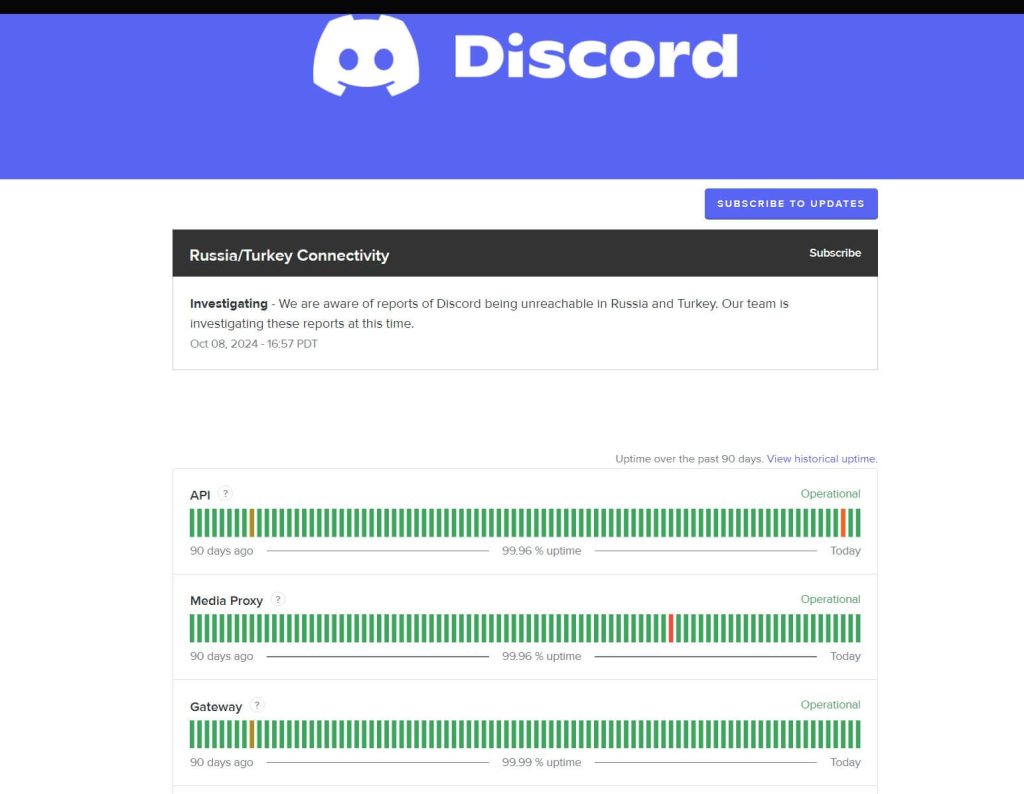
If you encounter the “Discord No Route” error, you can check if the Discord servers are running well. However, according to the Discord official, this is less likely to happen. But you can still check the Discord status online. Just go to the website of Discord status.
Fix 5. Set the Region Override to a Fixed Region Close to You
By default, Discord automatically assigns an Auto Region to voice channels. However, temporary network or routing issues may cause the “No Route” error. Manually changing the voice region can refresh the connection and help resolve the problem.
On PC
- On Discord desktop, right-click the problematic voice channel and select Edit Channel. You can also hover over the channel and click the gear icon next to it. Note: You need the Manage Channels permission to change this setting.
- Open the drop-down menu under Region Override.
- Select a server region that is geographically close to you.
- Click Save Changes.
On Mobile
- On Discord mobile, long-press the problematic voice channel and open Voice Channel Settings.
- Tap Region Override and select a region close to your location.
- Tap Save to apply the changes.
Fix 6. Contact Your ISP to Refresh or Change Your IP Address
In some cases, the “Discord No Route” error is caused by routing issues, IPv6 conflicts, or shared public IP addresses (CGNAT) provided by your ISP.
You can contact your internet service provider to refresh or change your IP address to solve the problem.
Fix 7. Disable the QoS Settings on Discord
Sometimes, Discord’s QoS (Quality of Service) settings can affect its network connection and cause the no route error. To solve the problem, you can try disabling QoS for your Discord. Here’s how.
- On Discord, click on the Settings icon on the bottom left.
- Choose the Voice & Video option on the left-hand side.
- Find Enable Quality of Service High Packet Priority and toggle it off.
Fix 8. Contact Discord Support
If none of the above solutions can help you fix the issue, contact Discord support to troubleshoot. You may need to provide Discord support with your Discord account or other information to help them fix the problem.
Discord No Route – FAQs
Q: Why is Discord not connecting to RTC?
The “RTC Connecting” issue on Discord might be caused by slow internet speed, antivirus blocking, or temporary connection glitches.
Q: Will Discord ban me for VPN?
Typically, you won’t get punished or banned by Discord when using a VPN for normal purposes, such as bypassing geo-restrictions and protecting against harmful attacks. However, using a VPN in the wrong way might get you banned on Discord.






