


Are you looking for a detailed guide on how to use Discord on Xbox to share the Xbox gaming world with your friends on Discord? This article provides a step-by-step tutorial and solutions for the issue of Discord voice not being heard on Xbox. Keep reading and complete the Discord and Xbox connections.
Things to Know About Using Discord on Xbox
Is Discord on Xbox? Yes. Discord has already been integrated into Xbox, allowing players to use its features without downloading a separate application. Since its introduction to Xbox Series X|S and Xbox One in 2022, Discord has enabled players to enjoy voice chat directly on their consoles.
By 2024, the integration had advanced further, allowing players to watch friends’ live streams and make calls directly from Xbox.
However, there are some limitations to using Discord on Xbox.
- First, the Discord and Xbox friend lists are separate. If you want to chat with your Discord friends, you must use a Discord voice channel rather than Xbox party chat. Similarly, if you want to chat with your Xbox friends, you need to use Xbox Party Chat instead of Discord.
- Second, if you are streaming on Twitch or other platforms while chatting on Discord, the Discord audio won’t be added to the live stream.
- Also, if Discord is not available in your region, you can’t use it on your Xbox console even if the feature is integrated into the console. To address this issue, you can use a VPN for Xbox to bypass geographical restrictions.
Tip:
LightningX VPN is the best VPN for Discord and Xbox. It uses the best VPN protocols and encryption algorithms, such as WireGuard and AES-256-GCM. It has 2,000+ servers for unlocking the Xbox Game Library and Discord. Its free version offers servers in the US, UK, Japan, and Hong Kong. You can set it up on Windows, Linux, macOS, iOS, Android, Apple TV, and Android TV. It offers a free trial for all new users.
How to Get Discord on Xbox
Here are several ways to link your Discord and Xbox accounts. Choose the device you prefer for linking.
1. Link via Windows or Mac
Using Discord (desktop or web):
- Open the Discord web or app and log in.
- Go to User Settings > Connections.
- Select the Xbox icon and follow the prompts to authorize.
Using the Xbox app on Windows:
- Open the Xbox app.
- Go to Profile > Settings.
- Select Link next to Discord and complete the on-screen steps.
2. Link via Mobile (Discord or Xbox App)
Using Discord mobile app:
- Open Discord and go to Profile > Connections.
- Tap Add and choose Xbox.
- Log in to your Microsoft account and select Authorize.
Using the Xbox mobile app:
- Open the Xbox app and go to Profile > Settings.
- Under Linked Accounts, tap Discord > Link.
- Log in and complete authorization.
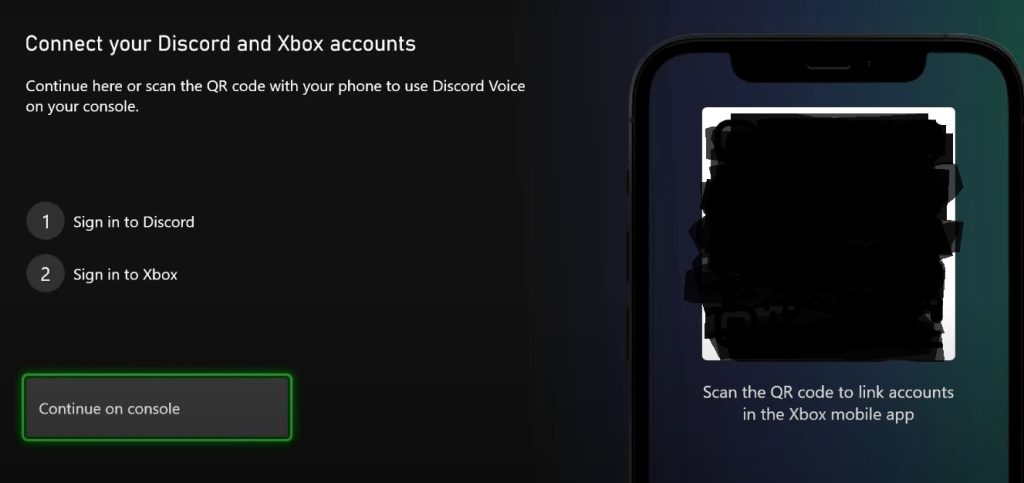
3. Link directly on Xbox Console
- Press the Xbox button to open the guide.
- Go to Profile & System > Settings > Account > Linked Social Accounts.
- Select Link next to Discord and follow the instructions.
How to Use Discord on Xbox
After linking your Discord and Xbox accounts, you can now set up and join the Discord voice chat on Discord. Here are three methods.
Method 1. Directly Use Discord on Xbox
The simplest way to use Discord on Xbox is to directly turn on Discord chat from the Xbox console. Here’s how.
- Press the Xbox button on your controller to open the Guide.
- Navigate to Parties & chats and then select Discord.
- Select a Discord server and then press the A button.
- Select the desired voice channel and hit the A button again.
You can also use a mobile device to share Discord voice calls on Xbox. However, you must enable the Xbox remote features to complete the task.
Here’s how to turn on the Xbox remote features.
- Press the Xbox button on your controller to open the guide.
- Navigate to Profile & System > Settings > Devices & Connections > Remote Features.
- Check the box for Enable Remote Features.
- Under Power Options, select Sleep.
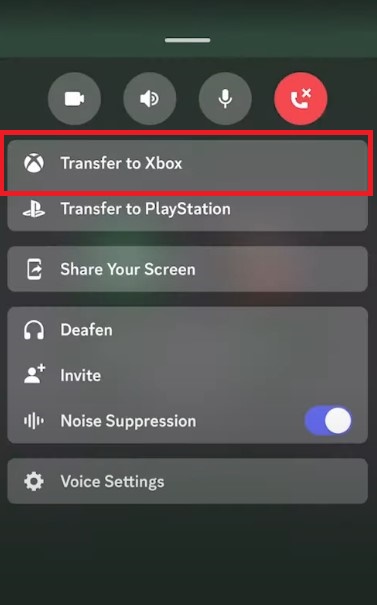
After turning on the remote features on the Xbox console, you can now transfer the Discord voice call from the Discord mobile app. Here’s how:
- Open the Discord mobile app and join the voice channel or call you want to use.
- Go to the voice call and swipe up from the bottom to see more options.
- Select Transfer Voice to Xbox to share the Discord voice call to your Xbox console.
You can also send the desired voice call by using the Discord web or desktop.
- Open Discord on your PC or browser and join the desired voice channel.
- Click the Transfer to Console button that appears in the voice controls panel.
- A QR code will be displayed. Scan it with your mobile device.
- On your phone, select Transfer Voice to Xbox, and choose your console if prompted.
- Your Xbox will display a confirmation message once the voice call has been successfully transferred.
How to Fix Discord Not Working on Xbox
If Discord voice chat is not working on Xbox, such as failing to connect, not transferring properly, or having no sound, try the fixes below.
1. Relink your Discord and Xbox accounts
A failed or expired link is one of the most common causes. Go back to the How to Get Discord on Xbox section and reconnect both accounts.
2. Check your network connection
If Discord voice cannot transfer from your phone/PC or stays stuck on connecting, it might be caused by a poor network connection. You can try restarting your Wi-Fi, reconnecting the Xbox to the network, or using an LAN cable.
3. Restart your Xbox and router
Many Discord voice transfer failures, such as “Discord No Route” or connection timeouts, occur on the mobile/PC app. Rebooting the console and router often resolves this.
4. Check your audio settings on Xbox
If you can join Discord voice but can’t hear anything, it might be because your audio settings are not set correctly. You can go to Settings > General > Volume & audio output to check the audio settings.
5. Using Discord in restricted regions
Discord is restricted in certain countries, such as China. To access Discord voice on Xbox, you must use a VPN on your router, since VPN apps cannot run on Xbox.
Frequently Asked Questions About Using Discord on Xbox
Q: How to unlink Discord and Xbox accounts?
It is simple to remove the Discord and Xbox connections. You can do it on a computer, mobile device, or the Xbox console.
On the Discord Desktop or mobile app
- Press the gear icon (User settings) at the bottom left and then select “Connections” on the left menu. On the Discord mobile, find the User Settings and select “Connections”.
- Locate the connected Xbox account and then click on “X” next to the connected account name. Then, choose Deauthorize to confirm the action.
On Xbox
- Press the Xbox button on your controller to open the Guide.
- Navigate to Profile & System > Settings > Account > Linked Social Accounts.
- Locate Discord and select Unlink or Remove to disconnect your Discord account from your Xbox.
Q: Is Xbox Discord free to use?
Yes. Using Discord on Xbox is completely free. You don’t need any extra subscription to link your Discord and Xbox accounts or to join Discord voice chats on your console.






