


Roblox is a virtual game platform that allows players to create and design their own games. Players can also share their creations with others. As of today, Roblox has around 207.14 million active users, with over 2.5 million developers earning substantial income from their games.
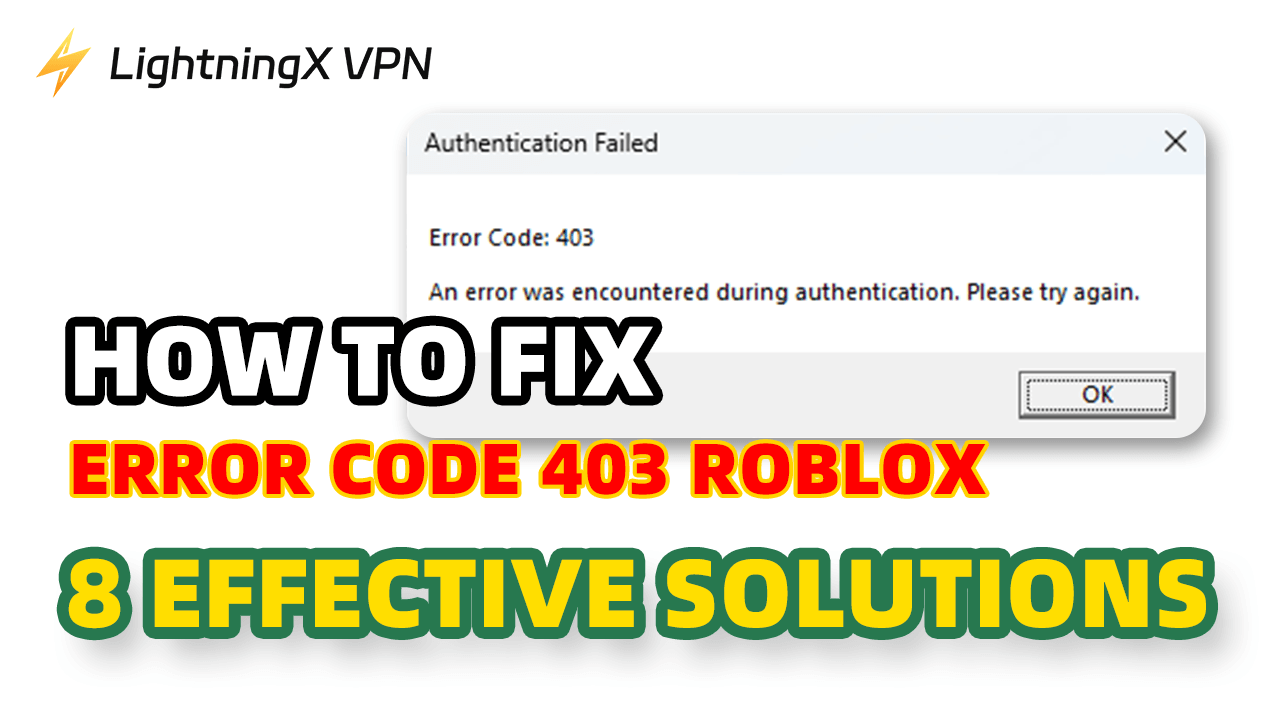
Despite continuous updates and optimizations, the “Error Code 403” issue still affects some players. If you’re looking for ways to fix the error code 403 in Roblox, you’ve come to the right place. Here are several effective fixes for the issue.
What Is Error Code 403 in Roblox?
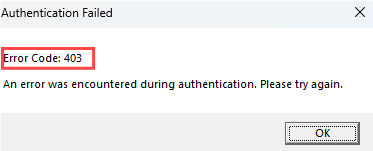
Error Code 403 is an HTTP status code that means your request has been denied because you don’t have the required permissions. In Roblox, this error usually appears when the game cannot verify your login session or when something is blocking your connection to the Roblox servers.
Common causes include corrupted authentication cookies, network or DNS issues, proxy/VPN interference, or temporary restrictions on your account or IP address.
Don’t worry — here are the effective solutions to fix Error Code 403 in Roblox.
How to Fix Roblox Error Code 403
Here is a full list of solutions for troubleshooting the error code 403 in Roblox.
1. Use a Different Account to Log In
Error Code 403 can sometimes occur if your Roblox account is temporarily restricted. To check whether the issue is account-related, try logging in with a different account. If the alternate account works normally, the problem may be with your main account.
- Go to the Roblox Player app on your PC.
- Tap the circle with three dots on the left of your screen.
- Click “Log Out” at the bottom of the page.
- End the app processes in your Task Manager. Search “Task Manager” at the bottom left of your screen, find the Roblox Player app, and then right-click on it. Tap “End” to close the app completely.
- Go to Roblox Player and log in to your alt Roblox account to see if the problem is solved.
2. Reopening the Browser
If you’re playing Roblox in a web browser, a corrupted session or a stuck Roblox cookie may cause Error Code 403. Restarting your browser refreshes the session and forces Roblox to create new login data. Simply close the browser completely and reopen it, then try accessing Roblox again.
Tip: If restarting the browser doesn’t work, you can log out of the Roblox account before reopening the browser.
3. Turning off the VPN
If you’re using a VPN to access Roblox, the VPN may assign an IP address that Roblox blocks for security reasons. This can trigger Error Code 403. To check whether the VPN is causing the issue, temporarily turn off the VPN and try accessing Roblox again.
Tip: Using a VPN such as LightningX VPN for Roblox is generally fine, especially if you want to protect your IP address or reduce the risk of DDoS attacks. However, if the VPN assigns an IP address that Roblox has blocked, you may see Error Code 403. In that case, try turning off the VPN or switching to another server.

4. Restarting the Router
If your network IP is temporarily blocked or experiencing connection issues, Roblox may return Error Code 403. Restarting your router forces your device to obtain a new IP address and refreshes the network connection. After rebooting the router, reconnect to Wi-Fi and try launching Roblox again.
5. Reinstalling Roblox
Corrupted Roblox files or an incomplete installation can trigger Error Code 403. Reinstalling Roblox removes damaged data and forces the client to rebuild fresh files.
On PC
- Open Settings > Apps.
- Uninstall Roblox.
- After uninstalling, delete any leftover Roblox folders in: C:\Users\<YourName>\AppData\Local\Roblox
- Download Roblox again from the Microsoft Store or the official Roblox website.
On Mobile
- Press and hold the Roblox app and select Delete or Uninstall.
- Reinstall the app from the Google Play Store or the App Store.
After reinstalling, launch Roblox again to see if the error is resolved.
6. Clearing Roblox Cache
Corrupted Roblox cache files can cause login or authentication problems, leading to Error Code 403. Clearing the cache forces Roblox to generate fresh files.
On PC (Windows)
1. Press Windows + R to open the Run window.
2. Type %localappdata% and press Enter.
3. Find and open the Roblox folder.
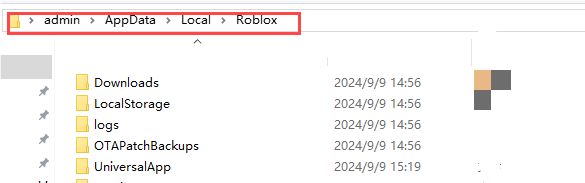
4. Delete the entire folder to clear all cached data.
5. Restart your PC and launch Roblox again.
If the issue persists, reinstalling Roblox will rebuild all necessary files.
On Android / iPhone
Mobile devices do not allow clearing the Roblox cache manually.
The only way is:
- Uninstall the Roblox app.
- Reinstall it from the Google Play Store or the App Store.
7. Turning Off MSI Afterburner and RTSS Overlay
Roblox Error Code 403 can be triggered by third-party overlays. MSI Afterburner itself is usually not the issue, but its companion tool RivaTuner Statistics Server (RTSS) may cause conflicts.
Here’s how to turn them off:
- Open MSI Afterburner.
- Look for the RTSS (RivaTuner) icon in the system tray (bottom-right corner).
- Right-click RTSS and choose Exit.
- Also, close MSI Afterburner if it’s running overlays or FPS counters.
After closing RTSS and overlays, restart Roblox and see if the 403 error disappears.
8. Check Roblox on the Web or the Microsoft Store Version
If you encounter Error Code 403, you can try accessing Roblox using:
- Web Version – Open a browser and log in to roblox.com to check if your account works.
- Microsoft Store Version (Windows) – Use the app downloaded from the Microsoft Store to see if the 403 error persists.
This method helps determine whether the issue is related to your account, device, or installation, but it does not automatically fix the error.
9. Contact Roblox Support
If none of the above methods solve the error code 403 in Roblox, you can contact Roblox for further help.
Causes of the Error Code 403 in Roblox
Roblox Error Code 403 can be caused by several factors:
- Network or IP Issues: If your IP address is blocked or your network connection is unstable, Roblox may return Error Code 403. Restarting your router or switching networks can help.
- Corrupted Cache or Game Files: A corrupted Roblox cache or incomplete installation may prevent proper authentication. Clearing the cache or reinstalling Roblox often fixes the issue.
- VPN or Proxy Interference: Using a VPN or proxy can sometimes assign an IP address that Roblox blocks for security reasons. This may trigger Error Code 403.
- Third-Party App Overlays: Overlays from apps such as MSI Afterburner / RivaTuner Statistics Server can conflict with Roblox. Disabling these overlays may resolve the error.
Conclusion
Roblox Error Code 403 can be caused by corrupted cache, network or IP issues, VPN or proxy interference, or third-party app overlays. Clearing the cache, checking your network, disabling overlays, or temporarily turning off the VPN can help resolve the error.
Using a VPN to protect your data while playing Roblox is generally safe, as long as the VPN IP is not blocked. For example, you can try LightningX VPN to play Roblox securely.






