


Have you ever encountered Netflix error code NW-3-6 when streaming your favorite Netflix series or movies? Actually, this is a connection-related issue that prevents you from accessing Netflix. It indicates that your Netflix isn’t connected to a normal network.
If you’re experiencing this issue, don’t worry; follow the effective fixes in this guide to see if the problem can be addressed.
How to Fix Netflix Error Code NW-3-6
Here are all the effective fixes for the error code NW-3-6 on your Netflix.
Fix 1. Check Your Internet Connection
A primary cause of the error code NW-3-6 is the network connection issue, which could be affected by multiple factors, such as temporary network glitches and incorrect device connections. To solve the problem, try these fixes:
- Restart your router or modem.
- Check if your router or modem is plugged in correctly.
- Connect your streaming device to the modem using an Ethernet cable for a more stable connection.
- Contact your ISP: Ask them to help you check if there’s a DNS issue with your modem or router; Check if there’s an internet outage in your region.
Fix 2. Use a VPN
Geo-restriction is also a potential culprit for the Netflix error code NW-3-6. To solve the problem, try using a VPN for accessing Netflix.
LightningX VPN is a solid choice, thanks to its robust encryption and excellent performance. It protects your online data using a 256-bit cipher. Following a strict no-logs policy, LightningX VPN won’t track or store any of your online activities. It covers 70+ countries with 2,000+ stable and fast servers. It supports Windows/macOS/Linux/Android/iOS/smart TVs/Chrome/Edge/Firefox.
Here’s how to download and use LightningX VPN.
- Go to LightningX VPN’s official site.
- Click “Free Download”.
- Choose the correct version for your device to download.
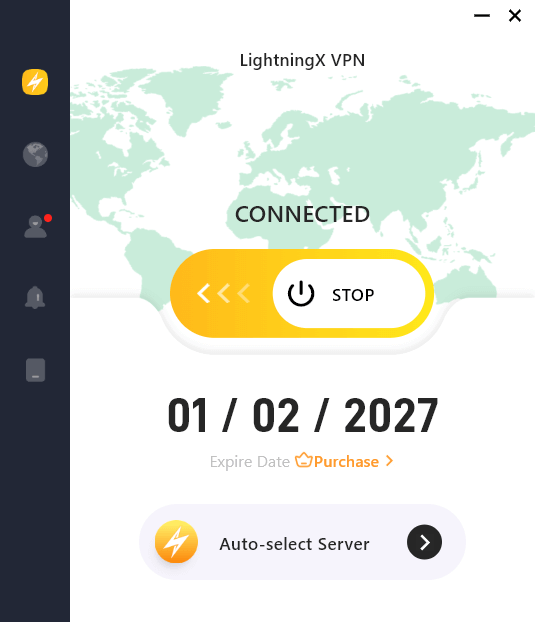
- Open the VPN app and select a desired server to connect to.
Fix 3. Restart Netflix
One of the simplest methods to solve the error code NW-3-6 is to restart the Netflix app or website. A relaunch can clear temporary connection glitches on Netflix.
To completely exit the Netflix desktop app, click on the system tray in the bottom right, right-click on Netflix, and choose Exit.
As for closing the Netflix mobile app, directly swipe up from the bottom of your phone, and then exit the Netflix page.
Then, open Netflix to see if the issue is solved.
Fix 4. Restart Your Streaming Devices
Restarting your streaming devices is also an applicable method for addressing Netflix error code NW-3-6. This can clear temporary glitches on your devices.
To restart your streaming device, power it off, wait for a while, and then power it back on.
Fix 5. Set the IP Address to Static on the Smart TV
A static IP address can ensure a stable network connection on your smart TV, which might help resolve the error code NW-3-6 on Netflix. Here’s how to configure a static IP address for your smart TV. Different TV models have different UI interfaces. You can go to your TV brand’s official website to look for the tutorials.
Taking Sony TV as an example, here’s how set its IP address to static:
- On your smart TV, go to All Apps > Settings.
- Select Network.
- Select the connection type (Wi-Fi or Ethernet) and press Enter on your remote.
- Under IP settings, select Static and press Enter.
- Scroll down and check the IP fields.
- Enter details into ALL fields.
- Select Connect in the Wi-Fi screen and Set in the Ethernet screen, and then press Enter to apply the changes.
Fix 6. Verify Your Gaming Console’s DNS Settings
If the Netflix error code NW-3-6 happens on your gaming console, it might be caused by incorrect DNS settings. You can follow the steps below to verify and then adjust the DNS settings on your gaming console.
How to verify and adjust the DNS settings on PS5 and PS4:
- Go to Settings > Network, and then choose Set Up Internet Connection.
- Choose your network connection type: Wi-Fi or LAN Cable.
- Select Custom to change your network settings.
- Choose Automatic for IP Address settings, and Manual for DNS settings.
- Enter the Primary and Secondary DNS server addresses. You can use Google DNS (8.8.8.8) for Primary and 8.8.4.4 for Secondary.
- Save the changes and wait for your PlayStation to test the internet connection.
- Open the Netflix app to see if the error code NW-3-6 exists.
How to verify and adjust the DNS settings on Xbox:
- Enter Settings > Network > Network Settings.
- Scroll down and choose Advanced Settings.
- Find the DNS Settings option and choose Manual.
- Enter the Primary and Secondary DNS server addresses. You can use Google DNS servers 8.8.8.8 for Primary and 8.8.4.4 for Secondary.
- Save the changes.
- Go back to Network Settings and choose Test Network Connection to see if the Xbox can connect to the internet.
Fix 7. Reinstall Netflix
You can also try reinstalling Netflix to see if the error code NW-3-6 can be resolved.
Reinstalling the Netflix app can clear temporary connection glitches on Netflix.
However, note that reinstalling Netflix will clear your login status. When you open Netflix, you’ll need to re-enter your login details.
Fix 8. Update Your PC Network Adapter
If your PC’s network adapter is outdated, it might affect the device’s network connection, which results in Netflix error code NW-3-6.
You can update your PC network adapter drivers to resolve the issue. Here’s how.
- Right-click the Start button.
- Click Device Manager.
- Expand Network adapters.
- Right-click your network adapter. (Wi-Fi usually says Wireless, Wi-Fi, Intel, Realtek)
- Click Update driver.
- Choose Search automatically for drivers.
- Let Windows check and install (restart if asked).
If Windows says “best driver already installed”, that just means it didn’t find a newer one online.
Fix 9. Contact Netflix Support
If the error code NW-3-6 persists on your Netflix after you try the above solutions, you can contact Netflix support to help resolve the problem.
FAQs about Netflix Error Code NW-3-6
Q1: Why Is Netflix Saying I’m Not Part of the Household When I Am?
Netflix determines your household based on the primary Wi-Fi network and device activity. This message can appear if you’re using a different network, a VPN, mobile data, or haven’t connected your device to the home Wi-Fi recently.
Q2: How to Fix Netflix Error NW-2-5?
The error code NW-2-5 on Netflix is also a network-related issue. You can follow our detailed guide to address this problem: How to Fix Netflix Error Code NW-2-5: A Complete Guide.
Q3: Why Is Netflix Not Working, but the Internet Is Fine?
Your internet may be connected, but blocking Netflix specifically. This can happen due to DNS issues, router settings, VPNs, or outdated network software that prevents Netflix from reaching its servers.






