


This guide will show you how to cancel your Peacock subscription on iPhones, iPads, Android devices, Amazon, and Roku.
We cover the cancel Peacock TV subscription steps, frequently asked questions, and important considerations for all platforms.
How to Cancel Peacock on Web?
If you subscribed to Peacock directly through Peacock, you can cancel your Peacock subscription online using any internet browser.
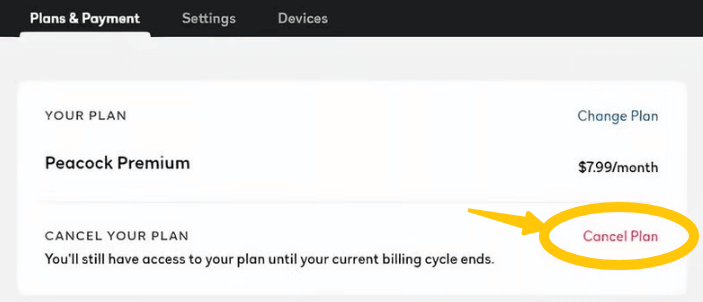
Step 1: Visit the official Peacock website and log in to your account.
Step 2: Click on your profile icon and then go to “Account” or “Plans & Payments.”
Step 3: Select “Cancel Plan” and then follow the on-screen instructions to complete the cancellation.
Once canceled, your Peacock subscription will remain active until the end of your billing cycle and will not automatically renew.
How to Cancel Peacock Subscription on iPhone or iPad?
If you subscribed to Peacock through Apple’s in-app purchase feature, you must cancel your subscription through your Apple ID settings.
Step 1: Open the App Store on your iPhone or iPad.
Step 2: Tap your profile icon in the upper right corner, then select “Subscriptions.”
Step 3: Find and tap Peacock in your list of active subscriptions.
Step 4: Tap “Cancel Subscription” and confirm when prompted.
After canceling your subscription, your Peacock subscription will remain active until the end of the current billing cycle.
How to Cancel Peacock Subscription on Google Play?
Android users typically subscribe to Peacock through Google Play. Here are the steps to cancel your Peacock subscription on Google Play:
Step 1: Open the Google Play Store app on your Android device.
Step 2: Tap your profile icon in the upper right corner, then select “Payments & subscriptions.”
Step 3: Tap “Subscriptions,” then select Peacock from the list.
Step 4: Select “Cancel subscription,” and then follow the prompts to confirm the cancellation.
Cancel Peacock Subscription via Amazon Prime
If you subscribed to Peacock through Amazon, you must cancel your Peacock subscription from your Amazon account, not through the Peacock website or app.
Step 1: Go to the Amazon website and log in to your account.
Step 2: Hover over “Accounts & Lists” and then select “Memberships & Subscriptions.”
Step 3: Find Peacock in your list of active subscriptions and select “Cancel Subscription.”
Step 4: Follow the on-screen instructions to confirm the cancellation.
Cancel Peacock Subscription via Roku
If you registered for Peacock using a Roku device, you must cancel your Peacock subscription through your Roku account.
Step 1: Go to the Roku website and log in to your account.
Step 2: Go to “My Account” and then select “Manage your subscriptions.”
Step 3: Find Peacock in your list of subscriptions and click “Cancel Subscription.”
Step 4: Confirm that you want to cancel your Peacock subscription.
Why Can’t You Cancel Peacock?
If you are unable to cancel your Peacock subscription, it’s usually because your Peacock subscription is managed by a third-party platform, not Peacock itself. For example, subscriptions through Apple, Google Play, Amazon, or Roku.
Another common reason is logging into the wrong Peacock account. If you have multiple email addresses, make sure you are logging in with the account you used to purchase the subscription.
If neither of these applies, try logging in through a web browser instead of the app, or check your billing email to confirm which service provider manages your Peacock subscription.
If you want to unblock more streaming services like Netflix, Hulu, and HBO, LightningX VPN offers over 2000 servers and encryption technologies like WireGuard, allowing you to watch movies freely.
Download this best streaming VPN now and enjoy free high-speed servers and a 30-day money-back guarantee.
What Happens After You Cancel Peacock?
After canceling your Peacock subscription, your access will continue until the end of your current billing cycle. Peacock will not terminate your access even if you cancel immediately after paying.
Your subscription will not automatically renew, and you will not be charged again unless you manually resubscribe. If you are using a Peacock free trial, canceling before the trial period ends will prevent any charges.
To ensure your cancellation is successful, please check your account status and look for a confirmation email from Peacock or your subscription platform.
FAQs: Cancel Peacock Subscription
1. Where can I find my Peacock subscription?
You can find your Peacock subscription information in the account or subscription section of the platform you used to register.
- Subscriptions made directly through Peacock, log in to the Peacock website, and check the “Account” or “Plans & Payments” section.
- For subscriptions made through Apple, Google Play, Amazon, or Roku, you will need to check the subscription details in the account settings of the respective platform.
2. Does canceling Peacock end immediately?
No, canceling your Peacock subscription will not immediately terminate your access. You can continue watching until the end of your current billing cycle or free trial period.






