


Network Address Translation (NAT) is a method used to translate private IP addresses into public IP addresses and vice versa. It plays an important role in allowing devices such as gaming consoles and smart TVs to communicate with the public network. However, using an unsuitable NAT type can cause connection issues, especially when accessing online services.
On the Nintendo Switch, NAT type also affects online connectivity. If your Switch has trouble connecting to online features or multiplayer games, an incompatible NAT type may be the cause. In this guide, we’ll show you how to change the NAT type on your Nintendo Switch and resolve common connection problems.
What Is NAT Type on Nintendo Switch?
On Nintendo Switch, there are five NAT types: A, B, C, D, and F. Each type indicates how open your network connection is and how easily your console can connect to other players online.
- NAT Type A: The most open NAT type on Nintendo Switch, offering the highest level of connectivity and the fewest online restrictions.
- NAT Type B: A stable and common NAT type that supports most online features and allows you to play with the majority of players.
- NAT Type C: A more restricted NAT type that may limit connections with some players, especially in peer-to-peer games.
- NAT Type D: A very restrictive NAT type that often has difficulty connecting to other players and typically only works reliably with NAT Type A connections.
- NAT Type F: Indicates a failed connection test, meaning the console cannot connect to the network properly.
In general, NAT Type A provides the best online experience on Nintendo Switch, while NAT Type B is sufficient for most players. NAT Types C and D may cause matchmaking or connection issues, and NAT Type F requires immediate troubleshooting.
Related: How to Change Nat Type on Xbox: A Step-by-Step Tutorial
How to Change NAT Type on Switch with Port Forwarding
Follow the steps below to change the NAT type on your Switch using port forwarding.
Tip: You can also connect your Switch to a VPN to get a more open NAT type. LightningX VPN is an excellent tool. It covers 70+ countries with 2,000+ servers. Based on robust algorithms like AES-256-bit, it protects your online gaming from DDoS attacks. It is compatible with all popular devices and allows up to 3 simultaneous connections.
Step 1. Check Your Network Information
First, you’ll need to check and note down three important pieces of information about your network. Here’s how.
1. On your PC, press Win + R to open the Run dialog.
2. Type cmd and press Enter to open the Command Prompt.
3. Run the ipconfig/all command. Your network’s information should then be displayed in the window.
4. Check and write down the following settings:
- IPv4 Address
- Subnet Mask
- Default Gateway
Step 2. Configure a Static IP Address on Your Nintendo Switch
Assigning a static IP ensures your Switch always uses the same internal IP address, which is necessary for port forwarding or DMZ to work properly.
1. On your Nintendo Switch, go to System Settings from the Home menu.
2. Scroll down and select Internet, then choose Internet Settings.
3. Select your connected Wi-Fi network.
4. Select Change Settings.
5. Scroll down to IP Address Settings. By default, it is set to Automatic (DHCP).
6. Change it to Manual.
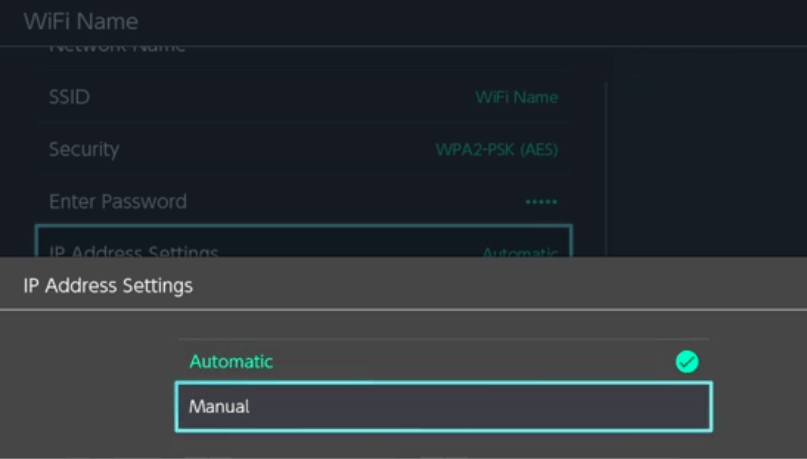
7. Enter static IP information:
- IP Address: Use the IP you noted from your PC. However, to avoid IP conflicts, choose a number that is not currently in use on your network (for example, a higher number such as .100 or .150).
- Subnet Mask, Gateway, and DNS Settings: Use the information you noted earlier.
8. Select Save to apply the static IP.
9. Go back to Internet Settings and select Test Connection to ensure your Switch can still access the internet.
Step 3. Create Port Forwarding on Your Router
Now, you can create a port forwarding on your router to direct incoming traffic to your Nintendo Switch, helping achieve a more open NAT type for online play. Follow the general steps below to complete the port forwarding.
Note: Different routers may have different steps. You can check your manufacturer’s website for detailed steps.
1. On a computer or mobile device connected to the same network, open a web browser.
2. Enter your router’s default gateway IP address (for example, 192.168.1.1) into the address bar.
3. Log in using your router’s administrator credentials.
4. Look for Port Forwarding, Virtual Server, or NAT in your router settings. This option is often found under Advanced, Firewall, or Network Settings, depending on the router model.
5. Create a new rule using the following settings:
- Service Name: Nintendo Switch
- Protocol: UDP
- External Port/Start–End Port: 1–65535
- Internal Port: 1–65535
- Internal IP/Device IP: Enter the static IP address assigned to your Nintendo Switch.
Some routers require separate rules for TCP and UDP. If TCP is required, you can add an additional rule using the same port range.
6. Save and apply the settings. Then, restart your router to ensure the changes take effect.
Step 4. Check the NAT Type on Your Nintendo Switch
- On your Nintendo Switch.
- Go to System Settings > Internet.
- Select Test Connection and check the NAT type displayed.
- If configured correctly, your NAT type should change to Type A or Type B.
Related: How to Change Nat Type on PC: Step-by-Step Guide
Common Causes of Strict NAT on Nintendo Switch
Here are the common reasons why your NAT type is strict on the Switch.
- Router or modem restrictions: Some routers or modem–router combos block incoming connections by default, which can prevent the Nintendo Switch from establishing peer-to-peer connections for online play.
- Double NAT issues (ISP modem + router): Using both an ISP-provided modem and a separate router can result in double NAT, where traffic is translated twice and causes connection issues on the Switch.
- Firewall settings: Strict firewall rules on your router may block the ports required by Nintendo Switch, leading to a restricted NAT type.
- ISP limitations: Some ISPs use carrier-grade NAT (CGNAT) or other network restrictions that cannot be resolved through router settings alone.
Why Is NAT Type Still Not Changing?
If your Switch’s NAT still won’t change, try these fixes:
- Common mistakes when configuring routers: Double-check that the port numbers match Nintendo’s recommended ports, the internal IP address is correctly assigned to your Nintendo Switch, and all changes are saved and applied. Restart both the router and the Switch after making any adjustments.
- Router compatibility issues: Check your router’s specifications or firmware version to confirm it supports port forwarding or DMZ properly. Updating the router firmware or switching to a more gaming-friendly router may help improve NAT behavior.
- ISP-restricted networks: If your ISP uses CGNAT or blocks incoming connections, contact your ISP to ask whether a public IP address or “open NAT” option is available. In some cases, upgrading your plan may be required.
- When changing the NAT type isn’t possible: On public Wi-Fi, shared networks, or heavily restricted connections, NAT changes may not be supported. Using a mobile hotspot, a different network, or a VPN with port forwarding support can be a practical workaround.
FAQs About Changing Switch NAT Type
Q: How to get NAT Type A on the Switch without port forwarding?
Getting NAT Type A on the Nintendo Switch without port forwarding is difficult, as port forwarding is the most reliable way to fully open the required connections. Without it, your options are limited and depend largely on your network environment.
In some cases, using a DMZ configuration or connecting to a VPN hotspot may help improve connectivity and achieve a more open NAT type. As for sharing a VPN connection with your Switch, you can follow our guide: How to Share a VPN Connection via Hotspot: Windows 11/10 & Mac.
Q: Can I change the NAT type on the Switch using a mobile hotspot?
Generally, a mobile hotspot does not allow you to change the NAT type in the same way a home router does. Mobile networks typically use strict NAT settings, which means you cannot manually open ports or configure port forwarding.
Q: Why is NAT type B not working on Nintendo Switch?
NAT type B generally works for most online games on Nintendo Switch, but it may still cause connection issues in certain situations. This can happen if the other players are using restrictive NAT types, if required ports are blocked by the router, or if the network is affected by double NAT or ISP-level restrictions.
In some cases, NAT type B allows online play but limits peer-to-peer connections, which may result in matchmaking errors, voice chat issues, or unstable connections.






