


Instagram is one of the most popular social media platforms today, with over 2 billion monthly active users. On Instagram, creators primarily attract followers and expand their influence through audio, video, or images. An engaging video often features perfectly matched audio.
However, sometimes after posting your Instagram content, you suddenly realize the music doesn’t quite fit the theme and want to change it. Well, you’ve come to the right place. Today, we’ll walk you through whether it’s possible to change the song on your Instagram posts, along with other essential tips.
Can I Change Working Songs on Instagram Posts?
According to Instagram’s policy, you can’t directly change songs that are still working on published Instagram posts.
The primary reason for this restriction is not a technical limitation, but rather the platform’s combined considerations regarding copyright, algorithm integrity, and content consistency.
Instagram’s music licensing is typically tied to the time of publication, usage context, and geographic region; changing the music after a post has been published is effectively equivalent to reusing a track, which may bypass the original licensing framework.
In addition, music is a key variable in Instagram’s recommendation algorithm. Allowing post-publication music changes could distort performance data and even be exploited to “re-ride trends,” undermining the platform’s ability to accurately evaluate content performance.
Moreover, once a post has accumulated comments, saves, and shares, changing the music may create inconsistencies between the content and existing user interactions, ultimately harming the user experience.
However, if your Instagram music isn’t working due to copyright or licensing issues, you can replace it with other songs.
Follow the steps below to fix a muted song on your Instagram post.
How to Change Muted Song on Instagram Post
You can replace a muted song on your Instagram post or reel through mobile or desktop. Here are the detailed steps.
- Launch Instagram on your Android, iOS, Windows, or macOS device.
- Go to your profile and find the post or reel with the muted audio.
- Choose Audio unavailable > Replace audio.
- Choose Replace audio again.
- Add the selected music to your Instagram post or reel.
- Hit Done in the upper right and confirm the action by choosing Done again. Now, the muted song on your Instagram post or reel should be replaced.
Note: There’s only one chance to replace a muted song.
Alternatives to Changing Song on Instagram Post
If you want to use a new song on an existing Instagram post, here are a few possible workarounds.
Repost with a new song: The most straightforward option is to repost the same content with a different song. If the original post has already gained significant engagement, you may want to keep it. Otherwise, you can delete it and upload the same content again with a new song.
Share the post to your Story: You can also share the post to your Instagram Story and add a new song there. This allows you to introduce a different track without deleting the original post, although Stories may feel less permanent than posts.
Mention the new song in the comments: Another option is to pin a comment mentioning the new song’s name, so your audience knows which track you intended to use.
Also read: Can You See Who Views Your Instagram? Here’s How to Find Out
Best Practices to Avoid Song Changes After Posting on Instagram
You can always follow the practices below to use an appropriate song on your Instagram post.
Check the Song Before Posting: Before you publish your post or Reel, make sure to listen to the entire song and confirm it fits your content. Double-check the lyrics, mood, and length to avoid any surprises after posting.
Ask Your Friends or Partners Before Posting: If your content involves collaborators or represents a brand, get feedback from them about the music choice. A second opinion can help prevent regrets and reduce the need for post-publication changes.
Decide Later (Use Drafts): If you’re unsure about the right song, save your content as a draft instead of posting immediately. Revisit it later with a fresh perspective before adding the final track and publishing.
How to Access the Whole Instagram Music Library?
Sometimes, you may not be able to play, add, or search for music on your Instagram. One of the most common causes is the geo-restrictions. You can use a VPN to unblock the whole Instagram music library.
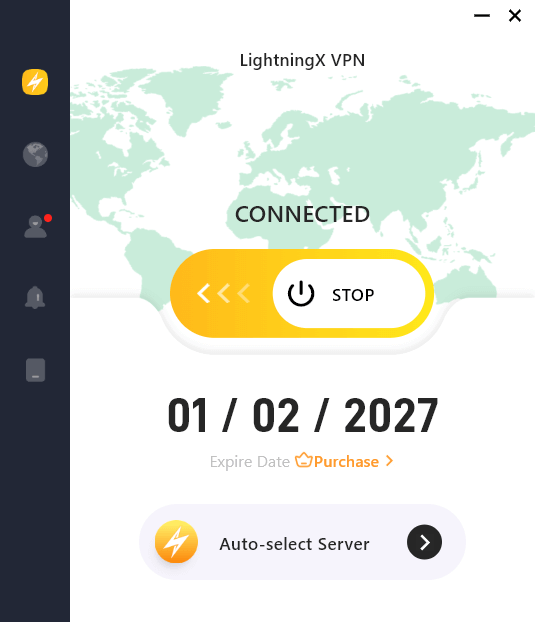
LightningX VPN serves as an excellent and secure tool for bypassing geo-restrictions and protecting user data. Based on advanced algorithms like AES-256-GCM and ChaCha20-Poly1305, LightningX VPN encrypts your internet traffic and protects your online data.
With over 2,000+ servers in 70+ countries, LightningX VPN provides multiple options for unblocking and ensures a more stable connection.
It now offers a traditional free trial for beginners.
FAQs About Changing Song on Instagram Posts
Q: How do I remove a song from my Instagram bio?
To remove a song from your Instagram bio, go to your profile and tap Edit Profile. Select Music, then remove the currently added song or replace it with another one. Then, save the changes.
Q: Can I delete music after posting on Instagram?
No. Once a post or Reel is published on Instagram, the music used in it cannot be deleted or changed. The only way to remove the song is to delete the post and repost it without music.
As an alternative, you can share the post to your Story and add a new song there, or pin a comment mentioning the song you intended to use.
Q: Can I use a third-party app to change the song on my Instagram post?
No. There is no third-party app that can change the music on a post or Reel after it has been published on Instagram. Once a post is live, the selected song is locked. Certain apps claiming to help switch songs on Instagram posts may be scams. Stay vigilant when encountering such services.
If you want to use a different song, the only options are to repost the content with a new song, share it to your Story with different music, or pin a comment mentioning the intended song.






