


Are you bothered by high ping when playing CS:GO? High ping will delay your actions and reduce your gaming experience.
In this guide, you’ll learn how to lower ping in games with practical, proven methods. From optimizing your network settings and devices to using a reliable gaming VPN, these tips can help you reduce lag and enjoy smoother, faster gameplay.
How to Lower Ping? 6 Ways!
Fix 1: Check Your Internet Connection, Speed, and Router
One of the main causes of high ping is an unstable or slow internet connection. So first check if your internet connection and router are working and what the speed is.
1. Check your internet connection and router
Make sure your cable is plugged in properly, and your router is working properly and not flashing red lights.
2. Test your internet speed
Use a tool like Speedtest or Fast to measure your connection’s ping, download speed, and upload speed.
- Ping: Under 50 milliseconds is ideal for gaming.
- Download speed: At least 10 Mbps for gaming or HD streaming.
- Upload speed: At least 3 Mbps for a stable connection.
Read more: How to Increase Upload Speed: 12 Quick Tips!
Fix 2: Restart Your Network Connection
If you’ve checked your network connection, restarting is an effective way to resolve high ping and connection issues, regardless of whether there are any anomalies.
1. Restart your PC
Refresh your system by restarting your PC and killing processes that may be interfering with network performance.
- On Windows: Click the “Start” menu and select “Power > Restart”.
- On macOS: Click the Apple logo in the upper-left corner. Select “Restart” and confirm.
2. Restart your network connection
Reconnecting to WiFi or reinserting your network cable can resolve temporary issues such as IP conflicts or DNS errors.
- Disconnect a wired connection: Unplug the Ethernet cable from your PC or laptop. Wait 10 seconds and then firmly plug the cable back in.
- Turn off Wi-Fi connection:
- On Windows: Go to Settings > Network & Internet > Turn Wi-Fi Off.
- On macOS: Click the Wi-Fi icon in the menu bar > Turn Wi-Fi Off.
- Wait 10-15 seconds, then turn Wi-Fi back on.
3. Restart your router
Routers can accumulate errors and caches over time. Restarting allows them to update their systems and run efficiently.
Unplug your router and wait 5-10 minutes to ensure all internal caches are cleared. Plug your router back in and wait for it to fully restart.
Once all your devices have restarted using the above method, you will have resolved the high ping issue.
Fix 3: Remove Unused Apps, Software, and Devices from Your Network
If your ping suddenly spikes, the problem may not be your internet plan—it could be too many devices and apps sharing your bandwidth.
Cleaning them up is one of the easiest ways to lower ping and improve connection stability.
1. Remove unnecessary devices from your WiFi network
Start by checking how many devices are connected to your router.
- Log in to your router’s admin page by entering 192.168.1.1 or 192.168.0.1 in your browser.
- Or use a network scanning app to see all connected devices.
Disconnect anything that doesn’t need to be online, such as:
- Smart TVs that aren’t in use
- Old phones or tablets
- Idle IoT devices
If your router supports QoS (Quality of Service), set higher bandwidth priority for your gaming device. This helps keep ping low even when others are using the network.
2. Remove background apps and software
Apps running in the background can also increase ping by constantly sending and receiving data.
- On Windows: Press Ctrl + Shift + Esc to open Task Manager. Go to the “Processes” tab. Find apps that consume a lot of network resources. Right-click the app and select End Task.
- On macOS: Open Activity Monitor from Applications > Utilities. Click the Network tab. Identify apps with high data usage and close them.
- On Android: Go to Settings > Apps > Data Usage and disable background data for specific apps.
- On iOS: Go to Settings > Cellular and turn off data usage for apps you don’t need.
Fix 4: Use a VPN or Game booster
If you’ve tried some basic troubleshooting steps and are still experiencing high latency, using a VPN or game booster might be a very effective solution.
VPNs or game booster work by rerouting your game traffic to a faster, more stable network path, reducing unnecessary network hops between you and the game server.
Another common problem is that some ISPs throttle game traffic during peak hours. A VPN can encrypt your data, making it more difficult for your ISP to identify and limit your game connection speed.
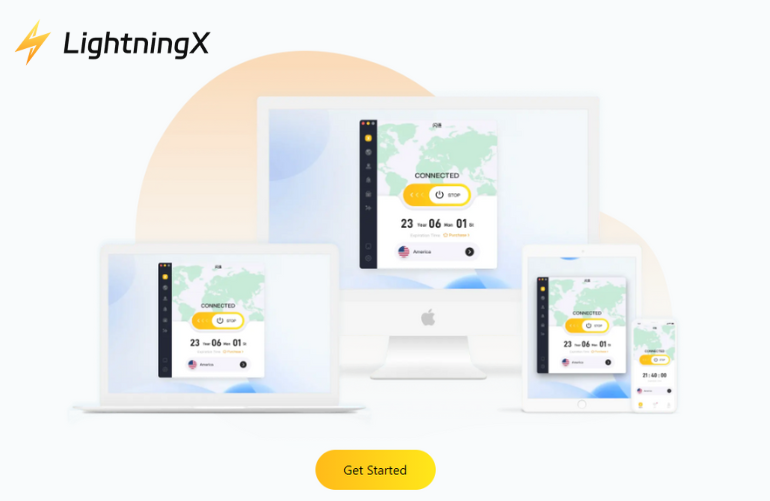
LightningX VPN is the ideal choice for gamers seeking a smoother and more stable connection.
It offers over 2000 high-speed servers to help you find the fastest path to game servers, and advanced encryption technology protects your connection and devices. It supports Android, iOS, Windows, macOS, tvOS, and Android TV.
Download now and enjoy free servers and a 30-day money-back guarantee.
Fix 5: Change Your VPN Server or WiFi Network
If you’re already using a VPN but are still experiencing high latency issues, the problem might be that the server is too far away.
Switch to a Closer VPN Server
When using a VPN, switching to a closer or faster server can often immediately reduce ping.
- Open your VPN application (e.g., LightningX VPN)
- Go to the server or node selection page
- Select a server in your country or a nearby region
- Alternatively, enable automatic connection to the fastest server
Switch to a Better WiFi Network
If your current Wi-Fi connection is weak or unstable, changing networks can also help lower ping.
- Click the Wi-Fi icon in your system tray.
- Disconnect from your current network.
- Connect to a Wi-Fi network with a stronger signal and better speed.
Fix 6: Update Your Device and Apps
Outdated systems and applications can lead to unexpected network problems, including higher latency and unstable connections.
1. Update your operating system
- Windows: Press Windows + I to open Settings. Go to Update & Security > Windows Update. Click Check for updates and install available updates.
- macOS: Open the Apple menu and select System Preferences. Click Software Update and install updates.
- Android/iOS: Go to Settings > System (or General). Select Software Update and download any pending updates.
2. Update games and apps
Check for updates using official app stores such as Steam, Google Play, or the App Store. Keeping your games and frequently used applications updated can fix bugs that affect network performance.
3. Update drivers and firmware
- Graphics drivers: Use GeForce Experience (NVIDIA) or Radeon Software (AMD) to make sure your GPU drivers are up to date.
- Router firmware: Log in to your router’s management page and look for firmware updates.
What is Ping?
Ping measures the time it takes for data to travel from your device to the server and back, also known as latency. It’s most commonly seen in online gaming, where it means the delay between your action (such as shooting) and the game server’s response (showing the shot on the screen).
Ping is measured in milliseconds (ms). A lower ping means a faster, smoother gaming experience, while a higher ping (over 200ms) can cause lags that delay your actions.
The speed of your internet connection has an intuitive effect on ping, but that doesn’t necessarily mean a faster connection will have a lower ping, so lowering ping is worth exploring.
Why is My Ping So High?
High latency is one of the most frustrating problems in online gaming. If your character lags, shots don’t register, or the game feels delayed, it’s usually due to high latency. Here are some common causes of high latency:
- Slow internet speed: A slow internet plan causes data transfer delays, which in turn cause high ping values. A 10MB internet plan is not enough to play Call of Duty.
- Too many devices on Wi-Fi: When too many devices are connected to Wi-Fi, they all share the same bandwidth. This causes data transfer delays, which can cause high ping values.
- Far away server location: The farther away the server you connect to, the longer it will take for data to transfer. For example, if you are in the United States and connect to a server in Australia, your ping value will be much higher than if you connect to a server in your area, such as New York.
- Background apps taking up bandwidth: Background apps or downloads always take up bandwidth, even if you are not actively using them.
- Old devices: If you have an old router, such as one from 2010, it may be unable to keep up with the speeds you need for modern games or HD streaming. This will cause delays and high ping values.
- ISP throttling: Some ISPs will deliberately slow down your connection during peak times, especially if you use a lot of data.
- Outdated software/drivers: Running old operating systems, game versions, or network drivers can cause performance issues.
FAQ about How to Lower Ping
1. Is 100 ping bad?
A ping of 100 milliseconds isn’t too bad, but if you need to play online games or watch 4K videos, 100 ping may not give you a good experience.
Ideal ping:
- Below 20 ms: Great for online gaming and watching 4K videos.
- 20-50 ms: Very good, barely noticeable for most activities.
- 50-100 ms: Good, with a slight delay in fast-paced tasks.
- Over 100 ms: Noticeable delay, especially in games or video calls.
2. Can a VPN reduce ping?
Yes, VPNs can help lower your ping. If your Internet Service Provider (ISP) is throttling your connection, you may be able to lower your ping by using a VPN to connect to a faster server. However, if your connection is working fine, a VPN will not significantly affect your ping.
Read more: Does a VPN Slow Down Your Internet Speed?






