


Pinterest is a powerful platform for promoting brands and growing a following. By uploading high-quality, visually appealing images and videos, you can attract more viewers and engage your audience. Adding links to your Pins can help drive traffic to your website, product pages, or other online content.
In this guide, we will show you how to post on Pinterest from both desktop and mobile devices, along with practical tips to optimize your Pins for better visibility and engagement.
Things to Know Before Posting on Pinterest
Before posting on Pinterest, please review the requirements below.
1. Posting via Pinterest Desktop (Web)
Supported formats:
- Photos: JPG, PNG
- Videos: MP4, MOV
Upload limits:
- Up to 10 photos or videos per upload
- Each photo must be under 20 MB
- Each video must be under 200 MB
Content requirements: All content must comply with Pinterest Community Guidelines.
2. Posting via Pinterest Mobile App
Supported formats:
- Photos: JPG, PNG
- Videos: MP4, MOV
Upload limits:
- Up to 20 photos or videos per upload
- Each photo must be under 20 MB
- Each video must be under 2 GB
Content requirements: All content must comply with Pinterest Community Guidelines.
3. Drafts
- Drafts are stored for up to 30 days.
- Multiple Pins can only be edited on Pinterest Desktop.
- Drafts cannot be edited across different devices.
How to Post on Pinterest on Desktop (Web)
You can post on Pinterest from any PC, laptop, or Mac using a web browser.
Step 1. Go to Pinterest.com and log in to your account.
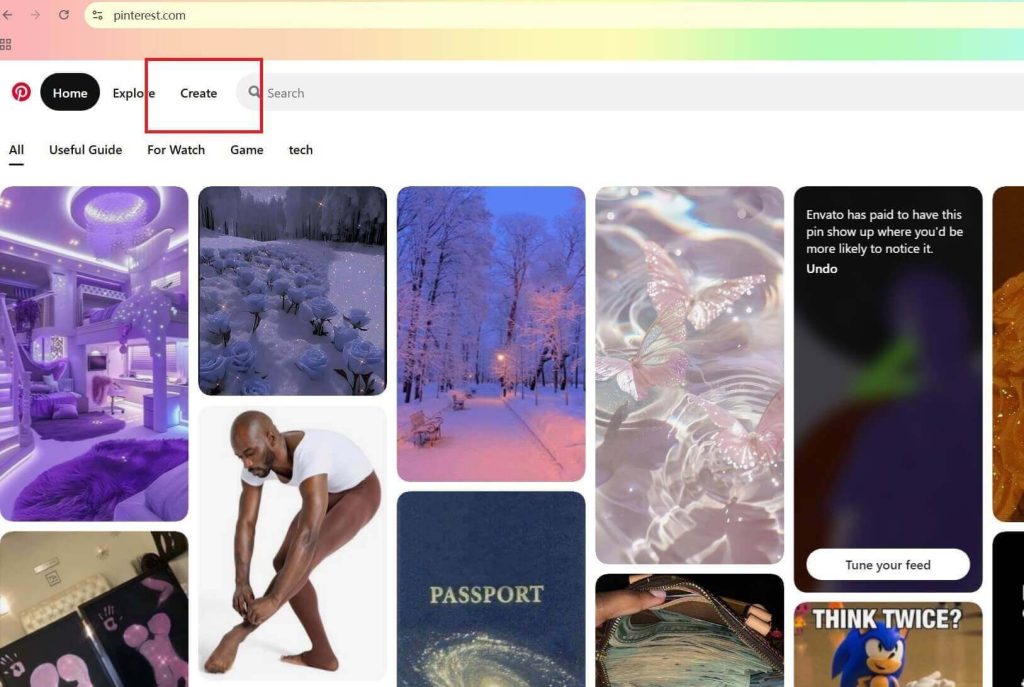
Step 2. Click Create in the top-left corner of the Pinterest homepage, then select Create Pin.
Step 3. Upload your images or videos in one of the following ways:
- Click the upload area to add up to 10 images or videos
- Drag and drop files directly into the editor
You can also click Save from URL to upload .jpg images from a website.
Videos cannot be uploaded via URL—only image thumbnails are supported.
Step 4. After uploading, customize your Pin using the options in the editor:
- Edit cover (videos only): Choose a frame to use as the video cover
- Add details: Enter a title, description, tags, and affiliate links
- Choose a board: Save the Pin to a relevant board
- Add products: Attach product or affiliate links (for example, Amazon links)
- Publish later: Schedule the Pin (available for business accounts, up to 30 days in advance)
- More options: Enable comments or show similar products
Step 5. Review your Pin and click Publish.
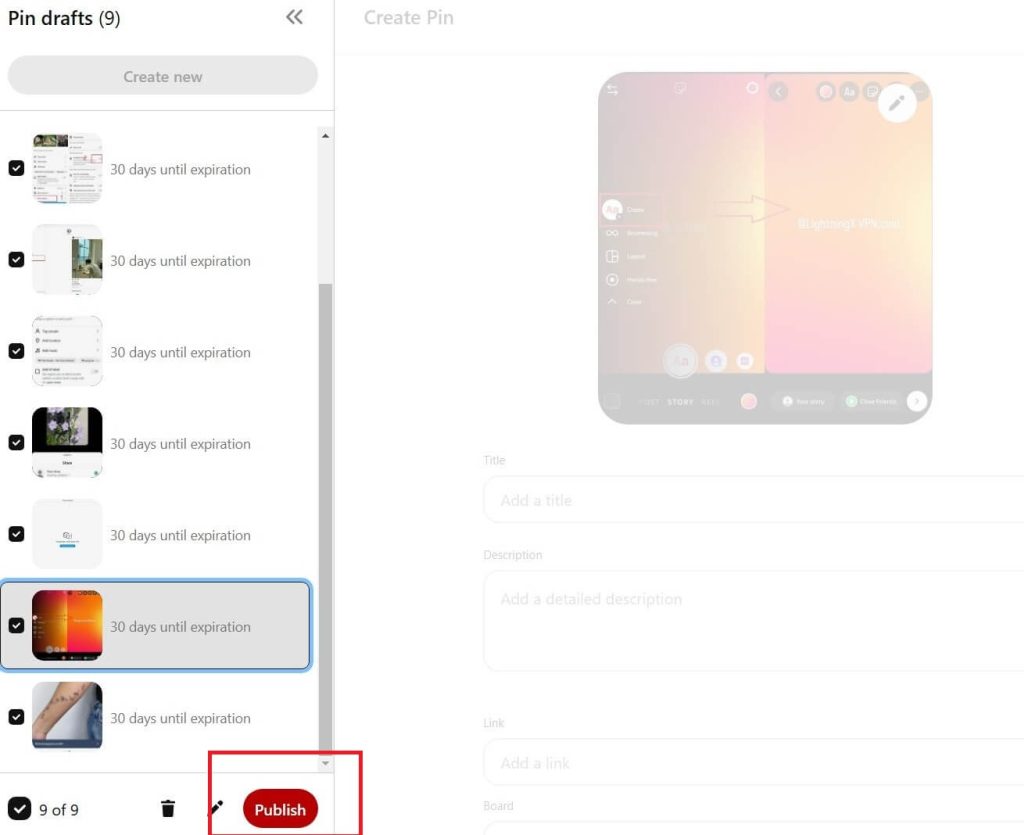
Once published, you can view it from the confirmation message or by visiting your profile.
How to Post on Pinterest Using the Mobile App
Posting on Pinterest mobile is very similar to desktop posting.
Follow the steps below on Android or iPhone.
Step 1. Launch the Pinterest app and log in to your account.
Step 2. Tap the + icon at the bottom center of the screen, then select Pin.
Step 3. Choose up to 20 photos or videos from your gallery and tap Next.
You may need to grant Pinterest permission to access your photos.
The selected media will be combined into a single Pin.
Step 4. Customize your Pin before publishing:
- Add text, title, description, tags, and a link
- Edit the video cover (for video Pins)
- Choose a board to save the Pin
If you’re using a business account, you’ll also see the option to schedule the Pin up to 30 days in advance.
Step 5. Tap Create in the bottom-right corner to post your Pin on Pinterest.
Tip:
To access Pinterest from anywhere in the world when you are traveling, using a VPN for Pinterest will help. LightningX VPN is the best VPN for Pinterest. It can help unblock Pinterest from most of the world. It has more than 2,000 servers in 70+ countries. It can be set up on Windows PCs, Macs, iPhones, Android phones, consoles, and TVs. The plans are affordable. It offers a free trial for beginners.
How to Post on Pinterest from Instagram
If you want to share your Instagram content to Pinterest, there are two main ways to do it: auto-publishing or manual posting.
1. Claim Your Instagram Account on Pinterest
To connect Instagram with Pinterest:
- Log in to Pinterest and go to your profile.
- Click the Settings icon.
- Navigate to Claim or Claimed Accounts.
- Choose Instagram and follow the prompts to link your Instagram account.
Claiming your Instagram account lets Pinterest access your profile for auto-publishing.
2. Enable Auto-Publishing
After claiming your account, you may see an option to enable auto-publishing from Instagram to Pinterest.
- When enabled, new posts you publish on Instagram will automatically be sent to Pinterest as Pins.
- Pins created this way may take up to 72 hours to appear on Pinterest.
- This feature might not be available for all accounts or in all regions.
3. Manual Posting Without Auto-Publishing
If you choose not to enable auto-publishing, or if the option is unavailable:
- Save the Instagram images or videos to your device.
- Open Pinterest and create a new Pin.
- Upload the saved media.
- Add a title, description, and any links.
- Choose a Pinterest board and publish the Pin.
Related: How to Post on Instagram: A Beginner’s Guide
Tips for Posting on Pinterest
To increase visibility and engagement on Pinterest, keep the following best practices in mind.
1. Use clear, eye-catching images or videos.
High-quality visuals perform best on Pinterest. Make sure your images and videos are sharp, well-lit, and not blurry.
- Use a vertical format, as vertical Pins typically get more impressions
- The recommended aspect ratio is 2:3 (for example, 1000 × 1500 pixels)
- Bright, high-contrast colors help your Pins stand out in users’ feeds
2. Write clear titles and keyword-rich descriptions.
Your Pin title can be up to 100 characters, so use it to clearly describe what the Pin is about.
- Add relevant keywords naturally to the title and description
- Focus on search intent rather than keyword stuffing
- If applicable, include a link to your blog, product page, or website
Well-written descriptions help your Pins rank higher in Pinterest search results.
3. Use relevant keywords consistently.
Pinterest works like a visual search engine, so keywords matter.
- Use keywords related to your Pin’s topic in the title, description, and board name
- Hashtags (such as #DIY or #HealthyRecipes) can be added, but they should be optional and highly relevant
4. Stay active and post consistently.
Regular posting helps Pinterest understand your content and improves long-term visibility.
- Publish Pins consistently instead of posting many at once
- Test different posting times to find when your audience is most active
- Engage with users by responding to comments and interacting with related content
Conclusion
Pinterest is a popular platform for discovering and sharing ideas through images and videos. With millions of Pins uploaded daily, the competition for visibility is high. Achieving significant engagement requires creativity, strategic planning, and attention to detail in your Pins.
We hope this guide helps you create outstanding Pins and effectively share your content on Pinterest.






