


Accidentally hit the repost button on TikTok? Don’t worry – it happens to the best of us. Whether you shared a video by mistake or simply changed your mind, removing a repost is quick and easy. In this updated guide (based on the current TikTok app interface as of late 2025), we’ll show you exactly how to remove a repost on TikTok and even how to turn off the feature entirely.
What Is TikTok Repost? Why Do You Want to Do That?
What Is a TikTok Repost? A repost is like a “recommendation” to your friends. Unlike a Duet or Stitch, a reposted video won’t appear on your main profile grid. Instead, it pushes the video into your friends’ “For You” feeds with a small “Reposted” badge. It’s a great way to support creators, but easy to trigger by accident.
What Happens After You Repost?
When you hit that yellow button on TikTok, a few things happen instantly:
- Friend recommendations: The video is pushed to your mutual followers’ For You feeds.
- Visibility: Your friends will see a small badge saying “[Your Name] reposted.”
- No profile clutter: Unlike your own videos, reposts do not appear on your main profile grid. They are stored in a separate, dedicated Repost Tab.
- Engagement: Any likes or comments on the repost still count toward the original creator’s stats.
How to Remove a Repost?
While the repost feature is a great way to share on TikTok, it isn’t always the right fit for every situation. You might find that a video no longer aligns with your tastes, or you simply want to manage who sees your recommendations.
Accidental clicks are the most common reason for wanting to undo a repost. Since the button is located right in the sharing menu, it’s easy to share something by mistake that you didn’t actually intend to broadcast to your friends.
If you’re looking for a way to tidy up your feed or ensure your content reflects you accurately, removing reposts could be a solution.
Step 1: Locate the Reposted Video
To remove a repost, the most reliable way is to find it through your Repost tab.
- Go to your Profile in the TikTok app.
- Look for the Repost icon (it looks like two arrows forming a square/cycle) located in the center of your profile menu.
- Here, you’ll find a chronological list of every video you’ve shared. Tap on the video you wish to un-repost.
Tip: If you just accidentally reposted a video and are still watching it, you can skip this step and remove it immediately. And if the video doesn’t show up in your Repost tab, you might find it by checking your TikTok watch history.
Step 2: Removing the Repost
Once you have opened the video you want to un-repost, follow these simple steps to remove it:
1. Tap the “Share” Button: Tap the arrow icon (the Share button) at the bottom right of the screen.
2. Click “Remove Repost”: In the menu that pops up, you will see a yellow button that says “Remove Repost” (it’s in the same spot where the “Repost” button originally was).
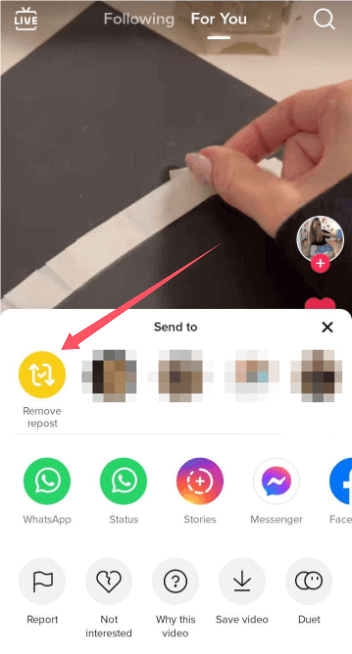
3. Confirm the Removal: After clicking, a small notification will appear at the top of your screen confirming that your repost has been removed.
Note: If you just accidentally clicked the Repost button, you don’t need to leave the video. Simply tap the Share button again immediately to undo it.
How to Disable the Repost Feature Entirely
If you find yourself accidentally reposting videos too often, or you simply prefer to keep your TikTok activity private, you can turn off the feature in your settings. Here’s how:
- Go to your Profile: Tap the “Profile” icon at the bottom right.
- Open Settings: Tap the three-line menu icon in the top right corner and select “Settings and Privacy.”
- Navigate to Privacy: Tap on “Privacy” and then scroll down to find the “Repost” option.
- Toggle it Off: Switch the toggle to Off.
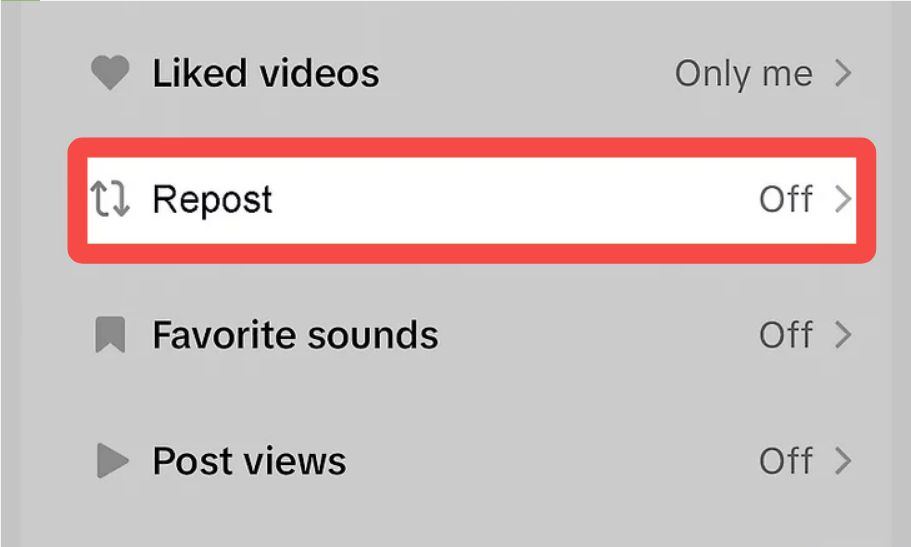
Note: Disabling this feature will hide the Repost button from your share menu and prevent your friends from seeing any future recommendations from you. Removing a repost helps clean up your feed, but if you’re dealing with a specific user who makes you uncomfortable, the best solution is to learn how to block someone on TikTok for a safer experience.
Potential Issues with Reposting
While reposting is a fun and engaging way to share content, there are potential issues to consider:
- Content misuse: Some users might repost content without giving proper credit, which can lead to disputes and negatively affect the original creator’s reach and recognition.
- Oversaturation: If too many people repost the same video, it can become oversaturated in feeds, making it less impactful.
- Copyright concerns: Some content may be protected by copyright, and reposting without permission could lead to copyright infringement issues.
Common Issues (and Fixes) When Removing a Repost
While removing a repost is usually straightforward, many users run into glitches or confusion. Here is how to handle the most common frustrations:
1. “I Can’t Find the Video Again!”
One of the biggest hurdles is locating a video you reposted hours or days ago. Instead of hunting through your “For You” page (which is nearly impossible), go directly to your Profile. Look for the Repost Tab (the icon with two circling arrows). This is your personal “management center” where every video you’ve ever reposted is stored in one place.
2. “The ‘Remove Repost’ Button is Missing”
If you open the Share menu and the yellow button isn’t there, it could be due to a few reasons:
- Original Creator Settings: If the creator deleted the video or set it to private, the button may glitch. In this case, try long-pressing the video thumbnail directly from your Repost Tab to see if an “Undo” option appears.
- App Glitches: Sometimes TikTok’s interface needs a nudge. Try clearing your TikTok cache (Settings > Free up space > Clear Cache) or restarting the app.
- Connection Lag: Occasionally, you’ve already removed the repost, but the UI hasn’t updated. A quick refresh of your profile usually confirms the removal.
3. “I Want to Save Videos Privately Without Reposting.”
Many users accidentally repost when they actually just want to save a video for later. To avoid cluttering your friends’ feeds and having to delete reposts later, use the “Add to Favorites” button (the bookmark icon). Unlike a repost, favorites are private and only visible to you, keeping your interests discreet and your profile clean.
4. What to Do if the “Remove Repost” Button Won’t Load
Sometimes, regional network restrictions or TikTok’s server glitches can cause the ‘Remove Repost’ button to disappear. Using a reliable VPN like LightningX VPN can help you switch to a more stable server region (like the US or UK), ensuring all TikTok features and buttons load correctly.

Related: Five Best VPNs for TikTok
How to Avoid Accidental Reposts
Prevention is better than a cure! If you want to stop making those awkward accidental shares, keep these tips in mind:
- Use “Favorites” instead: If you just want to save a video for yourself, click the Bookmark icon (Favorites) instead of the Share arrow. It’s private and won’t notify anyone.
- The “Long-Press” preview: Before you click the Share button, try long-pressing the video to see more options. This slows down your interaction and prevents “button-happy” mistakes.
- Slow down in the Share Menu: The Repost button is intentionally placed right next to your top contacts. Take an extra second to look for the yellow icon before tapping.
- Disable the feature: [Refer to the previous steps.]
If you’ve tried all the troubleshooting steps above and the button still won’t appear, it might be a persistent account-level bug. In that case, you should follow these steps to contact TikTok support for further assistance.
Conclusion
Removing a repost on TikTok is a simple task once you know the steps. Whether it’s an accidental repost or a change of heart, TikTok makes it easy to undo a repost and keep your profile looking just the way you want. By learning how to manage your reposts, you can keep your TikTok experience fun and safe. The flexibility to repost or remove reposts ensures you stay in control of your content. Enjoy your time on TikTok and keep sharing wisely! With these simple tools, you stay in charge of your feed, not the other way around.






