


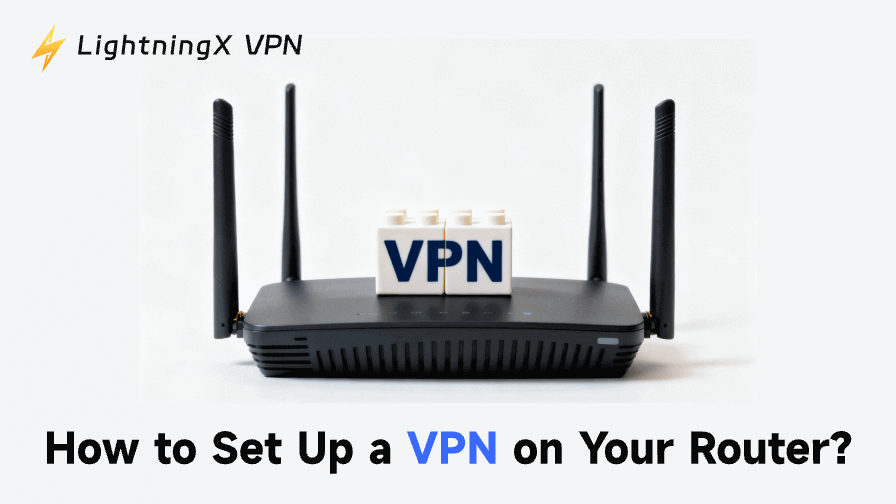
Installing a VPN on your router is one of the best ways to protect your entire home network.
This guide will explain how to setup a VPN on your router, what issues to avoid, and which VPNs work best with your router.
What is a VPN Router?
A VPN router is a Wi-Fi router with a VPN installed. It works just like a normal VPN, but it protects every device on your network at the same time. When the VPN is set up on the router, all internet traffic from connected devices goes through the VPN’s secure servers. This helps hide your IP address and keeps your online activity private.
In short, a VPN router gives you simple, network-wide privacy and security with one setup.
How to Setup VPN on Router? 6 Steps!
Here’s a simple guide showing how to install a VPN on router using a TP-Link router as an example. Most routers follow a similar process.
Step 1: Check if your router supports VPN
Not all routers have a built-in VPN client. To confirm, check your router’s manual or search your TP-Link model online.
If your router does not have a “VPN Client” option, you cannot add VPN directly to the router.
Step 2: Log in to your router
Find the router IP address and enter it in the address bar, such as http://tplinkwifi.net. Enter your TP-Link ID or the password you set for the router. This will take you into the router’s management panel.
This IP address is usually displayed as the “Default Gateway” in your device’s “Network & Settings”.
Step 3: Go to VPN Client settings
Navigate to: Advanced > VPN Client, enable the “VPN Client” feature, and save the settings.
Step 4: Add a VPN configuration
Upload or enter the VPN details provided by your VPN service provider. This includes the server address, username, password, and configuration file.
Follow your service provider’s instructions to add the VPN to your router settings.
Step 5: Choose which devices use the VPN
TP-Link allows you to select specific devices to route through the VPN.
- In the “Device List”, click “Add.”
- Select the devices (e.g., laptop, TV, phone) that should use the VPN connection.
- Save the settings.
Only the selected devices will use VPN for router, while others continue using the normal connection.
Step 6: Verify VPN is working correctly
Search “What is my IP address?” in your browser. If your IP address and virtual location have changed, your router VPN setup is complete.
Once you’ve set up the VPN on your router, you no longer need to install a VPN app on each device.
Why You Should Use a VPN Router?
Setting up a VPN on your router allows you to easily protect your entire home network. Here are the main advantages of setting up a VPN router:
1. One-time setup protects all devices
With just one setup, all devices using your Wi-Fi (phones, laptops, tablets, TVs, etc.) receive encrypted traffic and hidden IP addresses.
2. No need to install a separate VPN app
You don’t need to install and open a VPN app on every device. The VPN operates at the router level, so all devices are protected immediately upon connection.
3. Works for devices that can’t install VPN
Some devices cannot run VPN apps, such as smart TVs, game consoles, and smart home devices. Add a VPN to your router, and these devices will enjoy the same privacy and security as your phone or computer.
4. Whole-house, 24/7 protection
The VPN router runs 24/7. No need to manually open the app or switch servers. Once the VPN is activated on the router, your home network is always protected.
5. Better online privacy and hidden IP addresses
All traffic originating from the router passes through an encrypted VPN server. This helps hide your real IP address and prevents trackers, hackers, or your internet service provider from viewing your online activity.
6. Allow access to region-restricted content
A router VPN allows your entire network to use the VPN’s virtual location. This means your TV, gaming devices, and other devices can access websites and streaming content that might be inaccessible in your region.
Read more: The Best VPN Routers: A Comprehensive Introduction
What Should You Avoid When Setting Up a VPN on Your Router?
When setting up a VPN on your router, some common mistakes can cause the VPN to slow down your network or not work. Avoiding these issues will help you achieve a smoother, more secure setup.
1. Using a router that doesn’t support VPNs
Not all routers can run VPNs. If your router doesn’t have a “VPN client” option, the VPN won’t install correctly.
2. Installing the wrong firmware
Some people try to add VPN support by flashing their router firmware. If you install the wrong firmware, your router may stop working completely. Only use firmware officially supported by your router model.
3. Entering incorrect VPN settings
When adding server addresses, login information, or profiles, ensure all information is correct.
4. Using a server that’s too far away
Choosing a VPN server that’s too far away can slow down your entire home network. To ensure a fast and stable connection, always choose a server that’s close to you.
5. Forgetting to update your router
Outdated routers may have vulnerabilities or security risks. Always update the router firmware before and after installing a VPN on your router to ensure smooth VPN operation.
6. Too many connected devices overload the router
Some older routers cannot handle the additional encryption work. Speed may decrease when too many devices are connected simultaneously. If this occurs, consider upgrading to a router better suited for VPNs.
3 Best VPNs for Routers
Choosing the best router VPN is important for speed, security, and ease of use. Here are three options:
1. NordVPN
NordVPN is one of the most popular choices for VPN on router setups. It works with most router brands and provides step-by-step guides for how to install a VPN on router.
NordVPN offers fast servers, strong encryption, and unlimited bandwidth, making it great for streaming, gaming, and smart home devices.
2. Surfshark
Surfshark is a good option for routers. It supports many router models and makes it easy to add a VPN to a router.
Surfshark allows multiple devices to connect at once, so every device in your home is protected automatically.
3. LightningX VPN
LightningXVPN is a fast and secure free VPN, but it currently does not support routers.
It covers 70+ countries with 2,000+ servers. Support Android, iOS, macOS, Windows, TV, Linux, Chrome, etc. If you only need a VPN for certain devices, LightningXVPN is a good option.
Final Thought
VPN routers offer simple, convenient, and always-on protection for your entire home. Once you understand how to set up a VPN on your router, you can protect all your devices, even those that cannot install VPN apps.






