


If you’ve ever tried to explain where you are through text, you know how confusing it can get. That’s why learning how to share location on WhatsApp is so useful. With just a few taps, you can send your exact position and help others find you.
In this guide, we will provide detailed, illustrated instructions on how to share your real-time location on WhatsApp, how to send location information when you are not physically present at the site, and how to leverage Google Maps to enhance the accuracy of your location sharing.
Sharing your location via WhatsApp on an iPhone is very simple; just follow the steps below.
This option sends a static location snapshot; even if you move to a different location afterward, this information will not update automatically.
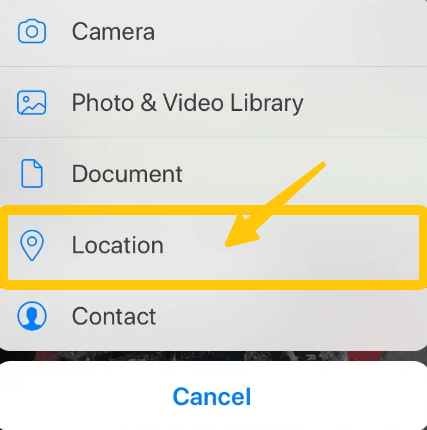
Step 1: Open WhatsApp on your iPhone and navigate to the chat conversation where you wish to share your location.
Step 2: Tap the “+” icon on the left side of the message input box.
Step 3: Select “Location” from the menu.
Step 4: If prompted, allow WhatsApp to access your location (choose While Using the App for best performance).
Step 5: Tap “Send Your Current Location.”
Once sent, the recipient will see a map displaying your exact location at that specific moment.
This option shares your real-time movements and automatically updates your location data.
Step 1: Open the chat in WhatsApp where you want to share your live location.
Step 2: Tap the “+” icon next to the message box.
Step 3: Select “Location.”
Step 4: Tap “Share Live Location.”
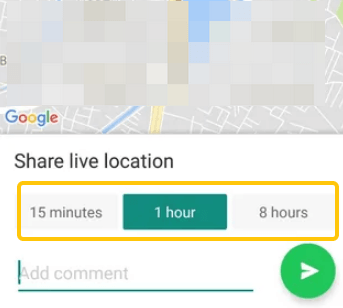
Step 5: Select the duration for which you want to share your live location (15 minutes, 1 hour, or 8 hours).
Step 6: Add an optional comment, then tap “Send.”
Your contact will be able to track your movements in real-time until the selected timer expires or you manually stop sharing.
WhatsApp’s location-sharing feature is also supported on Android.
This option sends a static location snapshot; once sent, the location will not update automatically.
Step 1: Open WhatsApp and navigate to the chat window where you wish to share your location.
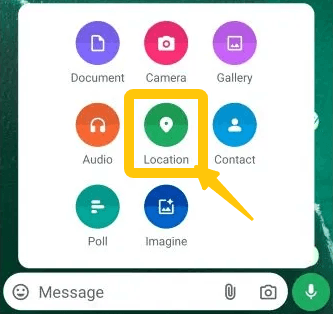
Step 2: Tap the “paperclip” icon located next to the message input field.
Step 3: Select “Location.”
Step 4: If prompted, allow WhatsApp to access your device’s location (choose Allow while using the app).
Step 5: Tap “Send your current location.”
Once successfully sent, your contact will receive a map displaying your exact location at that specific moment.
This feature allows others to track your movements in real time.
Step 1: Open the chat window where you wish to share your live location.
Step 2: Tap the “paperclip” icon, then select “Location.”
Step 3: Tap “Share live location.”
Step 4: Select the duration for which you would like to share your live location (15 minutes, 1 hour, or 8 hours).
Step 5: Add a brief comment, then tap “Send.”
Your live location will now update continuously, allowing the recipient to follow your movements on the map.
How to Send Location on WhatsApp When You Are Not There?
Sometimes you may want to share a place you’re not physically at, like recommending a restaurant, sending a meeting point, or guiding someone to a destination. The good news is that WhatsApp lets you send any location manually, even if you’re not there.
Method 1: Send a Different Location Directly in WhatsApp
Step 1: Open WhatsApp and go to the chat where you want to send the location.
Step 2: Tap the “+” icon (iPhone) or paperclip icon (Android).
Step 3: Select “Location.”
Step 4: Use the search bar to enter the place name or address.
Step 5: Select the correct location from the results.
Step 6: Tap Send.
This will send a map pin of the selected place, even if you’re not there.
If you want more accurate results or need to share a very specific location, using Google Maps or another navigation app is a better option.
Step 1: Open Google Maps on your phone.
Step 2: Search for the location you want to share.
Step 3: Tap on the place to open its details page.
Step 4: Tap the “Share” button.
Step 5: Select WhatsApp from the share options.
Step 6: Choose the contact or group, then tap Send.
This will send a clickable map link in WhatsApp that opens directly in Google Maps.
Does a VPN Affect WhatsApp Location Sharing?
In most cases, using a VPN will not affect WhatsApp location sharing. This is because the feature works differently from your internet connection:
- WhatsApp location sharing mainly relies on your phone’s GPS (location services)
- GPS uses satellite data to determine your real position, not your IP address
- A VPN only changes your network location (IP address), not your actual GPS coordinates
So, when you use how to share location on WhatsApp or how to share live location on WhatsApp, the location you send is still your real, physical position.
LightningX VPN provides a fast and secure network environment. When you rely on WhatsApp’s location-sharing feature, a stable network connection ensures that your location updates are accurate and completely free of delay.
As the best VPN for WhatsApp, it provides 2000+ servers to help you use WhatsApp seamlessly from anywhere in the world while staying safe and secure online at all times.
Sharing your location on WhatsApp is a practical feature that enhances communication efficiency, personal safety, and convenience in daily life.
1. More Precise Directions and Recommendations
Manually typing out an address can sometimes lead to ambiguity or incomplete information. With WhatsApp’s location-sharing feature, you can:
- Send precise map coordinates.
- Share the exact locations of restaurants, hotels, or meeting points.
- Avoid misunderstandings caused by inaccurate location details.
This feature proves particularly useful when combined with Google Maps for precise navigation.
2. Enhanced Personal Safety
One of the greatest advantages of WhatsApp’s real-time location sharing is its ability to enhance personal safety.
Share your journey progress while taking a taxi or ride-share service;
Allow family or friends to track your live location at any time;
Stay connected with loved ones whenever you are traveling alone.
By utilizing WhatsApp’s real-time location sharing, others can monitor your journey from start to finish, enabling them to quickly detect any anomalies should they arise.
3. Works Seamlessly Across Devices
Whether you are using an iPhone or an Android device, WhatsApp’s location-sharing feature operates smoothly across different platforms. You can easily send or receive location information without worrying about compatibility issues.
Conclusion
Now, you have mastered exactly how to share your location on WhatsApp. From quickly coordinating meetups to secure tracking and navigation, WhatsApp’s location-sharing feature is simple and practical, making your daily communication more efficient and convenient.






