


Keeping Roblox up to date ensures better performance and access to the latest features. Whether you are using Windows, Mac, iOS, or Android, this guide will show you how to update Roblox and troubleshoot common update problems.
How to Update Roblox on Computers (Windows 10/11 PC & Mac)
Here are three main methods to update Roblox on a Windows 10/11 PC or Mac.
Method 1. Let the Roblox Desktop App Update Automatically
When Roblox releases a new version, the desktop app automatically checks for updates on launch. If an update is available, Roblox will download and install it before the app opens.
1. Close Roblox completely.
- On Windows, click the system tray in the bottom-right corner of the screen, right-click Roblox, and select Exit.
- On Mac, Quit Roblox from the Dock or top menu. If needed, use Activity Monitor to force quit any Roblox processes.
2. Open the Roblox Player.
3. Wait for the update prompt to appear and allow Roblox to update.
Method 2. Update Roblox Via the Web Browser
Whether you’re using a Windows 10/11 PC or Mac, you can manually trigger the Roblox update process via the web browser. Here’s how.
1. Open Roblox.com in your web browser and sign in with your account.
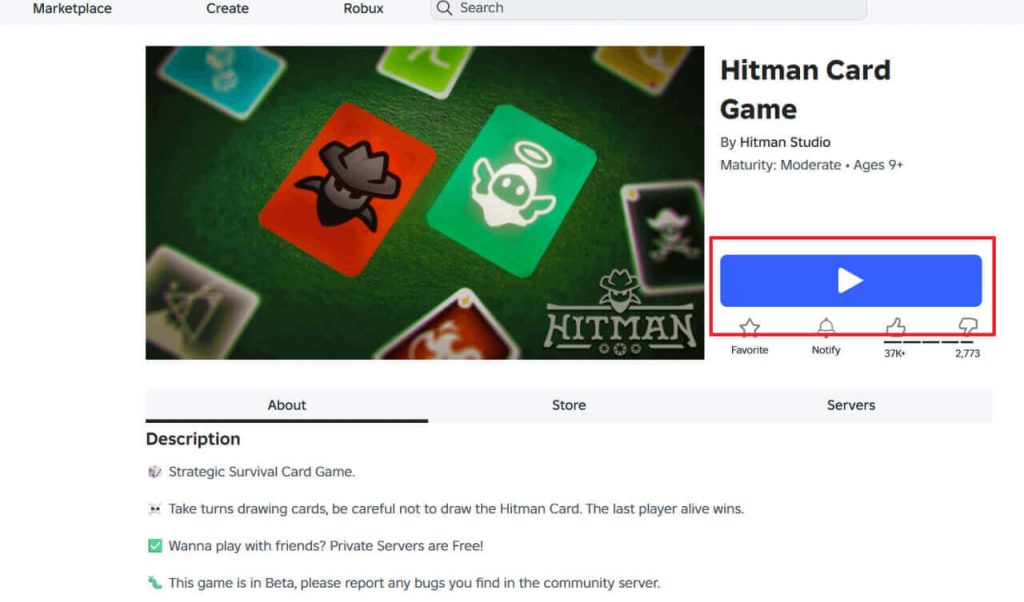
2. Open a game on the Roblox page.
3. Click the Play button on the game page. A prompt window will appear.
4. In the prompt window, choose Open Roblox Game Client. This will open the Roblox client.
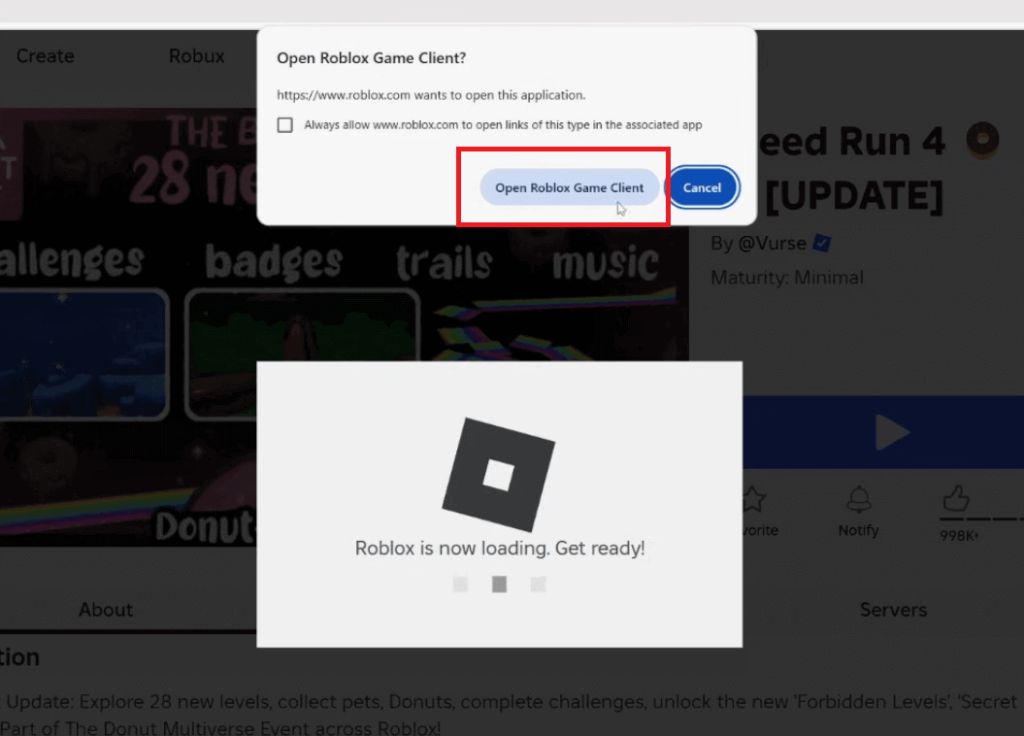
5. The Roblox desktop app should automatically start updating itself now.
Method 3. Update Roblox Via the Microsoft Store (Windows)
For Windows users, you can update Roblox via the Microsoft Store if you downloaded it from there. Here are the steps:
- Open the Microsoft Store via the Start menu.
- Search for Roblox from the top bar.
- Click the Update button next to Roblox to update it. If there’s no update button, it might mean that your Roblox is up to date.
How to Update Roblox on Mobile Devices (Android & iOS)
On a mobile device, the primary method to update Roblox is via the app store. However, note that if you don’t see an update button next to Roblox, it has likely been updated to the latest version.
Update Roblox on Android
- Open the Google Play Store on your Android device.
- Tap your profile icon in the top right. A menu will open.
- Choose Manage apps & device from the menu.
- Find Roblox and tap the Update button next to it. Wait for the Roblox app to be updated.
Update Roblox on iOS
- Open the App Store on your iPhone or iPad.
- Tap your Apple ID in the upper right of the screen. A menu will pop out.
- Scroll down the Upcoming Automatic Updates section. You’ll see all the installed apps on your device.
- Locate Roblox and tap Update next to it.
Note: Some third-party websites claim to offer Roblox update APK files. These files are not official and may contain malicious code that can compromise your account security.
How to Fix Roblox Not Updating
If your Roblox update shows an error or fails, you can try these fixes to resume the process:
Fix 1. Reinstall Roblox
Reinstalling Roblox can resolve update issues caused by corrupted files or cached data. A clean reinstall ensures that all update-related files are downloaded again.
1. Uninstall Roblox.
- On Windows: Go to Settings > Apps > Installed apps.
- On macOS: Open Finder and search for Roblox.
2. Delete remaining files.
- On Windows: Open File Explorer and go to: C:\Users\YourUsername\AppData\Local\Roblox
- On macOS: Go to Finder > Go > Go to Folder.
3. Visit Roblox.com to download the latest version.
Fix 2. Redownload Roblox Files
If Roblox fails to update, corrupted or cached files may be the cause. You can fix this by deleting the temporary Roblox files and allowing the launcher to download them again.
1. Delete Roblox cache files.
- On Windows: Press Win + R, type %temp%, and press Enter.
- On macOS: Open Finder > Go > Go to Folder, then enter ~/Library/Caches.
Delete the folders or files related to Roblox.
2. Open a web browser and go to Roblox.com.
3. Open any game and click Play.
4. When prompted, choose to open Roblox.
5. Wait for Roblox to reinstall the required files.
Fix 3. Check If Roblox Is Experiencing Server Issues
Sometimes, Roblox update failures are caused by server outages or system-wide bugs on Roblox’s side. You can check community platforms such as Reddit, X (Twitter), or Facebook to see if other players are reporting the same problem. You can also contact Roblox Support for confirmation.
Fix 4. Switch VPN Nodes
Sometimes, Roblox updates fail due to server congestion, regional restrictions, or network issues. Using a VPN and switching to a different node can often resolve these problems.
Tip: LightningX VPN is an excellent choice for this. It provides over 2,000 servers in 70+ countries, letting you switch to a faster or less congested node to successfully download Roblox updates. Its robust encryption and lightweight protocols ensure that your connection remains secure and stable while updating or playing Roblox. It is also easy to use. You can install it on Windows, macOS, Android, iOS, Apple TV, Android TV, Linux, Chrome, Edge, and Firefox.
Reasons to Update Roblox
Keeping Roblox up to date is important for several reasons:
Access New Features: Roblox frequently releases new features, game mechanics, and user interface improvements. Updating ensures you can enjoy the latest content and enhancements.
Fix Bugs and Glitches: Each update often includes bug fixes that resolve issues like crashes, login errors, or gameplay glitches. Running an outdated version may prevent games from working properly.
Improve Performance: Updates optimize the Roblox client, which can reduce lag, improve loading times, and make the game run more smoothly on your device.
Maintain Security: Roblox updates often include security patches to protect your account and personal data from vulnerabilities or exploits.
Ensure Compatibility: Many games on Roblox are designed for the latest version of the client. Updating ensures you won’t encounter errors when joining new games or using certain features.
FAQs about Updating Roblox
Q: How to Check Your Roblox Version?
On Mobile (Android & iOS):
- Open the Google Play Store or App Store.
- Search for Roblox and check the app info. The installed version will be displayed there.
On Windows PC:
- Navigate to the Roblox installation folder (usually C:\Users\<YourUsername>\AppData\Local\Roblox\).
- Right-click RobloxPlayerLauncher.exe > Properties > Details > Product version.
On Mac:
- Open Finder > Applications > locate Roblox.app.
- Right-click Roblox.app > Get Info.
- Look for the Version field in the info window.
Q: Where Is the Update Button in Roblox?
Roblox does not have a separate “Update” button inside the app because updates are handled automatically by the app on PC/Mac, or by the official app stores on mobile, which is safer and required by platform rules.
Q: How to Update Roblox Studio?
Roblox Studio automatically checks for updates when launched, similar to Roblox Player. If an update is available, it will download and install before opening.
Alternatively, you can reinstall Roblox Studio to ensure you have the latest version:
- Go to the Roblox Creator Hub.
- Download the latest version of Roblox Studio for your platform (Windows or Mac).
- Install the downloaded version.
Tip: Reinstalling Studio will not affect your Roblox account or saved projects.
Q: How to Update a Game in Roblox?
In Roblox, players cannot manually update games. Updates are handled automatically by Roblox when the developer publishes a new version. If you want to make sure you are playing the latest version, you can restart Roblox or rejoin the game.






