


Telegram Web allows you to easily access your Telegram account without installing any applications.
In this guide, you’ll learn how to use Telegram Web on your PC, iPhone, and Android devices, including how to log in, what features are available, and when using the web version is the best option.
What is Telegram Web?
Telegram Web is a convenient way to use Telegram in your browser. Whether using Windows, Mac, or Linux, Telegram Web will work smoothly in your browser.
Telegram Web is the ideal choice if you don’t want to install Telegram Desktop on your PC. Just open your browser and start using it. You can also install the Telegram extension on your Chrome browser for quick access.
More read: What is Telegram? Is Telegram Safe?
How to Log in to Telegram Web on PC?
If you don’t want to install any extra software, Telegram Web allows you to access your Telegram account directly through your browser.
Below, we will guide you on how to use Telegram Web on your PC or Mac.
Method 1: Scan the QR code to log in to Telegram Web
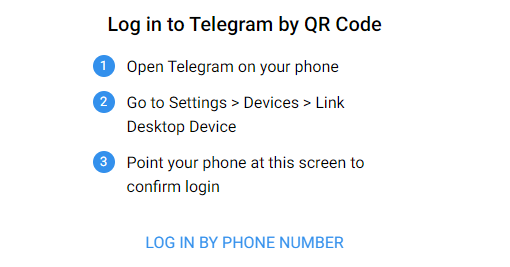
- Open the browser and visit the official Telegram website or the Telegram Chrome extension.
- Open the Telegram app on your phone.
- Click the “Settings” option at the bottom of the screen.
- Select “Device” and click “Link Desktop Device”.
Use your phone to scan the QR code displayed on the computer screen to log in to your Telegram account.
Method 2: Log in to Telegram Web using a phone number
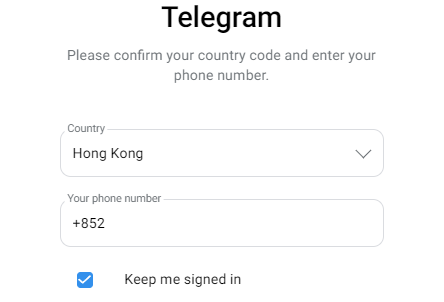
- Launch the browser and visit the Telegram website.
- Select the “Log in by phone number” option at the bottom of the screen.
- Select your country from the drop-down menu, enter your phone number, and click “Next.”
- Check the pop-up confirmation message, confirm that your phone number is correct, and click “OK.”
Telegram will send a verification code to your phone. Enter the received verification code and click “Next” to log in to Telegram Web.
Tip: You can also log in to Telegram Web using a virtual phone number. If you want to learn more, visit this: 15 Best Free Virtual Phone Number Providers.
How to Log in to Telegram Web on iPhone and Android?
If you want to use Telegram on your mobile phone, the following steps will help you understand how to use Telegram Web on your mobile device, including login methods and some useful tips:
- Open Safari or another browser like Chrome on your iPhone.
- Visit the official Telegram Web website.
- Log in using your phone number and verification code or by scanning the QR code.
- After logging in, you can start chatting directly in your browser.
How to Use Telegram Web?
After logging in, using Telegram Web is straightforward. Most core features work directly in your browser, without installing any software:
- Chat and messaging: Send and receive messages in real time, start new conversations, and easily manage all your existing chats from one screen.
- File sharing: Share photos, videos, and documents directly through Telegram Web. You can send files up to 2GB, making it convenient for work files or media sharing.
- Telegram groups and channels: Create and manage Telegram groups or channels, join large communities, and stay active in discussions.
- Voice calls: If your computer is connected to a microphone, you can make voice calls straight from your browser without installing Telegram Desktop.
- Customization options: Enable Dark Mode and adjust basic appearance settings for a more comfortable viewing experience, especially during long or late-night sessions.
What Telegram Web Can’t Do?
Although the Telegram web version can meet most daily messaging needs, it still has some limitations compared to the mobile and desktop applications:
- Video calls are not supported.
- While voice calls are available, the call quality may be unstable.
- Browser-based notification features are limited.
- Background synchronization is not supported.
- Access to advanced privacy, security, and customization settings is restricted.
How to Use Telegram Web Safely?
The Telegram web version is very convenient to use, but to improve the security of your Telegram web experience, please follow these best practices:
- Enable two-step verification: Turn on two-step verification in Settings → Privacy and Security. This prevents unauthorized access even if someone obtains your login verification code.
- Avoid clicking on suspicious links and files: Be cautious of messages from unknown users, especially those that may contain links to malware or phishing attempts.
- Log out after using Telegram on shared or public devices.
- Using the latest version of your browser ensures better security and compatibility with the Telegram web version.
- Use a VPN: A VPN for Telegram encrypts your internet traffic, reducing the risk of data interception.
As the best Telegram VPN, LightningX VPN offers strong encryption and over 2000 high-speed servers, helping you maintain privacy and connectivity wherever you are.
Download now to enjoy free servers and a 30-day money-back guarantee.
Telegram Web vs. Telegram Desktop: What are the differences?
If you’re wondering whether to use Telegram Web or Telegram Desktop, the main differences lie in convenience and performance.
- Access and Convenience: Telegram Web runs directly in your browser, requiring no download or installation. Telegram Desktop requires installation but offers a more stable and smoother user experience.
- Features: Telegram Web can meet everyday needs, but some advanced features are only available in the desktop or mobile applications.
- Updates: Telegram Web updates automatically when you refresh the page. Telegram Desktop receives regular feature and security updates.
- Performance and Storage: Telegram Web doesn’t occupy local storage space. The desktop version generally performs better when handling large files, long chat histories, or frequent daily use.
- Security: Telegram Web is best suited for temporary or occasional use, especially on shared devices. The desktop version is generally the more secure option.
FAQ about Telegram Web
1. What is the Difference Between Telegram Web K and Telegram Web Z?
Telegram Web K and Telegram Web Z are two versions of the Telegram Web application with slightly different user interfaces but the same functionality.
Telegram believes that internal competition will ultimately benefit users in the long run, so it has two versions.
2. Can I Download/Upload Files on the Telegram Web?
Yes, Telegram Web allows users to send and receive various files, including documents, pictures, audio, and video. The size limit for each file is up to 2GB.






