


If you regularly use Telegram for messaging, communities, or business communication, installing the latest update ensures the app runs smoothly and securely.
In this guide, you will learn how to update Telegram on different devices and discover practical solutions if you can’t update Telegram successfully.
How to Update Telegram on Different Devices
The process of updating Telegram depends on the device you are using. Below are the most common methods.
1. How to Update Telegram on Android
Most Android users install Telegram through the Google Play Store. Updating it is simple.
Steps to Update Telegram on Android:
- Open the Google Play Store on your device.
- Tap your profile icon in the top-right corner.
- Select Manage apps & device.
- Look for Telegram in the list of available updates.
- Tap Update next to Telegram.
Once completed, the newest Telegram update will be installed.
Alternative Method: Download Telegram APK to Update Telegram
If you cannot access Google Play, you can update Telegram manually:
- Visit the official Telegram website in your browser.
- Download the latest Telegram APK file.
- Enable Install from Unknown Sources in your settings.
- Install the APK file.
This method allows you to update Telegram even when app stores are unavailable.
2. How to Update Telegram on iPhone (iOS)
Updating Telegram on iOS devices is just as straightforward.
- Open the App Store.
- Tap your Apple ID profile.
- Scroll to Available Updates.
- Find Telegram and tap Update.
After the installation finishes, the latest Telegram version will be active.
Regularly checking for Telegram updates ensures your app stays optimized for the newest iOS versions.
3. How to Update Telegram Desktop
Telegram is also widely used on Windows, macOS, and Linux.
Telegram Desktop often updates automatically. However, you can also update it manually:
- Open Telegram Desktop.
- Click the menu icon (three lines).
- Go to Settings.
- Click Advanced.
- Scroll down to “Version and updates”.
- Click “Check for updates”.
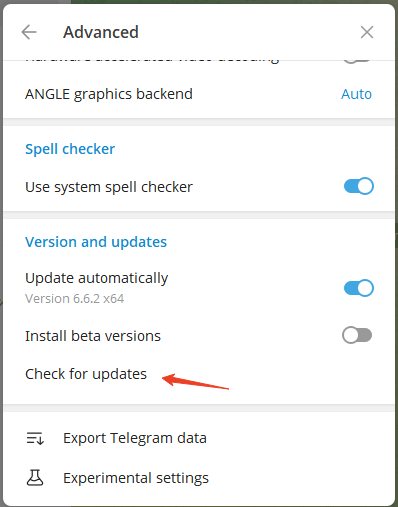
If an update is available, Telegram will prompt you to update Telegram immediately.
You can also download the latest version from the official website if the built-in update fails.
Can’t Update Telegram? Common Causes and Fixes
However, many users encounter issues when updating Telegram, including download errors, compatibility issues, and regional restrictions.
Below are the most common causes and fixes.
1. Internet Connection Problems
A slow or unstable internet connection may interrupt the Telegram update download process.
Possible fixes:
- Switch to a stable Wi-Fi network
- Restart your router
- If you use a VPN, try changing the VPN server location
- Disable VPN temporarily
Once your connection improves, try to update Telegram again.
2. Insufficient Storage Space
If your device storage is almost full, the Telegram update may fail.
Solutions include:
- Delete unused apps
- Remove large files or videos
- Clear cached data
After freeing space, you should be able to update Telegram without issues.
3. App Store Errors
Occasionally, the Google Play Store or Apple App Store may malfunction.
Try these fixes:
- Restart the app store
- Clear Play Store cache (Android)
- Sign out and back into your Google account or Apple ID
These steps often resolve problems when you can’t update Telegram through official stores.
Related: Google Play Store Not Working or Opening: 10 Fixes
4. Device Compatibility Issues
Older smartphones may not support the newest Telegram update.
In this case, you have two options:
- Install an earlier compatible version
- Update your device’s operating system
Updating the OS can sometimes allow you to update Telegram successfully.
5. Regional Restrictions
In some regions, downloading updates may be restricted due to network policies or censorship.
If this happens, users often report that they can’t update Telegram through the standard app store.
Possible solutions include:
- Using an alternative app store
- Downloading the official APK file
- Connecting through a different network
- Try a VPN to bypass the restrictions. LightningX VPN is a VPN for Android, iOS, PC, Mac, Linux, Chrome, Firefox, and Edge. It offers fast servers in 70+ countries.
These methods help users update Telegram even when local restrictions apply.
Related: Fix “Telegram Not Working” Issue: 10 Solutions
6. Clear Telegram Cache
Large cached files can interfere with updates.
Steps:
- Go to Settings on your phone
- Tap Apps
- Select Telegram
- Choose Storage
- Tap Clear Cache
After clearing the cache, try updating Telegram again.
7. Reinstall Telegram
Reinstalling the app is another effective solution when you can’t update Telegram.
Steps:
- Uninstall Telegram from your device
- Restart your phone
- Download the latest version
- Install the newest Telegram update
Your chats will remain safe because Telegram stores messages in the cloud.
8. Update Your Operating System
Sometimes the issue isn’t Telegram itself but your device software.
Make sure your device runs the latest system version:
- Android: Settings > System > Software Update
- iPhone: Settings > General > Software Update
Once your device software is current, try to update Telegram again.
Tip: You can also contact Telegram Support for help.
Conclusion
Updating Telegram is one of the simplest ways to improve performance and security. The process is quick and easy on Android, iPhone, and desktop devices.
If you ever can’t update Telegram, the issue is usually caused by network problems, storage limitations, app store errors, or compatibility issues. By following the troubleshooting steps in this guide, you should be able to update Telegram successfully and continue using the app without interruption.






