


Google Chrome is fast by default, but it’s not always optimized for every user. Many useful features are hidden under Chrome Flags—an experimental settings page where you can enable performance boosts, privacy controls, and new features.
In this guide, you’ll find the best Chrome Flags to improve speed, security, and overall browsing experience, all in one place.
15 Best Chrome Flags for Performance and Speed
Chrome Flags offers a range of experimental optimization options capable of significantly boosting performance, reducing lag, and enhancing overall responsiveness.
1. GPU Rasterization
URL: chrome://flags/#smooth-scrolling
Allows Chrome to offload web page rendering tasks to the GPU rather than relying entirely on the CPU. This is particularly effective for websites featuring extensive multimedia content, animations, or complex layouts.
2. Zero-Copy Rasterizer
URL: chrome://flags/#enable-zero-copy
Reduces unnecessary memory data transfers between the CPU and GPU, thereby significantly improving rendering efficiency and lowering latency.
3. Accelerated 2D Canvas
URL: chrome://flags/#enable-accelerated-2d-canvas
Shifts the rendering of 2D canvas elements—commonly used in games, digital whiteboards, and various editors—to the GPU; enabling this option can result in a substantial performance boost.
4. Parallel Downloading
URL: chrome://flags/#enable-parallel-downloading
Splits files awaiting download into smaller segments and downloads them simultaneously. This mechanism can dramatically accelerate download speeds.
5. Enable CADisplayLink (Mac Only)
URL: chrome://flags/#enable-cadisplaylink
Synchronizes Chrome’s rendering output with the macOS system’s display refresh rate, resulting in a significantly smoother visual experience.
6. Prerendering
URL: chrome://flags/#enable-prerender2
Anticipates which page a user is likely to visit next and loads it in advance.
7. Experimental QUIC Protocol
URL: chrome://flags/#enable-quic
Utilizes a modern transport protocol developed by Google. Compared to the traditional TCP protocol, this protocol effectively reduces network latency and improves connection speeds.
8. Hardware-Accelerated Video Decoding
URL: chrome://flags/#enable-accelerated-video-decode
Utilizes dedicated GPU hardware to decode video, thereby reducing CPU load and ensuring smoother playback.
9. Hardware-Accelerated Video Encoding
URL: chrome://flags/#enable-accelerated-video-encode
Offloads encoding tasks to hardware processing, boosting performance during real-time video processing—ideal for video calls, screen recording, or live streaming scenarios.
10. Automatic Tab Discarding
URL: chrome://flags/#automatic-tab-discarding
Automatically unloads inactive tabs from memory while keeping them visible. When you switch back to a discarded tab, it automatically reloads.
11. Tab Freeze
URL: chrome://flags/#proactive-tab-freeze-and-discard
Suspends tabs after they have remained inactive for a certain period, preventing them from continuously consuming CPU resources.
12. High Efficiency Mode (Memory Saver)
URL: chrome://flags/#high-efficiency-mode-available
Reduces Chrome’s overall memory footprint by prioritizing the currently active tab and limiting background processes.
13. Smooth Scrolling
URL: chrome://flags/#smooth-scrolling
Optimizes scrolling animations to deliver a smoother and more responsive page navigation experience.
14. Scroll Prediction
URL: chrome://flags/#enable-scroll-prediction
Anticipates your scrolling intentions and pre-renders content accordingly, effectively minimizing visual stuttering and latency.
15. Disable Partial Swap
URL: chrome://flags/#disable-partial-swap
Although the “Partial Swap” feature helps improve memory efficiency, on certain specific GPUs, it may occasionally trigger screen flickering or rendering anomalies.
Read more: Why Is Chrome So Slow? 9 Ways to Speed Up Your Google Chrome
14 Best Chrome Flags for Security and Privacy
Although Chrome features robust built-in security mechanisms, online tracking, insecure connections, and excessive permission requests can still jeopardize your privacy. The following Chrome Flags can help you maximize the security of your connections.
1. HTTPS-First Mode
URL: chrome://flags/#https-first-mode-setting
Forces Chrome to prioritize establishing secure HTTPS connections whenever possible. If a website only supports HTTP, Chrome will display a warning before loading the page, helping you avoid insecure connections.
2. Encrypted Client Hello (ECH)
URL: chrome://flags/#encrypted-client-hello
Encrypts specific data exchanged during the TLS handshake process, preventing Internet Service Providers (ISPs) and third parties from knowing exactly which website you are connecting to.
3. Secure DNS Lookups
URL: chrome://flags/#dns-over-https
Enables the DNS-over-HTTPS (DoH) protocol to encrypt your DNS lookup requests. This effectively prevents external entities from monitoring or tampering with your browsing requests.
4. Partitioned Cookies
URL: chrome://flags/#partitioned-cookies
Isolates cookies on a per-site basis, preventing third-party trackers from accessing the same set of cookies across different websites. This significantly reduces cross-site tracking.
Read more: How to Clear Cookies on Mac: Safari, Chrome, and More
5. Block Insecure Private Network Requests
URL: chrome://flags/#block-insecure-private-network-requests
Blocks insecure websites from accessing resources within your local network, thereby protecting devices—such as routers or internal services—from unauthorized access.
6. WebRTC Local IP Masking
URL: chrome://flags/#enable-webrtc-hide-local-ips-with-mdns
Masks your local IP address when using WebRTC, preventing websites from discovering your internal network information.
While this flag helps mitigate the risk of IP exposure, it does not fully safeguard your actual IP address. For enhanced privacy protection, it is recommended that you use a service such as LightningX VPN.
It employs advanced encryption protocols to encrypt your network traffic and completely conceal your actual IP address. This ensures that your online activities remain private at all times.
7. Safety Hub: Revoke Unused Permissions
URL: chrome://flags/#safety-hub-unused-site-permissions
Automatically removes permissions (such as camera, microphone, and location access) granted to websites you haven’t visited recently, thereby minimizing unnecessary access.
8. Permission Prompt Gesture Gating
URL: chrome://flags/#permission-prompt-gesture-gate
Reduces intrusive permission pop-ups by requiring users to perform a specific interaction before a website can request access to sensitive features.
9. Bind Cookies to Port
URL: chrome://flags/#bind-cookies-to-port
Ensures that cookies are valid only on the specific port where they were created, preventing their misuse across different services.
10. Phased Rollout of Third-Party Cookies
URL: chrome://flags/#test-third-party-cookie-phaseout
Blocks or restricts third-party cookies, helping to reduce tracking by advertisers and enhancing overall privacy protection.
11. Extensions Menu Access Control
URL: chrome://flags/#extensions-menu-access-control
Provides greater control over extension permissions, allowing you to restrict their access to specific websites or require manual activation.
12. Origin-Keyed Processes by Default
URL: chrome://flags/#origin-keyed-processes-by-default
Isolates individual websites within separate processes, thereby reducing the risk of data leakage between tabs and enhancing browser security.
13. “HTTPS-First” Dialog UI
URL: chrome://flags/#https-first-dialog-ui
Displays a clear warning dialog when you visit insecure HTTP websites, making it easier for you to identify potential security risks.
14. One-Tap Notification Unsubscribe
URL: chrome://flags/#notification-one-tap-unsubscribe
Adds a convenient option that lets you unsubscribe directly from website notifications, helping reduce spam and malicious tracking via push notifications.
10 Best Browsing Experience Chrome Flags
Beyond speed and security, some Chrome Flags can significantly enhance your overall browsing experience.
1. Automatic Web Content Dark Mode
URL: chrome://flags/#enable-force-dark
Forces Dark Mode on websites that do not natively support it, helping to reduce eye strain.
2. Tab Hover Card Images
URL: chrome://flags/#tab-hover-card-images
Displays a live preview thumbnail of a webpage when you hover your mouse over its tab. This helps you quickly identify content without switching tabs, thereby improving browsing efficiency.
3. Link Preview
URL: chrome://flags/#enable-link-hover-preview
Displays a small pop-up preview window when you hover your mouse over a link, allowing you to view the page’s content before visiting it.
4. Back/Forward Cache
URL: chrome://flags/#back-forward-cache
Stores previously visited pages in memory so that when you navigate “back” or “forward,” pages load instantly without needing to reload, providing a smoother browsing experience.
5. Touch UI Layout
URL: chrome://flags/#top-chrome-touch-ui
Optimizes Chrome’s interface for touch-enabled devices. Enlarges buttons, menus, and interactive elements to make browsing on a touchscreen more comfortable and convenient.
6. Tab Audio Muting Controls
URL: chrome://flags/#enable-tab-audio-muting
Allows you to mute individual tabs directly from the tab bar. Ideal for managing multiple tabs that are playing audio simultaneously.
7. Reader Mode with Images
URL: chrome://flags/#enable-reader-mode-heuristics
Enhances the “Reader Mode” feature by intelligently retaining relevant images alongside the text, providing a more visually complete reading experience.
8. Responsive Iframes
URL: chrome://flags/#enable-responsive-iframes
Automatically resizes Iframes (inline frames) to adapt to their internal content and the screen layout, thereby improving a website’s responsiveness and readability.
9. Bookmark Tree View
URL: chrome://flags/#enhanced-bookmarks-experiment
Organizes your bookmarks into a hierarchical tree structure, making it easier for you to browse and manage a large collection of saved webpages.
10. Automatic Picture-in-Picture
URL: chrome://flags/#enable-surfaces-for-videos
Automatically enables “Picture-in-Picture” mode for videos when switching tabs, allowing the video to continue playing while you browse other web pages.
8 Best Chrome Flags for Developer & Advanced Features
For developers and advanced users, Chrome Flags unlock experimental tools and cutting-edge web technologies. These features are particularly useful for testing new APIs, optimizing debugging workflows, and exploring modern web development.
1. Experimental JavaScript Features
URL: chrome://flags/#enable-javascript-harmony
Enables experimental JavaScript features in Chrome that have not yet become standard specifications, allowing developers to test these new syntax constructs and APIs before they gain widespread support.
2. Experimental Web Platform Features
URL: chrome://flags/#enable-experimental-web-platform-features
Unlocks cutting-edge Web APIs and experimental platform features, which are highly useful for developers testing modern web applications.
3. Enable Network Service
URL: chrome://flags/#network-service
Migrates Chrome’s network stack to run in a separate process to improve performance, stability, and debuggability; particularly practical for developers working on web networking-related development.
4. Developer Tools Experiments
URL: chrome://flags/#devtools-experiments
Enables experimental features within Chrome Developer Tools (DevTools), such as new panels, debugging tools, or enhanced performance metrics.
5. CSS Container Queries
URL: chrome://flags/#enable-container-queries
Activates support for Container Queries, allowing developers to implement responsive designs based on the size of a container rather than the viewport size—a crucial capability for modern layout design.
6. Enable WebGPU
URL: chrome://flags/#enable-unsafe-webgpu
Provides access to the WebGPU API, enabling high-performance graphics rendering and compute operations directly within the browser, thereby allowing advanced web applications and games to fully leverage GPU acceleration capabilities.
7. Parallel Downloading
URL: chrome://flags/#enable-parallel-downloading
Splits files into multiple chunks and downloads them simultaneously, thereby accelerating the download speed of large files.
8. Experimental QUIC Protocol
URL: chrome://flags/#enable-quic
Activates the QUIC protocol—a modern transport protocol designed to reduce network latency and improve web page loading performance.
7 Best Chrome Flags Settings for AI
As AI becomes increasingly integrated into browsers, Chrome Flags offer early access to emerging intelligent features.
1. Gemini Nano On-Device AI
URL: chrome://flags/#enable-on-device-ai
Run Google Chrome’s AI features—such as content summarization, reading assistance, or context-aware suggestions—locally on your device, thereby reducing reliance on cloud-based processing.
2. Reader Mode Omnibox Button
URL: chrome://flags/#enable-reader-mode-omnibox-chip
Add a global “Reader Mode” button to the address bar, allowing you to quickly enable a simplified, AI-assisted reading view on any webpage.
3. Enhanced Search Suggestions
URL: chrome://flags/#enable-enhanced-search-suggestions
Provide AI-driven search predictions and context-aware suggestions directly within the address bar, thereby boosting browsing efficiency.
4. Live Captions and Transcriptions
URL: chrome://flags/#enable-accessibility-live-captions
Utilize AI to automatically generate real-time captions for audio and video content, helping to enhance accessibility and content comprehension.
5. AI-Based Autofill Predictions
URL: chrome://flags/#show-autofill-type-predictions
Leverage AI to predict input field types and offer smarter autofill suggestions, thereby streamlining online form filling and checkout processes.
6. Tab Group Suggestions
URL: chrome://flags/#tab-groups-auto-create
Provide AI-driven suggestions for grouping tabs based on your browsing habits, helping to organize your workflow and reduce tab clutter.
7. Privacy Policy Summaries
URL: chrome://flags/#privacy-sandbox-settings-3
Provide AI-assisted summaries of a website’s privacy practices directly within the site information pop-up, making it easier for you to understand how websites handle your data.
How to Enable These Chrome Flags?
Enabling Chrome’s experimental features is very simple and takes just a few steps.
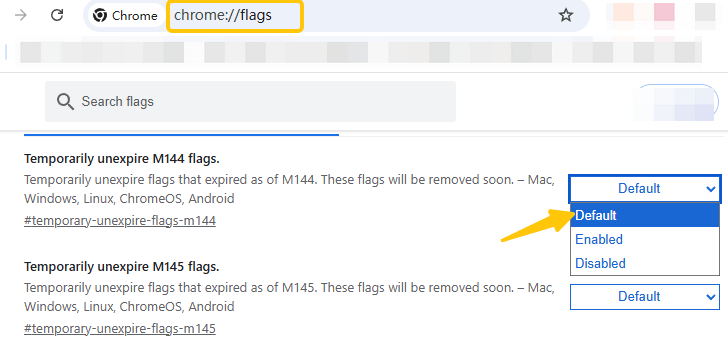
Step 1: Enter “chrome://flags/” into the address bar, then press Enter to access the experimental features page.
Step 2: Use the search bar at the top to enter the feature name (e.g., “GPU rasterization” or “Parallel downloading”). Alternatively, you can simply copy the URL provided in this article to navigate directly to a specific Chrome Flag.
Step 3: Click the drop-down menu next to the feature, then select “Enabled,” “Disabled,” or “Default.”
Step 4: Restart Chrome to enjoy the feature.
Final Thought
Chrome Flags are an easy way to get more out of Google Chrome. With just a few tweaks, you can make your browser faster, more private, and easier to use.
Just remember that these features are experimental, enable only what you need, and turn them off if you run into issues.






