


Whether you want to change your Telegram password for increased security or reset it after forgetting it, knowing the correct steps can save you time.
In this guide, you will learn how to change or reset your Telegram password on different devices and what to do if you can’t access your account.
How to Change Telegram Password on Phone?
One of the simplest yet most effective ways to protect your account is to regularly change your Telegram password, especially if you suspect someone else may have accessed your account.
Here are the steps to change your Telegram password on your mobile phone:
Step 1: Open the Telegram app on your phone and tap the three-line menu in the upper left corner, then select “Settings.”
Step 2: In “Settings,” scroll down and tap “Privacy and Security.”
Step 3: Under the “Security” section, tap “Two-Step Verification.” If you have already set a password, Telegram will ask you to enter your current password before making any changes.
Step 4: After entering your current password, tap “Change Password” and enter your new password.
Step 5: Telegram also allows you to update your password hint or add or change a recovery email in case you need to reset your Telegram password.
That’s it. Your Telegram password has been successfully changed on your mobile phone, and the new password will apply to all devices associated with your account.
How to Change Telegram Password on Windows?
If you frequently use Telegram on your Windows computer, it’s more convenient to change your password directly from the desktop application.
Step 1: Launch the Telegram desktop application on your Windows computer. Click the three-line menu icon in the upper left corner.
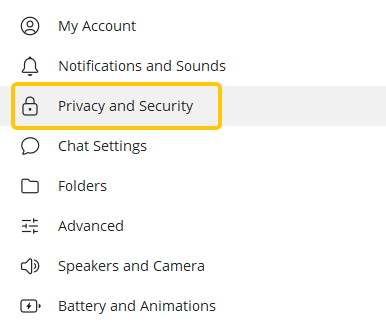
Step 2: Select “Settings” from the dropdown menu. In “Settings,” click “Privacy and Security.”
Step 3: Scroll down to the “Security” section and then click “Two-Step Verification.”
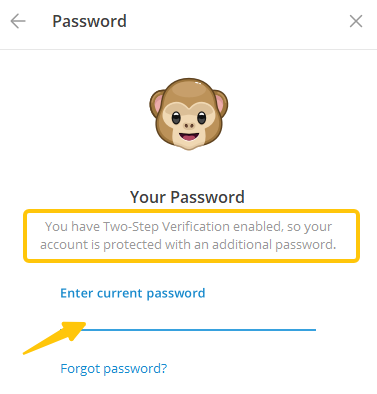
Step 4: Click “Change Password,” then Enter your current password
and set a new password. For increased security, avoid reusing passwords from other platforms.
Once confirmed, your new Telegram password will take effect immediately and apply to all devices connected to your account, including Telegram Web and mobile versions.
Your Telegram account may still be at risk when using public Wi-Fi or unsecured networks. That’s where LightningX VPN comes in.
As the best VPN for Telegram, it offers over 2000 nodes and advanced encryption protocols to protect your online security. Download now to enjoy free nodes and a 30-day money-back guarantee.
How to Change Telegram Password without Phone Number?
If you cannot access the phone number associated with your Telegram account, you cannot directly change your Telegram password. This is because Telegram accounts are designed to be linked to a phone number.
However, you can change or reset your Telegram password without re-entering your phone number if all of the following conditions are met:
- You are logged in on at least one device.
- Two-factor authentication is enabled.
- You still remember your current password or have access to the recovery email associated with your account.
In this case, Telegram will not require you to verify your phone number again. You can update your password directly in the application’s security settings.
Read more: Telegram Phone Number Banned? 7 Reasons & Easy Unban Fixes
How to Change Telegram Password If You Forget It?
Forgetting your Telegram password is very frustrating. However, you can recover your password using the following methods:
Case 1: You have added a recovery email
If you set up a recovery email when enabling two-step verification, resetting your Telegram password is very simple.
Here’s how:
- Open the Telegram app on your phone or computer.
- Go to “Settings” → “Privacy and Security” → “Two-Step Verification.”
- Select “Forgot Password?”
- Check your email and click on the reset link sent by Telegram.
- After creating a new password, the new password will be immediately applied to all your devices.
Case 2: You are still logged in on another device
If you forgot your password but are still logged in on at least one device, you can change your password without resetting your account.
In some cases, Telegram allows you to:
- Access your current session.
- Set a new password directly from the security settings.
This option depends on your account status and previous security settings, but it’s worth trying before taking more drastic measures.
Case 3: No recovery email and logged out on all devices
This is the most difficult situation. If you forgot your Telegram password, haven’t set up a recovery email, and are logged out on all devices, Telegram cannot immediately reset your password.
In this case, Telegram enforces a security waiting period (usually several days). After the waiting period ends, you may be able to reset your account, which means:
- Your account is deleted.
- All chats, groups, and messages are permanently removed.
- You can sign up again using the same phone number.
Read more: How to Recover Hacked Telegram Account? Quick Guide
How to Make Telegram Password-Protected?
Telegram’s password system differs from most chat apps, using two-factor authentication as its primary security measure. This means your phone number is used for account registration and login verification, while your Telegram password adds an extra layer of security to protect your chat history and account settings.
You will need to enter your password in the following situations:
- Logging in on a new device
- Accessing sensitive security settings
- Recovering your account after logging out
Telegram does not store your password in plain text, and password reset functionality is significantly limited without a recovery email.
Final Thought
Changing or resetting your Telegram password is a simple process, but it’s crucial for protecting your account. Setting a strong password, adding a recovery email address, and regularly checking your security settings can significantly reduce the risk of unauthorized access.






