


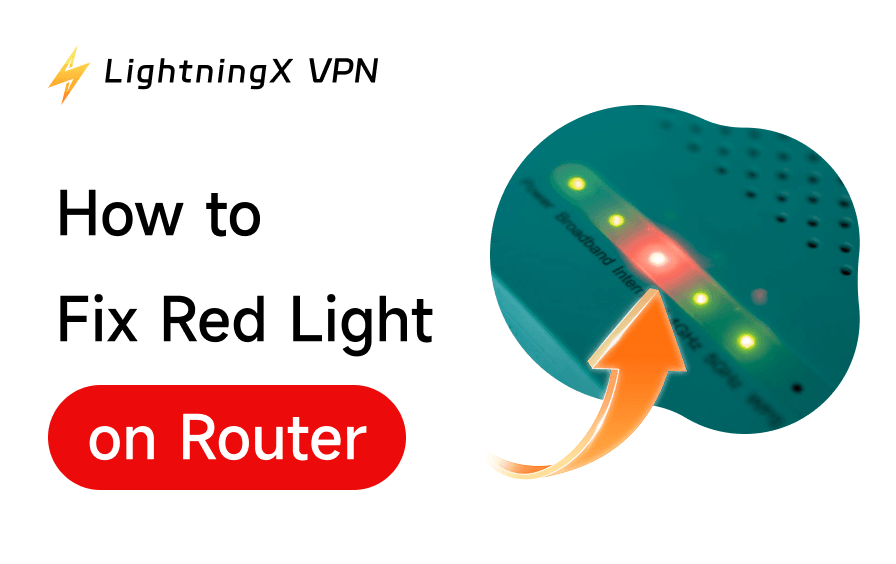
A red indicator on your router can be frustrating, especially when your internet suddenly stops working. This issue often signals connectivity problems, firmware errors, or hardware faults. If you’re wondering how to fix red light on WiFi router, you can check the 10 solutions below.
What Does a Red Light on a WiFi Router Mean?
Typically, a red light on the router means:
- No internet connection
- ISP (Internet Service Provider) outage
- Authentication failure
- Firmware or hardware issue
Different router brands may interpret the red light slightly differently, but the troubleshooting process remains largely the same.
Method 1. Restart Your Router Properly
The simplest way to fix the red light on the router and fix WiFi issues is to perform a full restart. Restarting the router often resolves temporary glitches.
Steps:
- Turn off your WiFi router using the power button, or you can directly unplug it from the power source.
- Wait for at least 2–5 minutes.
- Plug it back in and turn it on.
- Wait until all lights stabilize.
Also read: How to Change WiFi Password (All Routers)
Method 2. Check Internet Service Outage
Sometimes the issue is not your router at all. Your ISP may be temporarily experiencing outages.
Steps:
- Visit your ISP’s official website.
- Check for outage notifications.
- Contact your ISP’s customer support if needed.
- Ask if there’s maintenance or downtime.
If there’s an outage, you’ll need to wait.
Method 3. Inspect All Cable Connections
Loose or damaged cables can interrupt network connectivity and trigger a red light on the router.
Steps:
- Check the Ethernet cable from the modem to the router.
- Ensure the WAN port is securely connected.
- Replace damaged cables if necessary.
- Confirm power cables are firmly plugged in.
Method 4. Reboot Your Modem
If you’re using a separate modem, reboot it too. This refreshes your network connection and often resolves the red light on the WiFi router.
Steps:
- Turn off the modem.
- Disconnect it from power.
- Wait 2–3 minutes.
- Turn it back on.
- Then restart your router.
Method 5. Verify ISP Credentials
Incorrect login credentials can cause an internet connection failure and result in a red light on the WiFi router.
Steps:
- Log in to your router admin panel (usually 192.168.1.1).
- Navigate to WAN or Internet settings.
- Check your username and password.
- Re-enter credentials provided by your ISP.
- Save changes and restart the router.
Related: How to Find Router IP Address on Any Device: Detailed Guide
Method 6. Update Router Firmware
Outdated firmware can lead to network connectivity issues. If you see your router shows a red light, try updating the router firmware.
Steps:
- Access your router’s admin dashboard.
- Go to the Firmware or System Update section.
- Check for available updates.
- Download and install the latest version.
- Restart the router after updating.
Method 7. Reset Router to Factory Settings
If nothing works, a reset may help. A factory reset removes all custom settings but can resolve persistent issues like a red light on the WiFi router.
Steps:
- Locate the reset button on your router.
- Press and hold it for 10–15 seconds.
- Wait for the router to reboot.
- Reconfigure your network settings.
Method 8. Check for Overheating of the Router
Routers can malfunction if they overheat.
Steps:
- Touch the router to check if it’s too hot.
- Move it to a well-ventilated area.
- Avoid placing it near heat sources.
- Turn it off for a few minutes to cool down.
Method 9. Test with Another Device or Router
If your router’s light is red, you need to rule out hardware failure.
Steps:
- Connect another device to the network.
- Try using a different router if available.
- Check if the issue persists.
- Identify whether the problem is device-specific.
Method 10. Contact Technical Support or Replace Router
If all else fails, it may be a hardware issue.
Steps:
- Contact your router manufacturer’s support team.
- Provide details about the red light issue.
- Follow their advanced troubleshooting steps.
- Consider replacing the router if it’s faulty.
Conclusion
By following these 10 solutions, you can quickly fix red light on WiFi router and restore your internet connection.
Start with simple solutions like restarting your router and checking cables, then move on to advanced steps like firmware updates or factory resets. With the right approach, most issues can be resolved without professional help.
If you need a VPN, you can try LightningX VPN – a fast and stable VPN for PC, Mac, Android, iOS, Linux, TV, Chrome, Firefox, and Edge. It offers a vast server network, covering 70+ countries. You can use this VPN to access global websites, apps, and services, including those restricted in your country. Besides, using a VPN on your device helps encrypt all your internet traffic to protect your privacy.






