


Sometimes you may have friends visit your house and ask you for the WiFi password. How to share your WiFi password with others? You can check the step-by-step guide below. This post offers detailed instructions for WiFi password sharing on iPhone, Android, PC, or Mac.
If you want to share your Wi-Fi password from your iPhone/iPad to another iPhone/iPad/Mac, you can follow the steps below.
- Unlock both iPhones/iPads. Turn on Wi-Fi and Bluetooth on both devices. Make sure the two devices are close to each other. Turn off personal hotspots on both devices. Make sure you have signed into iCloud with your Apple ID on your iPhone/iPad. Ensure that you and your friend have each other’s email address saved in the Contacts.
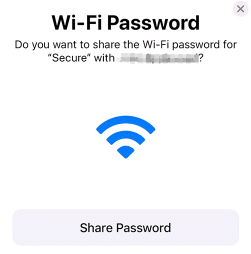
- After the preparation, ask your friend to try to connect to your WiFi network. He/she will see a prompt requiring the password.
- Then you will see a prompt on your iPhone or iPad, asking you if you want to share the WiFi password with him/her. Tap Share Password to share your WiFi password with your friend.
However, if you don’t see the “Share Password” pop-up in Method 1, you may manually find your Wi-Fi password and share it with other devices.
- Tap Settings on your iPhone or iPad.
- Tap Wi-Fi.
- Tap the “i” icon next to your connected WiFi.
- Tap Password, verify your identity with your Face ID or Touch ID, and reveal the hidden WiFi password.
- Then you can copy the WiFi password to share it from iPhone to Mac, Android, or Windows.
Method 3. Use Apple’s Password App
If your iPhone is running iOS 18 or higher, you can also use the iPhone Passwords app to share WiFi passwords with friends.
- Open the Passwords app on your iPhone.
- Tap the WiFi option and it will open a page that displays all your saved WiFi networks.
- Search for the target WiFi network that you want to share the password. Your currently connected network should be listed at the top.
- Select the target network and tap Show Network QR Code. Then others can scan the QR code from any device to connect to your WiFi.
- Alternatively, you can open the target network in the Passwords app and tap the Share button at the top-right, copy and send your WiFi password to others.
Tip:
To get a fast, secure, stable, and private network on your computer or mobile device, you can use LightningX VPN. This VPN changes your IP address, encrypts your online data, protects your privacy, and unblocks websites/apps/services worldwide. It offers 2000+ servers in 70+ countries, with several free servers. Support Android, iOS, PC, Mac, TV, Linux, Chrome, Firefox, Edge, etc.
- Open the Settings app on your Android phone.
- Tap WiFi or WLAN.
- Tap your connected WiFi or tap the gear icon next to the WiFi network.
- Tap the Share button and you will see a QR code.
- Then your friends can use their devices to scan the QR code to automatically connect to your WiFi. Alternatively, they can enter the WiFi password displayed in plain text below the QR code.
Also read: How to Change WiFi Password on Any Device
If you want to find the WiFi password on a Mac and share the password with others, you can try the 3 ways below.
Method 1. Find Your WiFi Password on Mac and Send It to Others
- Click the WiFi icon at the top menu bar of your Mac and select “Wi-Fi Settings”. Alternatively, you can click Apple > System Settings > Wi-Fi.
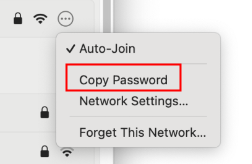
- Click the circle icon next to your connected WiFi and select “Copy Password”.
- Then you can paste the WiFi password to any messaging app to send it to your friends.
Method 2. Try the Keychain Access App
- Press Command + Space to open Mac Spotlight Search.
- Type “Keychain Access” and select the Keychain Access app to open it.
- In the Keychain Access app, search for the name of the target network.
- Double-click the target network.
- In the pop-up window, tick the “Show password” box. Enter your Mac’s administrator password. Then you can see your WiFi password and you can share it with others.
- Follow the same operation in Method 1 of the iPhone password-sharing section above.
- After making the preparation, ask your guest to try to connect to your WiFi. You will see a prompt on your Mac asking you if you want to share the WiFi password. Click “Share” to share it with your friends.
Also read: How to Fix IPv6 No Network Access Error on Windows 11/10
On Windows 10/11 PC, you need to manually look up the WiFi password and share it with others. Check the 2 ways below.
- Click Start > Settings to open the Windows Settings app.
- Click Network & Internet.
- Click Network and Sharing Center.
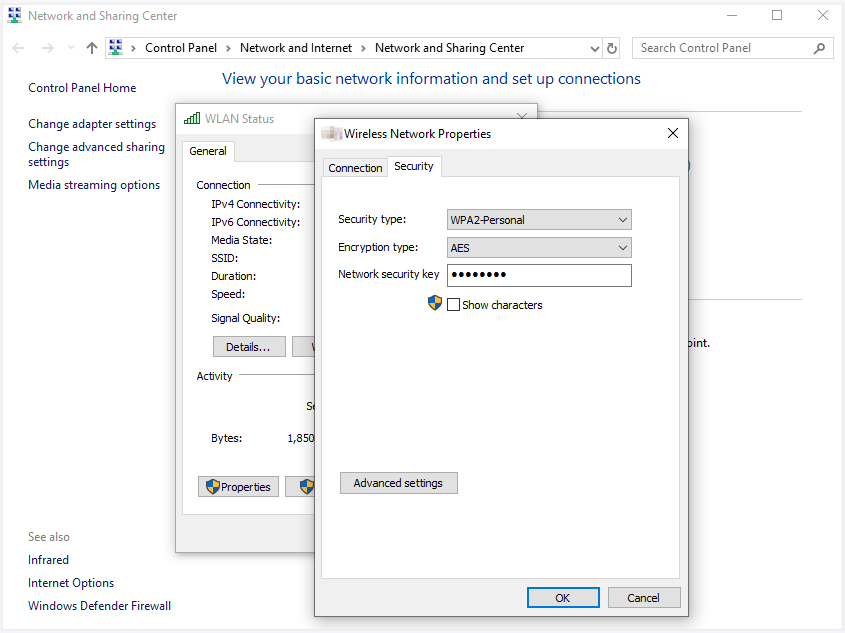
- Click your active network.
- Click the Wireless Properties button.
- Click the Security tab.
- Tick the “Show characters” box under “Network Security Key”. Then you can see your WiFi password. You can copy it and send it to others. They can enter the password on their devices to connect to your WiFi network.
- Press Windows + R, type cmd, press Ctrl + Shift + Enter to open the elevated Command Prompt.
- In the Command Prompt window, type the command netsh wlan show profiles and press Enter to display all available networks on your PC.
- Next, type the command netsh wlan show profile NetworkName key=clear. Replace “NetworkName” with the name of your WiFi network. Press Enter to show your WiFi password.
- Then you can copy and share the password with others.
Also read: [Fixed] Error Network Changed/A Network Change Was Detected
Conclusion
Sharing your WiFi password is straightforward on iPhone, Android, PC, and Mac. This post introduces some methods to make the process easy and secure. Happy browsing online with WiFi!






