


Linking Facebook and Instagram accounts is a convenient way to manage content publishing on the two platforms at the same time. However, sometimes you might want to customize a unique content operation strategy for each platform. That’s why you’re searching for a guide on how to unlink Facebook and Instagram.
You’re in the right place. Next, we’ll walk you through detailed steps on unlinking Instagram and Facebook, on both mobile and desktop.
Benefits of Unlinking Facebook and Instagram
Unlinking your Facebook and Instagram accounts can give you more control over your content and how each platform works for you. Here are some reasons why users choose to separate the two accounts.
- Better control over posting and audience
- Reduced the chance of issues carrying over between accounts
- Independent privacy and security settings
- Easier to manage platforms separately
To protect your Facebook and Instagram accounts, you can:
- Lock your Facebook profile
- Lock your Instagram profile
- Make your Facebook and Instagram accounts private
- Use a VPN
Tip: LightningX VPN is one of the best VPNs for Instagram and Facebook. It is fast, secure, and affordable. Based on AES-256-bit encryption, LightningX VPN encrypts your internet traffic and keeps your online data safe. It follows a strict no-logs policy, promising not to collect or track your online activities. It offers 2,000+ servers in 70+ countries and is compatible with all popular platforms. Try it out now!

How to Unlink Facebook and Instagram: Step-by-Step Guide
You can unlink Facebook and Instagram accounts via Facebook or Instagram.
Unlink Instagram and Facebook Via Facebook
Here’s how to unlink Facebook and Instagram via the Facebook mobile app or desktop website.
Unlink via the Facebook mobile app
1. Open the Facebook app and log in to your account.
2. Tap the Menu icon (three horizontal lines) at the top left.
3. Scroll down to choose Settings & privacy > Settings.
4. Tap Accounts Center. You can all your connected accounts here.
5. Select the Instagram profile you want to unlink and tap Remove next to it.
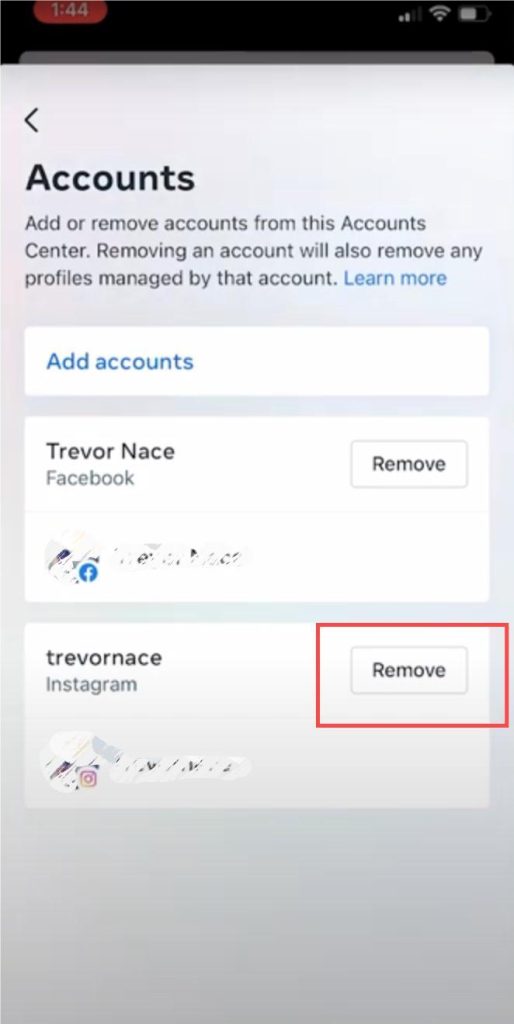
6. Confirm the action to unlink your Facebook and Instagram accounts.
Unlink via the Facebook website
- Go to the Facebook website on a browser and log in to your account.
- Click on the profile picture at the upper right of the home page and select Settings & privacy.
- Click Settings.
- Under Permissions, choose Linked accounts.
- Next to Instagram, click View.
- Click Disconnect account.
- Choose Yes, disconnect to confirm the action.
Related: Facebook Logged Me Out: Common Causes and Fixes
Unlink Facebook and Instagram Via Instagram
Here’s how to unlink Facebook and Instagram via the Instagram mobile app or desktop website.
Unlink via the Instagram mobile app
Step 1. Go to the Instagram app on your iOS or Android device.
Step 2. Tap your profile icon at the bottom right of the Instagram home page.
Step 3. Tap the Menu icon (three lines) in the top-right corner of your profile page.
Step 4. Select Settings at the top of the menu list.
Step 5. Scroll down and tap Accounts Center in the settings.
Step 6. Tap Accounts.
Step 7. Select the account you want to unlink and tap Remove.
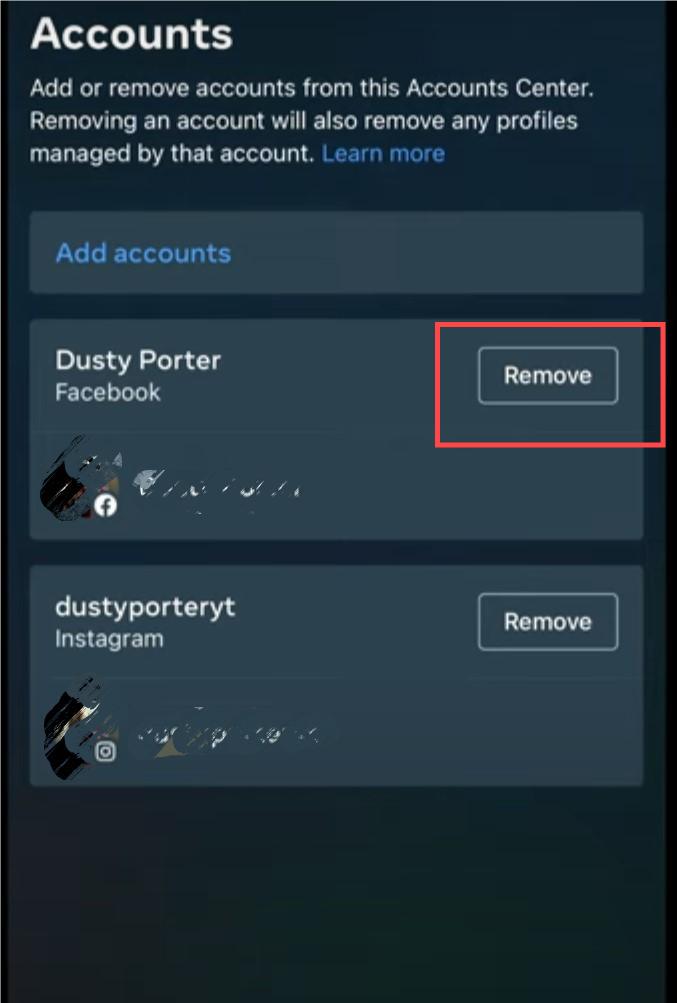
Step 8. Tap Continue to confirm the action. If both accounts share the same login password, you’ll be required to change one of the passwords.
Unlink via the Instagram desktop app
Step 1. Go to the Instagram website on a browser.
Step 2. Log in to your Instagram account.
Step 3. Click on More at the bottom left, which looks like three horizontal lines.
Step 4. Click Settings > See more in Account Settings (blue words) under Accounts Center.
Step 5. On the left side menu, click Accounts. Then, select the account you want to unlink and tap the Remove button beside it.
Step 6. Click Continue to confirm unlinking the Facebook account. If both accounts share the same login password, you’ll be required to change one of the passwords.
Related: Can’t Log into Instagram on Phone/PC? Here Are 10 Solutions
How to Stop Automatic Sharing Without Unlinking Facebook and Instagram
In most cases, after linking Facebook and Instagram, content is automatically shared from Instagram to Facebook by default, while Facebook content is not shared to Instagram unless manually enabled. If you only want to stop cross-posting, you can turn off automatic sharing on Instagram without unlinking the two accounts.
Step 1. Open the Instagram app and go to your profile page. You can also access your profile via the Instagram website.
Step 2. Tap the Menu icon (three lines) in the upper-right corner and select Settings. On the web version, click More (three lines) in the bottom-left corner and choose Settings.
Step 3. Scroll down and select Account Center, where linked Facebook and Instagram account settings are managed.
Step 4. Select Sharing across profiles, then choose Posts and Stories. Turn off the toggles to stop Instagram content from being automatically shared to Facebook.
What Will You Lose After Unlinking Facebook and Instagram
After you unlink your Facebook and Instagram accounts, you’ll lose access to the following features.
- Cross-platform management and content sharing: After unlinking, you will no longer be able to automatically share Instagram posts to Facebook. This feature saves time and is especially useful for creators and small businesses looking to reach a broader audience across platforms.
- Account recovery options: Unlinking your accounts removes an additional recovery method. When accounts are linked, one platform can help verify or recover access to the other if issues occur.
- Integrated social experience: Once unlinked, interactions between Facebook and Instagram become more limited. You won’t receive cross-platform friend or follower recommendations, and content sharing between the two platforms will no longer be seamless.
Conclusion
Unlinking Facebook and Instagram is a straightforward process, but it’s not always necessary for everyone. While unlinking can give you more control over privacy and account management, linking the two platforms still offers benefits such as easier content sharing and account recovery options.
If your main goal is simply to stop automatic cross-posting, disabling the sharing settings on Instagram may be a better solution. Ultimately, the right choice depends on how you use each platform and which features matter most to you.






