


Are you looking for a guide on how to update your PS5 controller? You’re in the right place. Updating your PS5 controller is quick and easy, and it helps ensure better performance, improved stability, and access to the latest controller features. In this guide, you’ll learn everything you need to know about updating your PS5 controller, step by step.
How to Update PS5 Controller Using the Console
You can update your PS5 DualSense controller using your PS5 console. Updates can be applied automatically when prompted or manually through the settings.
Method 1: Automatic Update
This is the simplest method to update your PS5 controller. If there’s an update for your PS5 controller, once you connect the controller to the PS5 console, an update prompt should appear. Here are the steps.
1. Turn on your PS5 console.
2. Connect your PS5 controller to the PS5 using a USB cable.
3. If a controller update is available, a prompt will appear with options like “Notify After 24 Hours” and “Update Now.”
4. Highlight and select “Update Now.”
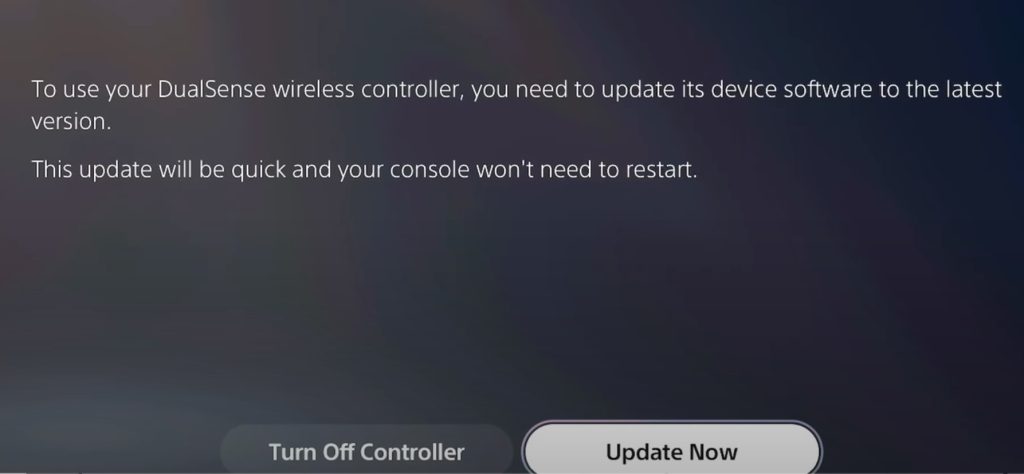
5. Wait while the update downloads, installs, and verifies. Do not disconnect the controller.
Once complete, your controller is ready to use with the latest firmware.
Method 2: Manual Update via Settings
If you didn’t see the update prompt on your PS5, try accessing the settings to manually update the PS5 controller. Here’s how.
- Pair your controller with the PS5 console (using wireless or wired connection). The wired connection is recommended because it’s more stable.
- Go to Settings > Accessories > Controller (General).
- Select DualSense Wireless Controller Device Software.
- Follow the on-screen instructions to complete the update.
Tip: You can now play games with your updated PS5 controller. To enjoy more games and a safer gaming experience, use LightningX VPN to bypass the geo-restrictions and protect your gaming.
LightningX VPN is one of the best VPNs for PS5, thanks to its excellent performance and robust security. It offers 2,000+ servers in 70+ countries, all with no data or bandwidth limits. Based on the top-tier 256-bit encryption cipher, it keeps your personal information and online data safe.
How to Update PS5 Controller via PC
You can also update your PS5 controller via a Windows 10/11 PC using the PlayStation Accessories app, with either a wired or wireless connection.
Update PS5 Controller via PC Using a USB Cable
It’s recommended to use a USB cable when updating your PS5 controller on a PC, as a wired connection is more stable and prevents the controller from disconnecting during the update. Here are the detailed steps.
- Download the PlayStation Accessories app on your PC from the PlayStation website to update the firmware of your PS5 controller.
- Launch the app and follow the on-screen instructions to install it.
- Use a USB cable to connect your PS5 controller’s USB Type-C port to a compatible port on your PC.
- Make sure the cable stays connected.
- Open the PlayStation Accessories app on your PC and check if there’s an update for your PS5 controller. If there is, click on the Update button and follow the on-screen instructions to finish the update.
Wirelessly Update PS5 Controller via PC
You can also update your PS5 controller wirelessly using a PC. Here are the detailed steps.
1. Download and install PlayStation Accessories from the PlayStation website.
2. Connect your PS5 controller to the PC wirelessly.
- Put the controller into pairing mode by holding the Create and PS buttons for about 3 seconds until the light bar flashes.
- Enable Bluetooth on your PC and pair the controller.
3. Once connected, open the PlayStation Accessories app.
4. If an Update option is available, select it and follow the on-screen instructions to update your PS5 controller.
How Long Does It Take to Update the PS5 Controller?
Updating a PS5 controller usually takes 5–10 minutes, depending on the update size, internet speed, and PS5 performance. The process involves downloading, installing, and verifying the update. Make sure your controller is charged, and your internet connection is stable to avoid interruptions.
Do I Have to Update the PS5 Controller?
Updating the PS5 controller is not mandatory, but it can bring these potential benefits.
- Improved connection ability: Firmware updates often optimize the controller’s Bluetooth connection, reducing connectivity issues and latency, allowing the controller to sync more stably with the PS5 console and providing a smoother gaming experience.
- Enhanced compatibility: Updates can improve the compatibility of the PS5 controller with more games. The PS5 controller needs the latest version to enjoy all the features of some games. For example, “Devil May Cry 5: Special Edition” uses DualSense’s haptic feedback and adaptive triggers.
- Fixed known issues: Controller updates address discovered bugs, such as problems with vibration, haptic feedback, or adaptive triggers, ensuring all functions work properly.
- Optimized battery life: Firmware updates can improve the controller’s battery management system, extending playtime and reducing the need for frequent charging.
Troubleshoot Issues When Updating PS5 Controller
If you encounter issues while updating your PS5 (DualSense) controller, try the following solutions:
- Check your internet connection: Ensure your PS5 or PC has a stable internet connection to download the controller firmware.
- Restart your PS5 or PC: A simple restart can fix temporary connection or recognition issues.
- Use a wired connection: Connect the controller to the PS5 or PC with a USB cable to prevent disconnection during the update.
- Retry the update: If the update fails, reopen the update process and try again.
- Update your PS5 system software (recommended): Make sure your PS5 system software is up to date to ensure compatibility.
- Contact PlayStation Support: If the problem persists, Sony Support can provide official assistance or repair options.
How to Update PS5 Controller – FAQs
Q: Does updating the PS5 controller fix stick drift?
Not necessarily. Stick drift on a PS5 controller is usually caused by hardware wear or calibration issues, not the system software. Updating the controller or PS5 system may improve performance or fix minor software-related issues, but it won’t fix physical drift.
If you experience stick drift, you can try:
- Recalibrating the controller
- Resetting the controller
- Cleaning around the analog sticks
For persistent drift, repair or replacement may be necessary.
Q: How to revert the PS5 controller update?
You cannot revert a PS5 controller update. Once installed, firmware updates are permanent, and Sony does not provide a way to roll back. If you experience issues after an update, you can try resetting the PS5 controller or re-pairing it with the console.
If the issues still persist, try contacting Sony support or directly replacing the device.






