



PS3 updates are still available today. The latest version improves system stability, enhances security, and optimizes overall performance. Keeping your PS3 up to date also ensures better compatibility with games and online features.
In this guide, you’ll learn how to update your PS3 step by step, whether you’re updating via the internet or using a USB drive.
The Benefits of PS3 Update
Here are several benefits of updating your PS3 system software.
New features to experience
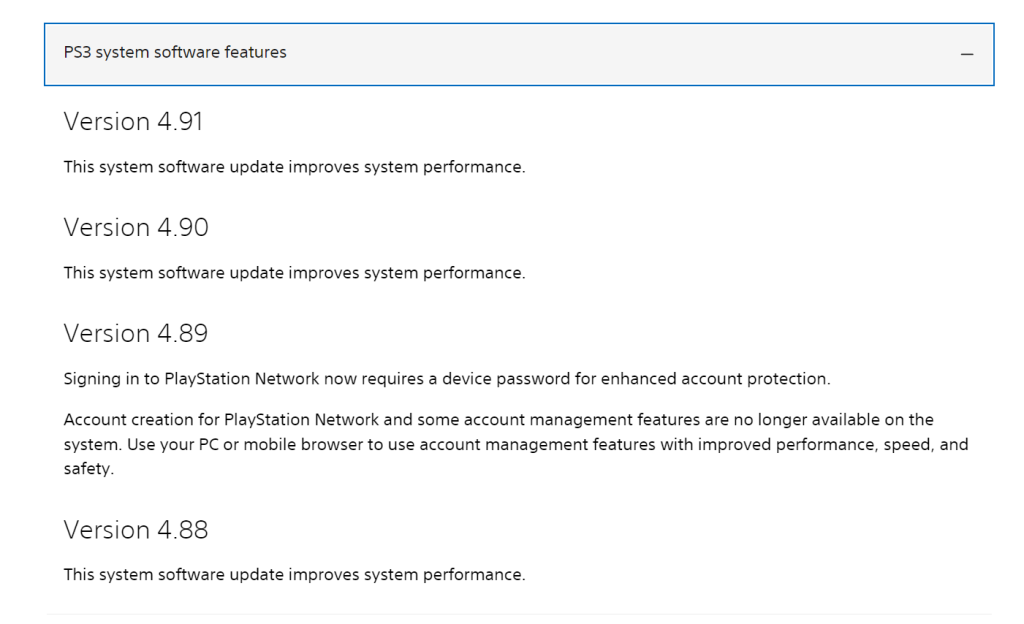
By updating to the new PS3 system version, you can enjoy more practical and interesting features in your PS3. For example, the latest version 4.91 improves the system performance and allows users to renew the Blu-ray player encryption key.
Compatibility with specific games
Some games require the latest PS3 system software. If you don’t update your PS3, the game might not open or run properly on your PS3.
Improved performance
By updating to the latest PS3 system, you can play games on PS3 more smoothly and stably.
Improvement of security
According to Sony, every new PS3 system software enhances security. The new system software will protect your privacy and data in games.
Tip: LightningX VPN can protect your online data on PS3 while unblocking the global game library. It has over 2,000 servers in 70+ countries, with popular locations like the US, Canada, Australia, and Japan. It provides free servers on Android and iOS. Come and try it now!
The PS3 Update Guide: Using PS3/Computer/Phone
There are two ways to update your PS3 system.
Way 1. Updating PS3 Via the PS3 Console
You can directly update the PS3 using the online PS3 console. Here are the steps.
Step 1. Turn on your PS3 console by slightly pressing the power button on your PS3.
Step 2. On the Home screen, go to Settings > System Update.
Step 3. Select the Update via Internet option. The system will start downloading the latest update file via the internet. After the download is over, follow the on-screen instructions to finish the PS3 update.
Note: Make sure the PS3 is fully charged before updating it. Shutting off can cause the update to fail.
Way 2. Updating PS3 Via a Computer
If your PS3 won’t connect to Wi-Fi, use a PC or Mac to finish the update. However, you should prepare a formatted USB drive as well. Here are the detailed steps.
Step 1. Prepare a formatted USB drive.
- Transfer the files from the USB drive to a safe place.
- Plug the USB drive into the computer.
- Open File Explorer > This PC.
- Right-click on the USB drive and select Format.
- Choose FAT32 or exFAT.
- Click Start > Yes to start formatting your USB drive.
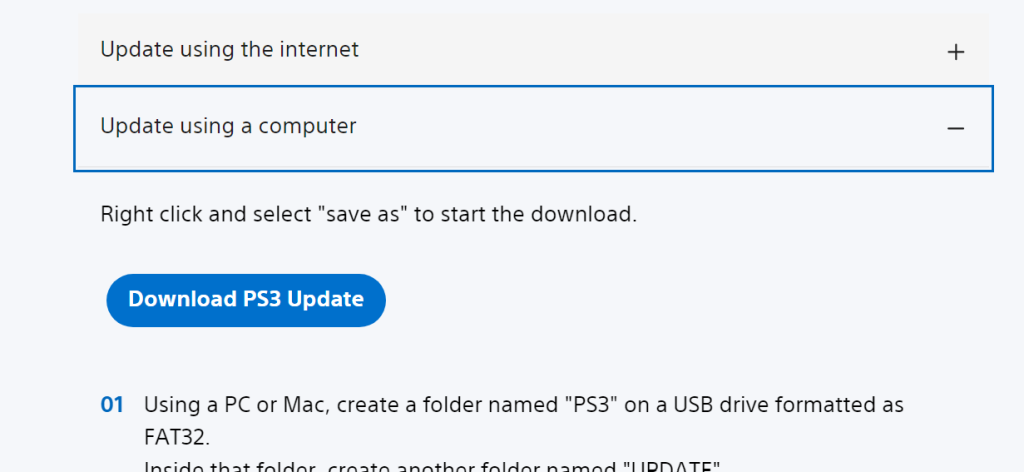
Step 2. On the formatted USB drive, create a PS3 folder, then create an Update folder inside it. The folder path should be: PS3 > Update
Step 3. Download the PS3 update file onto the formatted USB drive.
- On the PC, go to the PS3 system software website on the browser.
- Scroll down to the How to update PS3 system software section.
- Expand the Update using a computer section, and click on the Download PS3 Update button to download the update file on your computer. Note: Don’t change the name of the update file (PS3UPDAT.PUP).
- Save the update file to your formatted USB drive.
Step 4. Update your PS3.
- Plug the USB drive into your PS3 (make sure it’s powered on).
- Go to Settings > System Update > Update via Storage Media.
Step 5. Select the update file in the USB drive, and follow the on-screen instructions to complete the PS3 update.
Way 3. Updating PS3 Via a Phone
If you don’t have a computer, you can also use a phone to update PS3 system software. However, you can’t directly update it from the PlayStation mobile app. That means you will use a formatted USB drive to do this. Here are the steps.
Step 1. Connect your phone to a formatted USB drive using an OTG cable.
You can format a USB drive on an Android phone. Here’s how.
- Connect the USB drive to your Android phone using the OTG cable.
- Go to Settings > Storage, tap on the USB drive, and select Format.
- Once formatting is complete, open the USB drive and create a folder named PS3, then create an UPDATE folder inside it.
Step 2. Download the PS3 update file onto the formatted USB drive.
- Open a browser on your phone and go to the PlayStation System Software website.
- Scroll down to find the How to update PS3 system software section.
- Expand the Update using a computer tab, and you will see the Download PS3 Update button.
- Long-press the button and choose Save as to download the PS3 update file into the UPDATE folder inside the USB drive.
Step 3. Plug the USB drive into the powered-on PS3 console.
Step 4. Go to Settings > System Update > Update via Storage Media.
Step 5. Select the update file on the USB drive and follow the on-screen instructions to update your PS3.
Related: How to Update PS4: A Full List of Updating Methods
Check If Your PS3 System Software Is the Latest
Once the update is over, you can go to Settings > System Information to check if your PS3 system software is the latest.
Troubleshooting Issues During PS3 Update
During the PS3 update process, you may encounter various issues. Don’t worry—check the solutions below to resolve them.
Update File Not Recognized
- Check Folder Structure: Make sure the folder structure on the USB drive is correct: PS3/UPDATE/PS3UPDAT.PUP.
- File Naming: Ensure the update file is named exactly “PS3UPDAT.PUP”.
- USB Format: Confirm that the USB drive is formatted as FAT32.
Download Update Failed
- Stable Internet Connection: Make sure your internet connection is stable. Restart your router if necessary, and check whether the PlayStation Network (PSN) is experiencing outages.
- Re-download: Download the update file again from the official PlayStation website to ensure it is complete and not corrupted.
Related: Is PlayStation Network Down? Here’s How to Check and Fix
Stuck During PS3 Update
- Restart PS3: Restart your PS3 and try the update process again.
- Safe Mode Update: If the PS3 fails to start normally, try updating the system in Safe Mode. Turn off the PS3, then press and hold the power button until you hear two beeps. Release the button and select “System Update.”
Update Interrupted or Failed
- Stable Power Supply: Make sure the PS3 is connected to a stable power source during the update to prevent power interruptions.
- USB Drive Issues: Try using a different USB drive and ensure the drive is functioning properly.
PS3 Update – FAQs
Q: How to turn on auto-update on PS3?
The PS3 allows you to enable automatic system software updates so the console can download updates automatically when connected to the internet.
To turn on auto-update on PS3:
- Go to Settings on the PS3 home menu.
- Select System Settings.
- Choose Automatic Update.
- Set System Software Update to On.
Once enabled, the PS3 will automatically download system updates when the console is in standby mode and connected to the internet.
Q: How old is PS3?
The PlayStation 3 (PS3) was first released by Sony in November 2006.
As of today, the PS3 is over 18 years old.
Despite its age, the PS3 is still used by many players for classic games, Blu-ray playback, and digital content. However, Sony officially discontinued PS3 hardware production in 2017, and system updates are now infrequent and mainly focused on stability and security improvements.






