


Do you know how to activate your Twitch account on other devices? To log in to your Twitch account on devices like smart TVs, Xbox, PlayStation, and Roku, you can use a dedicated activation code. This article provides detailed linking instructions and solutions to related issues.
What Is “Twitch Activate”?
Twitch activation or linking authorizes your Twitch account on devices where direct username/password entry is inconvenient, such as smart TVs, PlayStation, Xbox, Roku, etc.
When you open the Twitch app on your PS5, PS4, Xbox, or TV and attempt to log in, the system will display a string of code. You then need to log into your Twitch account on your phone or computer browser, visit the Twitch activation page, and enter this code in the designated field to complete the account authorization for that device.
This activation method eliminates the need to enter your account credentials on the TV or gaming console, making the process more convenient while also enhancing account security.
After linking your account, you can use your Twitch account to stream or watch content across all authorized devices.
Twitch Activate: A Guide on TV/Gaming Console/Roku
The process for binding your Twitch account to smart TVs, PS5/4, Xbox, and Roku is very similar. Here are the detailed steps.
Method 1: Activate Your Twitch Account Using an Activation Code
Step 1. Download and open the Twitch app on your smart TV, Xbox, PlayStation, or Roku device.
Step 2. Tap the “Sign In” button within the Twitch app. A Twitch activation code will appear on the screen.
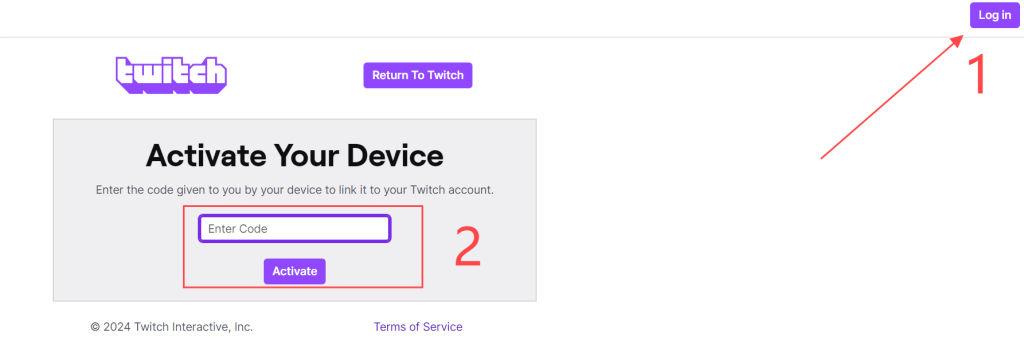
Step 3. On your PC or mobile browser, go to https://www.twitch.tv/activate and click the “Sign In” button in the top-right corner to log in to your Twitch account.
Step 4. On the Twitch account activation page, enter the activation code displayed on your device and click “Activate.” Once complete, your Twitch account will be successfully linked to the current device. You can now access the Twitch homepage on this device and watch your favorite live streams.
Method 2: Activate Your Twitch Account by Scanning a QR Code
You can also complete the “Twitch Activate” process by scanning the QR code displayed on your device. Follow these steps:
- Open the Twitch app on your TV, game console, Roku device, or similar, and tap “Sign In.”
- A QR code for activating your Twitch account will appear on the screen.
- Open your phone or tablet.
- Use the built-in QR code scanner in Google, Safari, or another browser to scan this QR code.
- Follow the on-screen prompts to link your Twitch account to the device.
Tip: If the QR code for Twitch activation doesn’t work, it may have expired. Return to the Twitch login page on your device to refresh the QR code. If the issue persists, verify your device is connected to a working network.
Resolving Common Issues During “Twitch Activate”
Sometimes you might find your Twitch account won’t link to a device. This could be due to device, app, or network issues. Don’t worry—here’s how to fix it.
Method 1. Switch to a Better Wi-Fi Network
If your PlayStation, TV, Roku, or Xbox cannot connect to Wi-Fi or the internet, the Twitch activation code will not appear. You can resolve this by connecting your device to a functional Wi-Fi network.
Method 2. Change Your IP Address to Assist with Twitch Activation
If Twitch is restricted in your country, you won’t be able to download or activate Twitch on your device. You can use a VPN to bypass geo-restrictions. LightningX VPN is a secure and reliable VPN. It offers blazing-fast speeds when connecting to different server nodes. Here are its key features.
- It features robust encryption protocols like WireGuard and Shadowsocks. You can change your IP address to over 2,000 servers across more than 70 countries.
- You can search for its app directly on platforms like Apple TV, Android TV, macOS, Android, iOS, Windows, and more.
- LightningX VPN also supports Chrome, Edge, and Firefox extension stores.
- It offers a 30-day money-back guarantee.
Method 3. Check the Activation Code and Remove Spaces
The Twitch activation code displayed on PlayStation 5/4 may contain a space. However, when entering this code on the Twitch.tv/activate website, you should remove the space.
Method 4. Use a Different Browser to Activate Twitch
If your browser crashes or fails to load, it won’t support Twitch activation. Switching browsers to access the Twitch activation site may resolve the issue.
How to Register a Twitch Account
If you don’t have a Twitch account yet, you can register one on your PC or mobile device. Here are the detailed steps.
Step 1. Go to https://www.twitch.tv. On mobile, download the Twitch app from the App Store or Google Play Store.
Step 2. Click the “Sign Up” button in the top-right corner of the page. A window will pop up displaying fields for username, password, birthdate, and phone number.
Step 3. Enter your information in the respective fields and click the “Sign Up” button at the bottom. A verification code will then be sent to your phone.
Step 4. Enter the six-digit code in the field and click “Submit.” Your Twitch account should now be successfully registered on your device.
Step 5. Log in to your Twitch account for subsequent linking.
Conclusion
Twitch activation on different devices is straightforward. Simply obtain the activation code and enter it on the Twitch activation website. After completing the process, you can enjoy an enhanced viewing experience on other devices.






