


How to update PS4? This is simple. You can directly update it on the PS4 console or use a USB disk to finish the update process.
Updating PS4 gives you several benefits, such as better security, stability, and performance. You can enjoy many new features of PS4. So, it is worth updating.
Keep reading through the post. You will learn everything about updating the PS4.
Things to Do Before Updating Your PS4
To update your PS4 smoothly and avoid potential issues, make sure to complete the following preparations first.
Check the Internet Connection
To update your PS4, the system needs to download the official update file, which requires a stable and reasonably fast internet connection. Therefore, make sure your Wi-Fi or wired network is stable throughout the update process to prevent interruptions or update failures.
Prepare a Formatted USB Drive (Update PS4 Via PC or Android Phone)
If you plan to update your PS4 using a computer or phone, you’ll need a formatted USB drive to store the PS4 update file. The USB drive must be formatted correctly so the PS4 system can recognize it.
On a PC
- Plug the USB drive into a USB port on your PC.
- Open File Explorer.
- Select This PC from the left menu.
- Right-click the USB drive and choose Format.
- Under File System, select FAT32 or exFAT.
- Click Start > OK to begin formatting.
- After formatting is complete, open the USB drive and create a folder named PS4. Then, create another folder named UPDATE inside the PS4 folder. Folder structure example: USB drive > PS4 > UPDATE
This folder structure allows the PS4 system to quickly detect the update file.
On an Android Phone
Note: Formatting a USB drive on a phone is usually supported only on Android devices. iPhones generally do not allow direct USB formatting.
- Connect the USB drive to your Android phone using a USB OTG adapter.
- Go to Settings > Storage, tap the USB drive, and select Format.
- Once formatting is complete, open the USB drive and create a folder named PS4, then create an UPDATE folder inside it.
How to Update PS4: Using a PS4/Computer/Phone
Updating PS4 Via PS4
You can directly update the PS4 system software from the PS4 console. Here’s how.
Step 1. Open the PS4 and sign in to your account. Just press the power button on the console to turn it on. After the PS4 is opened, press the “X” button on the controller to sign in to your account.
Step 2. At the bottom menu, select Settings, which looks like a toolbox.
Step 3. Select System Software Update from the list on the Settings page.
Step 4. Choose “Next”. Then, the available update will appear on the screen.
Step 5. Choose “Accept” to start the PS4 update.
Updating PS4 Via Computer
You can also use a computer to help update your PS4.
Step 1. Plug the formatted USB drive into your computer. You can check the “Things to Do First Before Updating PS4” part to format the USB disk. If there’s an old PS4 update file on the USB drive, delete it first to avoid conflicts with the latest update file.
Step 2. Download the PS4 update file.
- Go to the official PlayStation System Software website.
- Scroll down to the “How to update the PS4 console system software” section, then click on “PS4 console update file” to download the update.
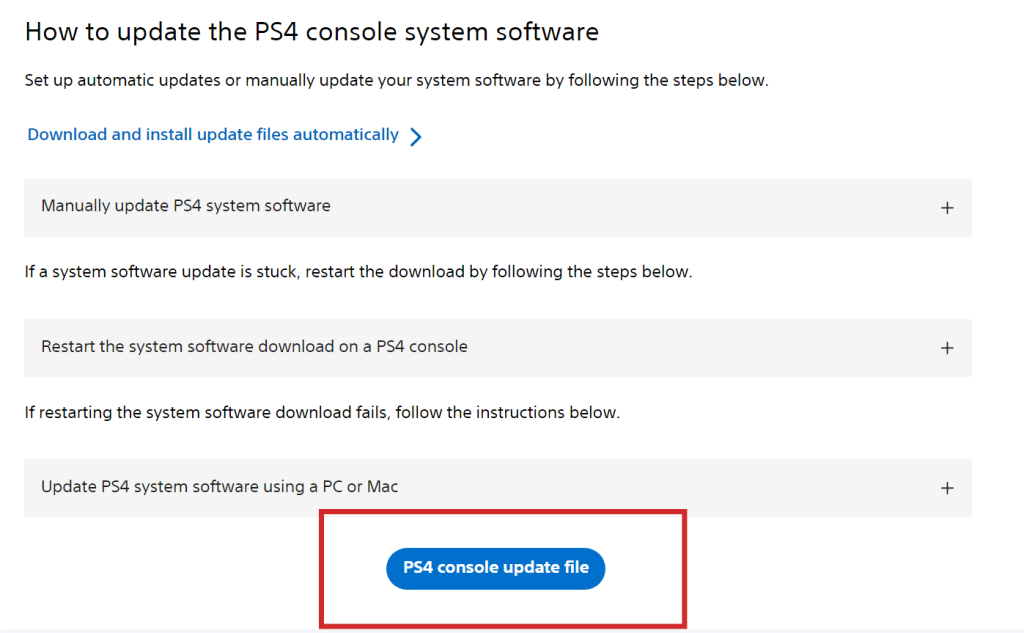
Once downloaded, you can check your browser’s download list (usually in the upper-right corner) to locate the file.
Step 3. Copy or drag the PS4 update file into the UPDATE folder on the USB drive. After copying is complete, safely remove the USB drive from your computer.
Step 4. Power off the PS4 completely. Press and hold the power button until the indicator light turns off.
Step 5. Insert the USB drive into the powered-off PS4 console.
Then, choose one of the following methods:
- System Menu Method: Turn on the PS4 and go to Settings > System Software Update.
- Safe Mode Method (Recommended): Press and hold the power button until you hear two beeps to enter Safe Mode. Select Update System Software > Update from USB Storage Device.
Step 6. Follow the on-screen instructions to complete the PS4 update. Do not turn off the console or remove the USB drive during the update process.
Tip:
You can use LightningX VPN to enjoy many geo-restricted games on your PS4. This powerful VPN tool adopts strong encryption protocols like WireGuard and Shadowsocks. It offers 2,000+ servers in 70+ countries such as the US, Canada, Japan, etc. It supports Windows, Android, macOS, iOS, Apple TV, Linux, and Android TV. Come and try it!
Updating PS4 via Android Phone
If you don’t have access to a PC, you can use an Android phone to download the PS4 update file and update your console using a USB drive.
Step 1. Connect the USB drive to your phone. Use a USB OTG adapter to connect your Android phone to a formatted USB drive.
Step 2. Go to the PlayStation System Software website on your phone.
Step 3. Scroll down and locate the “PS4 console update file” button.
Tap it to download the update file. Make sure the file name remains PS4UPDATE.PUP and do not rename or extract it.
Step 4. Copy the update file to the USB drive. Open the File Manager on your phone and locate the downloaded update file (usually in the Download folder).
Copy or move the file into the UPDATE folder on the USB drive: USB drive > PS4 > UPDATE > PS4UPDATE.PUP
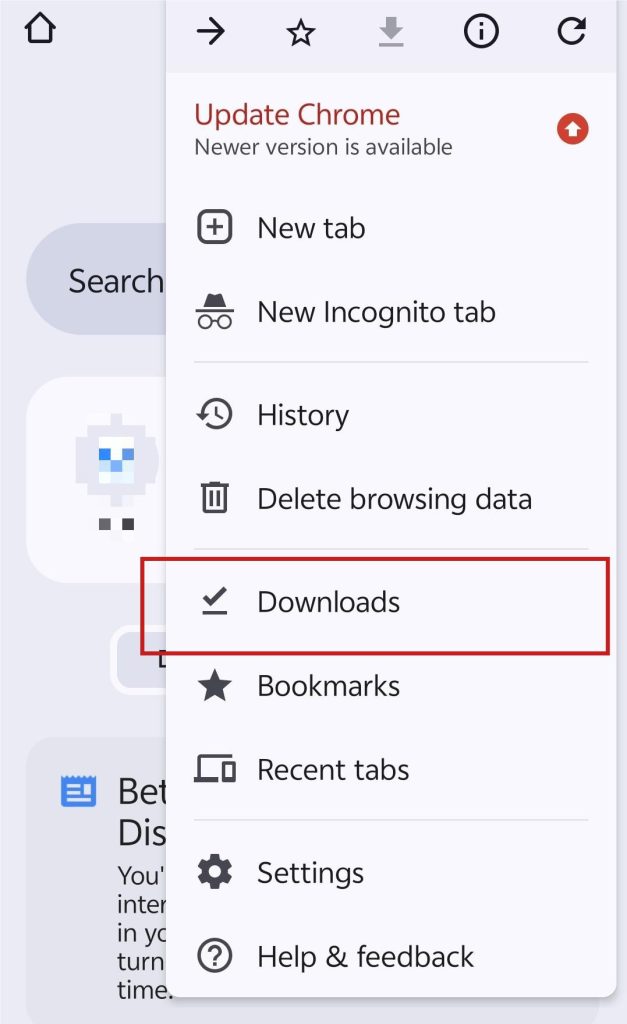
Step 5. Update the PS4 using the USB drive. Safely remove the USB drive from your phone and insert it into the powered-off PS4 console.
You can then update the PS4 by following the same steps used in the Updating PS4 via Computer section, either through:
- System Settings, or
- Safe Mode (recommended)
Note: You can’t update PS4 by using the PlayStation app on your phone. The mobile app only allows you to update the games or applications on the PS4.
Tips for Updating PS4
Here are some helpful tips for updating the PS4 more easily and quickly.
How to Download an Update File Faster on PS4
Downloading an update file on PS4 can sometimes be slow. However, the following tips may help improve the download speed and reduce update issues.
Method 1. Switch to a faster and more stable network to improve download performance. If possible, switch to a stronger Wi-Fi network or use a wired LAN connection for better stability.
Method 2. Close all games and use Rest Mode. Before downloading the update, close all running games and applications. Then, put your PS4 into Rest Mode, which allows the system to focus on downloading updates with minimal background activity.
Method 3. Make sure your PS4 has enough free storage space for the update. Deleting unused games or applications can help prevent update failures or installation errors caused by insufficient storage.
Method 4. If your PS4 is connected through a VPN and the download speed is unusually slow, try temporarily disabling the VPN and downloading the update again.
Turn on Auto Update on PS4
If you don’t want to manually update PS4, turn on the auto-update on your PS4. Here are the brief steps.
- Go to Settings on your PS4.
- Select System > System Software > System Software Update and Settings.
- Turn on “Download Update Files Automatically and Install Update Files Automatically”.
Note: The auto-update should start only when the PS4 is connected to the Wi-Fi.
Benefits of Updating PS4
New features of PS4 to enjoy
After being updated, the PS4 will get more features. Sony has always improved the PlayStation system and performance. Even though the PS5 has come out, the update of the PS4 keeps going.
Enhanced security and performance of PS4
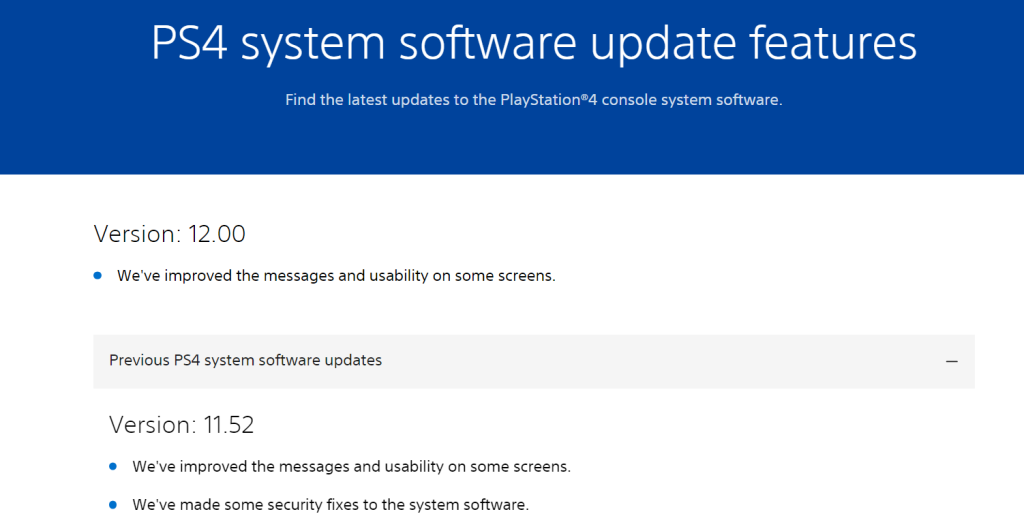
Sometimes the PlayStation network is down, which could be caused by the outdated system software. Fortunately, every update of the PS4 system software has improved its security and stability. You can check the changes from the PlayStation system software info.
Compatibility with the games you want to play
Some game requires a specific PS4 system. If the PS4 system software is outdated, the game process could go wrong.
Related: PS4 Controller Not Connecting? Full List of Solutions is Here
How to Update PS4 – FAQs
Q: How to update apps on PS4?
To update the apps on your PS4, choose the app you want to update. Then, press the Options button on your controller. Select Check for Update. Finally, follow the instructions to install the latest app version.
Q: How do I update my PS4 controller?
There are no update files for the PS4 controller. However, it can be synced to an updated PS4 console. You can also connect the PS4 controller to other devices like the PS5 console and PC.






